

Workflow template details in Mstnd: understand the path before you launch it
In this article
The workflow template details page in Mstnd shows a procedure exactly as it was designed: how many steps it has, how many active and completed transactions run on it, its version number, the details of each step (instructions, operation type, who handles it and its deadline), and where the path goes on a positive or a negative outcome. In the middle of the page a visual diagram shows the whole path, and from the top of the page you start a new workflow from the template or edit it.
Quick overview
| Item | Details |
|---|---|
| Module | Tasks and workflows |
| Where it is in the interface | «Workflow templates» → the «View» option in the «⋯» menu on the template card |
| Direct link | https://app.mstnd.sa/workflow/templates/<id> |
| Goal | Understand the procedure step by step before launching a transaction from it or editing it |
| Who it is for | Procedure designers, managers who approve procedures, and employees who will start transactions from the template |
| Video length | Under a minute (45 seconds) |
| What you will learn | Reading the template summary, understanding a step's data, reading the paths in the diagram, and using «Start workflow», «Edit» and the «⋯» options |
Watch the video
The video walks through the details of the «Marketing campaign approval — Sales» template: the summary, then the steps, then the details of the review step and its paths, then the color-coded diagram, and finally the action buttons at the top.
Why this feature?
Before you launch a transaction from a template, or before you approve a procedure a colleague designed, you need to understand it: How many steps does it have? Who handles each step? How long does it take? And what happens if the request is rejected halfway through?
Answering these questions from employees' memory, or from a written document that is not connected to the system, leads to surprises: a transaction that goes back to the start because of a rejection nobody expected, or a step whose deadline is shorter than reality. The template details page shows the procedure as the system will actually run it, not as it is supposed to be.
| Before the details page | With the template details page |
|---|---|
| The procedure is described in a separate file that may be outdated | The procedure on screen is exactly what the system runs |
| Nobody knows where a request goes back to when it is rejected | The paths define the next step for each outcome |
| Step deadlines are estimates | Each step has a set deadline in days |
| The procedure is hard to explain to new employees | The diagram explains the path visually |
| Nobody knows how much the procedure is used | The summary shows the active and completed transactions |
Value for the organization: Transparent procedures that can be reviewed, and decisions to change them that rest on an accurate understanding.
Value for the individual: Employees know what lies ahead before they start the transaction.
Where to find it
- Side menu → «Tasks and workflows» → «Workflow templates».
- Click the three dots «⋯» on the template card.
- Choose «View».
The direct link has this form: https://app.mstnd.sa/workflow/templates/<id>
To return to the template library, use the back arrow next to the template name at the top.
Concepts and terms
| Term | Meaning in Mstnd |
|---|---|
| Steps | The number of stages the procedure goes through |
| Active / Completed | The number of transactions currently running on the template, and how many of them have been completed |
| Version | The template's version number, such as v1 |
| Operation type | What the step asks for, such as «Create», «Review», «Approve» or «Circulate» |
| Who handles the step | How the assignee is determined, such as «The workflow initiator chooses who handles this step» |
| Deadline | The expected time to complete the step, in days |
| Paths | The step the procedure moves to on a positive outcome and on a negative outcome |
| Default path | The path followed on a positive outcome |
Step by step
Step 1: Read the template summary
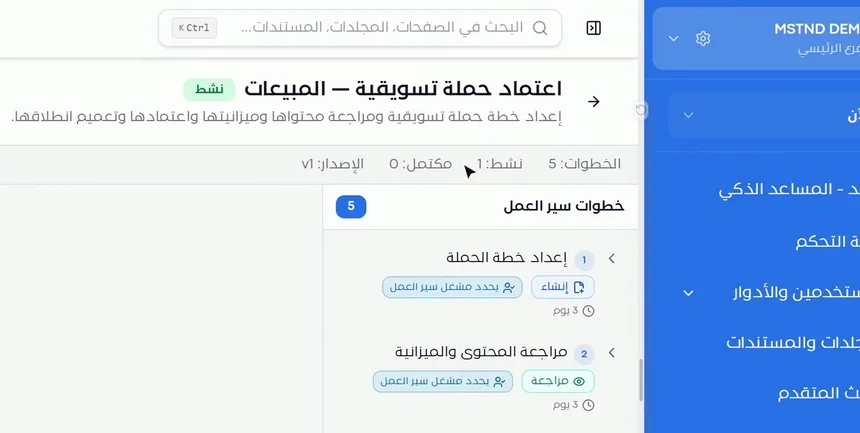
At the top of the page are the template's name, its status, such as «Active», and its description. Below them, a summary bar shows:
- Steps: the number of stages, such as 5.
- Active: the number of transactions running on the template right now.
- Completed: the number of finished transactions.
- Version: such as v1.
These numbers give you an idea of the procedure's size and how widely it is used. Active transactions mean that any change to the template deserves some thought first.
Step 2: Browse the steps and their summary data
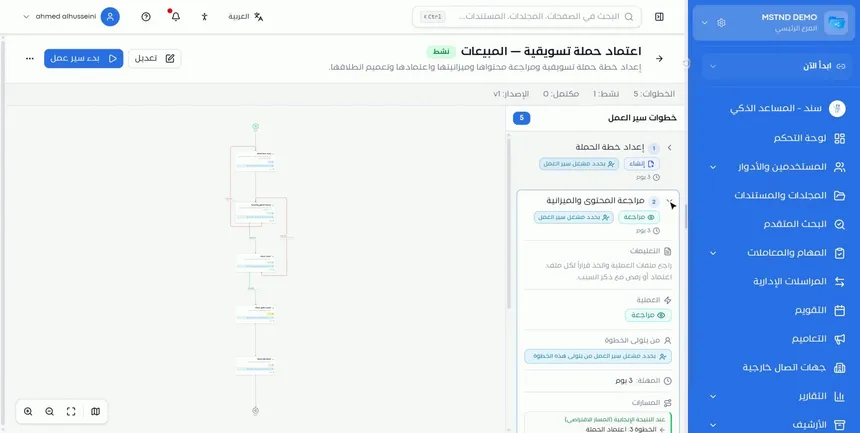
On the right side of the page is the «Workflow steps» list, and each step shows three short pieces of information:
- Operation type: such as «Create» for the «Prepare the campaign plan» step, and «Review» for the «Review content and budget» step.
- Who sets the assignee: such as «Set by the workflow initiator».
- Expected duration: such as «3 days».
Reading the list from top to bottom gives you the full sequence of the procedure. In the video's example: prepare the campaign plan, then review the content and budget, then approve the campaign, then announce the campaign launch, then archive the campaign file.
Step 3: Open a step to see its details and paths
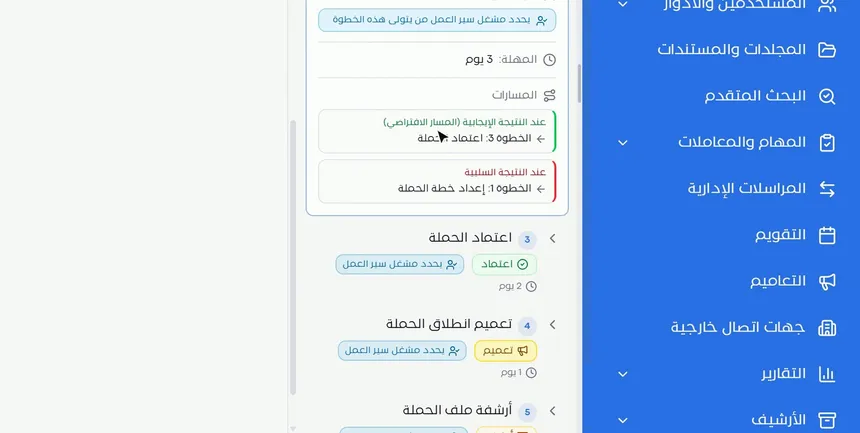
Click any step to expand it and show:
| Item | Example from the «Review content and budget» step |
|---|---|
| Instructions | Review the files of this operation and make a decision on each file: approve, or reject and state the reason |
| Operation | Review |
| Who handles the step | The workflow initiator chooses who handles this step |
| Deadline | 3 days |
| On positive outcome (default path) | Step 3: Approve the campaign |
| On negative outcome | Step 1: Prepare the campaign plan |
The «Paths» section is the most important part of the step, because it decides what happens to the transaction after each decision. In this example, if the reviewer rejects the plan, the transaction goes back to whoever prepared it for correction; if the reviewer accepts it, it moves on to approval.
Step 4: Read the diagram and its colors
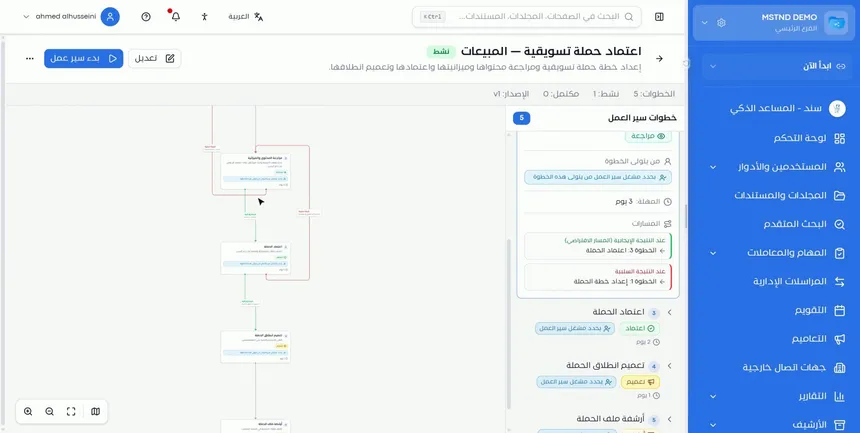
In the middle of the page, a diagram draws the whole path from the starting point to the end:
- Green line: the path on approval, labeled «Positive outcome».
- Red line: the return to an earlier step on rejection, labeled «Negative outcome».
Each box in the diagram shows the step's name, its short instructions, its operation type, who handles it and its deadline. At the bottom of the diagram are the zoom in and zoom out tools, fit to view, and the minimap.
The diagram is especially useful for spotting loops: if you see more than one red line going back to the first step, a rejection at a late stage will send all of the work back to the start. That may be intended, or it may be costly.
Step 5: Start a workflow or edit the template
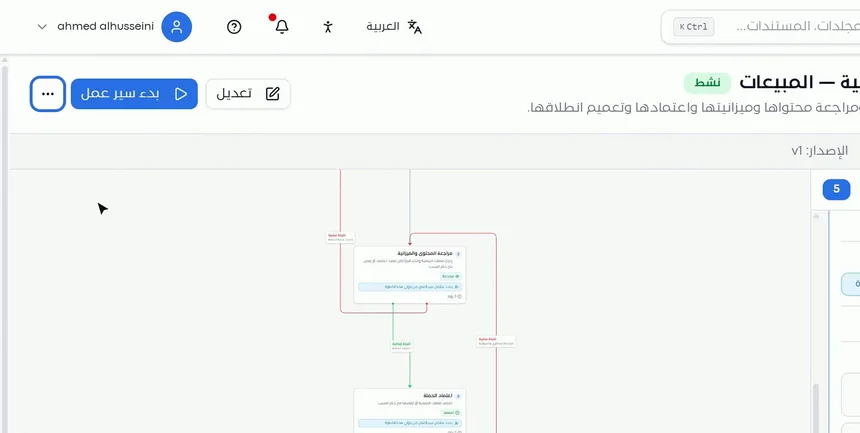
At the top of the page there are three elements:
- «Start workflow»: launches a new transaction from this template directly.
- «Edit»: opens the step builder to edit the template.
- The three dots «⋯»: contain «Template info», «Duplicate», «Archive» and «Delete».
Starting from the details page makes sense: once you understand the path, you launch the transaction knowing what lies ahead of it.
Options and their effect
| Option or setting | What it does | When to use it |
|---|---|---|
| Clicking a step | Shows its instructions, operation, who handles it, its deadline and its paths | To understand a particular step |
| Reading «Paths» | Shows the next step for each outcome | Before approving or editing the procedure |
| Diagram tools | Zoom in and out, fit to view, and the minimap | To read the whole path or look at it in detail |
| «Start workflow» | Creates a new transaction from the template | When you are ready to launch the procedure |
| «Edit» | Opens the step builder | To change the steps, deadlines or paths |
| «Template info» | Edits the template's basic information | To update the name, the description or the visibility |
| «Duplicate» | Creates a copy of the template | To build a similar procedure or to try out a change |
| «Archive» | Takes the template out of use | When the procedure is no longer followed |
| «Delete» | Removes the template | For test templates or templates created by mistake |
Practical scenarios
Scenario: A new manager in a government entity gets to know the department's procedures
Situation: A manager who has recently taken over the procurement department wants to understand the purchase request approval procedure before taking part in it.
What you do in Mstnd:
- Open «Workflow templates» and choose «View» on the purchase requests template.
- Read the summary to see the number of steps and active transactions.
- Open each step and read its instructions and its path on rejection.
- Use the diagram to see the whole path.
Result: Within minutes the manager understands their own role and the roles of others in the procedure, without waiting for anyone to explain it.
Scenario: The quality department in a contracting company reviews step deadlines
Situation: Drawing approval transactions are constantly delayed, and the quality department suspects that the deadlines are unrealistic.
What you do in Mstnd:
- Open the template details.
- Review the deadline of each step in the list.
- Compare them with reality in Transactions using the «Past due» filter.
- Click «Edit» to update the unrealistic deadlines.
Result: Deadlines that reflect reality, and fewer overdue transactions.
Scenario: A law firm launches a contract review transaction
Situation: A lawyer wants to launch a contract review procedure for a new client, and wants to make sure that the rejection path sends the contract back to them, not to the start.
What you do in Mstnd:
- Open the details of the contract review template.
- Read the paths in the review step and check the red line in the diagram.
- Click «Start workflow».
Result: The procedure starts with confidence, and the lawyer knows what will happen on each outcome.
Scenario: A school prepares a procedure similar to an existing one
Situation: The student activity plan approval procedure works well, and the school needs a similar procedure for external events with an extra approval step.
What you do in Mstnd:
- Open the details of the existing template.
- From «⋯», choose «Duplicate».
- Edit the copy by adding the new approval step.
Result: A new procedure built on a proven one, without affecting the transactions running on the original template.
How it relates to other features
- Workflow templates: the library from which you open the details of any template with the «View» option.
- Building a workflow template: the «Edit» button takes you to the step builder, where steps and paths are designed.
- Transactions: «Start workflow» creates a transaction that appears in the transactions list.
- Transaction details: the transaction diagram is the same diagram you see here, with the status of each step.
- Carrying out a task: the step's instructions become the description of the task that the assignee carries out.
- Starting a workflow on a document: another way to launch a transaction from a template, linked to a specific document.
Tips and best practices
- Read the template details before you use it for the first time, even if the procedure is familiar to you.
- Focus on the «Paths» section of each step: it is what determines the effect of rejection decisions.
- Add up the step deadlines to estimate the full duration of the procedure.
- Look in the diagram for red lines that go back to the start, and make sure they are intended.
- Review the instructions in each step: are they clear to an employee who sees them for the first time?
- Use the diagram to train new employees on the organization's procedures.
- Try major changes on a copy of the template before applying them to the original.
Warnings and common mistakes
FAQ
How do I view the details of a workflow template?
From the «Workflow templates» page, click the three dots «⋯» on the template card and choose «View».
How do I know what happens if a step is rejected?
Open the step and read the «Paths» section: it defines the step the procedure moves to on a negative outcome. This also appears as a red line in the diagram.
What do the green line and the red line in the diagram mean?
The green line is the path on approval or a positive outcome, and the red line is the return to an earlier step on rejection or a negative outcome.
Can I start a transaction from the template details page?
Yes. Click «Start workflow» at the top of the page to launch a new transaction from the template directly.
What does «Set by the workflow initiator» mean?
It means that the step's assignee is not set in the template itself; instead, the person who starts the transaction chooses them.
What do the «Active» and «Completed» numbers in the template summary mean?
«Active» is the number of transactions currently running on the template, and «Completed» is the number of transactions that have finished.
What is the default path?
It is the path the procedure follows on a positive outcome of the step. It appears in the «Paths» section under the label «On positive outcome (default path)».
How do I duplicate or archive the template from the details page?
Click the three dots «⋯» at the top of the page and choose «Duplicate», «Archive», «Template info» or «Delete».
Summary
- The template details page shows the procedure as the system will actually run it.
- The summary shows the number of steps, the active and completed transactions and the version.
- Each step has instructions, an operation, someone who handles it, a deadline and paths.
- The diagram shows the approval path in green and the return on rejection in red.
- From the top you start a workflow, edit the template, or duplicate and archive it.
Try it free: Create your organization's account in Mstnd
Was this article helpful?
Related articles
 0:44
Workflow templates in Mstnd: ready-made templates for your organization's procedures
Learn Mstnd workflow templates: recurring procedure templates with status, version, steps and transactions, search, filters, view, edit, copy, archive, create.
 1:18
Building a workflow template in Mstnd: design your own approval path
Learn to build a workflow template in Mstnd: name, visibility, step operations, deadlines, instructions, routing and assignment, rejection paths and publishing.
 0:41
Transactions in Mstnd: follow every workflow from one screen
Learn the Mstnd Transactions page: see every workflow with its number, status, priority and progress, use scope and filters, export it and start a new workflow.
 0:48
Transaction details in Mstnd: know where your transaction stands and who is handling it
Learn the Mstnd transaction details page: progress, current step, workflow steps, the path diagram and branches, comments, files and log, pausing or cancelling.
 0:57
Carrying out a task in Mstnd: from «Start» to «Complete task»
Learn the Mstnd task page: view its data and routing, start work, preview the operation file, approve or reject it with a note, then complete and log the task.
 1:14
Starting a workflow on a document in Mstnd: launch the approval from the document
Learn to start a workflow from a Mstnd document: pick a template, set priority and due date, assign steps and launch the transaction with the document attached.