

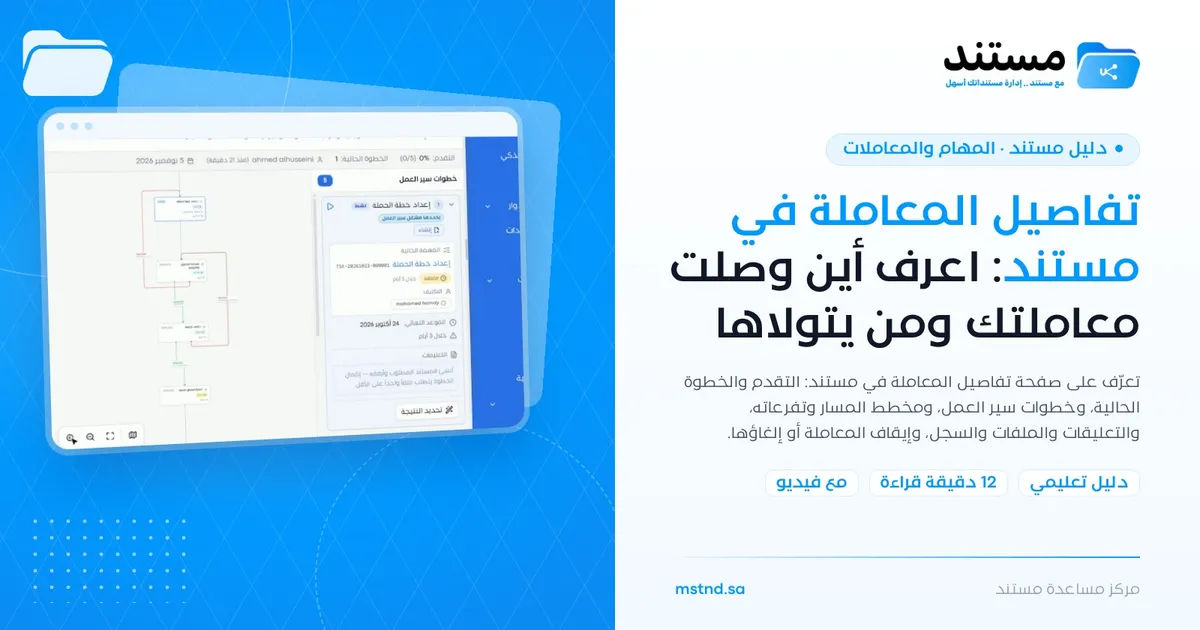
Transaction details in Mstnd: know where your transaction stands and who is handling it
In this article
The transaction details page in Mstnd shows everything about a single workflow transaction: its name, number, status and priority, its progress and the step where it stands, the list of its steps with their statuses, and a visual diagram of its full path, including the branches taken on approval or rejection. From it you communicate with the participants, review the files and the log, and control the transaction by pausing it or cancelling the workflow.
Quick overview
| Item | Details |
|---|---|
| Module | Tasks and workflows |
| Where it is in the interface | Opens when you click any transaction on the «Transactions» page |
| Direct link | https://app.mstnd.sa/workflow/instances/<id> |
| Goal | Track a single transaction in detail: where it has reached, who is assigned to its current step, and what path remains |
| Who it is for | The transaction's creator, the people assigned to its steps, and managers and follow-up officers |
| Video length | Under a minute (48 seconds) |
| What you will learn | Reading the transaction header, reviewing the steps and their details, reading the path diagram, using comments, files and the log, and controlling the transaction |
Watch the video
The video tours the details page of a real transaction and its three areas: the steps on the right, the diagram in the middle and the side panel on the left, then the control buttons at the top.
Why this feature?
When a transaction goes through five or more steps, with people from different departments taking part, the question "Where has the transaction reached?" becomes one of the most frequently asked in the organization. The answer is often a guess: "I think it's with finance", "Maybe it was rejected and sent back".
The transaction details page gives a precise, documented answer. It shows the current step, the name of its assignee and its deadline, uses the diagram to show what will happen after each result, and keeps everything that happened in a chronological log.
| Before the details page | With the details page in Mstnd |
|---|---|
| You call more than one department to find out where the transaction is | You see the current step and its assignee directly |
| Nobody knows what happens if the request is rejected | The diagram shows the return path on rejection |
| Discussion about the transaction is scattered across messages | The «Comments» tab gathers the discussion inside the transaction |
| Files are spread across email and folders | The «Files» tab shows the transaction's files in their place |
| No clear trail of what happened and when | The «Log» tab documents every event with the user and the time |
Value for the organization: full transparency in procedures, an audit trail for every transaction, and the ability to step in when something stalls.
Value for the individual: an instant answer about the status of a request, without phone calls or manual follow-up.
Where to find it
- Side menu → «Tasks and workflows» → «Transactions».
- Click the transaction you want in the list or the table.
Direct link format: https://app.mstnd.sa/workflow/instances/<id>
You can also reach it from:
- The Dashboard: the «My workflows» section shows your active transactions.
- The document page: if you started a workflow on a document, you will find the transaction linked to it.
To return to the transaction list, use the back arrow next to the transaction number at the top.
Concepts and terms
| Term | Meaning in Mstnd |
|---|---|
| Progress | The share of the transaction's steps that has been completed, with their count, such as 0% (0/5) |
| Current step | The step that is waiting for action now; its status shows «Active» |
| Step status | The state of each step, such as «Active» for the running one and «Waiting» for the ones whose turn has not come yet |
| Operation type | The nature of the work in the step, such as «Creation», «Review» or «Approval» |
| Current task | The task created by the active step; it has a TSK number, an assignee and a deadline |
| Path diagram | A visual drawing of the transaction's steps and their links, including the positive and negative result paths |
| Branch | The transaction moving to a different step depending on the result, such as returning to an earlier step on rejection |
| Set by the workflow initiator | Indicates that the step's assignee is chosen when the transaction is started, not in the template |
Step by step
Step 1: Read the transaction header and the progress bar
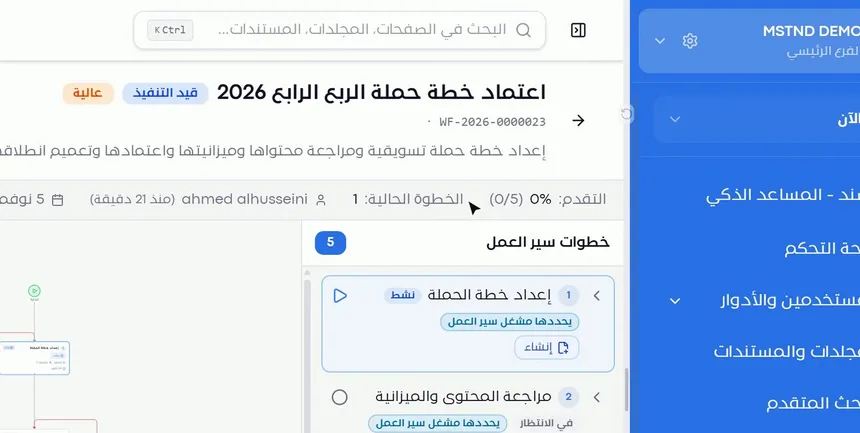
At the top of the page you see:
- The transaction name, such as «Approve the Q4 2026 campaign plan».
- The number, such as WF-2026-0000023.
- The status, such as «In progress».
- The priority, such as «High».
- The description written when the transaction was started.
Under it is an information bar that shows the progress as a percentage and a count, the current step by its number, who started the transaction and how long ago, and the due date. This bar is enough to understand the overall situation at a glance.
Step 2: Review the «Workflow steps»
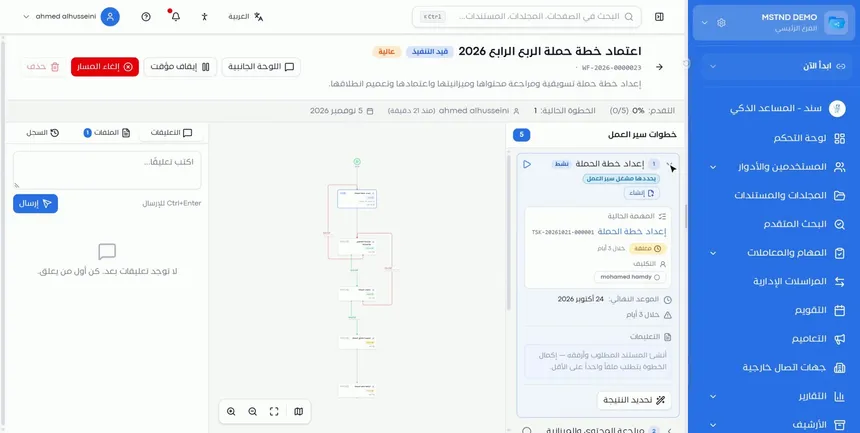
On the right of the page is the «Workflow steps» list, with the number of steps. For each step:
- Its number and name, such as «1 Prepare the campaign plan».
- Its status: «Active» for the running step, and «Waiting» for the steps after it.
- Its operation type, such as «Creation» or «Review».
- How the assignee is set, such as «Set by the workflow initiator».
Click any step to expand it and show its details.
Step 3: Open the step details
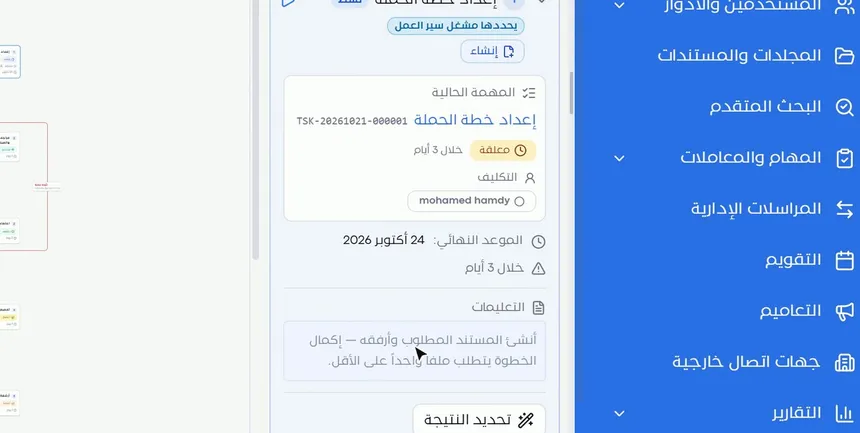
When you open the step, you see:
- Current task: its name and number, such as TSK-20261021-000001, its status, such as «Pending», and the time left, such as «In 3 days».
- Assignment: the name of the person assigned to the task.
- Deadline: the date by which the step must be completed.
- Instructions: what is required in this step, such as "Create the required document and attach it; completing the step requires at least one file".
Below them appears the «Set result» button, which is tied to completing the step.
These details answer the two most important follow-up questions: Who is responsible now? And until when? If you are a manager, this is where you find out who you need to contact.
Step 4: Read the path diagram and its branches
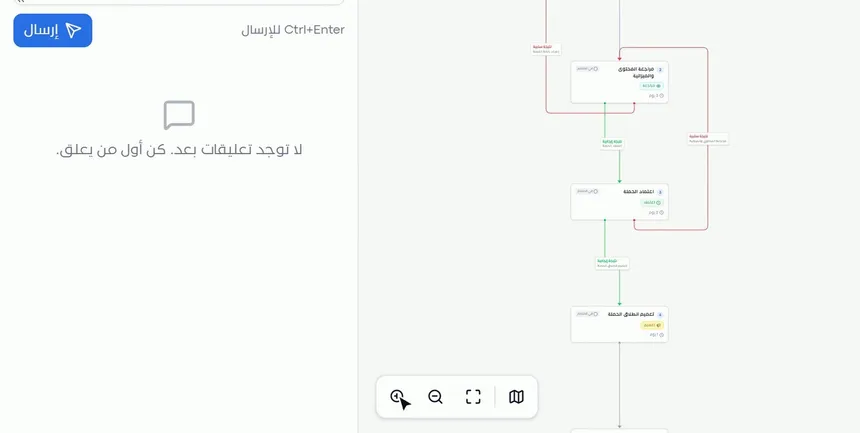
In the middle of the page is the full path diagram. Each step is a box that carries its number, name, operation type and duration, and lines connect the boxes:
- Green lines labeled «Positive result»: moving to the next step on approval.
- Red lines labeled «Negative result»: returning to an earlier step on rejection.
At the bottom of the diagram are tools to zoom in and out and to fit the view, and a minimap, which help you move around long paths.
An example from the video: if the «Content and budget review» step is rejected, the path returns to «Prepare the campaign plan». If the «Campaign approval» step is rejected, it returns to «Content and budget review». Approval, on the other hand, moves the transaction to «Campaign launch circular».
Step 5: Use comments, files and the log
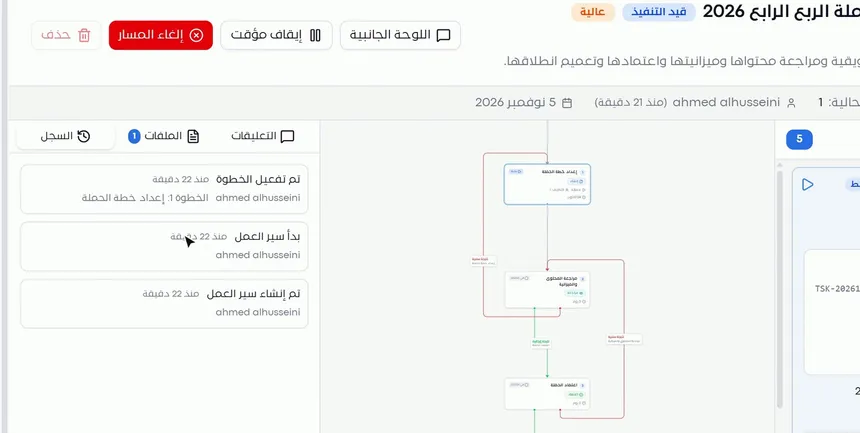
On the left of the page is a panel with three tabs:
| Tab | What it shows | When to use it |
|---|---|---|
| «Comments» | A written discussion on the transaction, sent with the «Send» button or the Ctrl+Enter shortcut | To ask a question or clarify a point about the whole transaction |
| «Files» | The files linked to the transaction, with their count | To review what was attached or created during the steps |
| «Log» | The events in chronological order with the user name and the time, such as «Workflow created», «Workflow started» and «Step activated» | To find out what happened, when, and who did it |
The difference between transaction comments and task comments: the first are for discussing the whole transaction and are visible to its participants, while the second are tied to the task of a single step.
Step 6: Control the transaction from the top
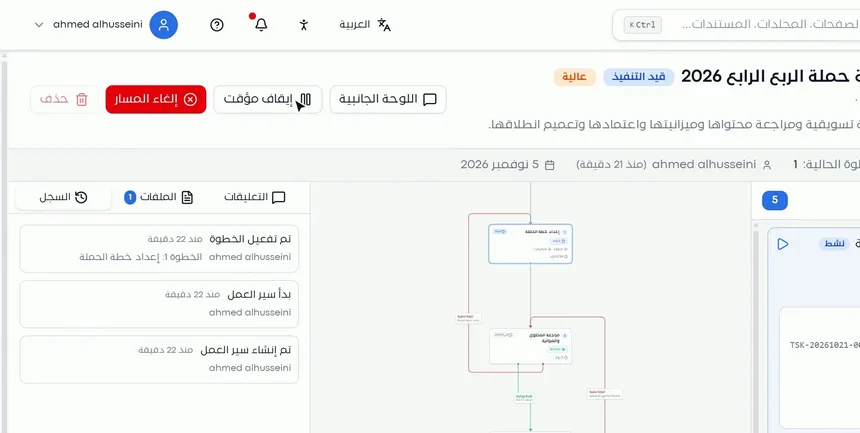
At the top of the page are the control buttons:
- «Pause»: stops the transaction without cancelling it, so it can be resumed later.
- «Cancel workflow»: ends the transaction without completing its steps.
- «Side panel»: shows or hides the comments, files and log panel.
A «Delete» button also appears next to them.
Choose pause when a temporary reason is blocking progress, such as waiting for information from an external party. Choose cancel workflow when the request itself is no longer needed, such as when the marketing campaign is cancelled altogether.
Options and their effect
| Option or setting | What it does | When to use it |
|---|---|---|
| Clicking a step in the list | Shows its details: the task, the assignee, the deadline and the instructions | To find out who is responsible for a step and what it requires |
| Opening the current task | Takes you to the task page | When you are the assignee or want more details |
| «Set result» | Tied to completing the step and setting its result | When you have completed what the step requires |
| Zooming in and out of the diagram | Changes the diagram's zoom level | To read the step boxes clearly |
| Fit view | Shows the whole diagram on the screen | To see the entire path at once |
| The minimap | Helps you move around a large diagram | In transactions with many steps |
| «Comments» | A discussion on the transaction | To coordinate between the participants |
| «Files» | The transaction's files | To review the attachments and the resulting documents |
| «Log» | The transaction's events with the time and the user | For auditing and follow-up |
| «Pause» | Freezes the transaction | When there is a temporary obstacle |
| «Cancel workflow» | Ends the transaction | When the procedure is no longer needed |
| «Side panel» | Shows or hides the left panel | To make more room for the diagram |
Practical scenarios
Scenario: A marketing department in a trading company follows a campaign approval
Situation: The Q4 campaign goes through five steps: preparation, then content and budget review, then approval, then the circular. The marketing manager wants to know why the transaction has not moved forward.
What you do in Mstnd:
- Open the transaction from the «Transactions» page.
- Notice in the bar that the progress is 0% and the current step is 1.
- Open the first step to see its assignee and its deadline.
- Write a comment on the transaction asking when the plan will be delivered.
Result: The manager knows the reason for the delay and the person concerned, and the question is documented inside the transaction.
Scenario: A government entity freezes a transaction while waiting for another party
Situation: An agreement signing transaction needs a document from an external party that has not arrived yet, and the person in charge wants everyone to know that the stop is due to an external reason, not an internal shortcoming.
What you do in Mstnd:
- Open the transaction.
- Write a comment that explains why it is stopping.
- Click «Pause».
- Follow up on the transaction once the document arrives, to complete its path.
Result: The workflow stops in a clear and documented way, and everyone knows the reason from the comments and the log.
Scenario: A law firm reviews a repeated rejection path
Situation: A legal memo was rejected more than once at the review step, and the partner in charge wants to understand what happened.
What you do in Mstnd:
- Open the transaction and read the diagram to see where the path returns on rejection.
- Open the «Log» tab to trace how often the steps were activated.
- Review «Files» to compare the attached versions.
Result: A complete picture of why the path keeps going in circles, which helps guide the team before the next round.
Scenario: A hospital cancels a transaction that is no longer needed
Situation: A request to purchase a medical device had started its path, then management decided to postpone the purchase to the next fiscal year.
What you do in Mstnd:
- Open the transaction.
- Write a comment that explains management's decision.
- Click «Cancel workflow».
Result: The transaction ends with a clear decision, and the reason for the cancellation stays documented in its comments and log.
How it relates to other features
- Transactions: the list from which you open the details of any transaction, and to which you return with the back arrow.
- Carrying out a task: the current task in the active step is carried out from its own page, and its result moves the transaction forward.
- Workflow template details: the template defines the steps and paths you see in the transaction diagram.
- Building a workflow template: this is where the return paths on rejection and the instructions shown in each step are designed.
- Starting a workflow on a document: a way to create a transaction linked to a document; its details appear on this page.
- Dashboard: the «Open my step» button in the «My workflows» section takes you to your step in the transaction.
Tips and best practices
- Start with the progress bar and the current step before any other area: together they summarize the situation.
- Open the active step to find out the assignee and the deadline before contacting anyone.
- Read the path diagram before any rejection decision to know its effect on the remaining steps.
- Document the reason for any pause or cancellation in «Comments» before you carry it out.
- Use the «Log» when you need to prove the sequence of events, instead of relying on memory.
- Hide the side panel when reading a long diagram, and use fit view and the minimap.
- If transactions keep being sent back at the same step, review that step's instructions in the template to make them clearer.
Warnings and common mistakes
FAQ
How do I know who the transaction is waiting with right now?
Open the transaction and click the active step in the «Workflow steps» list. The current task, the name of its assignee and its deadline appear.
What do the red and green lines in the transaction diagram mean?
The green lines show the path taken on a positive result, and the red lines show the return to an earlier step on a negative result.
What is the difference between «Pause» and «Cancel workflow»?
Pausing freezes the transaction so that it can be resumed later, while cancelling the workflow ends the transaction without completing its steps.
Where do I find the files linked to the transaction?
In the «Files» tab of the left panel; the number of files linked to the transaction appears next to it.
Can I write a comment on the whole transaction?
Yes, from the «Comments» tab in the left panel. Click «Send» or use the Ctrl+Enter shortcut.
How do I know what has happened in the transaction since it was created?
Open the «Log» tab. It shows the events in order, such as the workflow being created and started and each step being activated, with the user name and the time.
What does «Waiting» next to a step mean?
It means the step's turn has not come yet. It will be activated when the steps before it in the path are completed.
How do I enlarge the path diagram if the transaction is long?
Use the zoom in and out, fit view and minimap tools under the diagram. You can also hide the side panel to make more room.
Summary
- The transaction details page answers "Where has the transaction reached, and who is handling it?" precisely.
- The step list shows the status of every step, and the step details reveal the assignee, the deadline and the instructions.
- The path diagram shows what happens after approval or rejection before it happens.
- Comments, files and the log bring the discussion, the attachments and the audit trail together in one place.
- «Pause» and «Cancel workflow» are two control tools, and each has a different use.
Try it free: Create your organization's account in Mstnd
Was this article helpful?
Related articles
 0:41
Transactions in Mstnd: follow every workflow from one screen
Learn the Mstnd Transactions page: see every workflow with its number, status, priority and progress, use scope and filters, export it and start a new workflow.
 0:57
Carrying out a task in Mstnd: from «Start» to «Complete task»
Learn the Mstnd task page: view its data and routing, start work, preview the operation file, approve or reject it with a note, then complete and log the task.
 0:45
Workflow template details in Mstnd: understand the path before you launch it
Learn the Mstnd workflow template details page: each step's operation, owner and deadline, positive and negative paths in the diagram, and starting a workflow.
 1:18
Building a workflow template in Mstnd: design your own approval path
Learn to build a workflow template in Mstnd: name, visibility, step operations, deadlines, instructions, routing and assignment, rejection paths and publishing.
 1:14
Starting a workflow on a document in Mstnd: launch the approval from the document
Learn to start a workflow from a Mstnd document: pick a template, set priority and due date, assign steps and launch the transaction with the document attached.
 1:57
The Mstnd Dashboard: everything waiting for you on one screen
Learn the Mstnd Dashboard: the «Waiting for you today» cards, the Action agenda, workflows, Sanad recommendations, team activity and how to plan your day.