

Transactions in Mstnd: follow every workflow from one screen
In this article
The «Transactions» page in Mstnd is the live record of every running and finished workflow in your organization. It shows each transaction with its number, status, priority, progress and the step it has reached. It lets you limit the list to the transactions you created or are assigned to, and filter it by status, priority, past-due state and template type. From it you open the details of any transaction, or start a new workflow.
Quick overview
| Item | Details |
|---|---|
| Module | Tasks and workflows |
| Where it is in the interface | Side menu → «Tasks and workflows» → «Transactions» |
| Direct link | https://app.mstnd.sa/workflow/instances |
| Goal | Follow every transaction built on workflow templates, and know where each one has reached and which ones are overdue |
| Who it is for | Managers and follow-up officers, the people who create transactions, and employees assigned to steps in them |
| Video length | Under a minute (41 seconds) |
| What you will learn | Reading a transaction card, choosing the scope, using the filters, switching between cards and the table, exporting and statistics, and opening a transaction or starting a new workflow |
Watch the video
In 41 seconds, the video walks through the Transactions page from top to bottom: the list, the scope, the filters, the view and export options, then opening a transaction or starting a new workflow.
Why this feature?
A transaction in Mstnd is a running instance of a workflow template. If the template is the "approved procedure" for a leave request, for example, then every actual leave request an employee submits is a separate transaction that goes through the same template steps.
When these requests are handled by email or on paper, simple questions are hard to answer: How many requests are open right now? Who is each request stuck with? What has passed its deadline? The Transactions page answers these questions directly, because every transaction carries its status, its progress and its current step in one place.
| Before the Transactions page | With the Transactions page |
|---|---|
| You ask every section about the status of its requests | You see the current step of every transaction and its progress |
| You discover delays when the requester complains | The «Past due» filter reveals late items immediately |
| Manual lists in separate spreadsheets | The «Export» button outputs the list as you see it |
| No overall view of the workload | The statistics button summarizes the transactions at a glance |
| Starting a procedure needs paper forms | «Start workflow» launches a new transaction from any template |
Value for the organization: transparent procedures, a measure of how fast work gets done, and early detection of bottlenecks.
Value for the individual: every employee knows what they started and what is waiting for them, without asking again and again.
Where to find it
- Open the side menu.
- Choose «Tasks and workflows».
- Click «Transactions».
Direct link: https://app.mstnd.sa/workflow/instances
You can also reach transactions from:
- The Dashboard: the «My workflows» section shows the active transactions you take part in.
- The document page: when you start a workflow on a document, a transaction is created and appears here.
- Workflow template details: the «Start workflow» button launches a transaction from the template directly.
Concepts and terms
| Term | Meaning in Mstnd |
|---|---|
| Transaction (workflow) | A running instance of a workflow template, with a number, steps and responsible people |
| Transaction number | A unique identifier that starts with WF followed by the year and a sequence number, such as WF-2026-0000023 |
| Template | The workflow template the transaction was built on, such as «Marketing campaign approval» |
| Progress | An indicator that shows how much of the transaction's steps has been completed, with the step count, such as «Step 2 / 5» |
| Current step | The step where the transaction stands now, waiting for an action |
| Scope | Decides which transactions are shown: the ones you created, the ones assigned to you, all of them, or the ones routed to your units or positions |
| Past due | Transactions that have passed their due date without being completed |
Step by step
Step 1: Read the transaction list
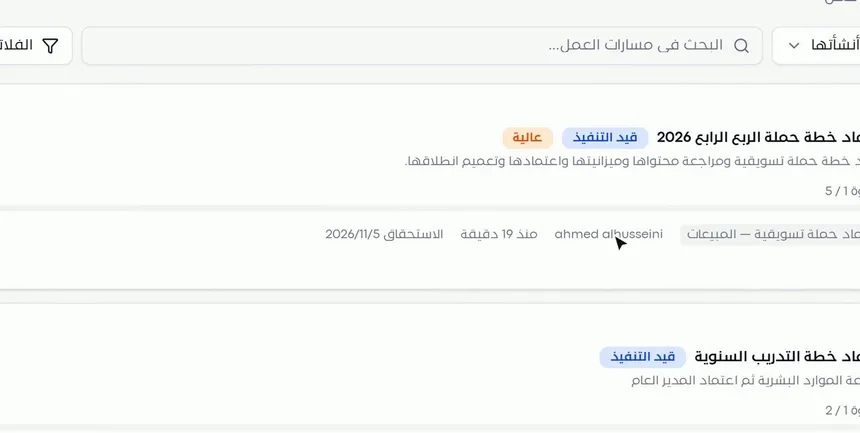
The page shows all workflows, with their total number at the top. Each transaction has a card that includes:
- The transaction number, such as WF-2026-0000023.
- The title and description, such as «Approve the Q4 campaign plan».
- The status, such as «In progress».
- The priority, such as «High».
- Progress: the step number out of the total number of steps, a percentage and a visual bar.
- The template it was built on, who started it, how long ago, and the due date.
Read the card from top to bottom: What is it? Then, what is its status? Then, where has it reached? Then, when is it due?
Step 2: Choose the right scope
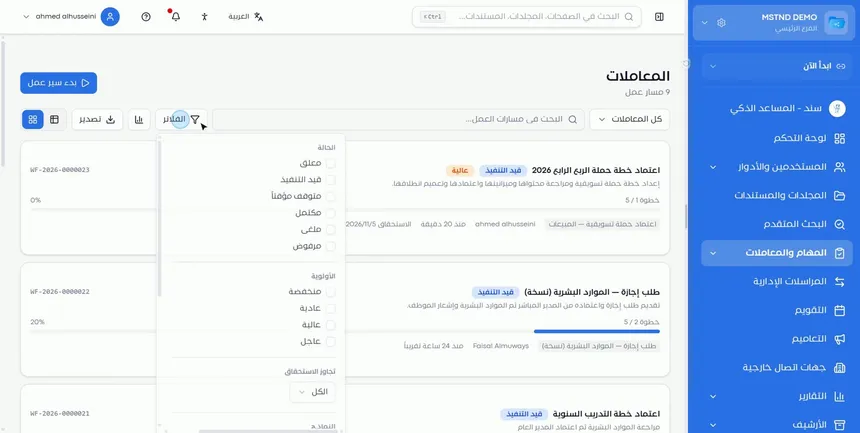
From the drop-down list at the top, you decide which transactions you see:
- Created by me: the transactions you started.
- Assigned to me: the transactions in which you have a step assigned to you.
- All transactions: everything you are allowed to see.
- Routed to my units or positions: the transactions routed to the departments or positions you belong to.
Choosing the scope is the first decision on the page, because it defines the question you want answered. «Created by me» answers "Where do my requests stand?", «Assigned to me» answers "What is required of me?", and «Routed to my units» helps the manager who follows a department.
Next to the scope is the «Search workflows» field, to reach a specific transaction quickly.
Step 3: Filter the list from «Filters»
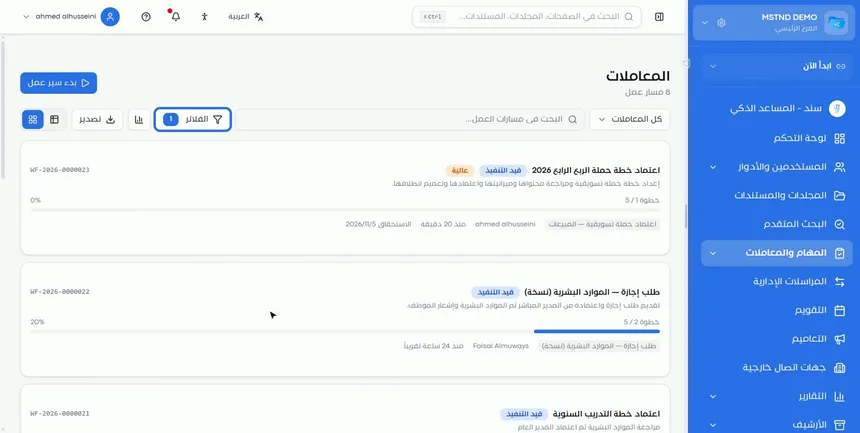
Click «Filters» to open the filter panel, which contains:
| Filter | Available values |
|---|---|
| Status | Pending, In progress, Paused, Completed, Cancelled, Rejected |
| Priority | Low, Normal, High, Urgent |
| Past due | All, or limit the results to the past-due ones |
| Template | The type of workflow template the transaction was built on |
A number on the «Filters» button shows how many filters are active. You can combine more than one filter, such as the «Urgent» priority with the «In progress» status, to reach the most important items that need your intervention.
Step 4: Switch to the table view, and export the list or show the statistics
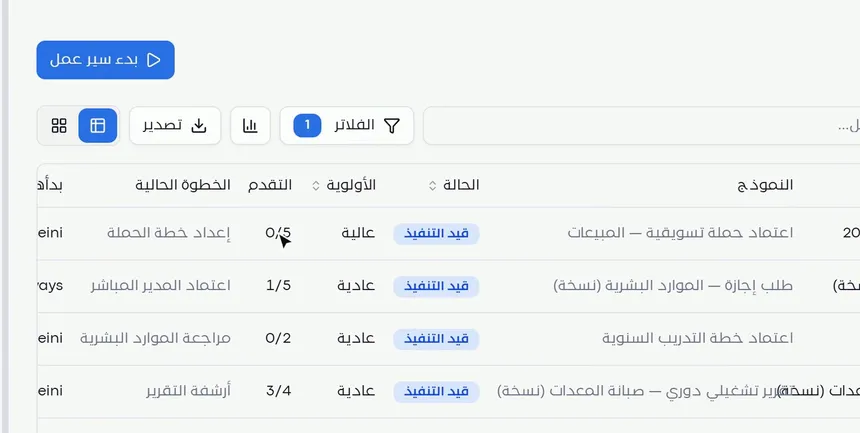
Next to the filters are three tools:
- The view switcher: to move between the card view and the table view.
- Statistics: to show a numeric summary of the transactions.
- «Export»: to output the list.
The table view suits you better when you want to compare a large number of transactions. It has these columns: template, status, priority, progress (such as 1/5), current step (such as «Direct manager approval») and who started it. You can sort some of the columns, such as status and priority.
The card view, on the other hand, is better for reading each transaction's description and progress bar clearly.
Step 5: Open a transaction or start a new workflow
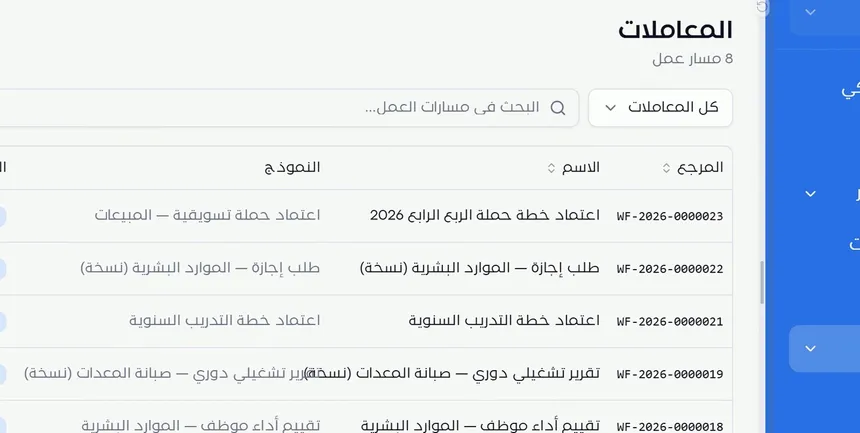
Click any transaction to go to its details page, where you see its steps, its path diagram, its files and its log.
To launch a new transaction, click «Start workflow» at the top of the page and choose the right template. The new transaction appears in the list as soon as it is created, and it starts from its first step.
Options and their effect
| Option or setting | What it does | When to use it |
|---|---|---|
| The «Created by me» scope | Shows the transactions you started | To follow your own requests |
| The «Assigned to me» scope | Shows the transactions in which you have a step | To know what is waiting for your action |
| The «All transactions» scope | Shows everything you are allowed to see | For a comprehensive review |
| The «Routed to my units or positions» scope | Shows the transactions routed to your departments or positions | For managers and unit heads |
| «Search workflows» | Searches for a specific transaction | When you know the transaction you want |
| Status filter | Limits the list to one or more statuses | For example, limiting it to «Paused» to review why work stopped |
| Priority filter | Limits the list by priority | To focus on «Urgent» and «High» |
| Past due filter | Shows the overdue transactions | To handle delays first |
| Template filter | Shows the transactions of a specific template | To follow a specific type of procedure, such as leave requests |
| Card / table view | Changes the display | Cards for reading, the table for comparing |
| Statistics | Summarizes the transactions in numbers | For quick reports and meetings |
| «Export» | Outputs the list | For sharing outside the system or for periodic archiving |
| «Start workflow» | Creates a new transaction from a template | When starting a new procedure |
Practical scenarios
Scenario: The HR manager follows leave requests
Situation: Leave requests go through the direct manager and then HR, and employees keep asking about the status of their requests.
What you do in Mstnd:
- Open «Transactions» and choose the «Routed to my units or positions» scope.
- From «Filters», choose the leave request template and the «In progress» status.
- Switch to the table view and watch the «Current step» column.
- Open the transactions that have been stuck at one step for a long time.
Result: The manager knows who each request is stuck with and steps in before the employee complains.
Scenario: The projects department in a contracting company
Situation: There are many requests to approve drawings and change orders, and some of them have passed their deadline and are delaying work on site.
What you do in Mstnd:
- Open «Transactions» with the «All transactions» scope.
- Turn on the «Past due» filter and choose the «Urgent» priority.
- Export the list and share it in the weekly follow-up meeting.
- Open each overdue transaction to find out who is assigned to its current step.
Result: An accurate list of the transactions that are holding up the project, with a clear owner for each one.
Scenario: The administrative affairs department in a school
Situation: Requests to purchase supplies go through several approval levels, and the administrative affairs manager wants to know the workload at the end of the term.
What you do in Mstnd:
- Open «Transactions» and click the statistics button.
- Filter the list by the purchase request template.
- Compare the number of «Completed» transactions with the number of «In progress» ones using the status filter.
Result: A quick numeric picture of the volume of requests and their completion rate, presented to management without manual preparation.
Scenario: An employee in a government entity follows their requests
Situation: An employee submitted several requests during the month and wants to know where they stand.
What you do in Mstnd:
- Open «Transactions» and choose the «Created by me» scope.
- Review the progress bar on each card.
- Open the transaction that has not moved forward to see the current step and its assignee.
Result: The employee knows the status of every request without visiting the departments involved.
How it relates to other features
- Transaction details: clicking any transaction opens its steps, path diagram, files and log.
- Workflow templates: every transaction is built on a template, and the «Template» filter links the list to them.
- Starting a workflow on a document: another way to create a transaction, starting from a specific document.
- Carrying out a task: every step in a transaction is carried out as a task, and its result moves the progress forward.
- Tasks: the tasks created from transaction steps appear in the assignees' task lists.
- Dashboard: its «My workflows» section is a summary of the active transactions you take part in.
Tips and best practices
- Always start by choosing the scope, then add filters. The scope defines the question, and the filters narrow the answer.
- Set aside a weekly review of the «Past due» filter so that overdue items do not pile up.
- Use the table view and the «Current step» column to discover the steps where transactions pile up.
- Use the «Template» filter to measure the performance of a specific procedure, such as purchase or leave requests.
- Export the list before follow-up meetings instead of preparing spreadsheets by hand.
- Write a clear title and a short description for every transaction you start: they are what appears on the card and what people search by later.
- Review «Paused» transactions regularly, because some of them are forgotten once they stop.
Warnings and common mistakes
FAQ
What is the difference between a transaction and a workflow template in Mstnd?
The template is the pattern that defines the steps, the responsible people and the paths, while a transaction is an actual run of that template on a specific case, such as a leave request for a particular employee.
How do I show only overdue transactions?
Click «Filters» and use the «Past due» option to limit the list to the transactions that have passed their deadline.
How do I know which transactions are waiting for my action?
Choose the «Assigned to me» scope from the drop-down list at the top of the page, and the transactions in which you have an assigned step appear.
Can I export the transaction list?
Yes. Click the «Export» button at the top of the list to output the transaction list and use it outside the system.
What does «Step 2 / 5» on a transaction card mean?
It means the transaction is at its second step out of the five steps in the template, and the progress percentage appears next to it.
How do I start a new transaction?
Click «Start workflow» at the top of the Transactions page and choose the right template, or start it from the template page or from the document page.
What statuses can a transaction have?
The filters show these statuses: Pending, In progress, Paused, Completed, Cancelled and Rejected.
Can I see the transactions as a table?
Yes. Use the view switcher next to the «Export» button to move between the card view and the table view.
Summary
- The «Transactions» page shows every workflow with its number, status, priority and progress.
- The scope decides which transactions you see, and the filters narrow them by status, priority, delay and template.
- The table view and the «Current step» column reveal where things are stalling.
- «Export» and the statistics turn the list into material for reports and meetings.
- From the same page, you open the details of any transaction or start a new workflow.
Try it free: Create your organization's account in Mstnd
Was this article helpful?
Related articles
 0:48
Transaction details in Mstnd: know where your transaction stands and who is handling it
Learn the Mstnd transaction details page: progress, current step, workflow steps, the path diagram and branches, comments, files and log, pausing or cancelling.
 0:44
Workflow templates in Mstnd: ready-made templates for your organization's procedures
Learn Mstnd workflow templates: recurring procedure templates with status, version, steps and transactions, search, filters, view, edit, copy, archive, create.
 1:14
Starting a workflow on a document in Mstnd: launch the approval from the document
Learn to start a workflow from a Mstnd document: pick a template, set priority and due date, assign steps and launch the transaction with the document attached.
 0:57
Carrying out a task in Mstnd: from «Start» to «Complete task»
Learn the Mstnd task page: view its data and routing, start work, preview the operation file, approve or reject it with a note, then complete and log the task.
 0:56
The Tasks page in Mstnd: your tasks and your team's in one place
Mstnd's Tasks page lists your and your team's tasks with system number, operation, status, priority, assignees and due date, plus scopes, filters and a report.
 1:57
The Mstnd Dashboard: everything waiting for you on one screen
Learn the Mstnd Dashboard: the «Waiting for you today» cards, the Action agenda, workflows, Sanad recommendations, team activity and how to plan your day.