

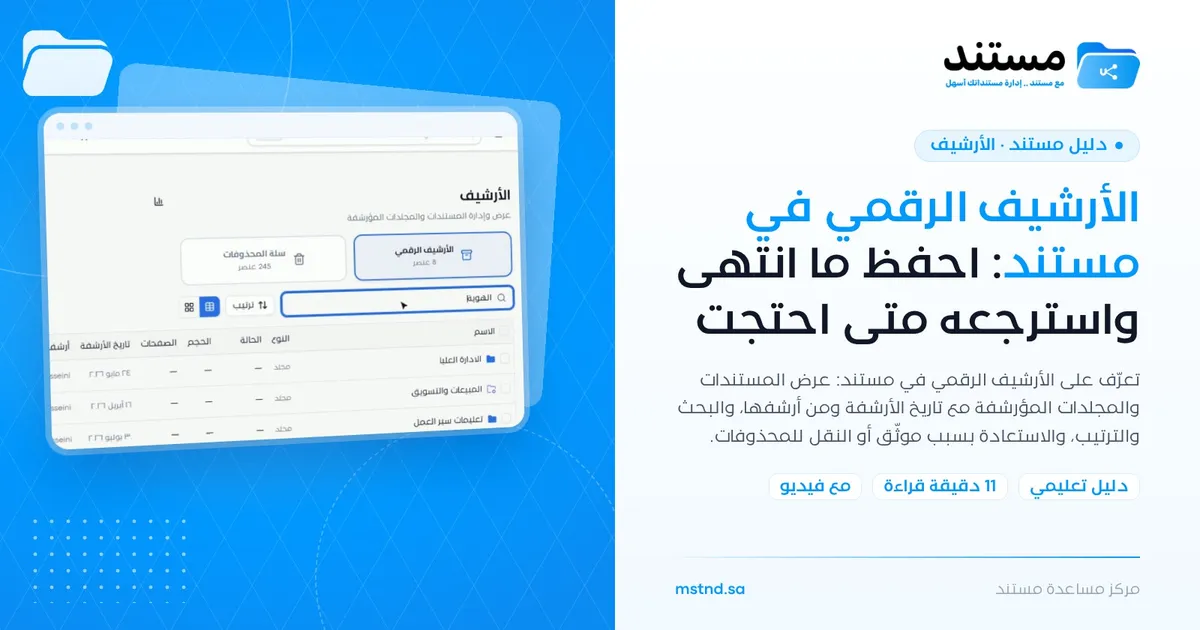
The digital archive in Mstnd: keep finished work and restore it whenever you need it
In this article
The digital archive in Mstnd is where documents and folders go when their daily use is over, without being deleted. It shows every archived item with its archive date and the name of the person who archived it, and lets you search and sort it and restore any item to its original folder while recording the reason for the restore. It serves every organization that wants a clean workspace while keeping its documentary record.
Quick overview
| Item | Details |
|---|---|
| Module | Archive |
| Where it is in the interface | Side menu → «Archive» → the «Digital archive» card |
| Direct link | https://app.mstnd.sa/archive?tab=digital-archive |
| Goal | Keep documents and folders that are no longer in use outside the daily workspace, with the option to restore them at any time |
| Who it is for | Records and archive officers, department managers, and every user who archives finished work |
| Video length | About 35 seconds |
| What you will learn | Reading the archive table, searching, sorting and switching views, restoring an item with a recorded reason, and moving an item to the trash |
Watch the video
In about 35 seconds, the video shows the digital archive page, searching and sorting in it, and then restoring an archived document to its folder step by step.
Why this feature?
Every organization produces documents that stop being needed day to day after a while: a contract whose term has ended, a project that has closed, or a final version of a manual that was approved and then replaced by a newer one. Keeping these documents in active folders crowds the workspace and slows access to what matters. Deleting them means losing a reference you may need later in an audit, a dispute or a review.
The digital archive solves this equation. It takes the item out of the daily workspace but keeps it complete, with its context: when it was archived, who archived it and why. When you need it again, you restore it to its original place with one click.
| Before the digital archive | With the digital archive |
|---|---|
| Active folders are crowded with finished documents | Folders show only what is being worked on |
| The only way to clean up is to delete | Archiving cleans up without losing anything |
| You do not know who moved a document or why | The archive date, who archived it and the archiving reason are shown |
| Retrieving an old file means searching through backups | Restoring from the archive returns the item straight to its folder |
| Reasons for retrieval are not recorded | A restore reason is written with every restore |
Its value for the organization: a preserved, organized documentary record that makes audits and compliance easier. Its value for the individual: a cleaner workspace and confidence that whatever they archive is kept safe.
Where to find it
- From the side menu, click «Archive».
- The «Archive» page opens with two cards at the top, «Digital archive» and «Trash», each showing its number of items underneath.
- Click the «Digital archive» card if it is not already active.
Direct link: https://app.mstnd.sa/archive?tab=digital-archive
Concepts and terms
| Term | Meaning in Mstnd |
|---|---|
| Archiving | Moving a document or folder from the workspace to the digital archive without deleting it |
| Digital archive | The page that shows all archived items with their archiving data |
| Date archived | The day the item was moved to the archive |
| Archived by | The name of the user who did the archiving |
| Archiving reason | A note written at archiving time that explains why the item was moved; it appears when restoring |
| Restore | Returning an archived item to its original folder so that it is available again in the workspace |
| Trash | An intermediate stage before permanent deletion; an item can be moved there from the archive |
Step by step
Step 1: Open the «Digital archive» and read the table
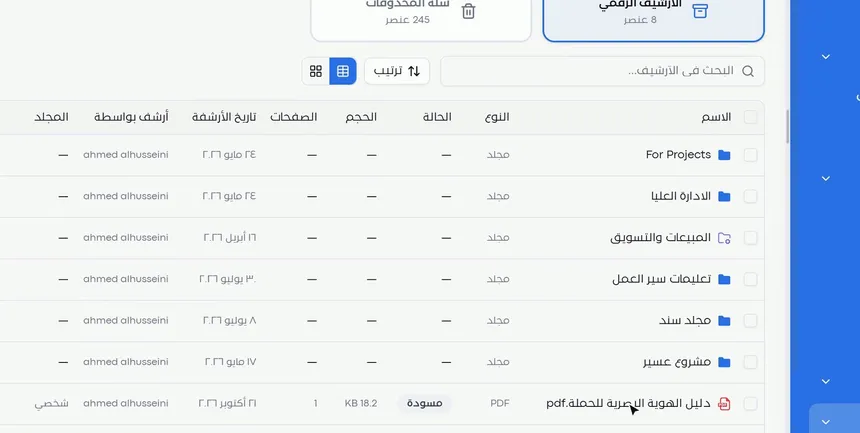
The page shows all archived documents and folders in a single table. The table's columns:
- Name: the name of the document or folder, with an icon for its type.
- Type: folder, or the file type, such as PDF.
- Status: the document's status at the moment it was archived, such as «Draft».
- Size and Pages: for files only.
- Date archived: when it was moved to the archive.
- Archived by: who did the archiving.
- Folder: the folder the item was in before it was archived.
This table answers the basic audit questions directly: what was archived, when, and by whom? The number of archived items appears on the «Digital archive» card at the top of the page.
Step 2: Search, sort and switch the view
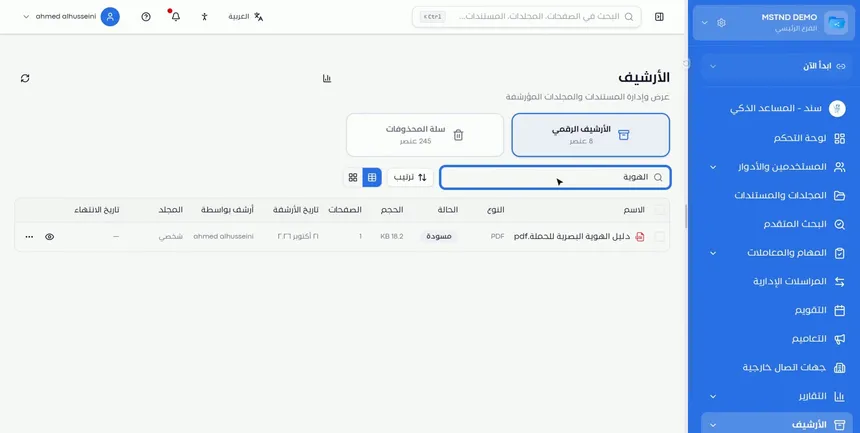
As the archive grows, search becomes the fastest way to reach an item. Type part of the item's name in the «Search the archive...» field, and the list shrinks to the matching results. Use the «Sort» button to order the items to suit your question, such as showing the most recently archived first.
You can switch between two views:
- Table: best for quickly comparing columns and reviewing archiving data.
- Cards: best for visual browsing when you remember a file's look or type better than its name.
Step 3: Open the «⋯» menu and choose the action
Next to each item in the table is the three-dot menu «⋯». It offers you two options:
- «Restore»: returns the item from the archive to its original folder.
- Move to trash: for when you are sure the item no longer has any reference value.
The difference between the two options is essential. Restoring brings the item back into daily work. Moving it to the trash is a step toward getting rid of it, and the item stays in the trash before permanent deletion.
Step 4: Review the archiving reason and write a restore reason
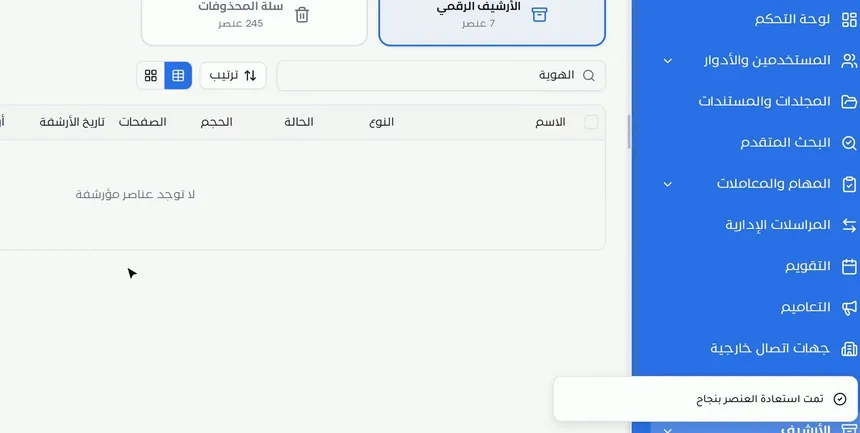
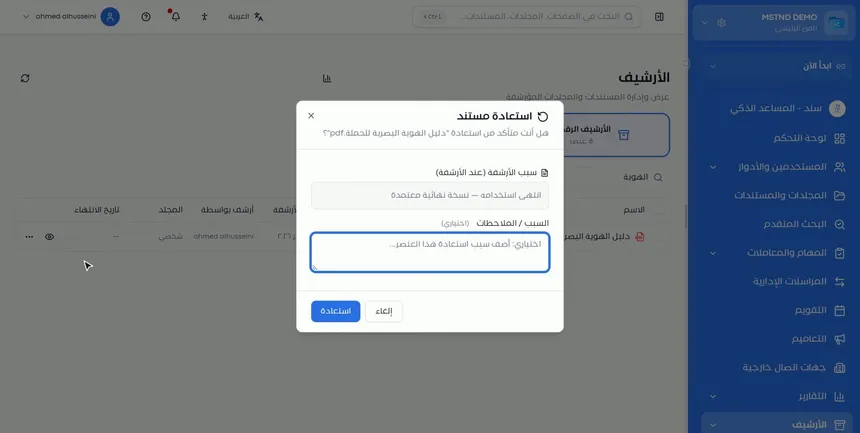
When you choose «Restore», the «Restore document» dialog opens and asks you to confirm the restore. The dialog shows:
- Archiving reason (when archived): the note written when the item was archived, such as «No longer in use — final approved version».
- Reason / notes: a field where you write the reason for the restore. The field is optional, but filling it in is good practice.
Read the archiving reason before you restore. It may show you that the item was archived because a newer version replaced it, so you can reconsider whether you need it. Then write your reason and click «Restore». The message «Item restored successfully» appears.
Step 5: Check that the item is back in its folder
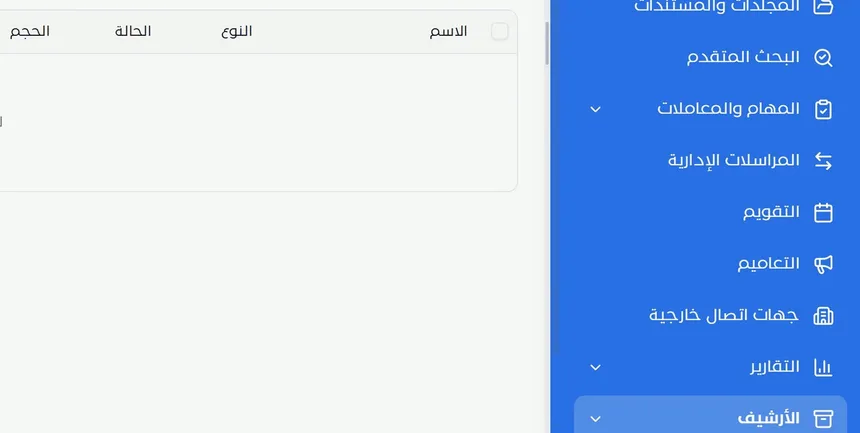
After the restore, the item disappears from the digital archive and returns to its original folder. The counter on the «Digital archive» card updates immediately; in the video it dropped from 8 items to 7. Open the original folder from Folders to confirm that the document is in place and ready to work on.
Options and their effect
| Option or setting | What it does | When to use it |
|---|---|---|
| «Search the archive...» | Filters the items by the text you type | When you know part of the item's name |
| «Sort» | Changes the order in which the items are shown | To review the most recently archived items or to order the list as you need |
| Table view | Shows the items in rows and columns | For review, auditing and comparing data |
| Cards view | Shows the items as visual cards | For quick browsing by file type |
| «⋯» → «Restore» | Returns the item to its original folder | When you need to use or edit the item again |
| «⋯» → Move to trash | Moves the item to the trash | When the item's reference value has ended for good |
| The «Reason / notes» field | Records the reason for the restore | With every restore, for audit purposes |
Practical scenarios
Scenario: A government entity reviews a file for audit purposes
Situation: A regulatory body asked to see the minutes of a committee whose file was closed a year ago and archived.
What you do in Mstnd:
- Open «Archive» → «Digital archive».
- Search by the name of the committee or of the minutes.
- Review «Date archived» and «Archived by» to document the history of the document.
- Restore the document and write the reason: «Viewing request from a regulatory body».
Result: The document reaches the auditor within minutes, with a documented record of why it was taken out of the archive.
Scenario: A contracting company reopens a finished project
Situation: A project was handed over and its folder archived, then the client requested additional maintenance work that requires going back to the drawings.
What you do in Mstnd:
- Search the archive by the project name.
- Switch to the table view to see that the item is of the «Folder» type.
- Restore the whole folder and write: «Additional maintenance work requested by the client».
Result: The project folder returns to its place with all of its content, and the team resumes work without gathering the files again.
Scenario: A hospital cleans up its archive of old forms
Situation: A hospital's quality department archived old versions of procedure forms and wants to get rid of the ones confirmed to be no longer needed.
What you do in Mstnd:
- Sort the archive to show the oldest archived items first.
- Review each form's archiving reason through the restore dialog without confirming it, then close the dialog with «Cancel».
- Move the forms that have no reference value to the trash from the «⋯» menu.
Result: A lighter archive that holds only what has value, while the trash still lets you undo the move.
Scenario: A trading company restores a guide that was archived by mistake
Situation: An employee archived the campaign's visual identity guide, thinking it was finished, while the marketing team still needs it.
What you do in Mstnd:
- Search the archive for the word «identity».
- Choose «Restore» from the «⋯» menu.
- Write the reason: «Archived by mistake — still in use».
Result: The guide returns to its folder immediately, and the written reason explains what happened to anyone who reviews the log later.
How it relates to other features
- Move, archive and rename: this is where a document's journey to the archive begins, through the «Archive» option and the archiving reason you write, which appears later when restoring.
- Trash: the neighboring card on the Archive page, and the destination of the items you decide to move out of the archive to get rid of them.
- Auto-archiving and retention: archives items automatically according to a time-based policy, filling the digital archive without manual work.
- Folders: the destination an item returns to after it is restored; you can also archive a whole folder from there.
- Versions and operations log: the document's operations log keeps a trace of archiving and restoring as part of the document's history.
- Activity: records users' actions in the system, including archiving and restoring.
Tips and best practices
- Always write an archiving reason when you archive any item; it is the first thing someone considering a restore will see.
- Record the restore reason every time, even though the field is optional.
- Use archiving instead of deletion for any document that may be requested in an audit, a review or a dispute.
- Archive the whole folder when a project closes, instead of archiving its files one by one.
- Adopt a consistent naming convention for documents and folders to make searching the archive easier years later.
- Review the archive periodically, and move what has lost its reference value to the trash.
- Enable auto-archiving if you have a clear retention policy, to reduce manual work.
Warnings and common mistakes
FAQ
What is the difference between archiving and deleting in Mstnd?
Archiving moves the item to the digital archive, keeps it complete and lets you restore it at any time. Deleting moves it to the trash, on its way to permanent deletion.
How do I restore a document from the archive?
Open «Archive» → «Digital archive», then click «⋯» next to the document and choose «Restore». Write a restore reason if you wish, then click «Restore».
Where does a document go after it is restored from the archive?
It returns to the original folder it was in before archiving, disappears from the archive list, and the archive counter goes down.
Can a whole folder be archived?
Yes. The digital archive shows archived folders alongside documents, and a folder is restored the same way.
How do I know who archived a document and when?
From the «Archived by» and «Date archived» columns in the digital archive table. The archiving reason appears in the restore dialog.
Is the restore reason mandatory?
The field is optional in the restore dialog, but filling it in is recommended to record the decision to bring the item back into use.
Can an item be moved from the archive to the trash?
Yes, from the «⋯» menu next to the item. The item stays in the trash before it is permanently deleted.
Can I view the archive as cards instead of a table?
Yes. The two view buttons above the list let you switch between the table and cards at any time.
Summary
- The digital archive takes finished documents out of the workspace without deleting them.
- Every archived item appears with its archive date, who archived it and its original folder.
- Search, sorting and switching between table and cards make it easier to find things in a large archive.
- Restoring returns the item to its folder, showing the archiving reason and recording the restore reason.
- Moving to the trash is a step toward deletion, so use it for what has truly lost its value.
Try it free: Create your organization's account in Mstnd
Was this article helpful?
Related articles
 0:28
The trash in Mstnd: restore what you deleted or delete it permanently
Learn the trash in Mstnd: everything deleted stays there with its deletion date and original folder, to be restored or deleted permanently, singly or in bulk.
 0:42
Moving, archiving and renaming: organize your documents in seconds
Learn to rename a document in Mstnd, move it between folders and archive it without deleting it from the file's three-dot menu, and restore it from the Archive.
 1:28
Auto-archiving and retention: the document lifecycle in Mstnd
Set a retention policy in Mstnd: archive, then trash, then permanent destruction, with advance alerts, folder rules, legal holds and approval before deletion.
 1:26
Folders in Mstnd: organize your organization's documents from day one
Learn the Mstnd Folders page: Personal space, structure folders, Shared with me, new folders with a confidentiality level, color and icon, views and actions.
 0:38
Versions and the operations log in Mstnd: a complete history for every document
Mstnd versions and the operations log: save edits as a new version and keep the old one, view, download or translate any copy, and track who did what and when.
 0:23
The activity log in Mstnd: who did what, and when
The Mstnd activity log shows every operation in the system with who did it and when; search by keyword or user name and pick a date range to review events.