

The report page in Mstnd: filter, export and schedule your report
In this article
The report page in Mstnd is where you work on any report in detail: you see quick indicators and charts, filter the data with several filters so the numbers update instantly, review the data table, and then print it or export it to Excel, CSV or PDF. You can also schedule the report so that it is generated and saved automatically in a folder you choose, with a notification, or save a copy of it as a document in the system. It serves managers, quality and compliance officers, and anyone who prepares periodic reports.
Quick overview
| Item | Details |
|---|---|
| Module | Reports |
| Where it is in the interface | Side menu «Reports» → click any report in the report center, or «View report» from the analytics dashboard |
| Direct link | https://app.mstnd.sa/reports/* (the end of the link differs by report) |
| Goal | Analyze the data of a specific report, filter it, and export it, schedule it or save it in the system |
| Who it is for | Department managers, quality and audit officers, administrative communications staff, and anyone who prepares weekly or monthly reports |
| Video length | About 56 seconds |
| What you will learn | Reading the indicators and charts, using the filters, choosing columns, printing and exporting, creating a schedule and saving to the system |
Watch the video
The video uses the «Correspondence log» report as an example and shows filtering it to outgoing only, then exporting, then creating a weekly schedule, then saving to the system.
Why this feature?
A report that cannot be filtered answers only one question. Management, however, has changing questions: how much outgoing correspondence was sent this month? How much of it is high priority? How much is waiting for a reply from a particular entity? Once the question is answered, a second need follows: sharing the result in a meeting, sending it to a regulatory body, or keeping it for future reference.
The report page brings these needs together. Filters answer the changing questions, export and printing make sharing possible, scheduling removes manual repetition, and saving to the system turns the report into a documented record.
| Before | After |
|---|---|
| Exporting all the data, then filtering it in Excel | Direct filters that update the indicators and charts instantly |
| Preparing the weekly report by hand every week | A schedule that generates the report and saves it automatically, with a notification |
| Report copies scattered across employees' computers | «Save to system» saves the report as a document in Mstnd |
| Long tables with unnecessary columns | Choosing only the columns you need |
The value for the organization is consistent, archived reports. The value for the individual is hours saved every month on preparing recurring reports.
Where to find it
- Open «Reports» from the side menu.
- Click any report in the «Report center», such as «Correspondence log».
- Or, from the analytics dashboard, click «View report» in the corner of any chart.
Link: https://app.mstnd.sa/reports/ followed by the report's identifier.
Concepts and terms
| Term | Meaning in Mstnd |
|---|---|
| Quick indicators | Number cards at the top of the report, such as the total, what requires a reply, what was sent and what was received |
| Filter | A tool that limits the report's data to a specific value, such as a direction, a status or a period |
| Data table | The list of detailed records the report is built on |
| Columns | The fields that appear in the data table; you can choose them |
| Export | Downloading the report as Excel (XLSX), CSV or PDF |
| Scheduling | A setting that generates the report automatically at a set frequency and saves it in a folder, with a notification |
| Save to system | Saving a copy of the report as a document inside Mstnd |
Step by step
Step 1: Read the indicators and charts
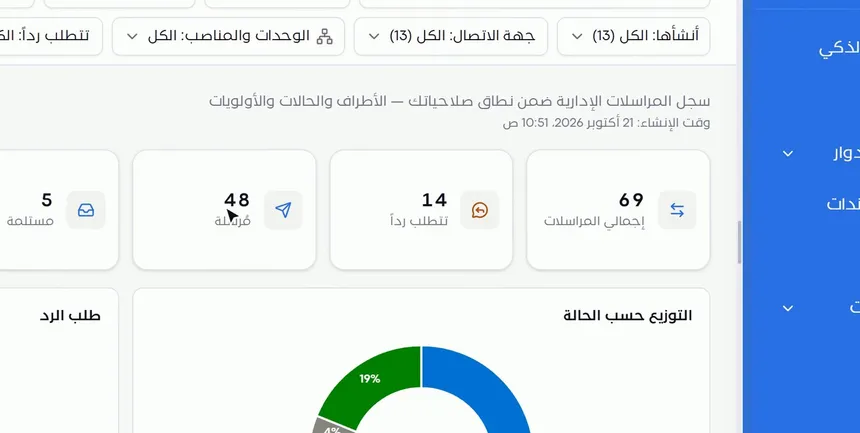
When you open a report such as «Correspondence log», the report's description and the time it was generated appear under the title, followed by the quick indicator cards: total correspondence, what requires a reply, sent and received. Below them are charts, such as «Distribution by status» and «Reply requested».
The indicators give you the short answer, and the charts give you the distribution. Start with them before you go down to the table.
Step 2: Get to know the filters
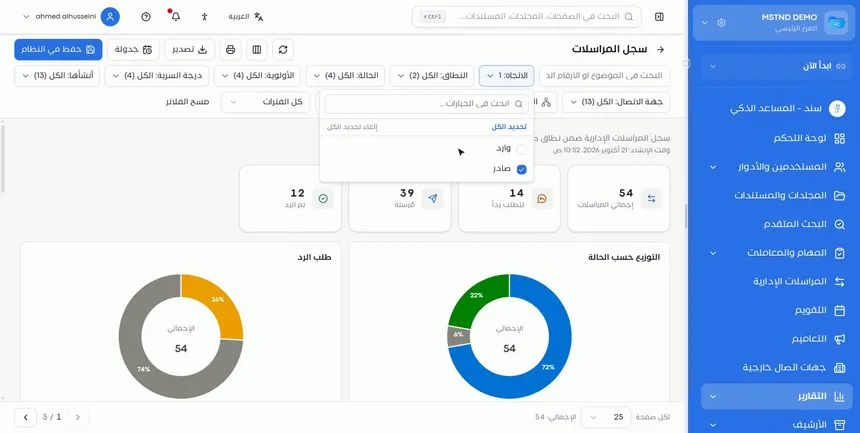
At the top of the page is the filter bar. In the «Correspondence log» you find:
- Search by subject or number.
- Direction: Outgoing or Incoming.
- Scope: Internal or External.
- Status.
- Priority.
- Confidentiality level.
- Created by: the user who created it.
- Contact.
- Units and positions.
- Requires reply.
- Period: «All time» or a specific period.
There is also a «Clear filters» button to return to the full view. Each filter shows the number of values available in it, such as «Status: All (4)».
Step 3: Apply a filter and watch the instant update
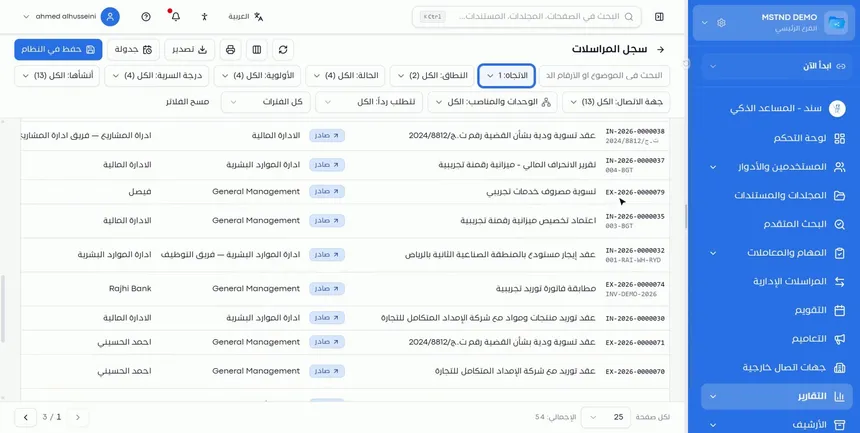
In the video, only the «Outgoing» direction is selected, so the count becomes 54 items, and the indicators and charts update instantly without reloading.
You can combine more than one filter. For example, «Outgoing» with high priority and «Requires reply» gives you the list of urgent correspondence waiting for a reply. Each additional filter narrows the results further.
Step 4: Review the data table and export it
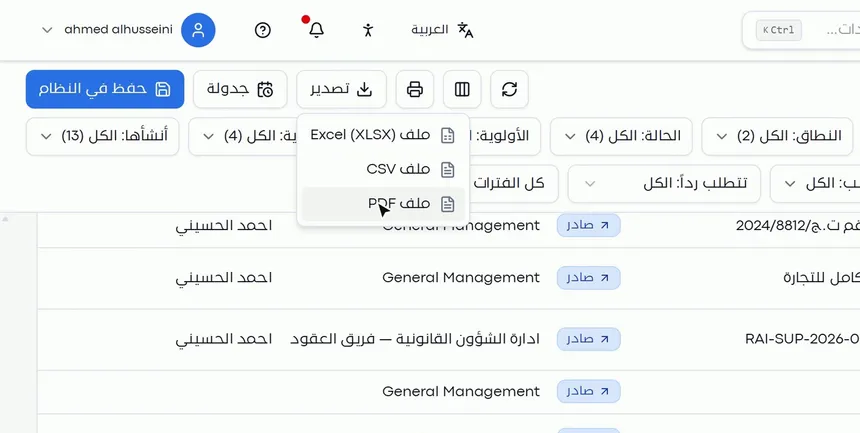
Below the charts, the data table shows all the records, with pagination and an option for the number of records per page. In the toolbar at the top of the page:
| Tool | What it does |
|---|---|
| Refresh | Reloads the report's data |
| Columns | Lets you choose the fields shown in the table |
| Prints the report | |
| «Export» | Downloads the report as Excel (XLSX), CSV or PDF |
Choose the format according to the use: Excel for further analysis and calculations, CSV for importing into other systems, and PDF for official sharing and archiving in a fixed layout.
Step 5: Create a schedule for the report
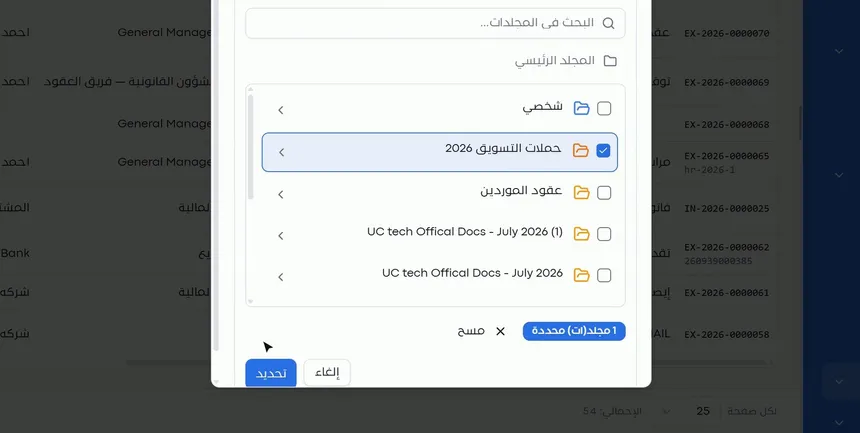
Click «Schedule» to open the setup dialog, and set:
- Schedule name: a name that explains the purpose, such as «Weekly outgoing correspondence report».
- Frequency: how often the report is generated.
- Day and time: when it is generated.
- File format: the format the report is saved in.
- Destination folder: you choose it from the folder tree, which you can search, then click «Select».
Choose a folder that the people who need the report can access: saving to a shared folder spares you from sending the report to each person by hand.
Step 6: Confirm that the schedule was created
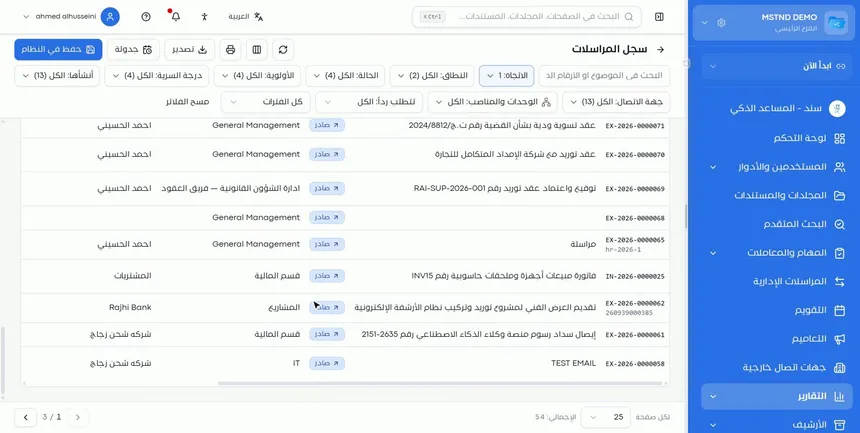
After you save, a message confirms that the schedule was created. From then on, the report is generated and saved in the chosen folder at the set frequency, every week in the video's example, and you receive a notification each time it is generated.
This step turns the report from repetitive manual work into an archive that grows automatically. After a few months, the folder holds a series of weekly reports that you can compare.
Step 7: Save a copy to the system
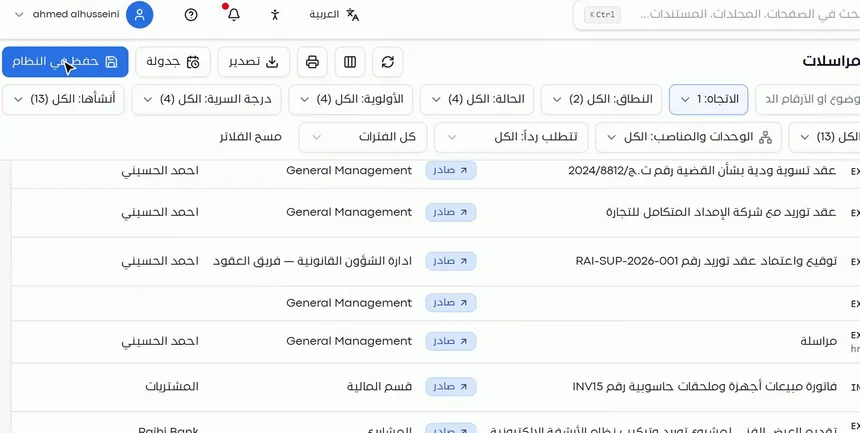
The «Save to system» button saves a copy of the current report as a document in Mstnd. The difference from export is that the copy stays inside the system, so it is subject to the system's permissions and can be shared and searched like any other document.
Use it when you want to record the situation at a specific moment, such as the end-of-quarter report presented to the board of directors.
Options and their effect
| Option or setting | What it does | When to use it |
|---|---|---|
| Filters (direction, scope, status…) | Limit the data and update the indicators and charts | To answer a specific question |
| Search by subject or number | Finds specific records | When looking for a particular piece of correspondence or number |
| «All time» / a specific period | Limits the data by time | For monthly or quarterly reports |
| «Clear filters» | Restores the full view | After finishing a particular analysis |
| Columns | Chooses the table's fields | For a short report with only the important fields |
| Refresh | Reloads the data | After recent changes in the system |
| Prints the report | For meetings or paper files | |
| Export to Excel (XLSX) | A file you can analyze and calculate with | For further analysis |
| Export to CSV | A simple text file | For importing into other systems |
| Export to PDF | A file with a fixed layout | For official sharing and archiving |
| «Schedule» | Generates the report automatically and saves it in a folder, with a notification | For periodic reports |
| «Save to system» | Saves the report as a document | To record the situation at a specific moment |
Practical scenarios
Scenario: A government entity submits a weekly report to the director general
Situation: Every week, the director general asks for a summary of the outgoing correspondence and of what is waiting for a reply.
What you do in Mstnd:
- Open «Correspondence log» and apply the «Outgoing» direction filter.
- Click «Schedule» and name the schedule, then choose a weekly frequency, the day, the time and the PDF format.
- Choose a folder that the director general's office can access.
Result: The report reaches the folder automatically every week, with a notification, without any manual preparation.
Scenario: A contracting company analyzes its correspondence with a supplier
Situation: A dispute with a supplier over late replies to letters.
What you do in Mstnd:
- Filter the «Correspondence log» by the supplier's contact.
- Add the «Requires reply» filter and set the period.
- Export the result to Excel to analyze the reply dates.
Result: Accurate data that supports the company's position in the discussion with the supplier.
Scenario: A compliance officer at a bank documents the status of confidential correspondence
Situation: An internal audit asks for a list of the correspondence with a high confidentiality level during the quarter.
What you do in Mstnd:
- Apply the «Confidentiality level» filter and the required period.
- Choose only the columns needed for the audit.
- Click «Save to system» to record the report as a document.
Result: A documented report inside the system, subject to its permissions and available for later reference.
Scenario: A school tracks its correspondence with the supervising authority
Situation: The school administration needs a monthly file of everything sent to the supervising authority.
What you do in Mstnd:
- Filter by the «Outgoing» direction, the «External» scope and the contact.
- Create a monthly schedule in PDF format in the official correspondence folder.
Result: An organized monthly archive of everything sent to the supervising authority.
How it relates to other features
- Report center: the entry point to every report page.
- Analytics dashboard: «View report» on every chart opens the report page directly.
- Folders: scheduling saves reports in a folder you choose, so set up a dedicated folder for periodic reports.
- Administrative correspondence: the data source of the «Correspondence log» report used in the video.
- Correspondence details: the fields you filter by, such as status, priority and reply deadline, come from the data of each piece of correspondence.
- Import and export: for exporting the documents themselves, while the report exports summarized data.
Tips and best practices
- Apply the filters first, then export or save, so the file reflects the question you want answered.
- Choose only the necessary columns before exporting or printing, for a clearer report.
- Use PDF for official sharing, Excel for analysis and CSV for other systems.
- Give the schedule a name that explains its content and frequency.
- Dedicate one folder to scheduled reports, and grant its permissions to those who need them.
- Use «Save to system» for reports presented to committees or regulatory bodies, so they stay documented.
- Click «Clear filters» before starting a new analysis so that no earlier filters stay active.
Warnings and common mistakes
FAQ
How do I export a report from Mstnd to Excel or PDF?
Open the report, apply the filters you need, then click «Export» and choose Excel (XLSX), CSV or PDF.
How do I schedule a report to reach me every week?
Click «Schedule» on the report page and set the name, frequency, day, time, file format and destination folder. The report is generated and saved in the folder, and you receive a notification.
Do the charts update when I apply filters?
Yes. The indicators, charts and data table update instantly when you apply any filter.
What is the difference between «Export» and «Save to system»?
«Export» downloads the report as a file to your device, while «Save to system» saves a copy of it as a document inside Mstnd.
Can I choose which columns appear in the report?
Yes. With the Columns button in the toolbar, you choose the fields that appear in the data table.
Where is a scheduled report saved?
It is saved in the folder you choose when you create the schedule, and you receive a notification each time it is generated.
Which filters are available in the Correspondence log report?
Direction, scope, status, priority, confidentiality level, creator, contact, units and positions, requires reply and period, in addition to searching by subject or number.
Summary
- The report page brings the indicators, charts, filters and data table together in one place.
- Filters update all the numbers and charts instantly.
- Export is available in Excel, CSV and PDF formats, along with printing and choosing columns.
- Scheduling generates the report automatically and saves it in a folder, with a notification.
- «Save to system» turns the report into a documented record inside Mstnd.
Try it free: Create your organization's account in Mstnd
Was this article helpful?
Related articles
 0:43
The report center in Mstnd: all your organization's reports in one place
The Mstnd report center groups document, correspondence, task, transaction, circular and user reports by section, with quick search and an analytics dashboard.
 0:25
The analytics dashboard in Mstnd: your organization's performance at a glance
The analytics dashboard in Mstnd shows the key charts from every report on one screen, grouped by users, documents, tasks, transactions and correspondence.
 1:26
Folders in Mstnd: organize your organization's documents from day one
Learn the Mstnd Folders page: Personal space, structure folders, Shared with me, new folders with a confidentiality level, color and icon, views and actions.
 0:50
Administrative correspondence in Mstnd: outgoing and incoming in one organized register
Administrative correspondence in Mstnd: outgoing and incoming in one register, indicators, filters by direction, status and confidentiality, and reply threads.
 0:58
Import and export in Mstnd: move entire folders in one compressed file
Learn import and export in Mstnd: import a whole ZIP file with its folder structure, or export a folder with versions, OCR text, tags, signatures and audit log.
 0:53
Correspondence details in Mstnd: track a correspondence until it is closed
Learn the Mstnd correspondence details page: number, status, priority, reply deadline, activity log, follow-up owners, stamped attachments and threaded replies.