

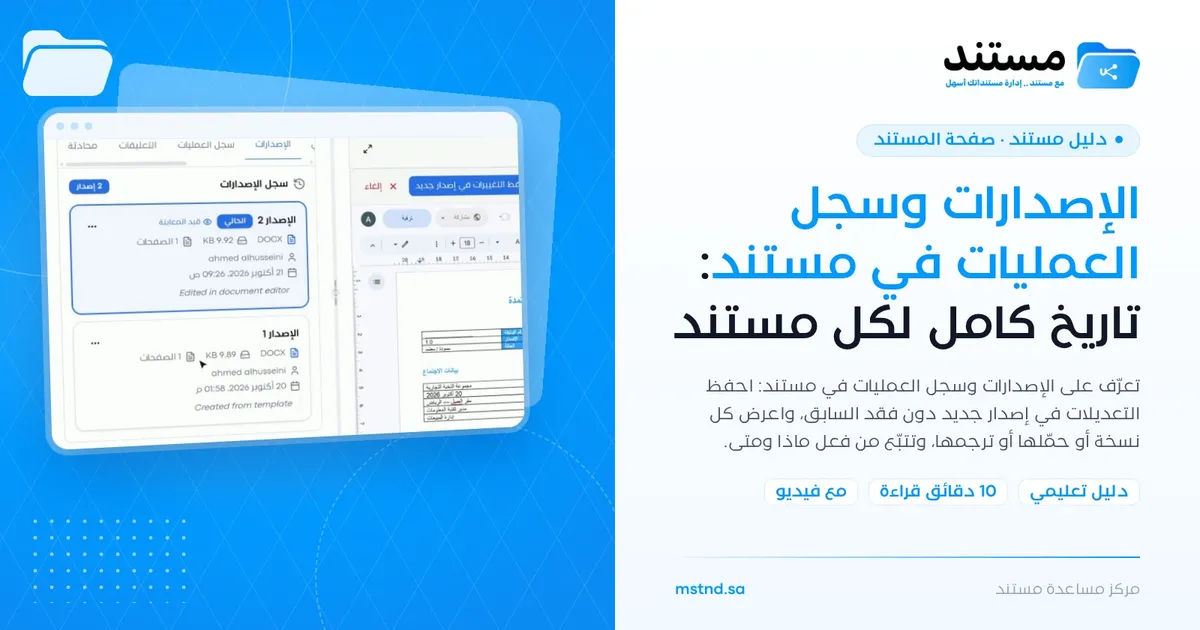
Versions and the operations log in Mstnd: a complete history for every document
In this article
Versions and the operations log are two tabs on the document page in Mstnd that keep the document's complete history. The «Versions» tab shows every copy of the document with its date and the name of the person who edited it, and lets you preview, download or translate any version. The «Operations log» tab shows every action taken on the document: who performed it, when, and what they did. The feature helps any organization that needs to keep every copy and to have clear proof of what happened to its documents.
Quick overview
| Item | Details |
|---|---|
| Module | Document page |
| Where it is in the interface | The «Versions» and «Operations log» tabs in the side panel of the document page, and the «Save changes as a new version» button in the editor |
| Direct link | https://app.mstnd.sa/file/<document ID> |
| Goal | Keep every copy of the document, and record every action taken on it |
| Who it is for | Document preparation teams, legal and finance departments, and quality, compliance and internal audit officers |
| Video length | A little under a minute |
| What you will learn | Saving as a new version, reading the version history, previewing, downloading or translating a version, and reading the operations log |
Watch the video
In under a minute, the video shows how to edit a document and save it as a new version, then how to browse the versions and the operations log.
Why this feature?
Important documents are rarely written in one go. A contract goes through drafts, a policy is updated every year, and minutes are amended after the attendees' comments. When each copy is saved over the previous one, the old wording disappears and it becomes hard to tell what changed. And when copies are saved under names like "Final", "Final 2" and "Final edited", everyone gets lost among them.
There is another question that is just as important: who did what? Who uploaded the document, who edited it, who shared it and who signed it? Without a documented record, the answer comes down to people's memory.
| Before the feature | With the feature |
|---|---|
| Editing erases the previous copy | «Save changes as a new version» keeps the previous one |
| Several files with confusing names | One document with a numbered version history |
| You do not know who edited it and when | Every version carries the date and the name of the person who edited it |
| Going back to an old copy means searching through email | Preview or download any version from its menu |
| Proving what happened to the document depends on memory | The «Operations log» records every action: who, when and what |
The value for the organization: protection against losing information, and a clear audit trail that supports compliance. The value for the individual: the freedom to edit, knowing that every earlier copy is kept.
Where to find it
- From the side menu, open «Folders and documents».
- Open the folder, then the document.
- In the side panel of the document page, choose the «Versions» or «Operations log» tab.
Direct link: https://app.mstnd.sa/file/<document ID>
The «Save changes as a new version» button appears at the top of the editor when you edit the document from the document page. In the same side panel you will also find the «Comments» and «Chat» tabs.
Concepts and terms
| Term | Meaning in Mstnd |
|---|---|
| Version | A saved copy of the document at a given moment, with a sequential number such as «Version 1» and «Version 2» |
| Current version | The latest version of the document, marked with the «Current» badge |
| Previewing | A badge that appears on the version you are viewing right now |
| Save changes as a new version | Saving the edit as a new version while the previous version stays saved in the history |
| Version history | A list of all the document's versions, each with its file type, size, number of pages, who created it, its date and a note about its source |
| Operations log | A chronological record of every action taken on the document, showing who performed it, when and what the action was |
Step by step
Step 1: Edit the document in the editor
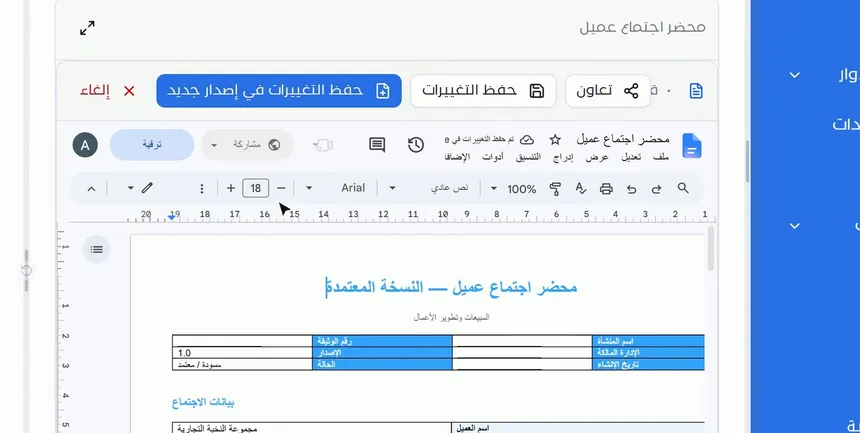
Open the document, then start editing directly in the editor on the document page. You can edit text, tables and formatting as you would in any document editor.
Editing inside the system means the document never leaves it, so you do not need to download it, edit it and then upload it again. It also means every edit can be traced in the version history and the operations log.
Step 2: Save as a new version
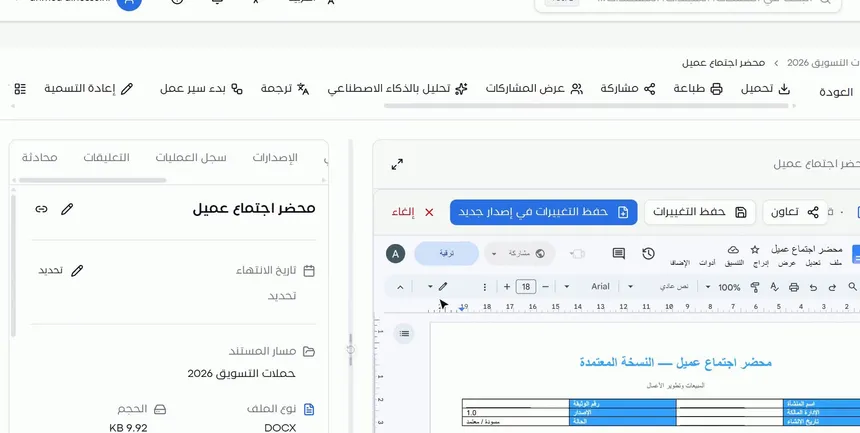
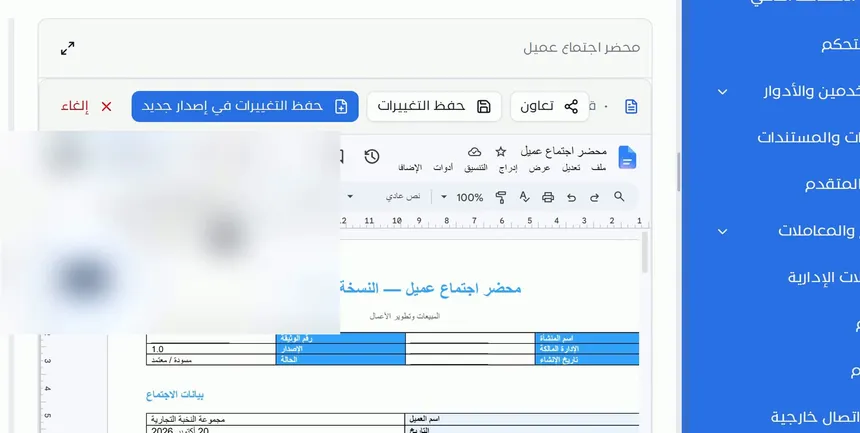
When you finish editing, you will find several buttons at the top of the editor:
- «Collaborate»: to work on the document with your colleagues.
- «Save changes»: to save what you edited.
- «Save changes as a new version»: to save the edit as a new version while keeping the previous copy.
- «Cancel»: to exit without saving.
Click «Save changes as a new version» when the edit is substantial, or when you want to keep the previous copy as a reference.
Step 3: Browse the version history
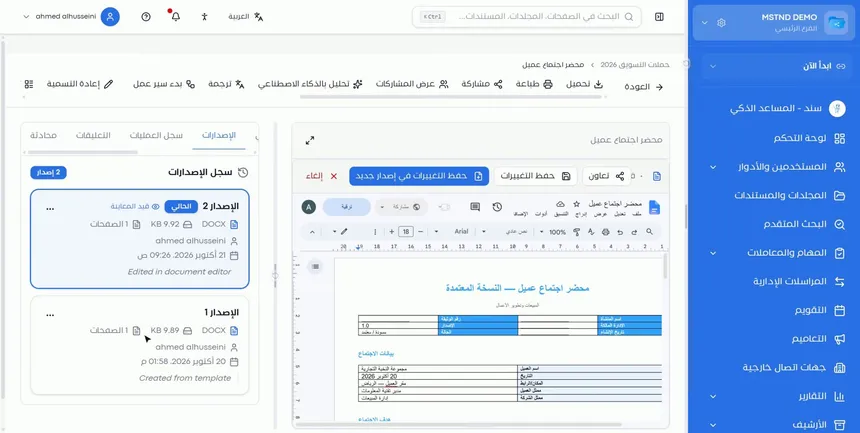
Open the «Versions» tab in the side panel. The «Version history» appears with the total number of versions, followed by a card for each version, ordered from newest to oldest. Each card shows:
- The version number, with the «Current» badge on the latest one.
- The file type, such as DOCX.
- The file size and the number of pages.
- The name of the user who created the version.
- The version's date and time.
- A note about the version's source, such as whether it was created from a template or edited in the document editor.
From these cards you can see at a glance how the document evolved and who contributed at each stage.
Step 4: Preview, download or translate a version
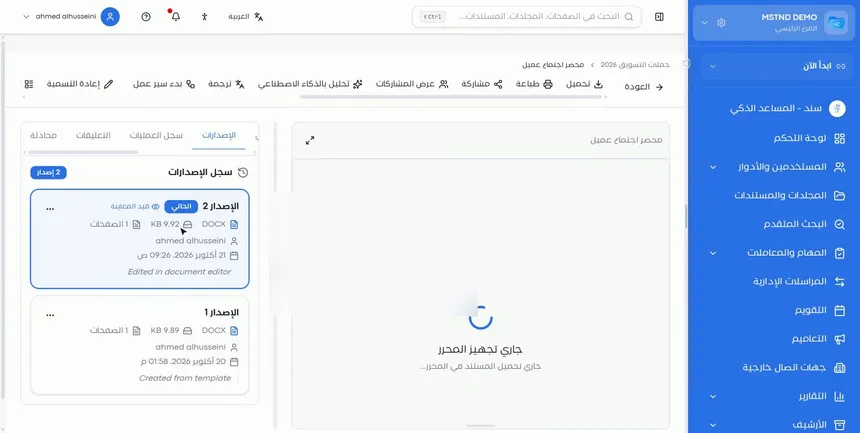
Each version has an options menu that you open from the three-dot button on its card. From it you can:
- Preview: display the content of this version; the «Previewing» badge then appears on it.
- Download: download a copy of this specific version.
- Translate: create a translated copy of this version.
These options make earlier versions useful in practice, not just an archive. You can compare old wording with the current one, send an earlier copy to a party who asked for it, or translate the approved version specifically.
Step 5: Review the «Operations log»
Open the «Operations log» tab to see every action taken on the document in detail: who performed it, when, and what they did.
The difference between the two tabs is essential. «Versions» tells you how the document's content changed. The «Operations log» tells you everything that happened to the document, whether or not it changed the content. That is why the operations log is the first reference during an internal audit, or when someone asks about the path a particular document took.
Options and their effect
| Option or setting | What it does | When to use it |
|---|---|---|
| «Save changes» | Saves the edits you made | For small edits while you work |
| «Save changes as a new version» | Saves the edit as a new version and keeps the previous one | For substantial edits and turning points in the document's life |
| «Cancel» | Exits editing without saving | If you decide not to keep the edits |
| «Collaborate» | Lets you work on the document with colleagues | When the document is prepared as a group |
| Previewing a version | Displays the content of a specific version | To review earlier wording or compare it with the current one |
| Downloading a version | Downloads a copy of a specific version | When you need one particular earlier copy |
| Translating a version | Creates a translated copy of a specific version | To translate the approved copy specifically |
| «Operations log» | Shows every action taken on the document | For review, auditing and tracing the document's path |
Practical scenarios
Scenario: The legal affairs department of a government entity
Situation: A draft internal regulation goes through several rounds of comments from the departments, and every wording must be kept.
What you do in Mstnd:
- Edit the regulation in the editor after each round of comments.
- Save each round with «Save changes as a new version».
- When someone asks about an earlier wording, open «Versions» and preview the version you need.
- Review the «Operations log» to record who took part in each round.
Result: A complete history of the regulation that shows how it reached its final wording.
Scenario: Contract management in a contracting company
Situation: A contract with a subcontractor whose clauses were amended after negotiation, and the subcontractor asks for the copy of the first offer.
What you do in Mstnd:
- Open the contract, then the «Versions» tab.
- From the first version's menu, choose download.
- Send the requested copy to the subcontractor.
Result: The first copy is retrieved in seconds, without searching through email or local files.
Scenario: Quality management in a hospital
Situation: A clinical procedures manual is reviewed periodically, and the accreditation reviewers ask for proof that it has been reviewed and updated.
What you do in Mstnd:
- Save each periodic review as a new version.
- Show the «Version history» to prove the update dates and who made each update.
- Use the «Operations log» to prove the other actions taken on the manual.
Result: A documented, auditable manual that supports the accreditation requirements.
Scenario: A trading company prepares an offer for an international client
Situation: An Arabic commercial offer was approved in its third version, and the client needs an English copy of exactly the approved version.
What you do in Mstnd:
- Open «Versions» and locate the approved version.
- From its menu, choose translation and select English.
- Open the translated copy and review it before sending it.
Result: Exactly the right copy is translated: not an earlier draft and not a later edit.
How it relates to other features
- Creating a document with the Mstnd editor: the editor is where you edit the document and save it as a new version.
- Translation: any version can be translated from its menu in the «Versions» tab.
- Document viewer: displays the version you are previewing with the same tools.
- Comments: a neighboring tab where you discuss edits with your colleagues before saving them as a new version.
- Document details: shows the file type, size and path, information that also appears on each version.
- Activity: shows activity at the level of users and the organization, while the «Operations log» focuses on a single document.
Tips and best practices
- Use «Save changes as a new version» at every turning point: from draft to review, and from review to approval.
- Do not create separate files for each copy; rely on the version history inside the single document.
- Preview the previous version before any major edit to be sure of what you are about to change.
- Download a specific version when an external party asks for a particular copy, instead of sending the latest one by default.
- Translate the approved version specifically from its menu to make sure the right copy is translated.
- Review the «Operations log» regularly for sensitive documents, such as contracts and policies.
- Discuss edits in «Comments» before saving them, so the reason for each version stays on record.
Warnings and common mistakes
FAQ
How do I save my edits and still keep the previous copy?
After editing in the editor, click «Save changes as a new version». The edit is saved as a new version and the previous copy stays in the version history.
Where do I find earlier copies of the document?
In the «Versions» tab in the side panel of the document page, where each version appears with its date and the name of the person who created it.
Can I download an old copy of the document?
Yes. Open the menu of the version you want in the «Versions» tab and choose download.
Can an earlier version be translated?
Yes. From the menu of any version you can choose translation, and a translated copy of that specific version is created.
What is the difference between «Versions» and the «Operations log»?
«Versions» shows the copies of the document's content over time, while the «Operations log» shows every action taken on the document: who performed it, when, and what they did.
What does the «Current» badge mean?
It marks the latest version of the document in the version history.
What information does each version show?
It shows the version number, the file type, its size, its number of pages, the name of the person who created it and its date and time, with a note about its source, such as an edit in the editor or creation from a template.
Summary
- «Save changes as a new version» saves your edit and keeps the previous copy.
- The «Versions» tab shows every copy of the document with the date and the name of the person who edited it.
- From the menu of any version you can preview, download or translate it.
- The «Operations log» records every action on the document: who, when and what.
- Together they give the organization a complete, auditable history of every document.
Try it free: Create your organization's account in Mstnd
Was this article helpful?
Related articles
 0:38
The Mstnd editors: create your documents and spreadsheets inside the system
The Mstnd editors let you create text documents, spreadsheets, presentations and drawings inside the system, save them to the folder and keep editing anytime.
 0:38
Document translation in Mstnd: a translated copy with the same formatting
Mstnd translation makes a separate copy in the same format, detects the source language and applies the Saudi government glossary without changing the original.
 0:51
The document viewer in Mstnd: view any document without downloading it
Learn the Mstnd document viewer: view a file in the system without downloading it, zoom or go full screen, and use the actions bar and side panel in one place.
 0:20
Document comments in Mstnd: discuss with your team in one place
Learn the «Comments» tab in Mstnd: write a note, mention a colleague with @ to notify them, and keep the discussion beside the document with your name and time.
 0:44
Document details: everything about your document in one place
Learn the «Details» tab in Mstnd: expiry date, path, type, size, creator, confidentiality and status changes with a reason, reminder, tags and system number.
 0:23
The activity log in Mstnd: who did what, and when
The Mstnd activity log shows every operation in the system with who did it and when; search by keyword or user name and pick a date range to review events.