

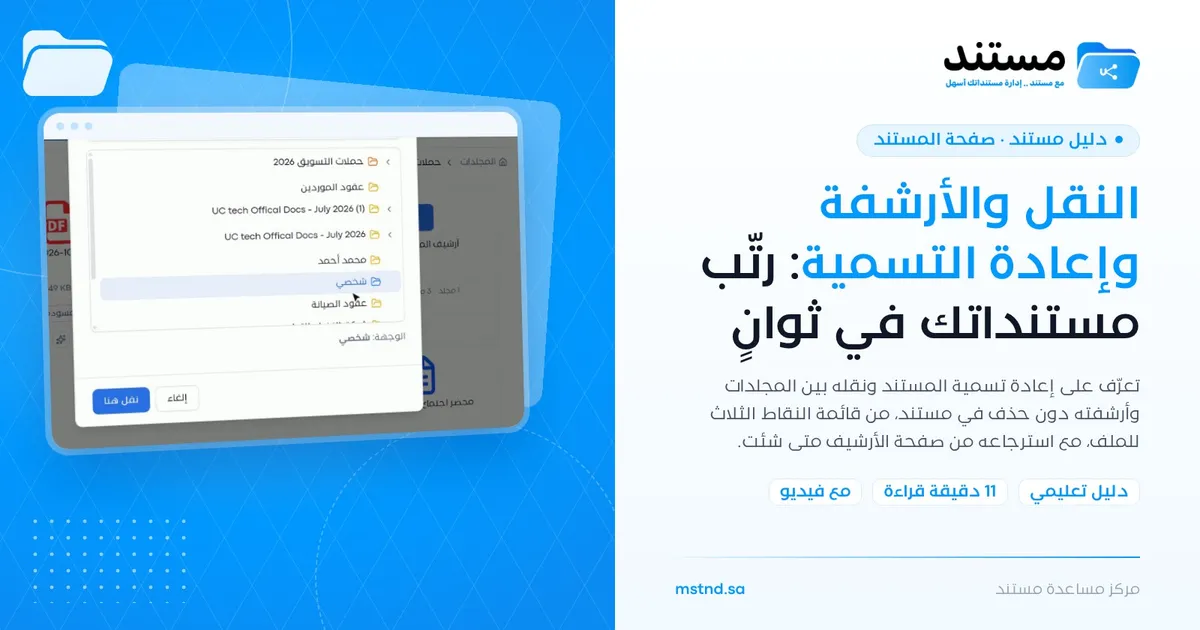
Moving, archiving and renaming: organize your documents in seconds
In this article
Renaming, moving and archiving are three organizing operations you find in the three-dot menu (⋮) of any file in Mstnd. «Rename» changes the document's name, «Move» moves it to another folder that you choose from the folder tree, and «Archive» moves it to the archive without deleting it, with an optional reason, so you can restore it from the «Archive» page at any time. The goal is to keep your folders tidy and your active documents separate from finished ones, without losing anything.
Quick overview
| Item | Details |
|---|---|
| Module | Document page |
| Where it is in the interface | The three-dot menu (⋮) on the file card in the folder content, and the «Rename» button in the document page action bar |
| Direct link | https://app.mstnd.sa/file/<document ID> |
| Goal | Organize documents with clear names and correct locations, and move inactive ones out to the archive without deleting them |
| Who it is for | Every user who manages folders, especially document and records officers in departments |
| Video length | Less than a minute |
| What you will learn | Renaming a file, moving it through the folder tree, archiving it with a reason, and where to find it after archiving |
Watch the video
In less than a minute, the video shows the three operations on a single file: renaming it, then moving it to a «Personal» folder, then archiving it.
Why this feature?
Over time, folders fill up with files that have unclear names, such as automatic scanning names or «New document», files in the wrong place, and files whose work is finished but that still crowd the active files. The common solution, deleting, loses documents that may be requested later for an audit or a review.
These three operations solve the problem without any loss. A clear name makes the document easy to recognize, moving puts it where your colleagues expect it, and archiving takes it out of the daily view while it stays saved and can be restored.
| Before | After |
|---|---|
| Automatic names such as «scan-2026-…» that say nothing about the content | A descriptive name that identifies the document at first glance |
| A document in the wrong folder that nobody finds | A quick move to the right folder from the tree |
| Deleting old documents to reduce clutter | Archiving takes them out of the folder without deleting them |
| Nobody knows why a document disappeared from the folder | The archiving reason explains the decision to whoever searches later |
| Recovering deleted items is hard or impossible | Restoring from the «Archive» page at any time |
Where to find it
- Side menu → «Folders and documents».
- Open the folder that contains the document.
- On the file card, click the three dots (⋮).
- Choose «Rename», «Move» or «Archive».
Direct link to the document page: https://app.mstnd.sa/file/<document ID>
You can also rename from inside the document page, with the «Rename» button in the action bar, or with the pencil icon next to the name in the «Details» tab.
Concepts and terms
| Term | Meaning in Mstnd |
|---|---|
| Three-dot menu (⋮) | A menu of actions that appears on every file card in the folder content |
| Renaming | Changing the file's name while its extension stays the same |
| Moving | Changing the document's folder to another folder that you choose from the tree |
| Folder tree | A hierarchical view of the folders available to you, from which you choose the destination |
| Personal space | Your own space of folders, which includes the «Personal» folder |
| Archiving | Moving the document to the archive without deleting it, with the option to restore it |
| Archiving reason | Optional text that explains why the document was archived |
| Archive | A page that gathers archived items and from which you can restore them |
Step by step
Step 1: Open the file's three-dot menu
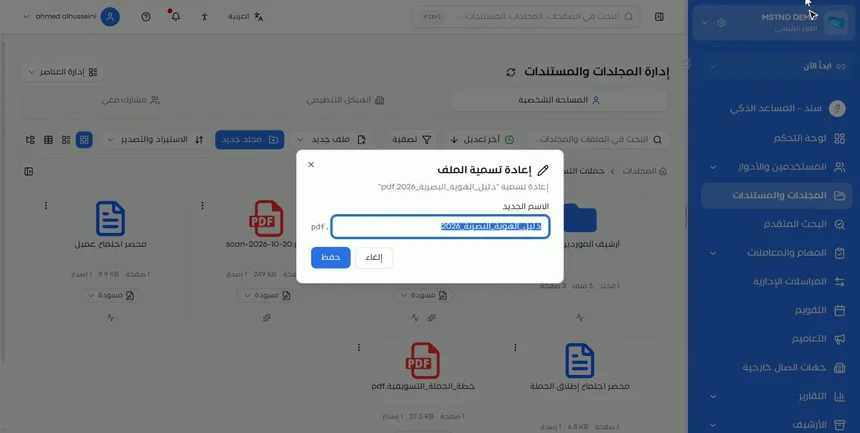
In the folder content, a three-dot icon (⋮) appears on every file card. Click it to show the actions menu, which has what we need here: «Rename», «Move» and «Archive».
Working from the file's menu in the folder is faster when you organize several files in a row, because you do not need to open each document separately.
Step 2: Rename the file
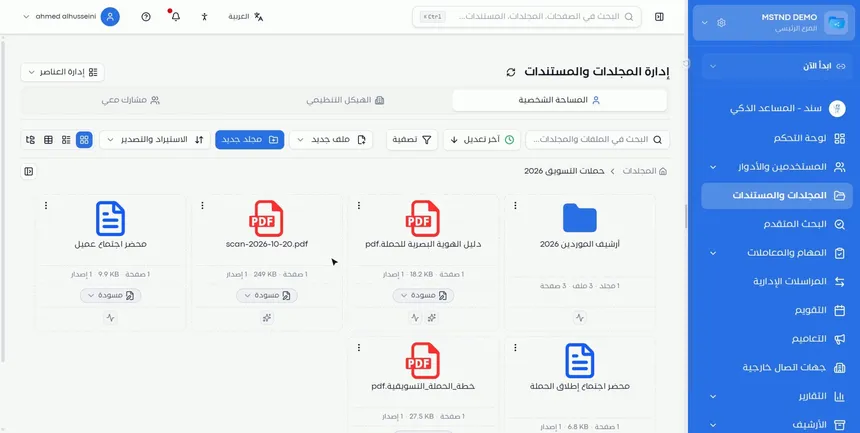
Choose «Rename», and the «Rename file» window opens showing the current name. In the «New name» field, type the name you want, then click «Save».
Notice that the file extension, such as pdf, appears separately next to the field. You edit only the name, and the file type stays the same.
Step 3: Move the document to another folder
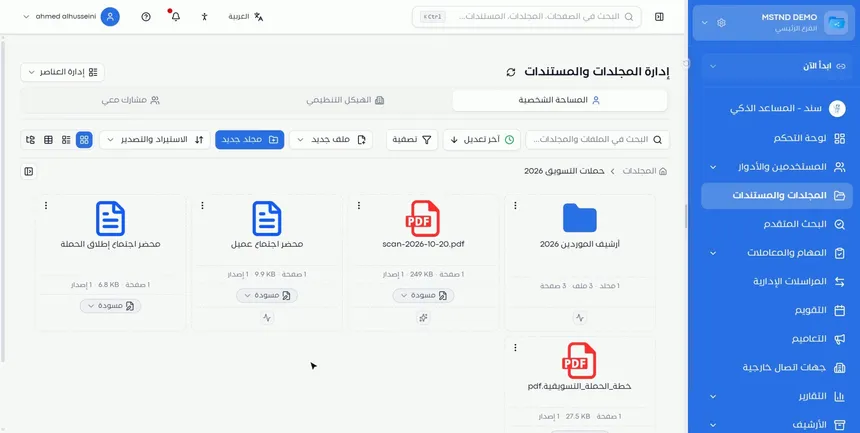
From the three-dot menu choose «Move», then choose the folder you want from the folder tree. The tree shows the folders available to you, and you move between its levels until you reach the destination.
Moving changes only the document's location. The document itself stays the same, with its versions and information, but it appears in the new folder instead of the old one.
Step 4: Confirm that the document reached the new folder
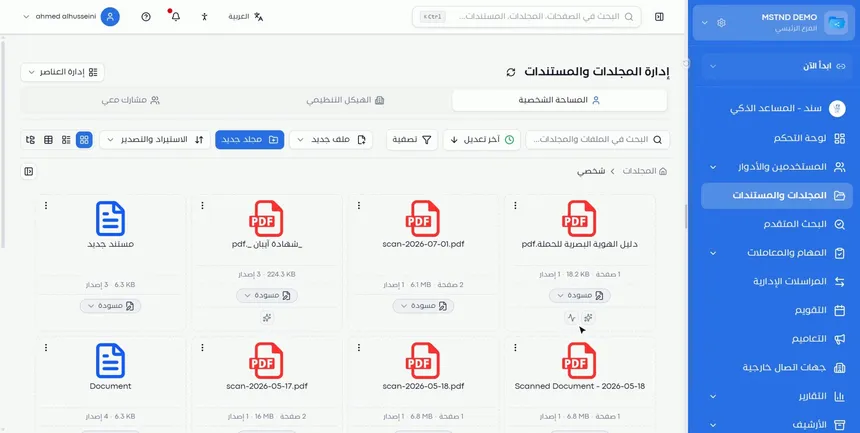
After the move, the document disappears from its previous folder and appears in the destination folder. In the video, the document moved to the «Personal» folder in «Personal space» and appeared there with its new name.
Step 5: Choose «Archive»
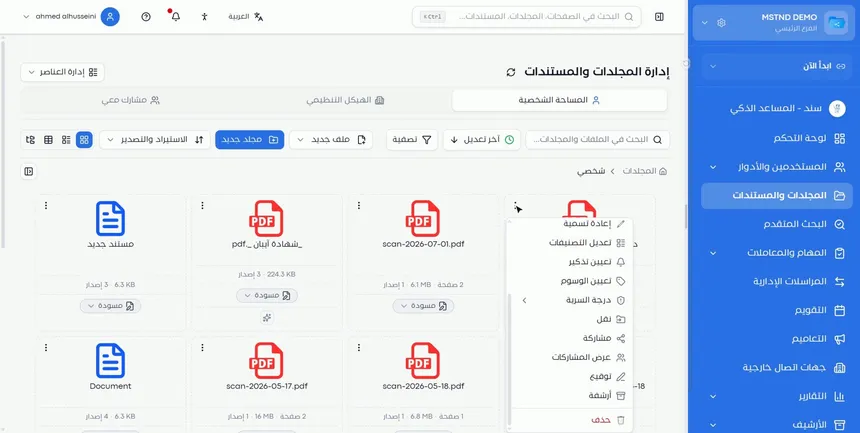
From the three-dot menu choose «Archive». Archiving moves the document to the archive without deleting it.
Notice in the menu that «Archive» and «Delete» are separate options. Archiving is for documents whose work is finished but that may be requested later, and deleting is for what is not needed at all.
Step 6: Write the archiving reason, then confirm
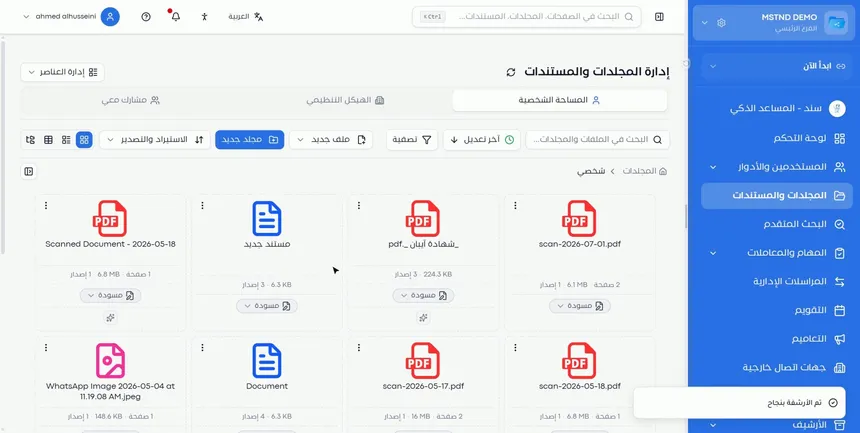
The archive confirmation window opens, with a field for the archiving reason. Writing the reason is optional, but it is very useful to whoever looks for the document later. Write it, then click «Archive»: the notification «Archived successfully» appears and the document disappears from the folder.
Examples of useful reasons: «Contract ended», «Newer version approved», «Campaign ended».
Step 7: Find the document on the «Archive» page
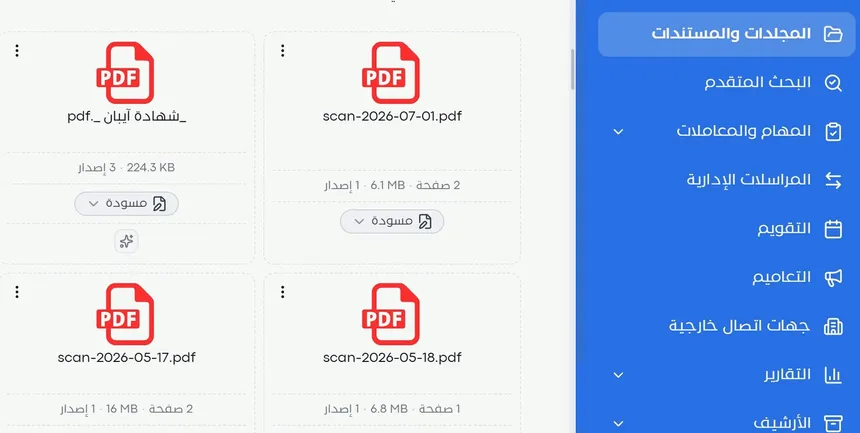
You find the archived document on the «Archive» page in the side menu. From there you can restore it at any time, and it returns to use.
Options and their effect
| Option or setting | What it does | When to use it |
|---|---|---|
| «Rename» | Changes the file's name while keeping its extension | For automatic or unclear names |
| «New name», then «Save» | Applies the new name | After typing a descriptive name |
| «Cancel» in the rename window | Closes the window without changes | If you change your mind about the edit |
| «Move» | Moves the document to another folder | When the document was put in the wrong place or the party responsible for it has changed |
| Folder tree | Sets the destination | To choose the exact folder among the levels |
| «Archive» | Moves the document to the archive without deleting it | For finished documents that may be requested later |
| Archiving reason (optional) | Records the reason for the decision | Almost always, so the decision is easy to understand later |
| Restoring from «Archive» | Returns the document to use | When you need an archived document |
| «Delete» (for comparison) | Deletes the document | For what is not needed at all |
Practical scenarios
Scenario: A government entity organizes scanned files
Situation: The administrative communications employee scans dozens of letters every day, and they appear with automatic names such as «scan-» followed by the date.
What you do in Mstnd:
- Open the incoming folder, and click the three dots on each scanned file.
- Choose «Rename» and type a name that identifies the sending entity and the subject.
- Choose «Move» and move each letter to the folder of the department concerned.
Result: Letters with clear names in their correct folders, which the specialists find without asking.
Scenario: A contracting company closes the file of a finished project
Situation: A project has been completed and handed over, but its documents are still in the active projects folder.
What you do in Mstnd:
- Open the project folder, and choose «Archive» for every document whose work is finished.
- Write the reason: «Final project handover».
- When a warranty claim comes in later, restore the necessary documents from «Archive».
Result: The active projects folder shows only what is being worked on, and the old documents are saved and ready on request.
Scenario: A law firm moves a case file between lawyers
Situation: A case has moved from the litigation team to the settlements team, and its documents must be in the new team's folder.
What you do in Mstnd:
- Choose «Move» for each of the case documents.
- Select the settlements team's folder from the tree.
- Check that the new team sees the documents in its folder.
Result: The case file is in its correct place, and the responsible team works on it directly.
Scenario: A school archives the previous school year's documents
Situation: At the start of the new year, the folders are crowded with last year's plans and schedules.
What you do in Mstnd:
- Archive the previous year's documents, and write the reason: «End of the school year».
- Rename the templates that will be used again so that they refer to the new year.
Result: Clean folders for the new year, and a complete archive of the previous year that you can go back to.
How it relates to other features
- Folder content: this is where the file cards and the three-dot menu appear, and where these operations start.
- Folders: set who can view each folder, which affects who sees the document after it is moved.
- Digital archive: the destination after archiving, from which you restore any archived item.
- Trash: the destination of deleted documents, which is different from the archive.
- Auto-archiving and retention: to set a retention policy and archiving rules for each folder, instead of archiving each document manually.
- Document details: shows the document's path after the move, and lets you edit its name from the top of the tab.
- Internal sharing and public link: if you moved a document to a folder your colleagues cannot reach, share it with them.
Tips and best practices
- Rename scanned files as soon as you upload them, before their automatic names pile up.
- Adopt one naming format across the team that includes the document's type, topic and year.
- Check the permissions of the destination folder before moving, so that your colleagues keep their access.
- Use archiving, not deletion, for finished documents that may be requested for an audit or a review.
- Always write the archiving reason, even though it is optional.
- Set aside regular time, such as the end of each quarter, to archive what is finished.
- If archiving follows a fixed pattern for a certain folder, use auto-archiving instead of manual archiving.
Warnings and common mistakes
FAQ
How do I rename a document in Mstnd?
Click the three dots on the file card and choose «Rename», then type the name in the «New name» field and click «Save». You can also use the «Rename» button in the document page action bar.
How do I move a document to another folder?
From the file's three-dot menu choose «Move», then choose the destination folder from the folder tree, and the document moves there.
Does archiving delete the document?
No. Archiving moves the document to the archive without deleting it, and you can restore it at any time from the «Archive» page.
Do I have to write an archiving reason?
No, the reason is optional, but writing it helps whoever looks for the document later understand why it was archived.
Where do I find the document after archiving it?
On the «Archive» page in the side menu, from which you can restore it.
What is the difference between archiving and deleting?
Archiving takes the document out of its folder into the archive, with the option to restore it, and it is meant for finished documents that may be requested. Deleting moves the document to the trash, and it is meant for what is not needed.
Does the file extension change when I rename a file?
No. The extension appears separately next to the name field and stays the same; you edit only the name.
Summary
- «Rename», «Move» and «Archive» are in the three-dot menu of every file.
- Renaming changes the name while the extension stays, so the document is recognizable at a glance.
- Moving puts the document in its correct folder through the folder tree, keeping in mind who can view the destination folder.
- Archiving takes the document out of the folder without deleting it, with an optional reason.
- Archived documents can be restored from the «Archive» page at any time.
Try it free: Create your organization's account in Mstnd
Was this article helpful?
Related articles
 1:05
Folder content in Mstnd: find your file and manage it in seconds
The Mstnd folder content screen explained: file cards and status changes, multi-select and bulk actions, the folder side panel, and AI chat about the files.
 1:26
Folders in Mstnd: organize your organization's documents from day one
Learn the Mstnd Folders page: Personal space, structure folders, Shared with me, new folders with a confidentiality level, color and icon, views and actions.
 0:35
The digital archive in Mstnd: keep finished work and restore it whenever you need it
Learn the digital archive in Mstnd: archived documents and folders, when and by whom they were archived, search, sort, restore with a reason or move to trash.
 0:28
The trash in Mstnd: restore what you deleted or delete it permanently
Learn the trash in Mstnd: everything deleted stays there with its deletion date and original folder, to be restored or deleted permanently, singly or in bulk.
 1:28
Auto-archiving and retention: the document lifecycle in Mstnd
Set a retention policy in Mstnd: archive, then trash, then permanent destruction, with advance alerts, folder rules, legal holds and approval before deletion.
 0:44
Document details: everything about your document in one place
Learn the «Details» tab in Mstnd: expiry date, path, type, size, creator, confidentiality and status changes with a reason, reminder, tags and system number.