

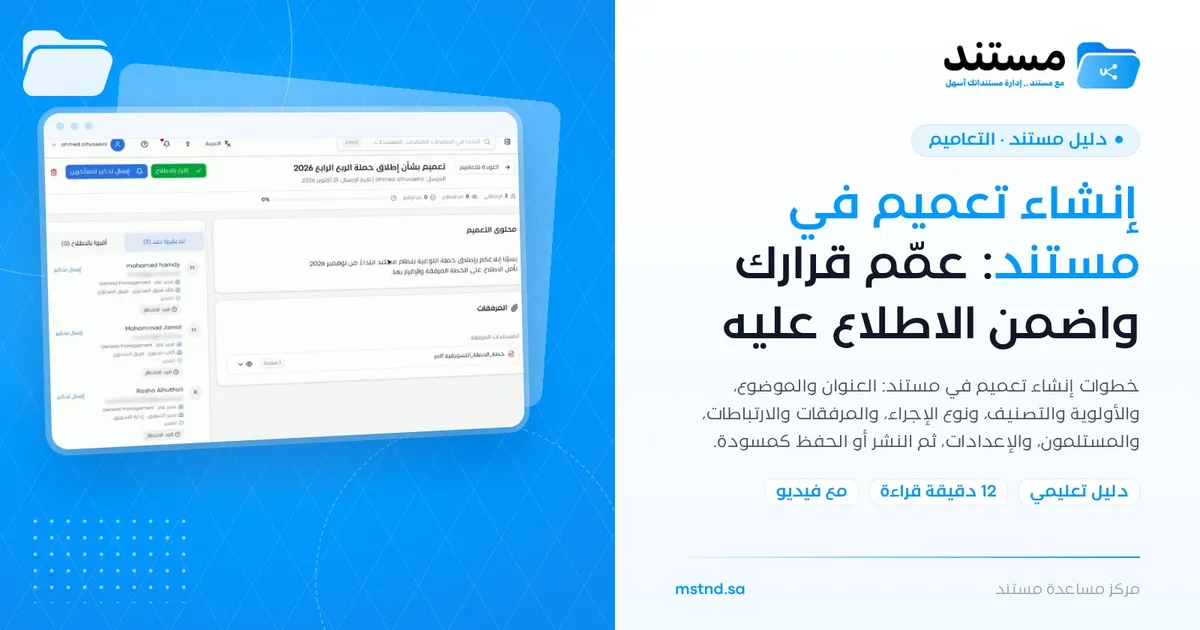
Creating a circular in Mstnd: circulate your decision and make sure it is read
In this article
«Create circular» in Mstnd is the form you use to issue a decision, a policy or an announcement to your organization's employees, while specifying what is required of them: reading it for information, acknowledging it or signing it. In it you set the title, the content and the attachments from the document system, address it to the whole company or to specific units and positions, and configure the automatic reminder and the effective and end dates. Then you publish it so that it reaches the recipients by notification and email.
Quick overview
| Item | Details |
|---|---|
| Module | Circulars |
| Where it is in the interface | Side menu → «Circulars» → «Create circular» button |
| Direct link | https://app.mstnd.sa/circulars/new |
| Goal | Issue a targeted circular with a clear action type, along with attachments, recipients and follow-up settings |
| Who it is for | Senior management, human resources, quality, corporate communication and anyone who issues internal decisions or policies |
| Video length | About one minute |
| What you will learn | Filling in the circular's data, choosing the action type, attaching documents, choosing the recipients, configuring the settings, and publishing or saving as a draft |
Watch the video
In about a minute, the video shows the full creation of a circular about launching a marketing campaign: from writing the title, to attaching the campaign plan, addressing it to the marketing department and turning on automatic resend, and then publishing it.
Why this feature?
For a circular to be good, it is not enough for it to be well written: it must reach the right people, they must know what is required of them, and you must know who has done it. In the traditional way, you write the circular in a file, email it to a list you put together by hand, then follow up the replies one by one, and the late ones may be forgotten.
The «Create circular» form brings these stages together in one step. It links the circular to the organizational structure to define the recipients, sets the type of action required from them, and takes care of the repeated reminders for you until everyone has read it.
| Before Mstnd | With «Create circular» |
|---|---|
| You put together the recipient list by hand from email | You choose the whole company, or units and positions from the organizational structure |
| The recipient does not know whether reading or signing is required | The action type is stated explicitly: for information, for acknowledgment or for signature |
| You send the attachment as a separate copy that may differ from the original | You attach the document directly from the document system |
| You remind the late recipients by hand | Automatic resend every number of days you set |
| There is no set time for the decision to take effect and to end | An effective date and an end date for every circular |
Value for the organization: documented, followed-up circulars, and a clear reference for what employees were informed of and when. Value for the individual: less time spent sending and following up, and certainty that the decision has reached the people it concerns.
Where to find it
- From the side menu, choose «Circulars».
- Click «Create circular» at the top of the page.
- The «Create circular» form opens, with a «Back to circulars» link at the top.
Direct link: https://app.mstnd.sa/circulars/new
Concepts and terms
| Term | Meaning in Mstnd |
|---|---|
| Action type | What is required of the recipients regarding the circular: for information, for acknowledgment or for signature |
| Attachments | Documents from the document system that are added to the circular for the recipients to read |
| Links | Optional links between the circular and other items in Mstnd: folders, tasks, workflows, circulars, correspondence or external contacts |
| Recipients | The people the circular is addressed to: the whole company, organizational units (departments or teams) or positions |
| Automatic resend | A repeated reminder to the recipients who have not interacted yet, at intervals in days, until everyone has read the circular |
| Effective date | The date on which the circular takes effect |
| End date | The date on which the circular stops being in effect |
| Draft | A saved circular that has not been published yet and does not reach the recipients |
Step by step
Step 1: Write the title and the subject
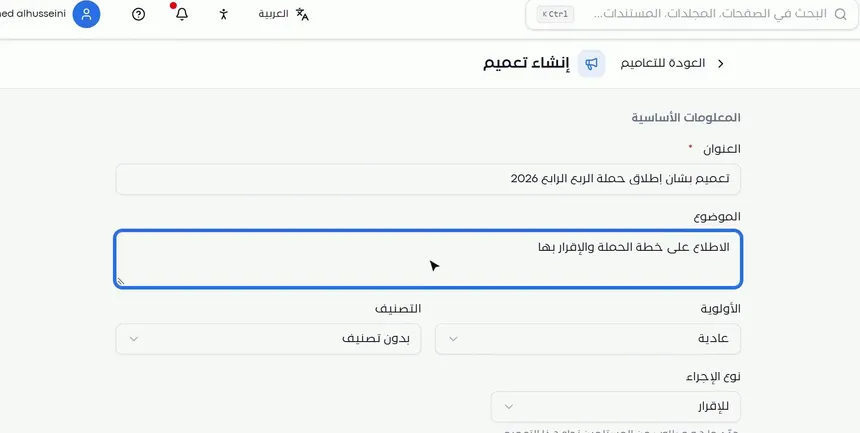
Start with the title. Keep it short and descriptive of what the circular is about, such as «Circular regarding the launch of the Q4 campaign». Then write the subject: one or two lines that briefly explain what is required, such as «Read and acknowledge the campaign plan».
The title matters because it is what appears in the circulars list and what people search by later. The subject appears under the title in the list, so the recipient knows what the circular is about before opening it.
Step 2: Set the priority, the category and the action type
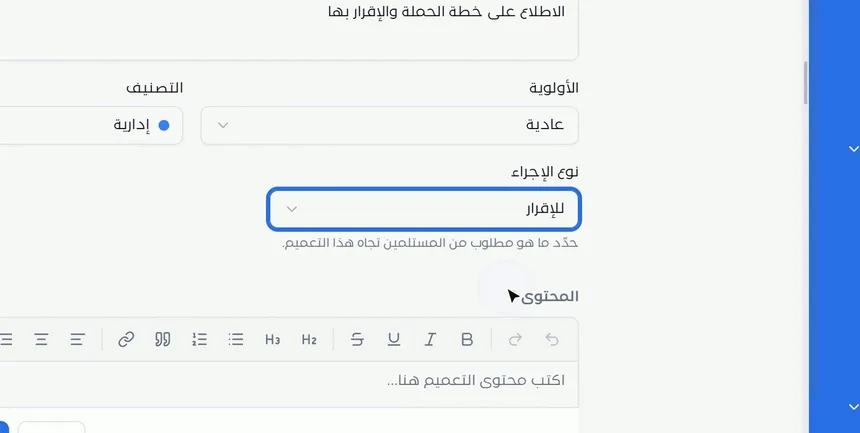
This part has three fields:
- Priority: such as «Normal» or «High». It affects how the circular is ordered and highlighted for the recipients.
- Category: the circular's category, such as «Administrative». It makes filtering and searching easier later.
- Action type: under it is the hint «Specify what is required of the recipients for this circular».
Choosing the action type is the most important decision in the circular:
| Action type | What is asked of the recipient | Suitable example |
|---|---|---|
| For information | Reading only | Announcing an official holiday or a change of meeting place |
| For acknowledgment | Confirming they have read it by clicking «Acknowledge reading» | A new policy or a plan the team must know |
| For signature | Signing the circular | A code of conduct or a confidentiality undertaking |
Step 3: Write the content of the circular
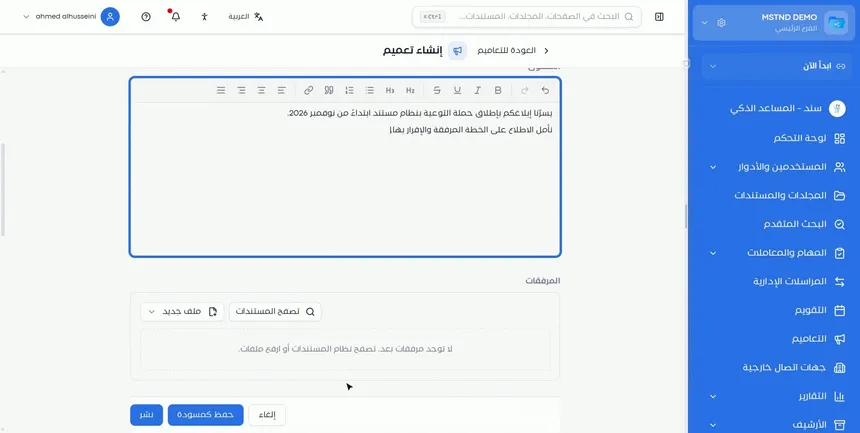
The «Content» section has a text editor with formatting tools: bold, italic and underline, headings, numbered and bulleted lists, quotes, links, alignment, and undo and redo.
Write the content in direct language: What is the decision? When does it start? What is required of the recipient? Use lists if the circular includes several items or instructions.
Step 4: Attach files from the document system
In the «Attachments» section, add the file that supports the circular from the document system, such as the campaign plan. Attaching from inside the system means the recipients read the document stored in Mstnd itself, not a copy sent by email that may differ from the original.
Step 5: Add linked items, then choose the recipients
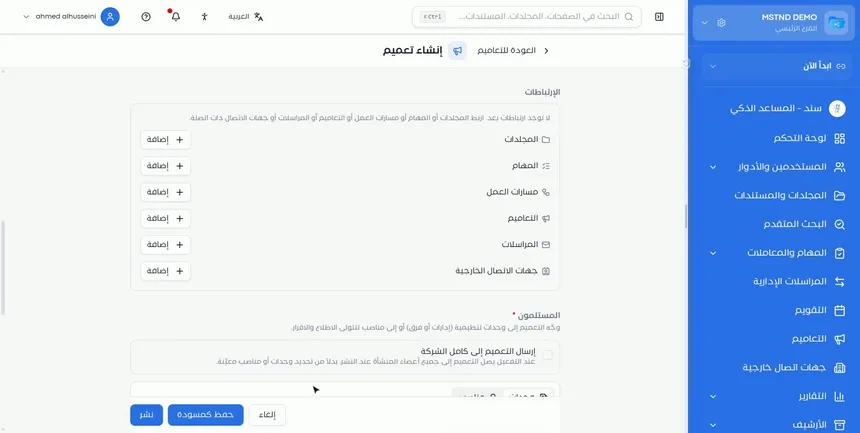
Links are optional. They let you link the circular to other related items: folders, tasks, workflows, circulars, correspondence and external contacts, each with an «Add» button. Linking helps you reach the context later, such as linking a circular to an earlier circular that it updates.
Recipients are required. You have two ways:
- «Send the circular to the whole company»: when it is turned on, the circular reaches all members of the organization when it is published.
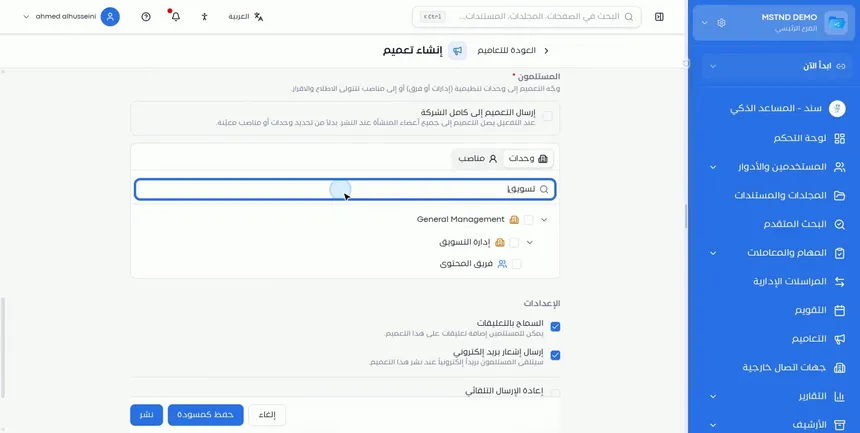
- Specific units or positions: from the «Units» tab you choose departments or teams from the organizational structure, and from the «Positions» tab you choose specific positions. You can search by name, such as «marketing», to reach the «Marketing department» directly.
Addressing units and positions instead of individuals means the circular follows the organizational structure, so you do not need to know the names of every member of the department.
Step 6: Configure the settings
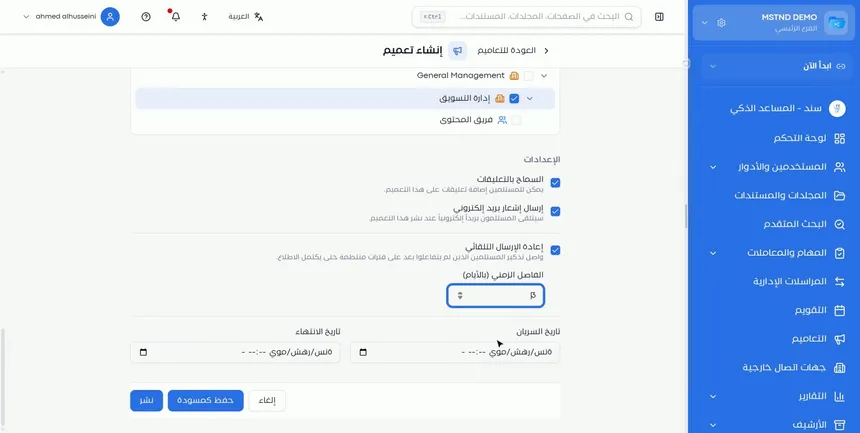
The «Settings» section has three options:
- «Allow comments»: lets the recipients add comments on the circular.
- «Send email notification»: the recipients receive an email when the circular is published.
- «Automatic resend»: keeps reminding the recipients who have not interacted yet at regular intervals until everyone has read the circular. When it is turned on, the «Interval (days)» field appears so you can set how many days apart the reminders are sent.
Step 7: Set the effective and end dates, then publish
Set the «Effective date» on which the circular takes effect, and the «End date» if the circular is temporary. Then choose one of the buttons at the bottom of the form:
- «Publish»: issues the circular and sends it to the recipients right away.
- «Save as draft»: saves the circular without sending it, so you can review or complete it later.
- «Cancel»: leaves the form without saving.
Step 8: Check that the circular has arrived
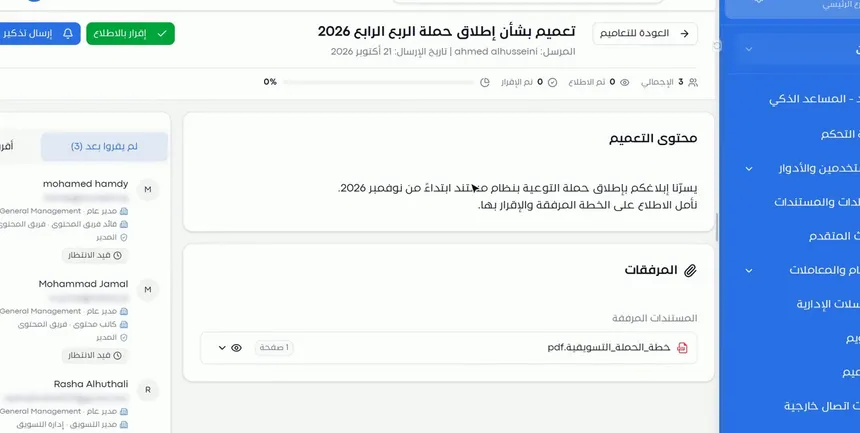
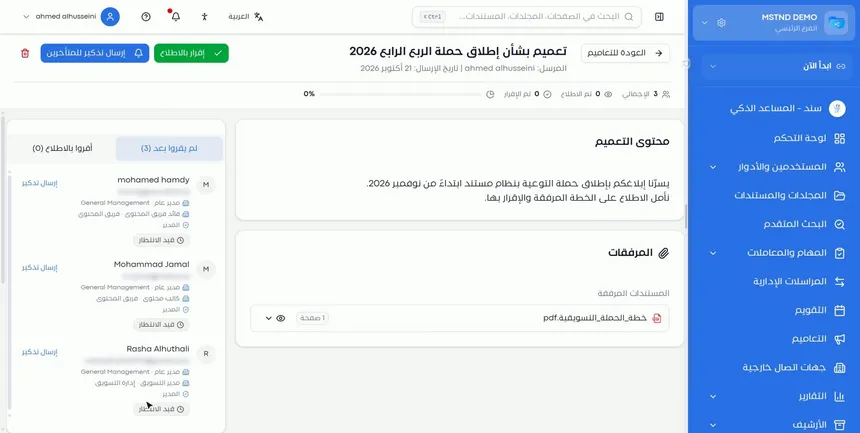
After publishing, the circular reaches the recipients through a notification inside the system, and by email if you turned that on. You move to the circular details page, which shows:
- The sender and the sending date.
- The progress indicator: total, read, acknowledged and the percentage.
- The content of the circular and the attachments.
- The list of recipients, split into «Not read yet» and «Acknowledged reading», with the status of each recipient, such as «Pending».
Follow-up starts from this page. You will find it explained in the guide Circular details.
Options and their effect
| Option or setting | What it does | When to use it |
|---|---|---|
| Priority | Sets how important the circular is | «High» for urgent or sensitive decisions |
| Category | Places the circular in a subject category | Always, to make searching and filtering easier later |
| The «For information» action type | Only informs the recipients | For general announcements |
| The «For acknowledgment» action type | Asks for confirmation of reading | For policies, plans and instructions |
| The «For signature» action type | Asks for the recipient's signature | For undertakings and binding regulations |
| Attachments | Add documents from the system | When the circular is based on a plan, a regulation or a form |
| Links | Link the circular to other items | To keep the context; optional |
| «Send the circular to the whole company» | Addresses it to all members of the organization | For general decisions across the whole organization |
| «Units» / «Positions» | Addresses it to specific departments, teams or positions | For decisions that concern a specific entity |
| «Allow comments» | Lets the recipients comment | When you expect questions or remarks |
| «Send email notification» | Sends an email on publishing | For important circulars, to make sure they get attention |
| «Automatic resend» + the interval | Reminds those who have not interacted every set number of days | For circulars that everyone must read |
| Effective date / end date | Sets the period during which the circular is in effect | For temporary decisions or decisions that start at a later date |
| «Publish» | Sends the circular right away | After the final review |
| «Save as draft» | Saves it without sending | When it needs review or completion |
Practical scenarios
Scenario: The HR department of a government entity updates the working hours policy
Situation: A new policy on attendance and departure times has been issued, and all employees must sign it.
What you do in Mstnd:
- Write the title «Circular regarding adherence to official working hours».
- Choose the «For signature» action type and the «Administrative» category.
- Attach the policy document from the HR folder.
- Turn on «Send the circular to the whole company».
- Turn on automatic resend with a suitable interval, then click «Publish».
Result: The policy reaches everyone, and the late ones receive a periodic reminder without manual follow-up.
Scenario: A contracting company informs a project team of safety instructions
Situation: New safety instructions that concern the site teams only.
What you do in Mstnd:
- Choose the «High» priority and the «For acknowledgment» action type.
- Attach the safety guide.
- From the «Units» tab, choose the site teams concerned.
- Link the circular to the project folder from «Links».
- Publish the circular.
Result: The instructions reach only the teams concerned, with documented proof of each individual's acknowledgment.
Scenario: A hospital issues a temporary protocol
Situation: A temporary operational protocol for a set period that concerns the section heads.
What you do in Mstnd:
- Write the content as a numbered list of instructions.
- From the «Positions» tab, choose the section head positions.
- Set the effective date and the end date.
- Turn on «Allow comments» to receive questions.
- Save it as a draft for the medical director to review, then publish it.
Result: A protocol with a clear duration that reaches the decision makers, with a channel for questions inside the circular.
Scenario: A trading company launches a marketing campaign
Situation: The marketing department needs its team to read the campaign plan before the launch.
What you do in Mstnd:
- Write the title and the subject, and choose «For acknowledgment».
- Attach the campaign plan from the document system.
- Search for «marketing» and choose «Marketing department».
- Turn on the email notification and automatic resend, then click «Publish».
Result: The circular reaches the team by notification and email, and the department follows the acknowledgment rate from the details page.
How it relates to other features
- Circulars: this is where you start creating the circular, and where the published circular or the draft is added.
- Circular details: after publishing, this is where you follow who has read and who has acknowledged, and send manual reminders.
- Organizational structure: the units you choose the recipients from come from the organizational structure, so its accuracy determines how accurately the circular is addressed.
- Folders: attachments come from documents stored in the system's folders, and you can link the circular to a folder.
- Uploading files: upload the supporting document first if it is not in Mstnd yet.
- Calendar: the published circular appears in the Calendar as an event on its date.
- Administrative correspondence: you can link the circular to a related correspondence from the «Links» section.
Tips and best practices
- Start the title with its subject, such as «Circular regarding...»: this makes searching the circulars list easier.
- In the subject, write what is required of the recipient in one line, because it appears under the title in the list.
- Choose the action type according to the legal or administrative effect you need, not out of habit.
- Attach documents from the system instead of copying their content into the circular's text, so there is a single source of truth.
- Address the circular to the narrowest scope that needs it. A circular sent to people it does not concern reduces employees' attention to the important circulars.
- Turn on automatic resend for circulars that everyone must read.
- Save the circular as a draft if it needs an official's approval before it is published.
- Set an end date for temporary decisions, so they do not stay in force in employees' minds after they have ended.
Warnings and common mistakes
FAQ
How do I create a circular in Mstnd?
From the «Circulars» page, click «Create circular», then write the title and subject, set the priority, category and action type, write the content, attach the files, choose the recipients and click «Publish».
What is the difference between a circular for information, for acknowledgment and for signature?
«For information» only informs the recipient, «For acknowledgment» asks them to confirm they have read it, and «For signature» asks them to sign the circular.
Can I send the circular to all employees at once?
Yes. Turn on the «Send the circular to the whole company» option, and it reaches all members of the organization when it is published.
How do I send the circular to one department only?
In the «Recipients» section, open the «Units» tab, search for the department, such as «Marketing department», and select it. You can also choose positions from the «Positions» tab.
What is automatic resend?
An option that sends a reminder to the recipients who have not interacted yet, at regular intervals in days that you set, until everyone has read the circular.
Can I save the circular without publishing it?
Yes. Click «Save as draft», and the circular is saved without reaching the recipients until you publish it later.
Can I attach a file directly from my device?
Attachments to a circular are added from the document system. If the file is on your device, first upload it to a folder in Mstnd, then attach it.
What are linked items in a circular for?
They link the circular to related items such as folders, tasks, correspondence or earlier circulars, and they are optional.
Summary
- «Create circular» brings writing, addressing and following up a decision together in one form.
- The action type (for information, for acknowledgment, for signature) states clearly what is asked of the recipients.
- Attachments from the document system make sure everyone reads the same document.
- Recipients are chosen from the organizational structure: the whole company, units or positions.
- Automatic resend and the effective and end dates make the circular binding and time-bound.
Try it free: Create your organization's account in Mstnd
Was this article helpful?
Related articles
 0:32
Circulars in Mstnd: get your decisions to everyone and track their response
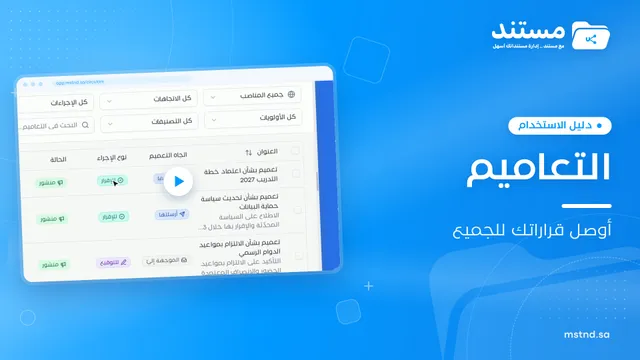
Learn the Circulars page in Mstnd: every sent and received circular with its action type, status, priority and category, plus filters, search and new circulars.
 0:31
Circular details in Mstnd: see who has read it and who has not
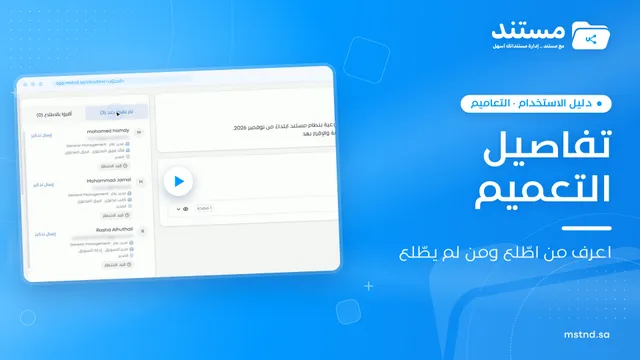
Learn the Mstnd circular details page: the total, read and acknowledged indicator, content and attachments, tracking each recipient, and one-click reminders.
 0:29
The organizational structure in Mstnd: your organization as it really is
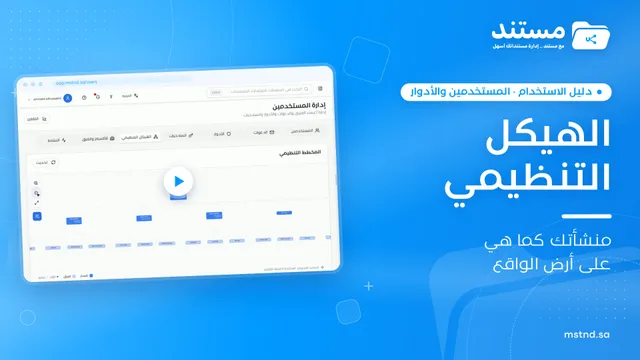
Learn the organizational structure in Mstnd: an interactive chart to zoom and drag, show or hide member names, with color-coded sections, teams and leads.
 1:26
Folders in Mstnd: organize your organization's documents from day one
Learn the Mstnd Folders page: Personal space, structure folders, Shared with me, new folders with a confidentiality level, color and icon, views and actions.
 0:44
The Mstnd Calendar: your full schedule and your team's in one place
Learn the Mstnd Calendar: tasks, circulars, reminders, document expiry, correspondence and invitations in Hijri and Gregorian, with five views and a day panel.
 0:50
Administrative correspondence in Mstnd: outgoing and incoming in one organized register
Administrative correspondence in Mstnd: outgoing and incoming in one register, indicators, filters by direction, status and confidentiality, and reply threads.