

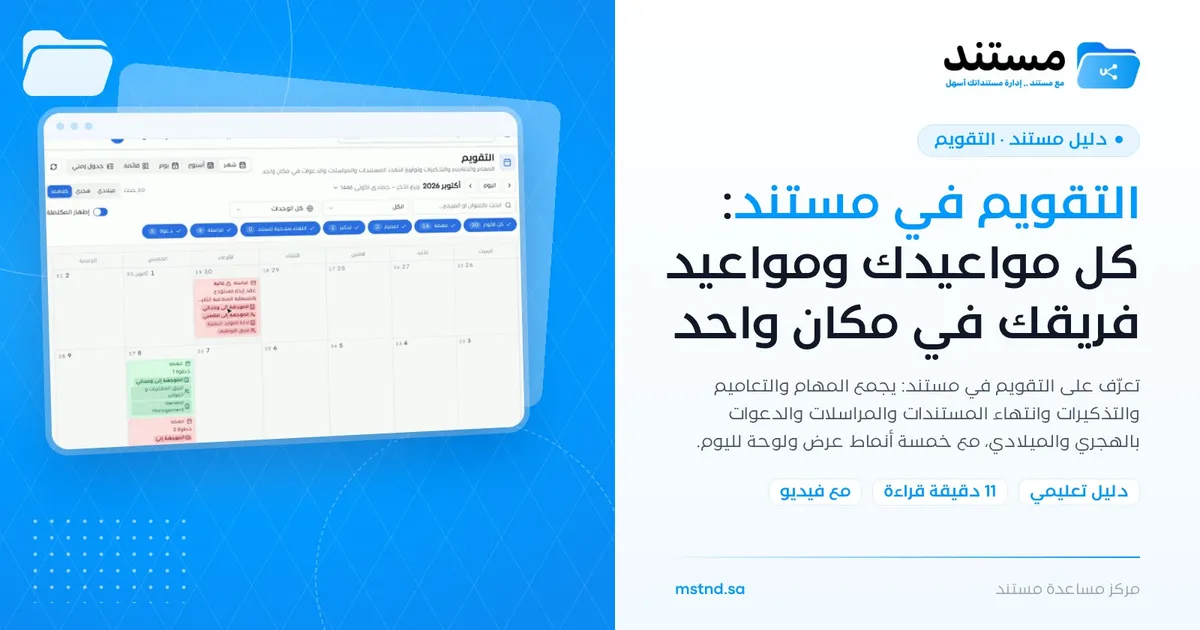
The Mstnd Calendar: your full schedule and your team's in one place
In this article
The Calendar in Mstnd is a single screen that gathers everything in your work that has a date: tasks, circulars, reminders, document expiry, correspondence and invitations. It shows them in Gregorian dates, Hijri dates or both together, in five views ranging from the month to the timeline. It is meant for every user who wants to see their time commitments together, and for managers who follow the dates of their units.
Quick overview
| Item | Details |
|---|---|
| Module | Calendar |
| Where it is in the interface | Side menu → «Calendar» |
| Direct link | https://app.mstnd.sa/calendar |
| Goal | Show every dated event from the different parts of Mstnd in one calendar that you can filter |
| Who it is for | Every user, and especially managers, follow-up officers, secretaries and anyone who manages document and contract dates |
| Video length | About 44 seconds |
| What you will learn | Filtering events by type, choosing the date type, switching between views, and using the day panel and its quick actions |
Watch the video
In less than a minute, the video shows the event types the Calendar gathers, how to filter them, how to choose the date type and the view, and then how to open the day panel and mark a reminder as complete.
Why this feature?
Dates at work do not come from a single source. A task has a due date, a circular has an effective date and an end date, a correspondence has a reply deadline, a document has an expiry date and a reminder has a set time. When these dates are spread over separate screens, it is hard to see your week clearly, and it is easy to miss a date because it was on a screen you did not open.
The Calendar solves this problem by gathering every event in one time-based view. You no longer need to ask "what is due this week?" in each module separately. The goal is to see the full timeline first, then narrow it down to what matters to you with the filters.
| Before the Calendar | With the Calendar |
|---|---|
| You review tasks, then circulars, then correspondence to find out your dates | You see every type in one time grid |
| You discover that a document has expired when it is already too late | The expiry appears as an event on its date |
| You convert dates between Hijri and Gregorian by hand | You show both dates together in the same cell |
| You open each item to find out its details | The day panel shows the events, their details and their quick actions |
| You only know how busy your week is by guesswork | The week view or the timeline reveals the crowded days |
Value for the organization: fewer missed dates, better planning and one shared time reference across departments. Value for the individual: clarity in setting priorities, and time saved moving between screens.
Where to find it
- Sign in to Mstnd.
- From the side menu, choose «Calendar».
- The screen opens on the current month view by default, and under the title there is a short description: tasks, circulars, reminders, document expiry dates, correspondence and invitations in one place.
Direct link: https://app.mstnd.sa/calendar
Concepts and terms
| Term | Meaning in Mstnd |
|---|---|
| Event | Any item with a date that appears in the Calendar, such as a task, a circular or a reminder |
| Event type | The classification of an event by its source: task, circular, reminder, document expiry, correspondence, invitation |
| Type badges | Buttons at the top of the Calendar, each showing the number of its events; you click one to show or hide that type |
| View | The way the events are arranged: month, week, day, list, timeline |
| Day panel | A side panel that opens when you click an event and shows all of that day's events with quick actions |
| Reminder | An alert for a date linked to a document or a piece of work; you can mark it as complete from the day panel |
| Scope | Your relationship to the event, such as «Created by me», «Addressed to my units» or «Addressed to my positions» |
Step by step
Step 1: Get to know what the Calendar gathers
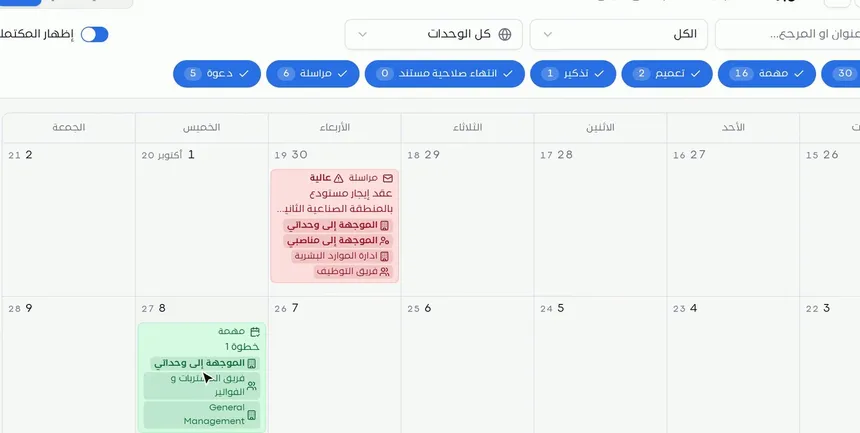
When you open «Calendar» you see the month grid, and each cell holds the day's number and its events. The Calendar gathers six types of events:
- Tasks: with their due dates.
- Circulars: with their dates.
- Reminders: the ones you created or that were addressed to you.
- Document expiry: on the date the document expires.
- Correspondence: with its dates, such as the required reply date.
- Invitations.
Each event appears as a small card that shows its type and title, and it may also show its priority (such as «High»), its scope, such as «Addressed to my units», and the department or team linked to it. This card is usually enough to know what the event is without opening it.
Step 2: Filter the events by type
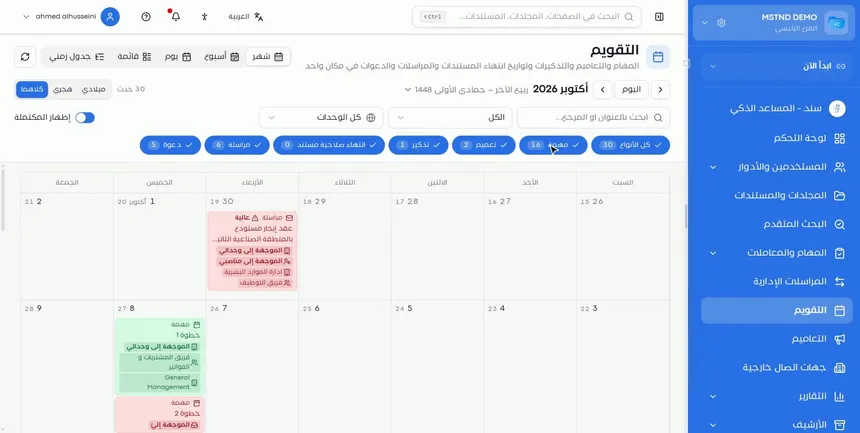
At the top of the Calendar there is a badge for each event type, with the number of events of that type next to each badge, in addition to an «All types» badge. Click any badge to hide that type from the Calendar, and click it again to show it.
This filtering is useful when the month gets crowded. For example, if you want to focus on task due dates only, hide circulars, correspondence and invitations for the time being.
Besides the badges, the top of the screen also offers a search field by title or reference, a scope list that starts with «All», an «All units» list to narrow the view to one organizational unit, and a «Show completed» switch to show or hide completed events.
Step 3: Choose the date type
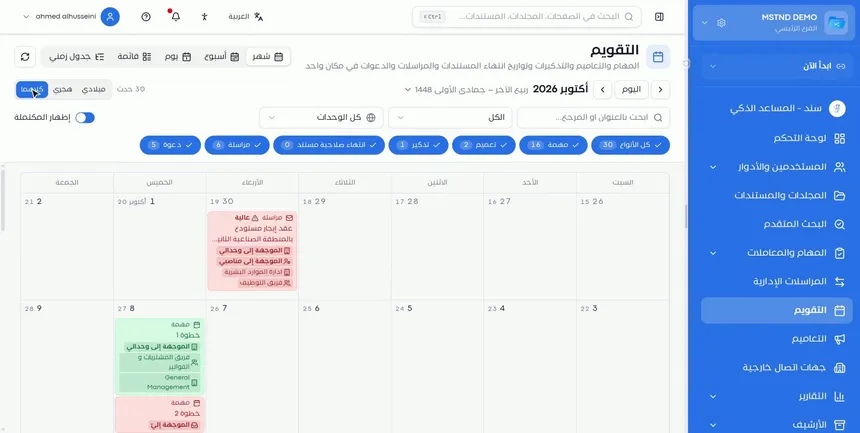
The Calendar gives you three date options:
- Gregorian: shows Gregorian dates only.
- Hijri: shows Hijri dates only.
- Both: shows the two dates together in each cell and in the period title.
The «Both» option matters in the Saudi context, where some official documents are dated in Hijri and commercial contracts in Gregorian. With this option you can see, for example, that a given day in October corresponds to a specific day in Jumada al-Awwal, without needing an external converter.
Step 4: Switch the view
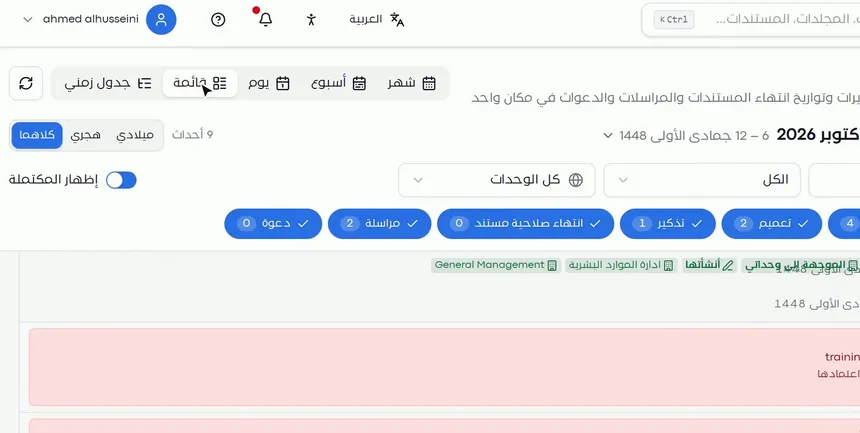
The Calendar offers five views. Choose the one that fits what you want to see:
| View | What it shows | Best for |
|---|---|---|
| Month | The full month grid | Monthly planning and seeing the crowded days |
| Week | The days of the week in more detail | Weekly planning and spreading the effort |
| Day | The events of a single day | Focusing on the day's work |
| List | The events ordered under their days, with their times and tags | Quickly reading the details of each event |
| Timeline | The events on a time axis | Seeing the sequence of events and where they overlap |
At the top of the screen there is a «Today» button to return to the current date, two arrows to move to the previous or next period, and a refresh button to reload the events. Next to the date type, you see the number of events in the displayed period.
Step 5: Open the day panel from any event
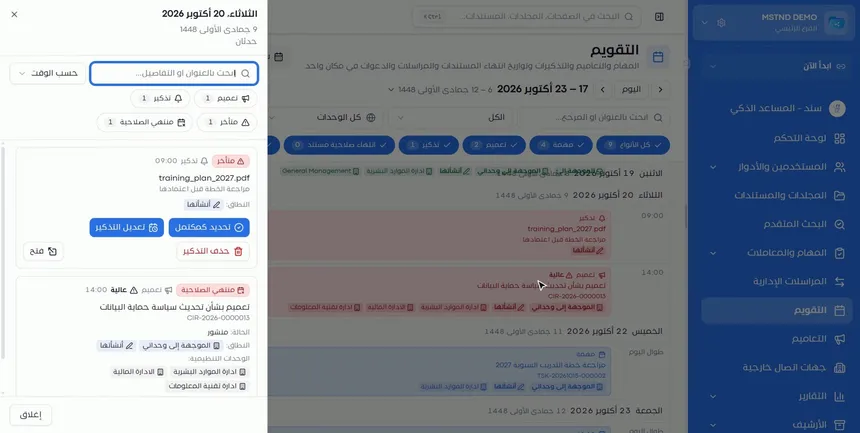
Click any event in the Calendar and the «Day panel» opens at the side of the screen. Notice that it does not show only the event you clicked, but all of that day's events. This helps when you want to know what else comes with this event on the same day.
Step 6: Use the quick actions in the day panel
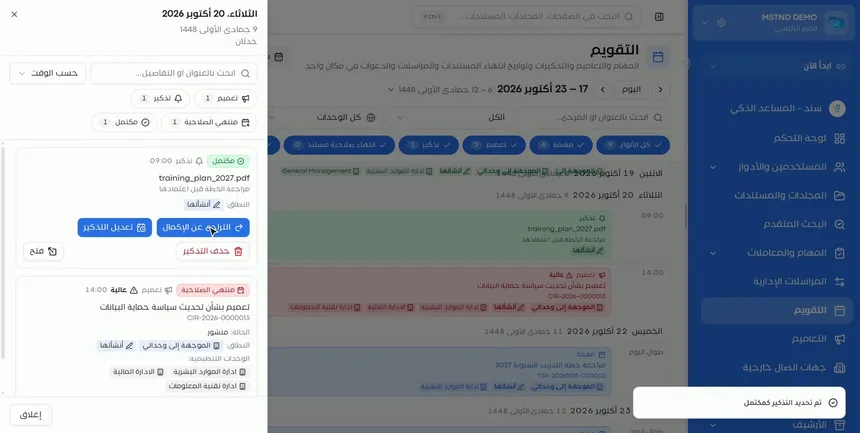
In its header, the day panel shows the date in Gregorian and Hijri and the number of the day's events. Below it there is a search field by title or details, a «By time» sort order, and badges that summarize the types and statuses of the day's events.
Each event has a card that shows its time, type, title, description and scope, together with quick actions that suit its type. For a reminder, for example, you find:
- «Mark as complete».
- «Edit reminder».
- «Delete reminder».
- «Open», to go to the linked item.
For a circular, the card shows its reference number, its status, such as «Published», and the organizational units it is addressed to.
Step 7: Confirm that the status is updated in the Calendar
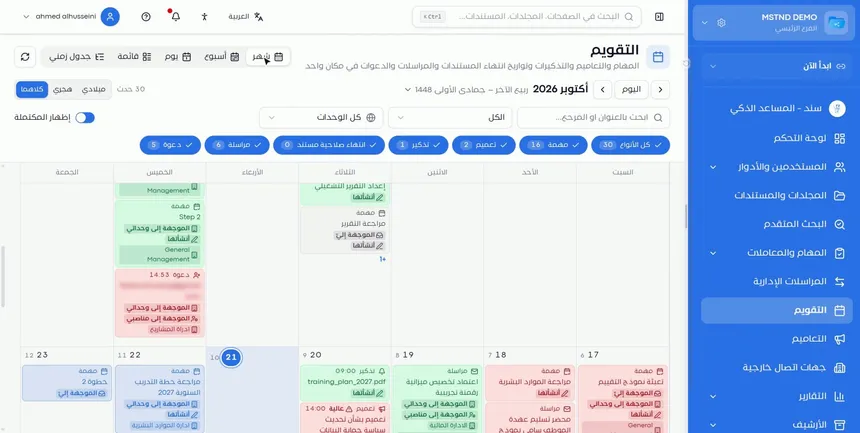
After you click «Mark as complete», the message «Reminder marked as complete» appears, the reminder turns green in the Calendar and a «Completed» badge appears on it. The button in the panel changes to «Undo completion» in case you need to reopen it.
Options and their effect
| Option or setting | What it does | When to use it |
|---|---|---|
| An event type badge | Shows or hides that type in the Calendar | To reduce clutter and focus on one type |
| «All types» | Shows all types together | To return to the full picture |
| Search by title or reference | Narrows the events to those that match the text | When you are looking for a specific event or a reference number |
| The «All» scope list | Limits the events by your relationship to them | To separate what you created from what was addressed to you |
| «All units» | Limits the events to one organizational unit | For managers who follow a specific department |
| «Show completed» | Shows or hides completed events | To review what has been done or to clean up the view |
| Gregorian / Hijri / Both | Sets the type of date displayed | Depending on the nature of the documents and dates you follow |
| Month / Week / Day / List / Timeline | Changes the view | Depending on the level of detail you need |
| «Today» and the arrows | Take you to the current day or to the previous and next period | To move between periods |
| «Mark as complete» | Closes the reminder and colors it green | After finishing what it reminds you of |
| «Edit reminder» / «Delete reminder» | Edits the reminder's date or deletes the reminder | When the date changes or is canceled |
| «Open» | Takes you to the item linked to the event | To carry out a detailed action |
Practical scenarios
Scenario: The legal affairs department of a government entity
Situation: The department follows contracts and documents dated in Hijri, and correspondence that requires a reply by set dates.
What you do in Mstnd:
- Open «Calendar» and choose «Both» as the date type.
- Keep only the «Document expiry» and «Correspondence» badges.
- Move to the month view to see how the dates are spread.
- Open the day panel for any upcoming date, then click «Open» to go to the document or the correspondence.
Result: The department sees the expiry and reply dates in both calendars, without missing a renewal or a reply.
Scenario: A project manager in a contracting company
Situation: A project with consecutive tasks for several teams, and the manager wants to know which days are crowded.
What you do in Mstnd:
- Choose the project's unit from the «All units» list.
- Hide every type except «Task».
- Move to «Timeline» to see the sequence of the tasks.
- Move to «Week» to spread the effort over the days.
Result: The manager discovers early that tasks are piling up on a single day, and rearranges them with the team from the Tasks page.
Scenario: The quality coordinator at a hospital
Situation: Procedural circulars are issued to the medical sections, with a deadline for employees to acknowledge them, and there are reminders to review policies.
What you do in Mstnd:
- Keep the «Circular» and «Reminder» badges.
- Use the «List» view to read the details of each event.
- Open the day panel and mark the reminders you have finished with «Mark as complete».
Result: A clean calendar that shows only what remains, and a clear record of what has been done when «Show completed» is turned on.
Scenario: An office manager in a trading company
Situation: The office manager handles the CEO's appointments, correspondence and daily reminders.
What you do in Mstnd:
- Open the «Day» view every morning.
- Review the day's events, sorted «By time», in the day panel.
- Search by reference for any correspondence you are asked about.
Result: An organized start to the day, and an immediate answer to any question about an appointment or a correspondence.
How it relates to other features
- Dashboard: its «Action agenda» is a short weekly view of what the Calendar shows at length.
- Tasks: task due dates are what fills the Calendar most, and the tasks themselves are managed from their page.
- Circulars: circulars appear in the Calendar on their dates, and their acknowledgments are followed from the Circulars page.
- Administrative correspondence: correspondence that has dates, such as a reply deadline, appears as events in the Calendar.
- Reminders, tags and categories: the reminders you set on documents appear in the Calendar and can be completed from it.
- Important documents: the organization's documents have expiry dates, and following their expiry in the Calendar complements the renewal alerts.
- Date and time: the organization's date and time settings are the basis on which the dates are shown.
Tips and best practices
- Make «Both» your permanent choice if you deal with official documents dated in Hijri.
- Start your week with the «Week» view to spread your effort, and start your day with the «Day» view or the day panel.
- Hide the types you do not need for a given piece of work instead of scrolling through many events.
- Mark reminders as complete as soon as you finish them, so the Calendar keeps reflecting what actually remains.
- Use search by reference when someone asks about a correspondence or a circular by its number.
- For managers: use «All units» to review the dates of each department separately every week.
- Review the «Document expiry» events monthly, before the start of each month, to prepare renewals early.
Warnings and common mistakes
FAQ
What does the Calendar show in Mstnd?
It shows tasks, circulars, reminders, document expiry, correspondence and invitations in one calendar, and you can show or hide each type.
Does the Calendar support Hijri dates?
Yes. You can choose Gregorian or Hijri dates, or show both together with the «Both» option.
Which views are available in the Calendar?
Five views: Month, Week, Day, List and Timeline. You switch between them with the buttons at the top of the screen.
How do I hide a specific type of event?
Click the type's badge at the top of the Calendar, such as «Invitation» or «Correspondence», and it disappears from the view. Click it again to show it.
What is the day panel?
A side panel that opens when you click any event. It shows all of that day's events with their details and quick actions, such as «Mark as complete» for a reminder.
How do I mark a reminder as complete from the Calendar?
Click the reminder to open the day panel, then click «Mark as complete». It turns green, and you can undo this with the «Undo completion» button.
What is the difference between the Calendar and the Action agenda on the Dashboard?
The agenda shows your current week with direct action buttons, while the Calendar shows wider periods, several views and additional types such as document expiry and invitations.
Can I see my team's dates in the Calendar?
The Calendar shows the events linked to you, your units and your positions, and you can narrow it to a specific unit with the «All units» list, within what your permissions allow.
Summary
- The Calendar gathers every dated event from the different parts of Mstnd on one screen.
- The type badges, search, scope and units narrow the view to what matters to you.
- The «Both» option shows Hijri and Gregorian together, which suits official documents.
- Five views serve monthly, weekly and daily planning.
- The day panel shows the day's events and offers quick actions such as completing a reminder.
Try it free: Create your organization's account in Mstnd
Was this article helpful?
Related articles
 1:57
The Mstnd Dashboard: everything waiting for you on one screen
Learn the Mstnd Dashboard: the «Waiting for you today» cards, the Action agenda, workflows, Sanad recommendations, team activity and how to plan your day.
 0:56
The Tasks page in Mstnd: your tasks and your team's in one place
Mstnd's Tasks page lists your and your team's tasks with system number, operation, status, priority, assignees and due date, plus scopes, filters and a report.
 0:32
Circulars in Mstnd: get your decisions to everyone and track their response
Learn the Circulars page in Mstnd: every sent and received circular with its action type, status, priority and category, plus filters, search and new circulars.
 0:50
Administrative correspondence in Mstnd: outgoing and incoming in one organized register
Administrative correspondence in Mstnd: outgoing and incoming in one register, indicators, filters by direction, status and confidentiality, and reply threads.
 0:47
Reminders, tags and categories: organize your document and never miss a date
Learn how to set a document reminder in Mstnd with a date, time and advance alert, and add tags and categories from the action bar to ease search and filtering.
 0:57
Important documents in Mstnd: track your commercial registration and licenses
Learn «Important documents» in Mstnd: upload a commercial registration or license, let AI suggest its data and set a Hijri or Gregorian expiry date for alerts.