

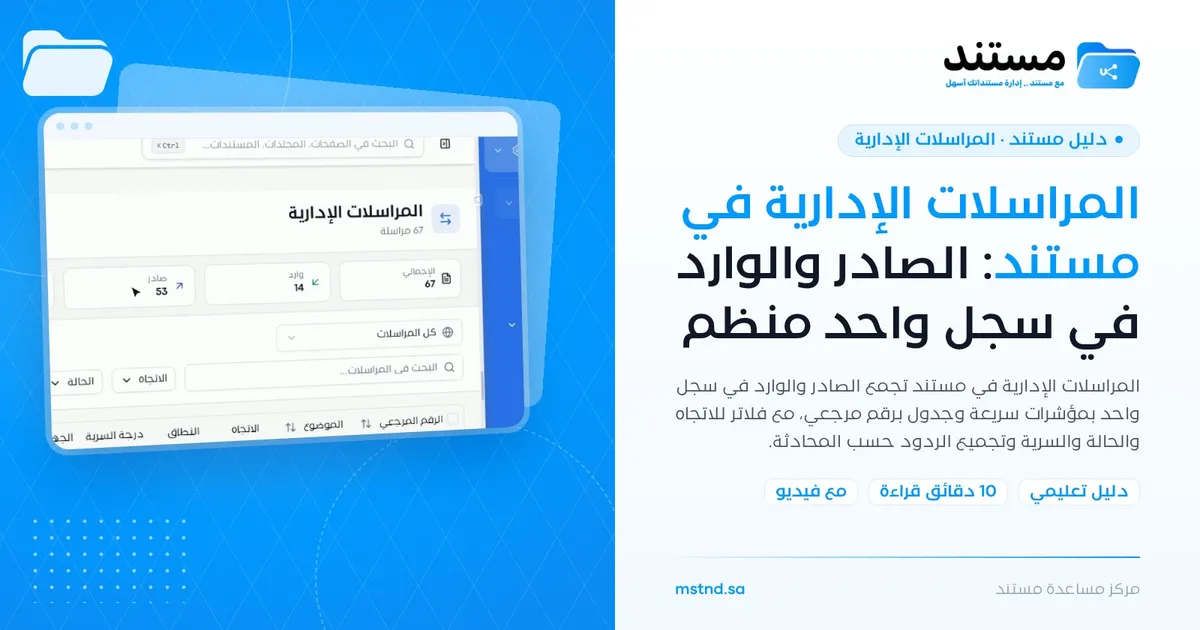
Administrative correspondence in Mstnd: outgoing and incoming in one organized register
In this article
The «Administrative correspondence» page in Mstnd is the organization's unified register of outgoing and incoming correspondence. At the top it shows quick indicators for the total, incoming, outgoing, drafts, sent items and the correspondence that requires a reply; below them, a table shows for each item its reference number, subject, direction, scope, sending and receiving parties and the people responsible for it. With the filters, grouping by conversation and the view by department, following up correspondence becomes a clear task for administrative communications departments, managers and follow-up officers.
Quick overview
| Item | Details |
|---|---|
| Module | Administrative correspondence |
| Where it is in the interface | Side menu → «Administrative correspondence» |
| Direct link | https://app.mstnd.sa/correspondence |
| Goal | Organize outgoing and incoming correspondence and follow it up in one register that you can filter |
| Who it is for | Administrative communications departments and secretarial staff, managers, follow-up officers, and everyone who sends or receives official letters |
| Video length | Just under a minute |
| What you will learn | Reading the indicators, understanding the table columns, using and clearing filters, grouping replies by conversation, viewing by department, and opening «Reports» |
Watch the video
In under a minute, the video shows the administrative correspondence page: the indicators, the table, the filters, grouping by conversation, and moving between departments and reports.
Why this feature?
In many organizations, correspondence is managed through paper outgoing and incoming ledgers, separate spreadsheets for each department, or personal email. That makes it hard to know whether a given letter has been answered, who is responsible for following it up, and where its related reply is. With many departments, numbers get duplicated and correspondence gets scattered, and the question "where has our letter got to?" turns into a long search.
The administrative correspondence page brings all of this together in one register. Every item has a reference number, a clear direction, a scope, sending and receiving parties, and owners. The indicators at the top tell you instantly how much is waiting for a reply.
| Before this feature | With this feature |
|---|---|
| Separate outgoing and incoming ledgers | One unified register for outgoing and incoming |
| You do not know how many items are waiting for a reply | The «Requires reply» indicator at the top of the page |
| The reply is kept apart from the original letter | «Group by conversation» puts replies under the original |
| Finding an item depends on memory | A reference number, search and multiple filters |
| You do not know who is responsible for follow-up | An «Owners» column for every item |
| Correspondence statistics are compiled by hand | «Reports» shows them directly |
The value for the organization: a documented, organized correspondence register that is available for follow-up and audit. The value for the individual: instant knowledge of what is waiting for them and what they are following up.
Where to find it
- From the side menu, choose «Administrative correspondence».
- The page appears with the indicators at the top and the table below them.
Direct link: https://app.mstnd.sa/correspondence
The correspondence required of you also appears in the «Correspondence» card and in the Action agenda on the Dashboard. At the top of the correspondence page you will find the «New correspondence» button for creating an item, the «Refresh» button for refreshing the list, and the «Reports» button.
Concepts and terms
| Term | Meaning in Mstnd |
|---|---|
| Correspondence item | An official letter sent by the organization or received by it, registered and followed up in the system |
| Reference number | A unique number for each item, used to search for it and to refer to it in later correspondence |
| Direction | Whether the item is «Outgoing» from the organization or one of its departments, or «Incoming» to it |
| Scope | Whether the item is internal, between the organization's departments, or external, with parties outside it |
| Confidentiality level | How sensitive the item is; you can filter by it |
| Sending and receiving parties | The department or party that sent the item, and the one that received it |
| Owners | The employees responsible for following up the item |
| Conversation | A thread that groups the original item and all of the replies linked to it |
Step by step
Step 1: Read the quick summary at the top
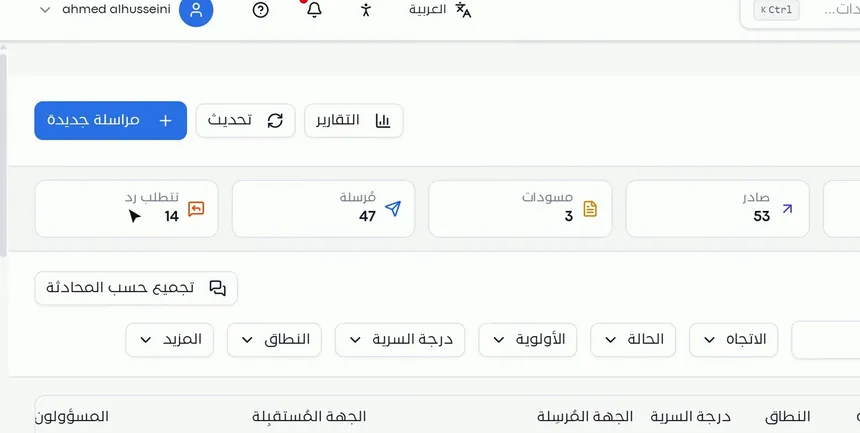
At the top of the «Administrative correspondence» page, six indicators summarize the state of your correspondence:
- Total: the number of all correspondence items.
- Incoming: items coming in to the organization or the department.
- Outgoing: items going out from it.
- Drafts: items whose writing has started but that have not been sent.
- Sent: items that have been sent.
- Requires reply: items waiting for a reply.
The most important of these indicators for daily work is «Requires reply», because it reveals the volume of open commitments. The «Drafts» indicator reminds you of items you started and did not finish.
Step 2: Understand the table columns
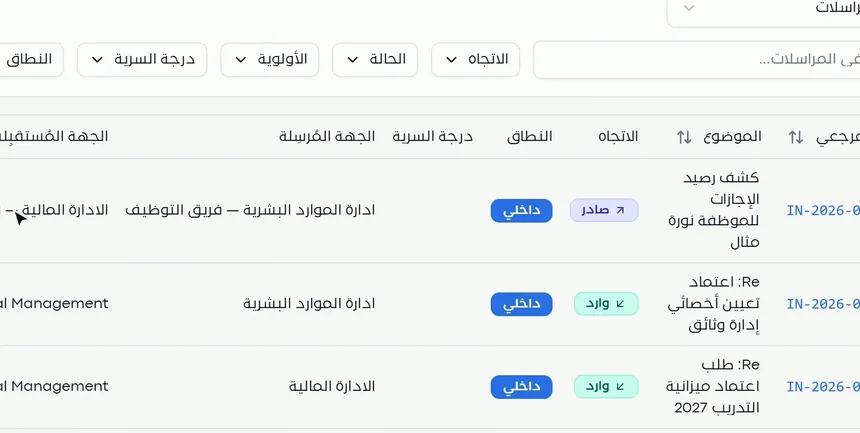
For each item, the table shows:
- Reference number: a unique number for the item.
- Subject: the title of the item.
- Direction: «Outgoing» or «Incoming».
- Scope: such as «Internal».
- Confidentiality level.
- Sending party: such as the HR department or a team within it.
- Receiving party: such as the finance department or general management.
- Owners: who follows up the item.
You can sort the table by reference number or subject using the sort arrows next to their headings. Reading the direction together with the sending and receiving parties gives you a quick understanding of each item's route without opening it.
Step 3: Filter correspondence
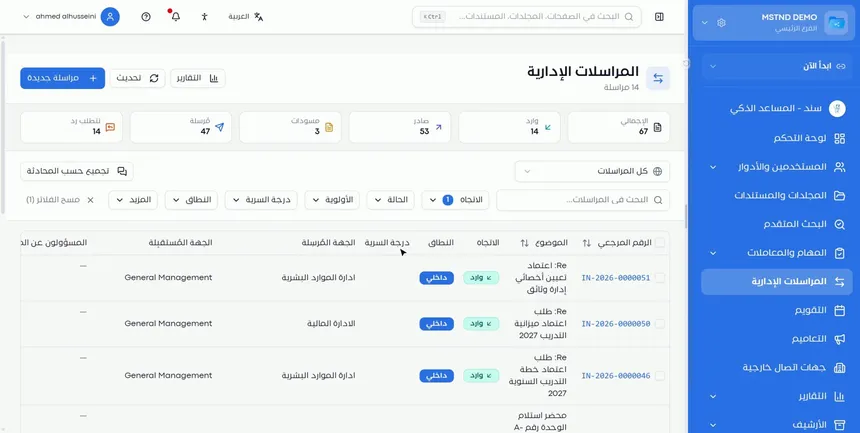
Above the table are the «Search correspondence» field and a filter bar that lets you filter by:
- Direction: outgoing or incoming.
- Status.
- Priority.
- Confidentiality level.
- Scope: internal or external.
There is also a «More» button for additional filter options. You can combine several filters, such as high-priority incoming items, to get exactly to what matters to you.
Step 4: Try the «Incoming» filter, then clear the filters
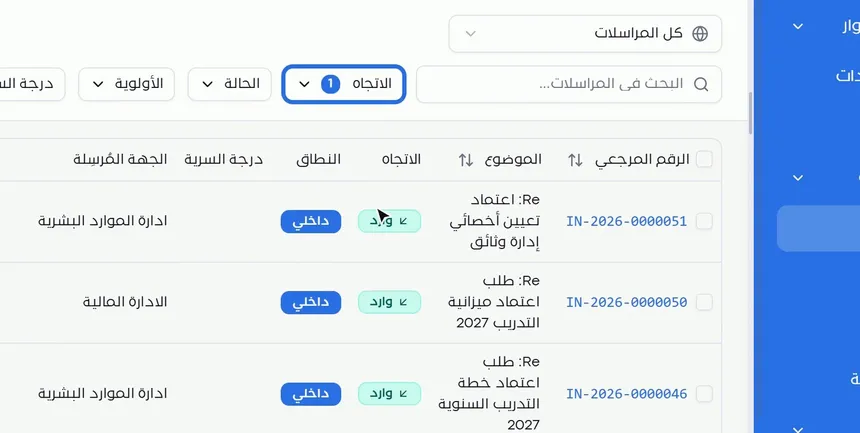
For example, choose only «Incoming» in the direction filter. The table shows incoming items only; in the example, 14 items appear.
To return to all correspondence, click «Clear filters». This button clears all active filters at once, instead of removing them one by one.
Step 5: Group replies by conversation
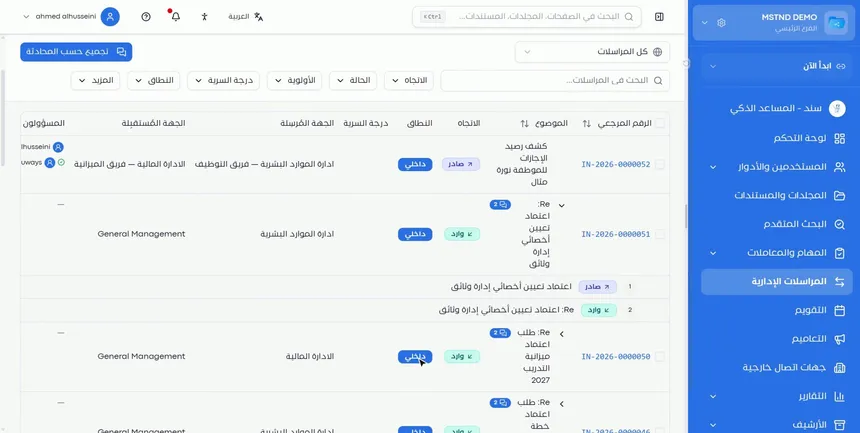
Click «Group by conversation» to rearrange the table so that replies appear under the original item in a single thread. Each thread carries a badge with the number of items in it, and you can expand it to see its sequence. In the example, an outgoing approval request is followed by an incoming reply with the same subject, prefixed with «Re:».
The value of this view is that it tells the full story of each subject: the request, then the reply, then any later follow-up. You do not need to look for the reply somewhere else.
Step 6: View a specific department's correspondence and open the reports
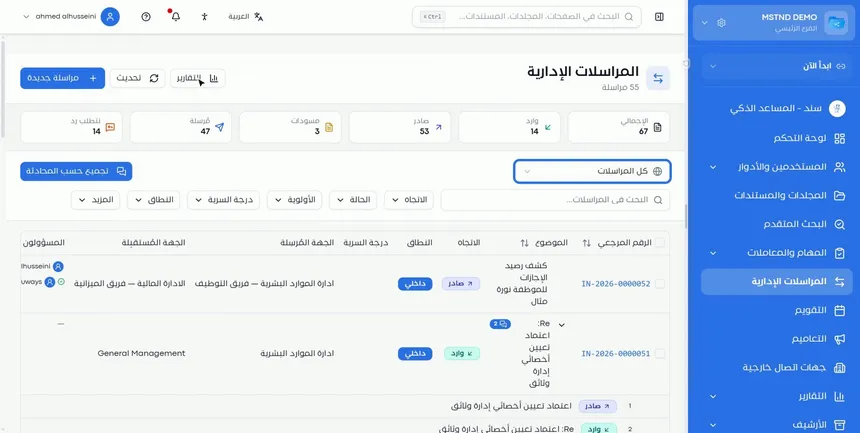
From the list at the top, which shows «All correspondence» by default, you can view the correspondence of all departments or of a specific department. This is useful for managers and administrative communications officers who follow more than one department.
The «Reports» button takes you to correspondence statistics, where you can read the numbers more comprehensively than in the quick indicators.
Options and their effect
| Option or setting | What it does | When to use it |
|---|---|---|
| «Requires reply» indicator | Shows the number of items waiting for a reply | Daily, to know your open commitments |
| «Drafts» indicator | Shows the number of unsent items | To finish the items you started |
| «Search correspondence» | Searches for a specific item | When you know its subject or part of it |
| Column sorting | Sorts the table by reference number or subject | To organize the list as you need |
| «Direction» filter | Shows only outgoing or only incoming items | To review new incoming items or follow up outgoing ones |
| «Status» filter | Filters by the item's status | To tell items apart by stage |
| «Priority» filter | Filters by priority | To focus on what is urgent |
| «Confidentiality level» filter | Filters by sensitivity level | To review confidential items with special care |
| «Scope» filter | Separates internal from external | To follow communication with external parties |
| «More» | Shows additional filter options | When you need more precise criteria |
| «Clear filters» | Clears all filters | To return to all correspondence |
| «Group by conversation» | Puts replies under the original item | To follow a whole subject in one thread |
| «All correspondence» list | Shows the correspondence of all departments or of a specific one | For managers and those who follow more than one department |
| «Reports» | Opens correspondence statistics | For periodic follow-up and performance measurement |
| «Refresh» | Refreshes the list | After new correspondence arrives |
| «New correspondence» | Opens the form for creating an item | To create an outgoing or incoming item |
Practical scenarios
Scenario: The administrative communications department in a government entity
Situation: The department receives letters from many parties every day, and no letter may be left without a reply.
What you do in Mstnd:
- Open «Administrative correspondence» and read the «Requires reply» indicator.
- Filter by the «Incoming» direction and high priority.
- Check the «Owners» column to see who follows up each letter.
- Use «Group by conversation» to confirm which letters have been answered.
Result: Organized daily follow-up that keeps replies from being delayed.
Scenario: The projects manager's office in a contracting company
Situation: Correspondence is exchanged with the project consultant and the subcontractors, and much of it is replies to replies.
What you do in Mstnd:
- Filter by external scope to show correspondence with external parties.
- Turn on «Group by conversation» to see each subject in one thread.
- Open the thread you need to review the sequence of request and reply.
Result: A clear history of every subject with the consultant, which helps with claims and contractual disputes.
Scenario: The executive office in a hospital
Situation: The executive director wants to know the volume of correspondence between departments and how well replies are kept up.
What you do in Mstnd:
- From the top list, choose a specific department to review its correspondence.
- Review the «Requires reply» and «Drafts» indicators.
- Open «Reports» to read the statistics more comprehensively.
Result: A management view of correspondence flow that helps improve responsiveness.
Scenario: Legal affairs in a trading company
Situation: Correspondence with a high confidentiality level about a commercial dispute needs careful review.
What you do in Mstnd:
- Filter by «Confidentiality level».
- Review the resulting items and their owners.
- Use the reference number when referring to any item in internal memos.
Result: Quick access to sensitive correspondence with precise references.
How it relates to other features
- New correspondence: with the «New correspondence» button you create an outgoing or incoming item, which then appears in this register.
- Correspondence details: when you open any item from the table, you go to its full details.
- External contacts: the external parties the organization corresponds with are managed there, and they appear in external correspondence.
- Dashboard: the «Correspondence» card reflects what is waiting for your reply or follow-up on this page.
- Report center: includes correspondence reports alongside the reports of other modules.
- Organizational structure: the source of the departments that appear as sending and receiving parties and in the view-by-department list.
- New task: you can assign a task of the «Correspondence» type and link it to an incoming item to follow up on preparing the reply.
Tips and best practices
- Start your day with the «Requires reply» indicator before anything else.
- Use the reference number every time you refer to an item, verbally or in writing.
- Turn on «Group by conversation» when following a subject, and turn it off when reviewing the chronological list.
- Combine filters for quick access, such as incoming with high priority.
- Click «Clear filters» before searching for an item you cannot find.
- Review the «Drafts» indicator weekly so that no items are left pending without being sent.
- Handle items with a high confidentiality level with special care.
- Review «Reports» periodically to measure correspondence volume and response speed.
Warnings and common mistakes
FAQ
What is the administrative correspondence page in Mstnd?
It is the organization's unified register of outgoing and incoming correspondence. It shows quick indicators and a table with the reference number, subject, direction, scope, parties and owners.
How do I know how many items are waiting for a reply?
From the «Requires reply» indicator at the top of the administrative correspondence page.
How do I show incoming correspondence only?
Choose «Incoming» in the «Direction» filter, and the table shows only incoming items. To return to everything, click «Clear filters».
What is «Group by conversation» for?
It puts replies under the original item in one thread, so you see the request, the reply and the follow-ups together.
What is the difference between direction and scope in correspondence?
Direction determines whether an item is outgoing or incoming, while scope determines whether it is internal, between departments, or external, with parties outside the organization.
Can I view the correspondence of one department only?
Yes. From the top list that shows «All correspondence», you can choose a specific department.
What can I filter correspondence by?
By direction, status, priority, confidentiality level and scope, with additional options under «More», as well as searching the correspondence.
Where do I find correspondence statistics?
From the «Reports» button at the top of the administrative correspondence page.
Summary
- «Administrative correspondence» is one register for outgoing and incoming items instead of scattered ledgers and spreadsheets.
- The top indicators, «Requires reply» above all, summarize the state of correspondence at a glance.
- The table shows each item's reference number, direction, scope, parties and owners.
- The filters, «Clear filters» and «Group by conversation» make access and follow-up fast.
- The view by department and «Reports» give managers a wider view of correspondence flow.
Try it free: Create your organization's account in Mstnd
Was this article helpful?
Related articles
 1:34
Creating new correspondence in Mstnd: from writing to stamping and sending
Create outgoing or incoming mail in Mstnd: recipient, follow-up owners, priority, confidentiality, reply date, attachments, digital sticker, send or register.
 0:53
Correspondence details in Mstnd: track a correspondence until it is closed
Learn the Mstnd correspondence details page: number, status, priority, reply deadline, activity log, follow-up owners, stamped attachments and threaded replies.
 0:56
External contacts in Mstnd: your clients and suppliers in one directory
Learn Mstnd external contacts: a client and supplier directory with search and filters, and how to add a new contact with its basic, contact and business data.
 1:57
The Mstnd Dashboard: everything waiting for you on one screen
Learn the Mstnd Dashboard: the «Waiting for you today» cards, the Action agenda, workflows, Sanad recommendations, team activity and how to plan your day.
 0:43
The report center in Mstnd: all your organization's reports in one place
The Mstnd report center groups document, correspondence, task, transaction, circular and user reports by section, with quick search and an analytics dashboard.
 0:29
The organizational structure in Mstnd: your organization as it really is
Learn the organizational structure in Mstnd: an interactive chart to zoom and drag, show or hide member names, with color-coded sections, teams and leads.