

Circular details in Mstnd: see who has read it and who has not
In this article
The circular details page in Mstnd is where you follow a circular after it is published. It shows the sender and the sending date, and a progress indicator with the total number of recipients, how many have read the circular and how many have acknowledged it. Then come the content, the attachments and the list of recipients, split between those who have acknowledged and those who remain. From this page you send a reminder to a specific recipient or to all late recipients with one click, and recipients acknowledge reading from the same page.
Quick overview
| Item | Details |
|---|---|
| Module | Circulars |
| Where it is in the interface | Side menu → «Circulars» → the circular's «⋯» menu → «View» |
| Direct link | https://app.mstnd.sa/circulars/<id> |
| Goal | Follow the recipients' response to the circular, remind late recipients and record the acknowledgment of reading |
| Who it is for | Circular senders and follow-up officers, and the recipients who acknowledge reading |
| Video length | About 31 seconds |
| What you will learn | Reading the progress indicator, following recipients, sending an individual or a group reminder, and the effect of «Acknowledge reading» |
Watch the video
In half a minute, the video shows the page of a published circular: the page header and the progress indicator, then the content, the attachments and the recipients panel, sending a reminder, and the indicator updating after an acknowledgment.
Why this feature?
Publishing a circular is only half the work. The other half is making sure it arrived and was read, and that what it asks for was done. With traditional methods there is no precise answer to the question "who read the circular?". And when there is one, it sits in a manual spreadsheet that an employee updates by phone or email.
The circular details page turns this follow-up into live numbers and lists. You know the percentage at once, you know the names of those who remain, and you remind them without writing a new message. When a recipient acknowledges, the indicator updates immediately.
| Before the details page | With the details page |
|---|---|
| You do not know how many people have read the circular | An indicator shows the total, read, acknowledged and the percentage |
| You collect the names of late recipients by hand | The «Not read yet» tab shows them with their names and positions |
| You write a reminder message to each person | «Send reminder» for one person, or «Send reminder to late recipients» for everyone |
| Acknowledgment is verbal or by email and is never documented | The «Acknowledge reading» button records the acknowledgment and updates the indicator |
| The attachment is in one place and the circular in another | The content and the attachments are on the same page |
Value for the organization: documented proof that employees were informed of decisions and policies, which matters in audits and compliance. Value for the individual: the sender follows up without effort, and the recipient reads and acknowledges in one place.
Where to find it
- From the side menu, choose «Circulars».
- Search for the circular or filter the list.
- Click «⋯» in the circular's row, then «View».
You also reach it:
- Automatically after publishing a new circular from Creating a circular.
- From the Dashboard, through the circulars waiting for your action or the Sanad recommendations about unread circulars.
- From the calendar, by clicking the circular's event and then «Open».
Link: https://app.mstnd.sa/circulars/<id>, where the id is specific to each circular.
Concepts and terms
| Term | Meaning in Mstnd |
|---|---|
| Progress indicator | A bar at the top of the page that shows the total, read, acknowledged and the completion rate |
| Total | The number of recipients the circular was addressed to |
| Read | The number of recipients who opened the circular and read it |
| Acknowledged | The number of recipients who clicked «Acknowledge reading» |
| «Not read yet» | A tab that shows the recipients who have not acknowledged yet |
| «Acknowledged reading» | A tab that shows the recipients who have acknowledged |
| «Pending» | The status of a recipient who has not interacted with the circular yet |
| Late recipients | Recipients who have not acknowledged so far; the «Send reminder to late recipients» button targets them |
Step by step
Step 1: Read the page header and the progress indicator
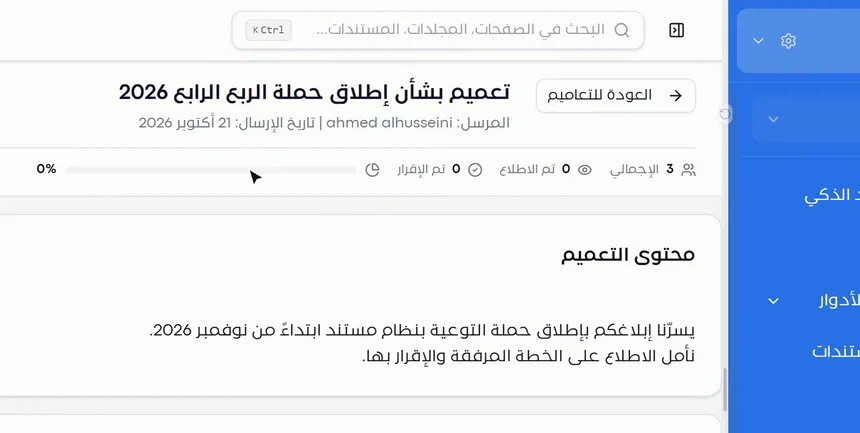
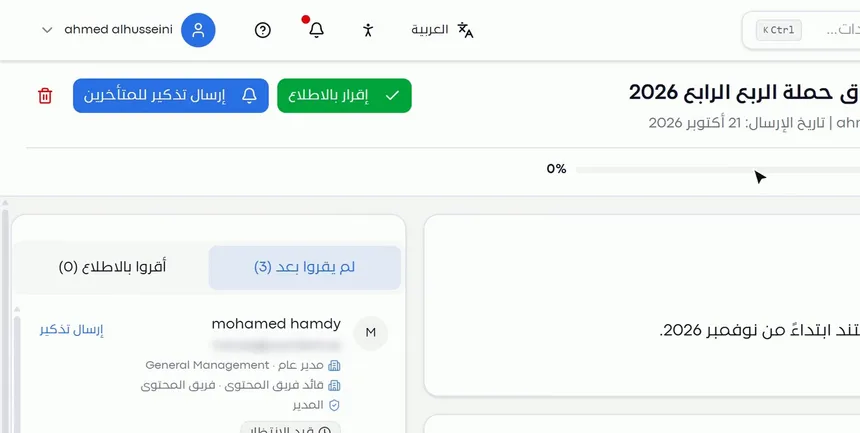
At the top of the page is the circular's title, with the sender and the sending date under it. Next to it is the «Back to circulars» link.
Below that is the progress indicator, which holds four figures:
- Total: the number of recipients.
- Read: who opened the circular.
- Acknowledged: who formally acknowledged it.
- Percentage: a bar that shows the completion rate.
The difference between «Read» and «Acknowledged» matters. An employee may open the circular without acknowledging it. So if the action type is «For acknowledgment», the number that matters to you is «Acknowledged».
| What the indicator shows | What it means | What you do |
|---|---|---|
| A low percentage right after publishing | Normal: the recipients have not reached the circular yet | Wait a day or two |
| «Read» is high and «Acknowledged» is low | Employees have read it but have not acknowledged it | Send a reminder that makes clear acknowledgment is required |
| The percentage has not moved for several days | The late recipients are not responding | «Send reminder to late recipients», or contact their managers |
| The percentage is 100% | Acknowledgment is complete | No action needed; the circular is documented |
Step 2: Review the content, the attachments and the recipients panel
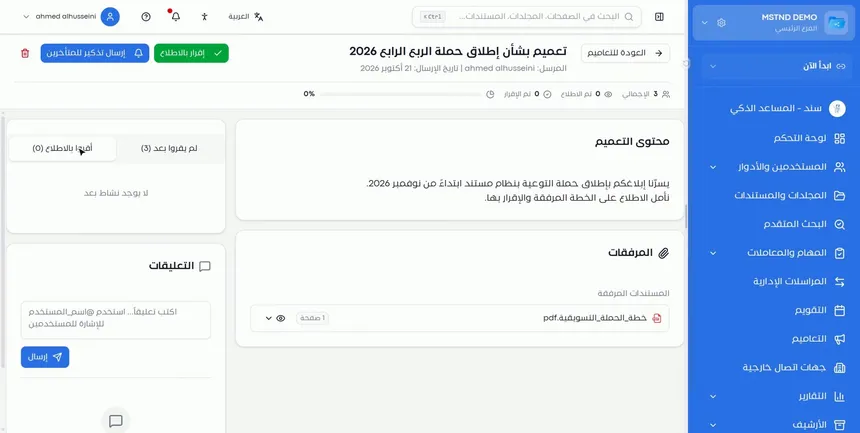
The main part of the page has two sections:
- «Circular content»: the text as it was written when the circular was created.
- «Attachments»: the attached documents with their page count, and a preview button that opens the document.
The side panel holds the recipient tracking, in two tabs:
- «Not read yet», with their number.
- «Acknowledged reading», with their number.
Each recipient has a card that shows their name, their positions and units in the organizational structure, their role, and their status, such as «Pending». Knowing a late recipient's position and unit helps you decide whom to contact if the delay repeats, such as their direct manager.
Step 3: Send a reminder to a specific recipient or to all late recipients
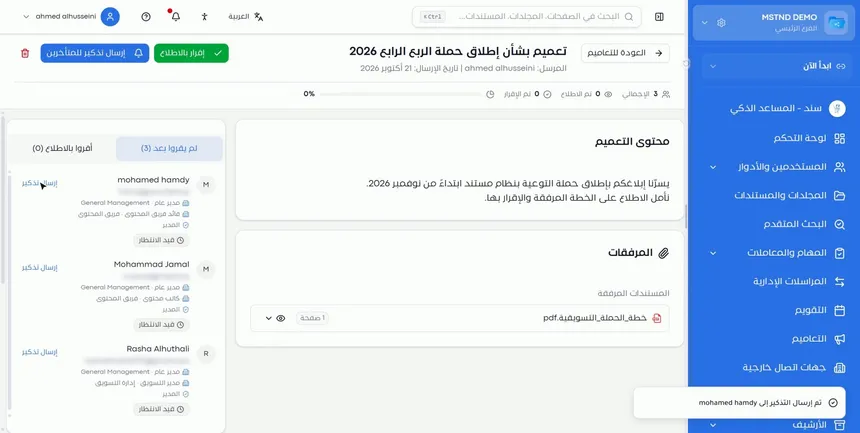
You have two ways to send a reminder:
- «Send reminder» next to the recipient's name: sends a reminder to this person only. Use it when the delay is individual, or when you want to remind an important person before the others.
- «Send reminder to late recipients» at the top of the page: sends a reminder to everyone who has not acknowledged yet, with one click.
After sending, a confirmation message appears, such as «Reminder sent to» followed by the recipient's name.
Step 4: Watch the indicator update after an acknowledgment
When a recipient opens the circular, they see the «Acknowledge reading» button. When they click it:
- Their acknowledgment is recorded.
- Their name moves from «Not read yet» to «Acknowledged reading».
- The indicator at the top of the page updates immediately.
This way the page stays a live picture of the circular's status, without anyone updating it by hand.
The top of the page also has the delete icon. Use it with care, because deleting the circular removes its tracking record.
Options and their effect
| Option or setting | What it does | When to use it |
|---|---|---|
| «Back to circulars» | Takes you back to the circulars list | After you finish following up |
| Progress indicator | Shows the total, read, acknowledged and the percentage | To see where the circular stands at a glance |
| Attachment preview | Opens the attached document | To read the attached plan or regulation |
| The «Not read yet» tab | Shows the late recipients with their names and positions | To identify who needs a reminder |
| The «Acknowledged reading» tab | Shows who has acknowledged | To check whether a specific person has acknowledged |
| «Send reminder» | Reminds a single recipient | For individual delays or for important people |
| «Send reminder to late recipients» | Reminds everyone who has not acknowledged | When a large number of recipients are late |
| «Acknowledge reading» | Records the recipient's acknowledgment and updates the indicator | For the recipient, after reading the circular |
| Delete icon | Deletes the circular | Only for circulars sent by mistake |
Practical scenarios
Scenario: A compliance department in a government entity before an audit
Situation: A regulatory body will ask for proof that employees were informed of the data protection policy and acknowledged it.
What you do in Mstnd:
- Open the policy circular from the circulars list.
- Review the indicator: has «Acknowledged» reached the total?
- Open «Not read yet» and click «Send reminder to late recipients».
- Once the percentage is complete, review «Acknowledged reading» as a documented list.
Result: Ready proof that every employee was informed and acknowledged, to present during the audit.
Scenario: A project manager in a contracting company follows up safety instructions
Situation: A safety circular was addressed to the site teams, and some supervisors have not acknowledged it yet.
What you do in Mstnd:
- Open the circular details.
- In «Not read yet», identify the late supervisors from their positions.
- Click «Send reminder» for each supervisor individually.
- Watch the indicator until it is complete.
Result: Every supervisor acknowledges before work under the new instructions begins.
Scenario: A school follows up teachers' acknowledgment of the academic calendar
Situation: The school administration sent a circular with the exam dates and wants to make sure that every teacher has read it.
What you do in Mstnd:
- Open the circular and review «Read» and «Acknowledged».
- If reads are high and acknowledgments are low, send a reminder to the late recipients.
- Review the indicator a day later.
Result: Every teacher knows the dates, and the administration has a record of it.
Scenario: An employee in a trading company acknowledges a circular
Situation: The employee received a notification about a circular on a new campaign plan.
What you do in Mstnd:
- Open the circular from the notification or from the Dashboard.
- Read the content, and open the attachment to go through the plan.
- Click «Acknowledge reading».
Result: The acknowledgment is recorded, and the employee's name moves from the late recipients list to «Acknowledged reading».
How it relates to other features
- Circulars: from the circulars list you reach this page through «⋯» → «View».
- Creating a circular: the creation settings, such as the action type and automatic resend, define what you track on this page.
- Dashboard: unread circulars appear in «Needs your attention», and the «Circulars» card shows what is waiting for you.
- Sanad, the AI assistant: Sanad recommendations flag the circulars that recipients have not acknowledged and lead you to follow them up.
- Report center: the circulars section of the report center gives you an aggregate picture that goes beyond a single circular.
- Document viewer: the attachment preview opens the document for reading.
- Organizational structure: the positions and units shown on the recipient cards come from the organizational structure.
Tips and best practices
- Do not send a group reminder on the first day after publishing; give recipients a reasonable amount of time.
- Focus on «Acknowledged», not «Read», in circulars that require acknowledgment.
- Use individual reminders for the people whose acknowledgment you need first, such as department managers.
- Review the positions and units of the late recipients to find out whether the delay is concentrated in one part of the organization.
- Combine «Automatic resend» with manual reminders: the first for periodic follow-up, the second for urgent cases.
- Keep completed circulars instead of deleting them: the «Acknowledged reading» list is documented proof you can refer back to.
- Open the attachment yourself from the details page to make sure the right file is attached.
Warnings and common mistakes
FAQ
How do I know who has read a circular in Mstnd?
Open the circular details page and review the progress indicator, then the «Not read yet» and «Acknowledged reading» tabs to see the names.
What is the difference between «Read» and «Acknowledged»?
«Read» means the recipient opened the circular, while «Acknowledged» means they clicked «Acknowledge reading» and formally confirmed that they read it.
How do I send a reminder to an employee who has not acknowledged the circular?
Click «Send reminder» next to their name in the «Not read yet» tab, and a message confirming that the reminder was sent appears.
Can I remind all late recipients at once?
Yes. Click «Send reminder to late recipients» at the top of the page, and the reminder reaches everyone who has not acknowledged yet.
How does a recipient acknowledge a circular?
They open the circular and read it, then click «Acknowledge reading». Their acknowledgment is recorded and the indicator updates immediately.
Does the indicator update automatically?
Yes. When any recipient acknowledges, the progress indicator updates immediately and their name moves to the «Acknowledged reading» tab.
Do I need manual reminders if I turned on automatic resend?
Not always. Automatic resend reminds late recipients periodically, while a manual reminder is useful when you want an immediate reminder before the periodic one.
Summary
- The circular details page brings the content, the attachments and recipient tracking together in one place.
- The progress indicator shows the total, read, acknowledged and the completion rate.
- The «Not read yet» and «Acknowledged reading» tabs show the names, positions and statuses.
- You can remind a single recipient or all late recipients with one click.
- «Acknowledge reading» documents the acknowledgment and updates the indicator instantly.
Try it free: Create your organization's account in Mstnd
Was this article helpful?
Related articles
 0:32
Circulars in Mstnd: get your decisions to everyone and track their response
Learn the Circulars page in Mstnd: every sent and received circular with its action type, status, priority and category, plus filters, search and new circulars.
 0:57
Creating a circular in Mstnd: circulate your decision and make sure it is read
Create a circular in Mstnd: title and subject, priority and category, action type, attachments and links, recipients, settings, then publish or save as a draft.
 1:57
The Mstnd Dashboard: everything waiting for you on one screen
Learn the Mstnd Dashboard: the «Waiting for you today» cards, the Action agenda, workflows, Sanad recommendations, team activity and how to plan your day.
 0:47
Sanad, the AI assistant in Mstnd: ask in your own words and let it do the work
Sanad is the Mstnd AI assistant: ask in your dialect; it searches and summarizes documents, asks to clarify and runs commands like creating a folder, with undo.
 0:43
The report center in Mstnd: all your organization's reports in one place
The Mstnd report center groups document, correspondence, task, transaction, circular and user reports by section, with quick search and an analytics dashboard.
 0:51
The document viewer in Mstnd: view any document without downloading it
Learn the Mstnd document viewer: view a file in the system without downloading it, zoom or go full screen, and use the actions bar and side panel in one place.