

Circulars in Mstnd: get your decisions to everyone and track their response
In this article
The «Circulars» page in Mstnd is the unified register of every circular you have sent or that has been addressed to you within the organization. For each circular it shows its direction, the type of action required from its recipients, such as acknowledgment or signature, and its status, priority, category and publish date. It serves the departments that issue decisions and policies, and every employee who wants to know what is required of them regarding the circulars addressed to them.
Quick overview
| Item | Details |
|---|---|
| Module | Circulars |
| Where it is in the interface | Side menu → «Circulars» |
| Direct link | https://app.mstnd.sa/circulars |
| Goal | Show all sent and received circulars in one list that you can filter and search, and serve as the starting point for creating a new circular |
| Who it is for | Senior management, human resources, quality, legal affairs, corporate communication and every employee who receives circulars |
| Video length | About 32 seconds |
| What you will learn | Reading the list columns, filtering by direction, action, status, priority and category, using the «⋯» menu, searching and starting a new circular |
Watch the video
In about half a minute, the video shows the circulars list and its columns, then the filters, the actions menu of each circular, searching by title and the «Create circular» button.
Why this feature?
A circular is the organization's way of communicating a decision, a policy or a procedure to a group of employees at once. In the traditional way, the circular is sent by email or printed and handed out, and then it is hard to answer basic questions: Who has read it? Who has acknowledged it? Have the people concerned signed it? And where is its approved copy?
The Circulars page in Mstnd turns the circular into an item with a status, an action type and follow-up. It is no longer just a message that is sent and forgotten, but a commitment that can be measured. From this page you reach every circular and the details of its follow-up.
| Before the Circulars page | With the Circulars page |
|---|---|
| Circulars are scattered between email, printouts and messaging groups | One list for all sent and received circulars |
| You do not know what is required of you for each circular | The «Action type» column shows whether it is for information, for acknowledgment or for signature |
| It is hard to tell what you sent from what you received | The direction filter separates «Sent by me» from «Addressed to me» |
| Finding an old circular takes time | Search by title, and filters by category, priority and status |
| There is no clear ordering by importance | The priority column and its sorting bring the high-priority circulars forward |
Value for the organization: clearer governance of how decisions are published, and a recorded trail for every circular. Value for the individual: employees know what has been addressed to them and what is required of them, and senders know where each circular stands.
Where to find it
- Sign in to Mstnd.
- From the side menu, choose «Circulars».
- The list opens, and the total number of circulars appears under the title.
Direct link: https://app.mstnd.sa/circulars
You can also reach circulars from:
- The Dashboard: the «Circulars» card in «Waiting for you today», and unread circulars in «Needs your attention».
- The Calendar: when you click an event of the «Circular» type and then «Open».
Concepts and terms
| Term | Meaning in Mstnd |
|---|---|
| Circular | An official message issued by the organization to specific recipients or to the whole company; it has an action type and a status |
| Circular direction | Your relationship to the circular: «Sent by me» if you are the sender, or «Addressed to me» if you are one of the recipients |
| Action type | What is asked of the recipient: for information, for acknowledgment or for signature |
| Acknowledgment | The recipient's confirmation that they have read the circular; it is recorded under their name |
| Status | The state of the circular, such as «Published», or a draft that has not been published yet |
| Priority | How important the circular is, such as «Normal» or «High» |
| Category | A subject category for the circular, such as «Administrative», «Policies and procedures» or «Bylaws and regulations» |
Step by step
Step 1: Read the columns of the circulars list
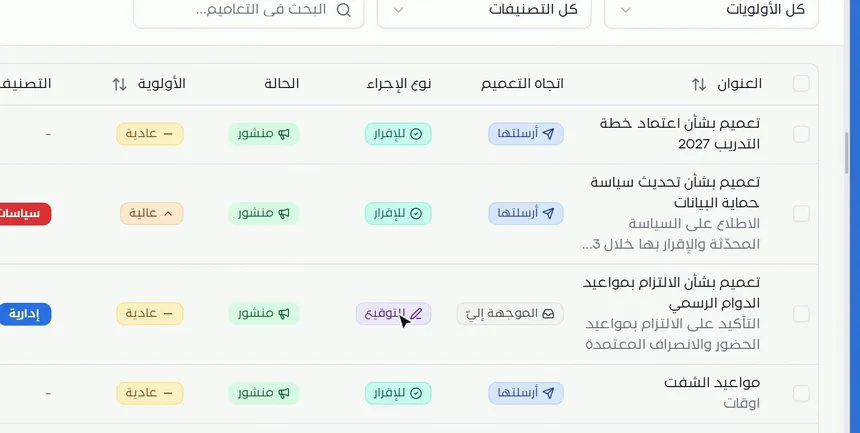
The list shows each circular on one row, with a line of its subject under its title. The columns are:
- Title: with sorting available.
- Circular direction: «Sent by me» or «Addressed to me».
- Action type: «For acknowledgment», «For signature» or for information.
- Status: such as «Published».
- Priority: such as «Normal» or «High», with sorting available.
- Category: such as «Administrative» or «Policies and procedures».
- Publish date.
Reading these columns together gives you the full picture: a circular marked «Addressed to me», «For signature» and «High» means you need to sign it soon. A circular marked «Sent by me» and «For acknowledgment» means you need to follow up the recipients' acknowledgments.
Step 2: Filter the list by direction and the other filters
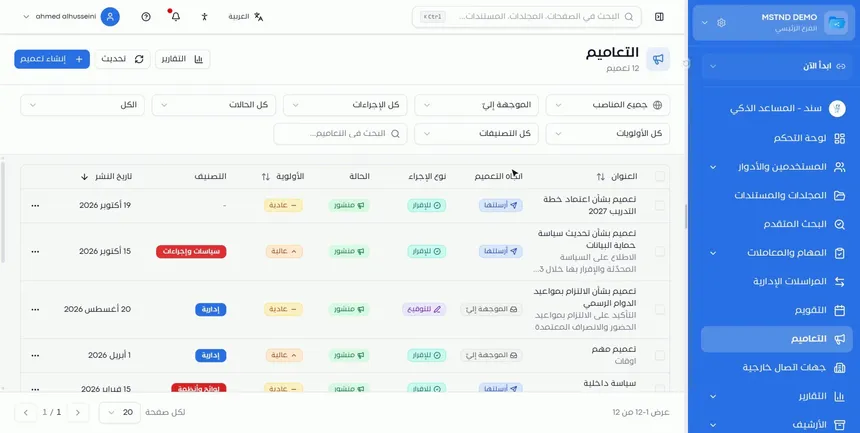
At the top of the list there are two rows of filters. The most important is the direction filter:
- Sent by me: the circulars you issued.
- Addressed to me: the circulars you received.
Next to it are filters by action type («All actions»), status («All statuses»), priority («All priorities») and category («All categories»). There is also a positions filter that starts with «All positions», and a general filter that starts with «All».
Combining filters saves a lot of effort. For example, «Addressed to me» + «For signature» shows only the circulars waiting for your signature.
The page header also has a «Reports» button to go to the reports, and a «Refresh» button to reload the list. At the bottom you find how many circulars are shown out of the total, a choice of the number of rows per page, and navigation between pages.
Step 3: Use the «⋯» menu of each circular
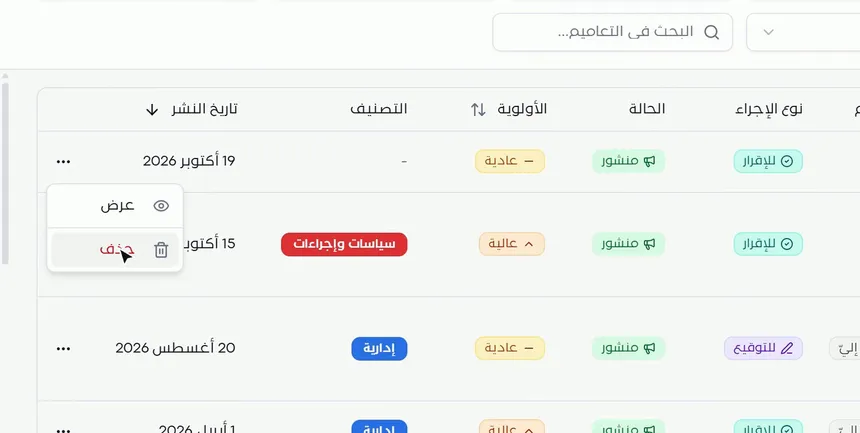
At the end of each row there is a «⋯» button. It opens a menu with two options:
- View: opens the circular details page, where you see its content, its attachments and the follow-up of its recipients.
- Delete: deletes the circular.
Step 4: Search by title or start a new circular
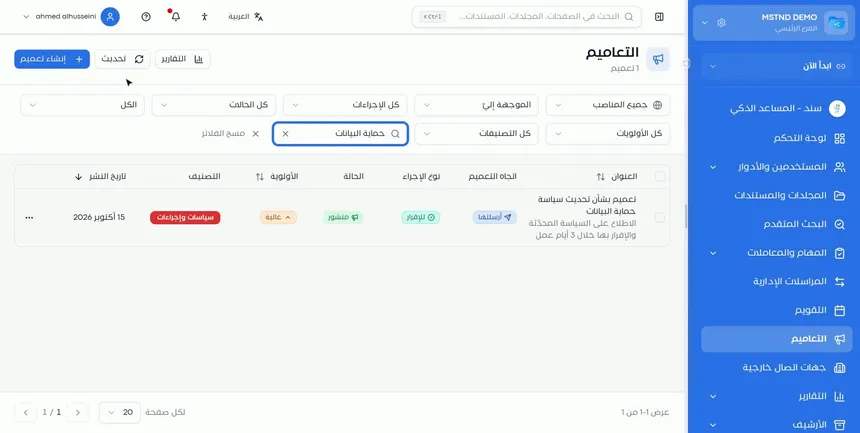
The «Search circulars» field searches by title. Type a word from the circular's title, such as «working hours» or «data protection», and the list narrows to the circulars that match it.
To issue a new circular, click «Create circular» at the top of the page. The button takes you to the circular form, where you set the title, the subject, the action type, the recipients and the settings. You will find the full explanation in the guide Creating a circular.
Options and their effect
| Option or setting | What it does | When to use it |
|---|---|---|
| The «Sent by me» direction filter | Shows the circulars you issued | To follow what you sent and the recipients' response |
| The «Addressed to me» direction filter | Shows the circulars you received | To find out what is required of you |
| The action filter | Limits the list to for information, for acknowledgment or for signature | To focus on one type of work |
| The status filter | Limits the list by status, such as published | To separate published circulars from drafts |
| The priority filter | Limits the list by importance | To handle the high-priority ones first |
| The category filter | Limits the list to one subject category | To go back to specific policies or regulations |
| The positions filter | Limits the list by position | For those who hold more than one position |
| Sorting by title, priority or publish date | Reorders the rows | To see the most important or the most recent first |
| Search circulars | Searches by title | When you know part of the circular's title |
| «⋯» → «View» | Opens the circular details | To follow the acknowledgments and read the content |
| «⋯» → «Delete» | Deletes the circular | For drafts created by mistake or no longer needed |
| «Create circular» | Opens a new circular form | To issue a new decision or policy |
| «Reports» | Takes you to the reports | To analyze circulars across the organization |
| «Refresh» | Reloads the list | After making changes or while waiting for new acknowledgments |
Practical scenarios
Scenario: The HR department of a government entity
Situation: During the month the department issued several circulars, including one on adherence to official working hours, and it wants to know where each one stands.
What you do in Mstnd:
- Open «Circulars» and choose the «Sent by me» direction.
- Filter by the «For acknowledgment» action.
- Sort by «Publish date».
- Open each circular from «⋯» → «View» to follow who has acknowledged it and who has not yet.
Result: A clear picture of the circulars whose acknowledgment is complete and of those that need a reminder.
Scenario: A new employee in a contracting company
Situation: An employee who recently joined has received several circulars about safety and internal policies.
What you do in Mstnd:
- Choose the «Addressed to me» direction.
- Filter by the «For signature» action to see what is waiting for your signature.
- Open each circular, read it, then do what it asks.
- Repeat with «For acknowledgment».
Result: The employee completes their commitments toward the circulars in one session without missing anything.
Scenario: The quality department at a hospital
Situation: When the accreditation body visits, the hospital needs to present the approved policy and procedure circulars.
What you do in Mstnd:
- Filter by the «Policies and procedures» category.
- Filter by status to show the published circulars.
- Open the circular you need to show its content and its acknowledgment indicator.
Result: A quick, documented answer to the question "Have the employees been informed of this policy, and have they acknowledged it?"
Scenario: A law firm reviews its bylaws
Situation: The managing partner wants to review all the circulars related to the internal bylaws before updating them.
What you do in Mstnd:
- Search with a word from the title, such as «bylaw».
- Or filter by the «Bylaws and regulations» category.
- Open the old circulars to refer back to their texts.
- Start an updated circular from «Create circular».
Result: An update based on a full review of the previous circulars, without searching through email.
How it relates to other features
- Creating a circular: the «Create circular» button on this page opens the new circular form with all its fields and settings.
- Circular details: the «View» option in the «⋯» menu opens the page for following up recipients and sending reminders.
- Dashboard: the «Circulars» card and the «Needs your attention» section remind you of the circulars waiting for your action.
- Calendar: circulars appear as events in the Calendar on their dates, with their status and units.
- Report center: it contains a section for circular reports, and you can reach the reports from the «Reports» button on this page.
- Administrative correspondence: a correspondence is addressed to a specific entity or person, while a circular is addressed to a wide group with a single action type.
- Sanad, the AI assistant: Sanad recommendations on the Dashboard alert you to circulars that recipients have not acknowledged.
Tips and best practices
- Always keep «Sent by me» and «Addressed to me» apart: the first is a follow-up list, the second is a list of commitments.
- Use categories consistently when creating circulars: they are what make search and filtering useful later.
- Write clear titles that start with the subject of the circular, such as «Circular regarding...», because search relies on the title.
- Review the high-priority circulars addressed to you every day.
- Do not delete published circulars without a clear reason: they are a reference for past decisions.
- Review the circulars section in the report center regularly to analyze circulars across the organization.
- Refresh the list with the «Refresh» button after waiting for recipients' actions, to see the latest status.
Warnings and common mistakes
FAQ
What is the Circulars page in Mstnd?
It is the list that gathers all the circulars you have sent or that have been addressed to you, with each circular's direction, required action type, status, priority, category and publish date.
How do I show only the circulars addressed to me?
Choose «Addressed to me» in the direction filter at the top of the page. To show what you have sent, choose «Sent by me».
What are the action types for circulars?
There are three types: for information, for acknowledgment and for signature. The type appears in the «Action type» column of each circular.
How do I find an old circular?
Type part of its title in the «Search circulars» field, or use the category, priority and status filters to narrow the list.
Can I delete a circular?
Yes. From the «⋯» menu in the circular's row, choose «Delete». This is recommended only for drafts or for circulars that are no longer needed.
How do I know who has acknowledged a circular?
Open the circular from «⋯» → «View». The details page appears with the progress indicator and the list of recipients, showing who has acknowledged it and who has not yet.
What is the difference between a circular and a correspondence in Mstnd?
A correspondence is an outgoing or incoming letter with a specific entity or person, while a circular is a message addressed to a group or to the whole company, with a single action type and acknowledgment follow-up.
How do I create a new circular?
Click «Create circular» at the top of the Circulars page, then fill in the title, subject, action type and content, choose the recipients and publish it.
Summary
- The Circulars page is a unified register of every circular you have sent or received.
- The columns show the circular's direction, action type, status, priority, category and publish date.
- The direction filter separates what you follow up from what is asked of you.
- The «⋯» menu opens the details or deletes the circular.
- Search by title and the «Create circular» button complete the work cycle, from looking things up to issuing new circulars.
Try it free: Create your organization's account in Mstnd
Was this article helpful?
Related articles
 0:57
Creating a circular in Mstnd: circulate your decision and make sure it is read
Create a circular in Mstnd: title and subject, priority and category, action type, attachments and links, recipients, settings, then publish or save as a draft.
 0:31
Circular details in Mstnd: see who has read it and who has not
Learn the Mstnd circular details page: the total, read and acknowledged indicator, content and attachments, tracking each recipient, and one-click reminders.
 1:57
The Mstnd Dashboard: everything waiting for you on one screen
Learn the Mstnd Dashboard: the «Waiting for you today» cards, the Action agenda, workflows, Sanad recommendations, team activity and how to plan your day.
 0:44
The Mstnd Calendar: your full schedule and your team's in one place
Learn the Mstnd Calendar: tasks, circulars, reminders, document expiry, correspondence and invitations in Hijri and Gregorian, with five views and a day panel.
 0:43
The report center in Mstnd: all your organization's reports in one place
The Mstnd report center groups document, correspondence, task, transaction, circular and user reports by section, with quick search and an analytics dashboard.
 0:50
Administrative correspondence in Mstnd: outgoing and incoming in one organized register
Administrative correspondence in Mstnd: outgoing and incoming in one register, indicators, filters by direction, status and confidentiality, and reply threads.