

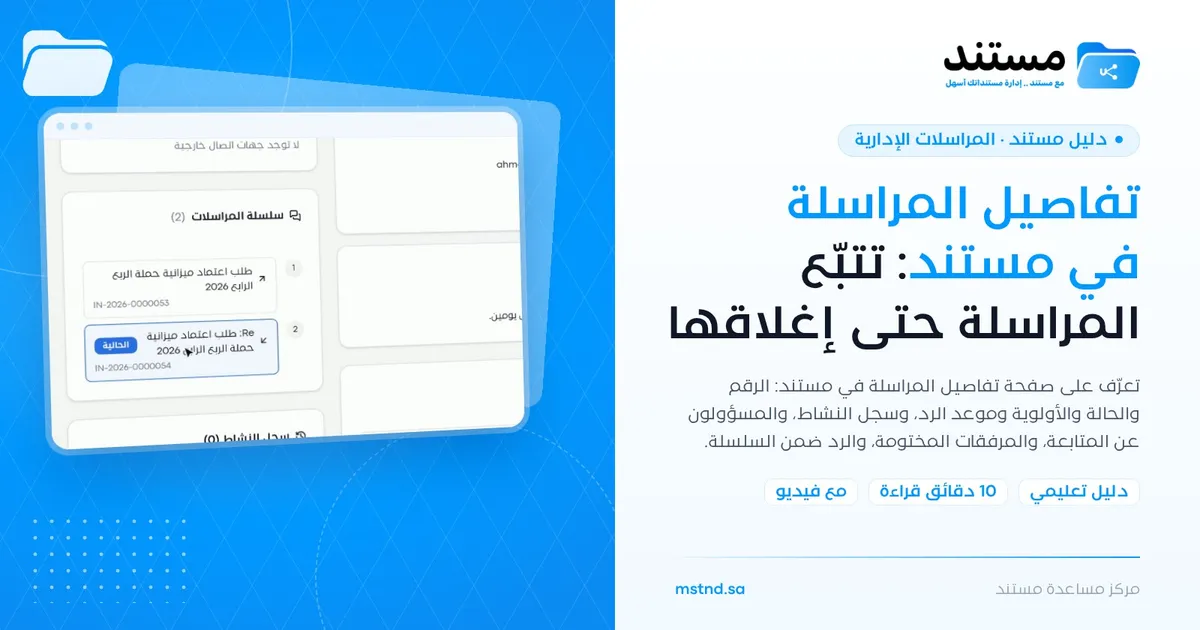
Correspondence details in Mstnd: track a correspondence until it is closed
In this article
The correspondence details page in Mstnd is the complete file of any administrative correspondence. It shows its number, direction, status, priority and dates, its scope, its creator and the reply deadline, and its content and stamped attachments. From it, the people responsible follow up the correspondence, review the «Activity log» that records every action taken on it, and reply with a response that joins the same thread. It helps everyone who sends, receives or follows up correspondence, and it makes the state of any correspondence clear on one screen.
Quick overview
| Item | Details |
|---|---|
| Module | Administrative correspondence |
| Where it is in the interface | Side menu «Administrative correspondence» → click any correspondence in the list |
| Direct link | https://app.mstnd.sa/correspondence/<id> |
| Goal | Show all of a correspondence's data, follow it up and reply to it while keeping its full history |
| Who it is for | The people responsible for following up correspondence, department managers, administrative communications staff and anyone who receives a correspondence |
| Video length | About 53 seconds |
| What you will learn | Reading the correspondence header and data, using the activity log, marking your follow-up, handling attachments and replying within the correspondence thread |
Watch the video
The video walks through the details page of an outgoing correspondence: its data, its activity log, the people following it up and the attachments, and then sending a reply that is linked to it in the same thread.
Why this feature?
Sending a correspondence is only half the work. The other half is knowing what happened after it: Did it arrive? Did anyone follow it up? Has the reply come in? And when does the reply deadline run out? In traditional systems these answers are scattered between email, incoming and outgoing registers and the memory of employees, and looking for an old reply or for the date of a letter becomes a long job.
The details page brings all of that together in one place. Everything about the correspondence, from its data to its replies to who handled it, is kept and organized.
| Before | After |
|---|---|
| You search your email for the reply linked to an old letter | The «Correspondence thread» links the original to every reply |
| You do not know who opened or edited the correspondence | The «Activity log» records every action and who took it |
| The reply deadline is not clear to the person following up | The «Reply deadline» is visible at the top of the data |
| There is no proof that the follow-up owner did their part | The «Mark as followed up» button records the follow-up |
| The attachment may not carry the correspondence number | The digital label and the watermark are visible on the file |
The value for the organization is a complete audit trail for every correspondence. The value for the individual is a quick answer to any question about the correspondence without having to go back to anyone.
Where to find it
- Open «Administrative correspondence» from the side menu.
- Search for the correspondence or filter the list with the filters.
- Click the correspondence to open its details page.
Direct link: https://app.mstnd.sa/correspondence/<id>, where the id is the internal number of the correspondence in the system.
You can also reach the correspondence from other places, such as the «Correspondence» card on the Dashboard, the success message after creating a new correspondence, or the data table in the Correspondence log report.
Concepts and terms
| Term | Meaning in Mstnd |
|---|---|
| Direction | Whether the correspondence is outgoing from your entity or incoming to it |
| Status | The stage the correspondence has reached, such as «Sent» |
| Scope | Whether the correspondence is internal, between entities of the organization, or external |
| Reply deadline | The latest expected date for the reply to arrive; it is set when «Requires a reply» is turned on |
| Correspondence thread | The link that brings together the original correspondence and all the replies to it |
| Activity log | A time-ordered list of every action taken on the correspondence and who took it |
| Follow-up owners | The users assigned to follow up the correspondence until it is completed |
| Digital label | A stamp on the attachment that carries the number, the date, the barcode and a QR code |
Step by step
Step 1: Read the correspondence header
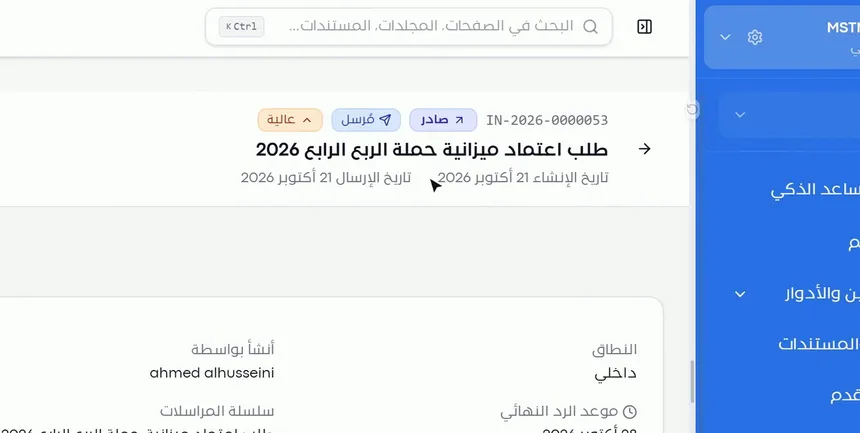
At the top of the page you see the identity card of the correspondence:
- Number: the number the system gave the correspondence; you also find it on the digital label.
- Direction: outgoing or incoming.
- Status: such as «Sent».
- Priority: such as «High».
- Creation date and sending date.
This data is usually enough to answer the first question: what is this correspondence and where has it reached? The difference between the creation date and the sending date is useful when a correspondence stays a draft for a while before it is sent.
Step 2: Review the data and the content
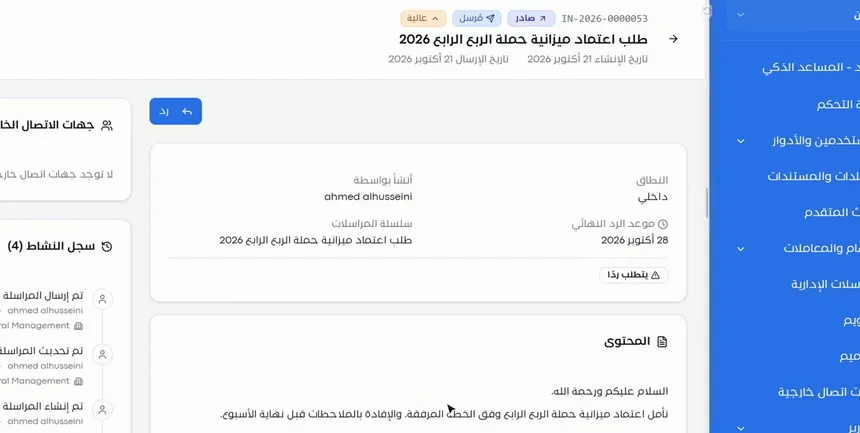
Under the header is the data card, which holds:
- Scope: internal or external.
- Created by: the user who created the correspondence.
- Reply deadline: appears if the correspondence requires a reply, with a «Reply required» badge.
- Correspondence thread: the name of the thread the correspondence belongs to.
Under the card is the «Content» section, which shows the text of the correspondence as it was written in the editor.
Step 3: Track the «Activity log»
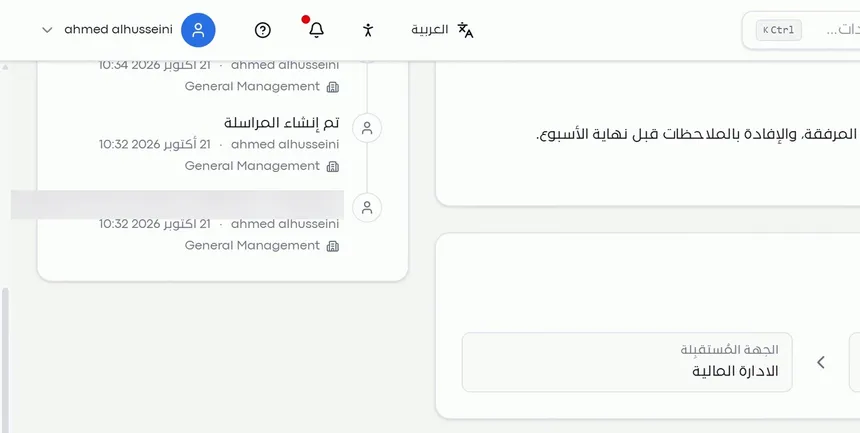
On the left of the page, the «Activity log» appears with the number of actions. It shows every action taken on the correspondence: creation, update, sending and others, together with the name of the user and their entity.
This log is the audit trail of the correspondence. Use it to answer questions such as: who edited this correspondence? And when was it actually sent? It is useful in internal reviews and in settling any dispute about the timing of actions.
Step 4: Record your follow-up or add a follow-up owner
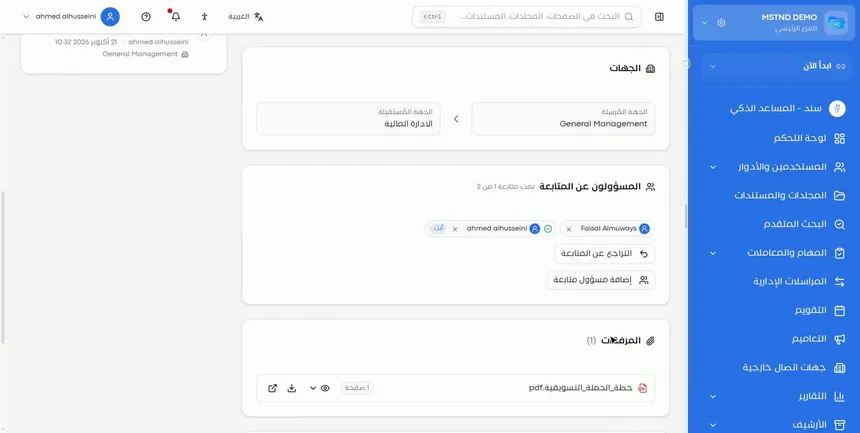
In the «Follow-up owners» section you see who has been assigned to follow up the correspondence. If you are one of them and you have done your part, click «Mark as followed up». If the correspondence needs an additional person to follow it up, add a new owner.
«Mark as followed up» is not a cosmetic button. It records that you did your part and shows the others that the follow-up has been done, so the same question is not repeated among team members.
Step 5: Inspect the stamped attachments
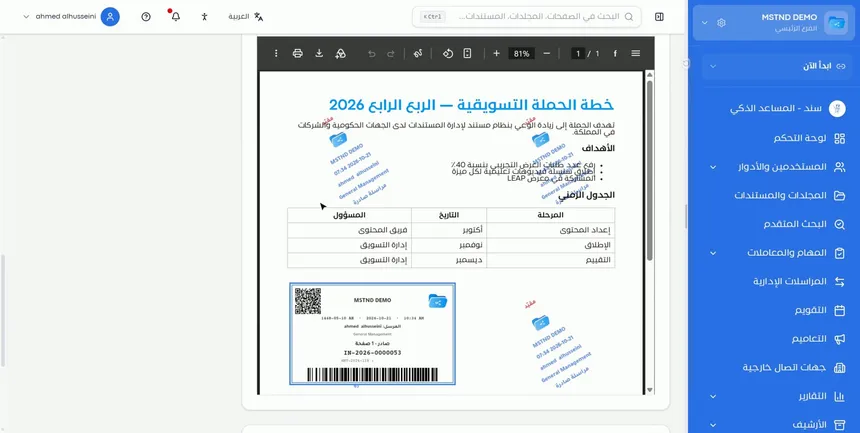
In the «Attachments» section you can:
- Preview: to view the file without leaving the page.
- Download: to save a copy on your device.
- Open: to open the file in a full viewer.
On the file itself you see the digital label that was placed when the correspondence was sent, and the watermark if one was added. Having them on the file means that any copy that is downloaded or printed carries the number and date of the correspondence.
Step 6: Reply to the correspondence
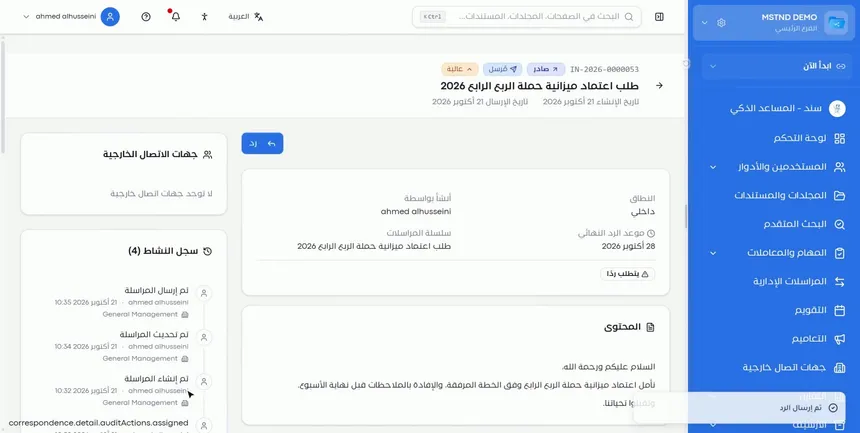
To reply, click «Reply» at the top of the page and write your reply. The reply is not created as a separate correspondence with no connection to the original; it joins the same thread.
This link is what makes the history of any subject traceable. Months later, you can open any correspondence and see the original letter and every reply that followed it.
Step 7: Check the reply in the thread
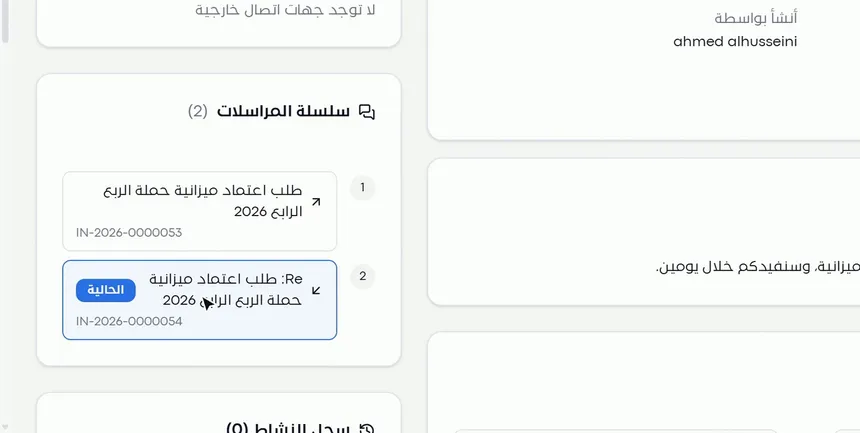
After it is sent, the reply gets a new number of its own. The «Correspondence thread» appears, linking the original correspondence to the reply, so you can move between them easily.
Options and their effect
| Action | What it does | When to use it |
|---|---|---|
| «Reply» | Creates a reply with a new number within the same thread | When answering an incoming correspondence or following up a subject |
| «Mark as followed up» | Records that you have completed your follow-up | After finishing your part in the follow-up |
| Adding a follow-up owner | Assigns an additional user to the follow-up | When the subject needs another entity or person |
| Previewing the attachment | Shows the file inside the page | For a quick look |
| Downloading the attachment | Saves a copy on your device | For printing or keeping a local copy |
| Opening the attachment | Opens the file in a full viewer | For detailed reading |
| «Activity log» | Shows the history of actions on the correspondence | For auditing, or to find out who did what and when |
| «Correspondence thread» | Moves you between the original and the replies | To track the full history of the subject |
Practical scenarios
Scenario: A government entity follows up a late reply
Situation: A correspondence that requires a reply was sent to another entity, and the reply deadline is approaching with no answer.
What you do in Mstnd:
- Open the correspondence and check the «Reply deadline».
- Review the «Activity log» to confirm the actual sending date.
- Add a follow-up owner from the department concerned to follow up with the other entity.
- After following up, click «Mark as followed up».
Result: Documented action before the deadline runs out, with a log that proves the sending and follow-up dates.
Scenario: A trading company answers an internal request
Situation: The finance department received an internal correspondence asking for approval of a campaign budget.
What you do in Mstnd:
- Open the correspondence and review the content and the attachment.
- Preview the attached campaign plan without downloading it.
- Click «Reply» and write the approval decision or your notes.
Result: The reply is linked to the original request in one thread, and the marketing department knows the decision right away.
Scenario: A law firm prepares a dispute file
Situation: The legal team needs to prove the sending date and content of a letter and the replies that followed it.
What you do in Mstnd:
- Open the original correspondence and review the «Activity log».
- Move through the «Correspondence thread» to each reply.
- Download the attachments stamped with the digital label.
Result: A complete file that proves the dates and the content, with every attachment carrying its number and date.
Scenario: A hospital spreads the follow-up across sections
Situation: An incoming correspondence requires the involvement of the quality section and the medical affairs section.
What you do in Mstnd:
- Open the correspondence and add a follow-up owner from each section.
- Each owner marks that they have followed up after finishing their part.
- The main owner sends the final reply from the «Reply» button.
Result: Clarity about who did what, and a single unified reply within the thread.
How it relates to other features
- Administrative correspondence: the list you open the details from; it groups correspondence by conversation, following the same idea as the thread.
- New correspondence: this is where the data that appears in the details is set, such as the follow-up owners, the reply deadline and the digital label.
- Document viewer: opening an attachment is similar to the experience of viewing documents in the system.
- Smart watermark: the source of the watermark settings you see on the attachments.
- Dashboard: the «Correspondence» card shows what is waiting for your reply, and from it you reach the details.
- Report page: the «Correspondence log» report gathers the statuses, priorities and dates of correspondence across the organization.
Tips and best practices
- Check the «Reply deadline» first in every correspondence you follow up, and plan your work around it.
- Click «Mark as followed up» as soon as you finish your part, so the question is not repeated within the team.
- Always reply from the «Reply» button instead of creating a new correspondence, so the subject stays in one thread.
- Use preview for a quick look, and download the file only when you need a local copy.
- Go back to the «Activity log» whenever there is a dispute about timing or about who took an action.
- Add a new follow-up owner when the subject goes beyond the permissions or the area of responsibility of the current owner.
- Mention the correspondence number when you talk about it with colleagues or other entities, to avoid confusion.
Warnings and common mistakes
FAQ
What does the correspondence details page show?
It shows the number, direction, status, priority, and creation and sending dates; the scope, creator, reply deadline and correspondence thread; and the content, attachments, activity log and follow-up owners.
How do I reply to a correspondence in Mstnd?
Open the correspondence, click «Reply», write your reply and send it. The reply gets a new number and joins the same correspondence thread.
What is a correspondence thread?
It is the link that brings together the original correspondence and all the replies to it, so you can move between them and see the full history of the subject.
How do I know who edited or sent the correspondence?
From the «Activity log» on the left of the page, where every action appears with the name of the user and their entity.
What does the «Mark as followed up» button mean?
It records that you, as one of the follow-up owners, have completed your part in following up the correspondence.
Can I add a follow-up owner after the correspondence is sent?
Yes. You can add a new owner from the «Follow-up owners» section on the details page.
Does the digital label appear on the attachment after downloading?
The digital label and the watermark appear on the file itself in the attachments, so the file carries them when you preview, download or open it.
Summary
- The details page is the complete file of the correspondence: its data, content, attachments and history.
- The «Reply deadline» and the «Status» set the priority of your action.
- The «Activity log» records every action on the correspondence and who took it.
- «Follow-up owners» and «Mark as followed up» make the follow-up clear and documented.
- The «Reply» button keeps the subject in one thread, and each reply has its own number.
Try it free: Create your organization's account in Mstnd
Was this article helpful?
Related articles
 0:50
Administrative correspondence in Mstnd: outgoing and incoming in one organized register
Administrative correspondence in Mstnd: outgoing and incoming in one register, indicators, filters by direction, status and confidentiality, and reply threads.
 1:34
Creating new correspondence in Mstnd: from writing to stamping and sending
Create outgoing or incoming mail in Mstnd: recipient, follow-up owners, priority, confidentiality, reply date, attachments, digital sticker, send or register.
 0:51
The document viewer in Mstnd: view any document without downloading it
Learn the Mstnd document viewer: view a file in the system without downloading it, zoom or go full screen, and use the actions bar and side panel in one place.
 1:28
The smart watermark in Mstnd: protect your documents with your brand identity
Design a smart watermark with your logo, user details and date, set when and where Mstnd adds it to documents and correspondence, plus a confidentiality mark.
 0:56
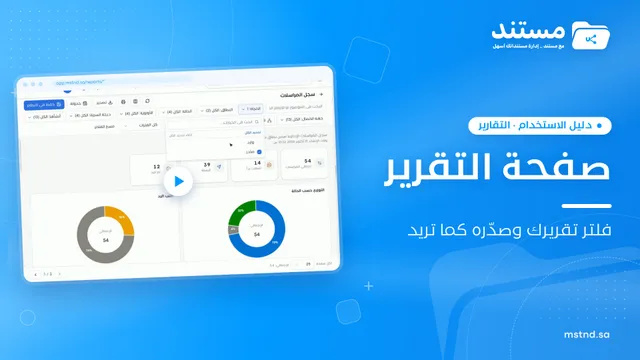
The report page in Mstnd: filter, export and schedule your report
Learn the Mstnd report page: indicators and charts, filters, the data table, export to Excel, CSV and PDF, scheduling, and saving as a document in the system.
 1:57
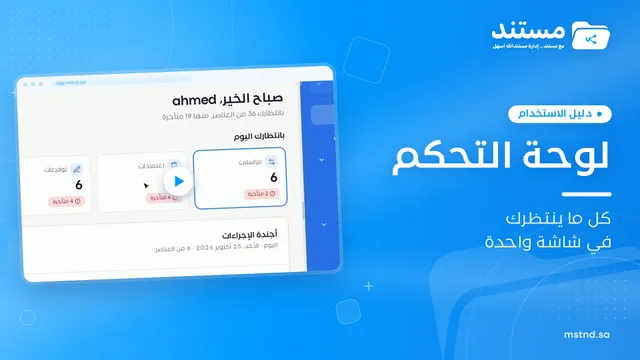
The Mstnd Dashboard: everything waiting for you on one screen
Learn the Mstnd Dashboard: the «Waiting for you today» cards, the Action agenda, workflows, Sanad recommendations, team activity and how to plan your day.