

The Mstnd Dashboard: everything waiting for you on one screen
In this article
The Dashboard is the first screen you see after signing in to Mstnd. It gathers everything that needs an action from you: correspondence, approvals, signatures, tasks and circulars, with the number of overdue items of each type. Below that it shows your week's agenda, document activity, the workflows you take part in, smart «Sanad recommendations», what needs your attention and your team's activity. Its goal is to let you start your day knowing your priorities without moving between screens.
Quick overview
| Item | Details |
|---|---|
| Module | Dashboard |
| Where it is in the interface | The first item in the side menu, «Dashboard»; it is also the default page after signing in |
| Direct link | https://app.mstnd.sa/ |
| Goal | Gather everything that needs your action or your follow-up on one screen, ordered by priority and time |
| Who it is for | Every user, and especially managers and follow-up officers who run work for several teams |
| Video length | About two minutes |
| What you will learn | Reading the cards, filtering the agenda, following workflows, using Sanad recommendations and watching the team's load |
Watch the video
The video is a full tour of the Dashboard sections in the order they appear on screen, from the «Waiting for you today» cards to «My team's activity».
Why this feature?
In workplaces that run on documents, responsibilities are spread over more than one place. Incoming correspondence needs a reply, transactions wait for approval, documents wait for a signature, tasks have deadlines and circulars need acknowledgment. When all of these live on separate screens, the daily question "what is required of me right now?" becomes a job of its own, and whatever nobody sees falls behind.
The Dashboard was designed to answer that question directly. It does not just show general numbers: it turns every item into an action you can carry out from where it is.
| Before the Dashboard | With the Dashboard |
|---|---|
| You open correspondence, then tasks, then transactions to find out what is waiting | You see every type on one set of cards, with the number of overdue items |
| You discover delays after the deadline has passed | The «Needs your attention» section gathers the overdue and the stalled before they pile up |
| You ask the team where each transaction stands | «My workflows» shows where each transaction has reached and who is responsible for it |
| Work is distributed across the team by guesswork | «My team's activity» shows the open and overdue items of every member |
Where to find it
- Sign in to Mstnd and choose your organization.
- The Dashboard opens automatically after signing in.
- To return to it from anywhere: side menu → «Dashboard».
Direct link: https://app.mstnd.sa/
Concepts and terms
| Term | Meaning in Mstnd |
|---|---|
| Waiting for you today | Cards that summarize the items required of you, split by type, with the number of overdue ones |
| Action agenda | A time-ordered list of the items that have due dates, shown day by day across the week |
| Assigned to me | A filter that shows the items that need an action from you personally |
| To follow up | Items that do not need a direct action from you, but that you are responsible for following up |
| Workflow (transaction) | A path of consecutive steps to approve or carry out a piece of work; each step has a responsible person |
| Sanad recommendations | Suggestions generated by the AI assistant «Sanad» from the state of your documents and transactions |
| Reference number | A unique identifier of an item, useful when searching for it or writing about it |
Step by step
Step 1: Get to know the Dashboard header
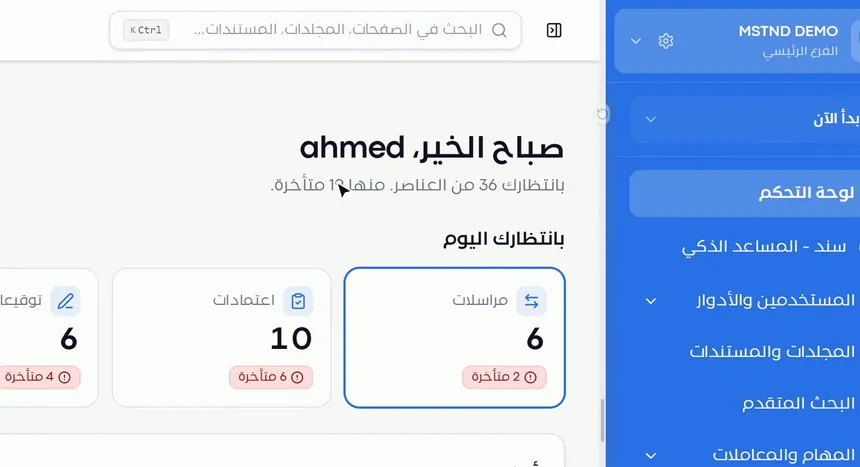
The first thing you see is a greeting with your name, and under it a line that summarizes your situation: how many items are waiting for you and how many of them are overdue. This line is a quick indicator of the size of your day. If the overdue number is high, start with the «Needs your attention» section before anything else.
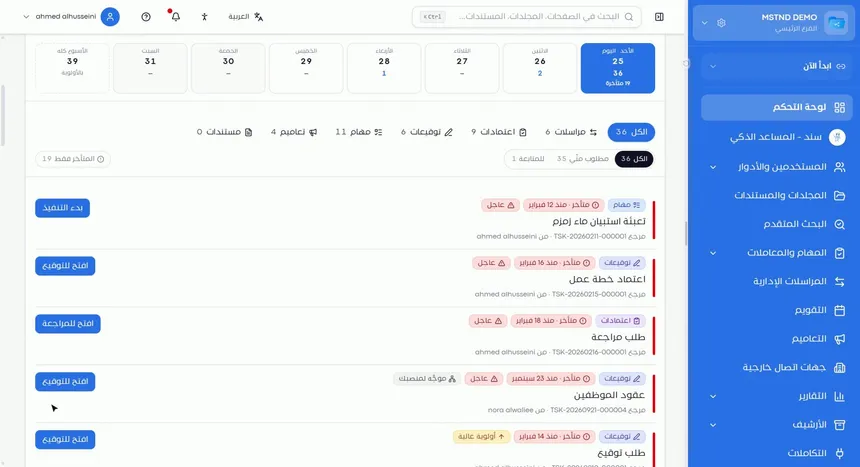
Step 2: Read the «Waiting for you today» cards
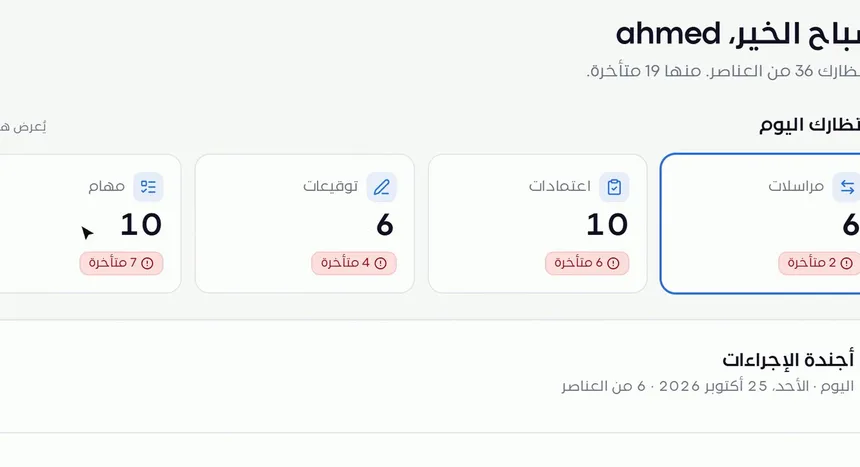
The cards split your work into five types: correspondence, approvals, signatures, tasks and circulars. Each card shows the total, then a badge with the number of overdue items. This split matters because each type is completed differently:
- Correspondence needs a reply or a referral.
- Approvals need a decision.
- Signatures need an electronic signature on a document.
- Tasks need to be carried out.
- Circulars need to be read or acknowledged.
Step 3: Filter the agenda by clicking a card
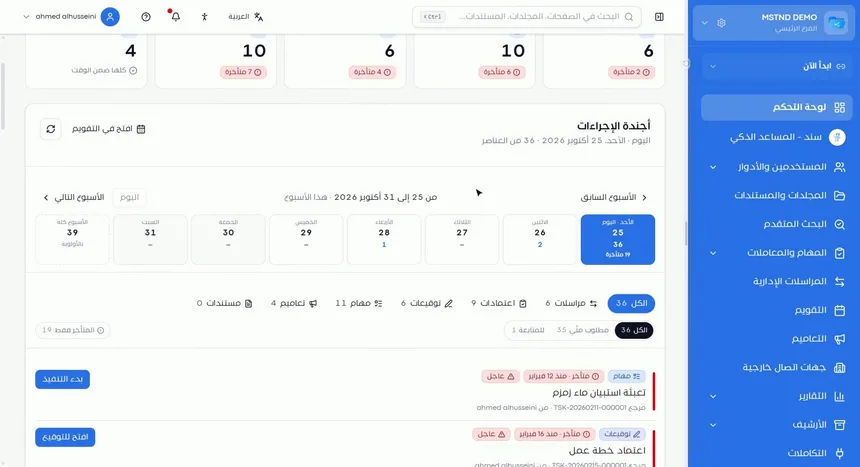
Click any card, such as «Approvals», and the Action agenda is filtered to that type only. To clear the filter and return to the full view, click the same card again.
Step 4: Move through the «Action agenda»
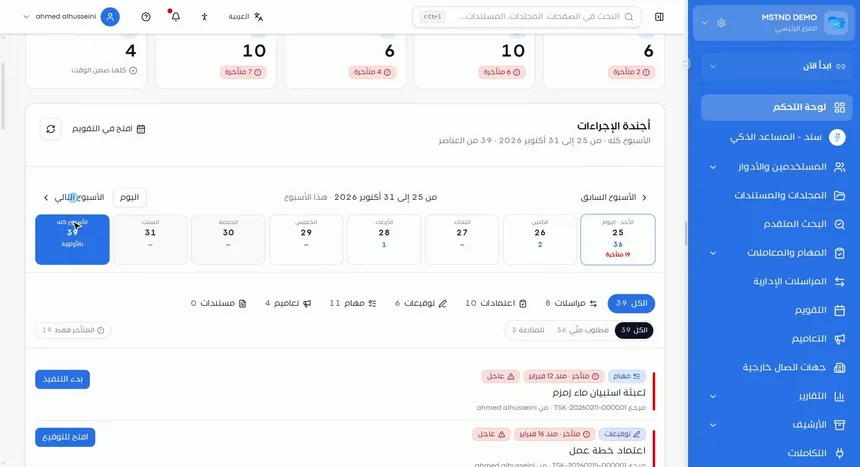
The agenda shows your week day by day. You can:
- Pick a specific day to see what is due on it.
- Pick the whole week to see the full picture.
- Move between weeks forward and backward.
- Return to today's date with the «Today» button.
This view helps with planning: if you see that Wednesday is crowded with due items, you can finish some of them early.
Step 5: Use the filters to narrow the list
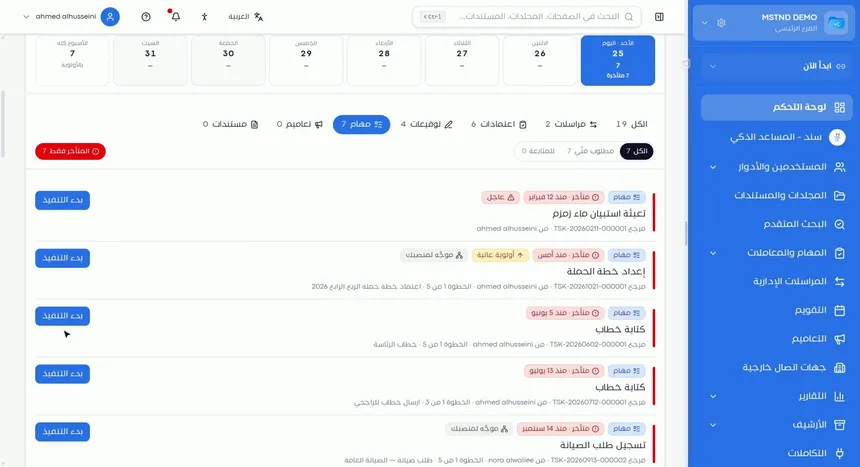
Besides filtering by card, the agenda offers extra filters:
- By type
- Assigned to me: what needs an action from you.
- To follow up: what you follow without the action being yours.
- Overdue only: shows the items that have passed their due date.
The difference between «Assigned to me» and «To follow up» is essential for managers. The first is your personal work list; the second is the list of what you should ask your team about.
Step 6: Carry out the action directly from the item
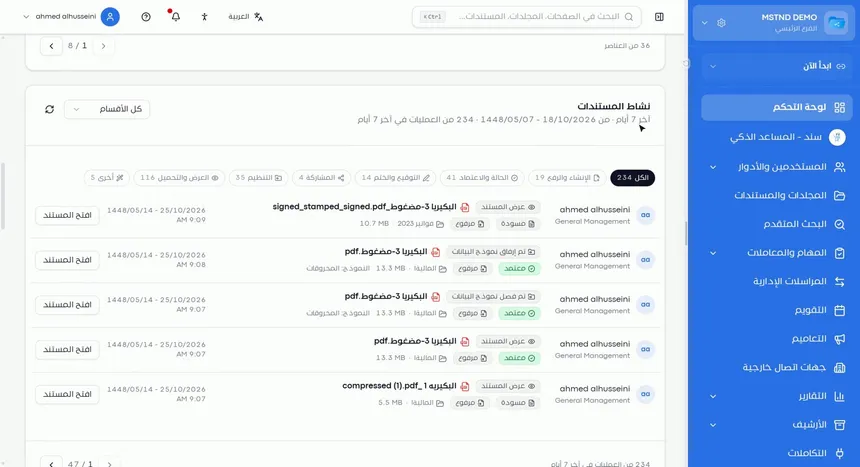
Each item in the agenda shows:
- Its status.
- Its priority.
- Its reference number.
- The transaction it came from.
- The matching action button, such as «Start».
Having the action button inside the item shortens the path: you do not need to open the tasks page and then look for the task.
Step 7: Review «Document activity»
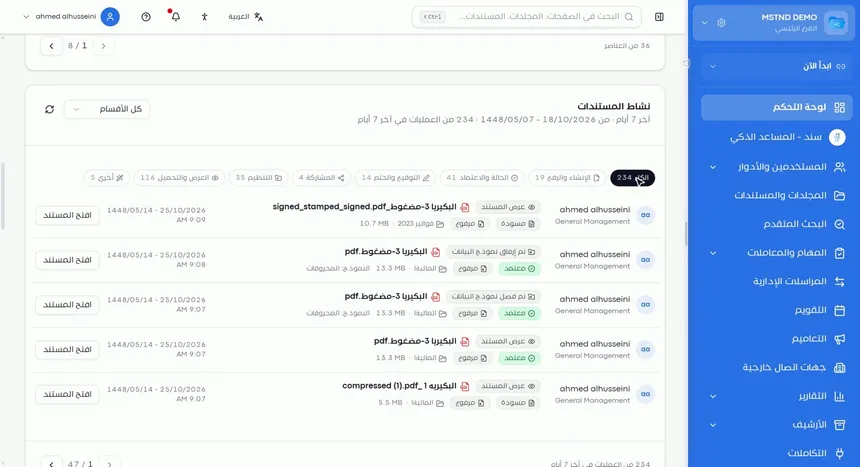
This section records the operations performed on documents during the last seven days. You can filter them by operation type: upload, approval, signature and stamp, and others. It helps answer questions such as "has the contract been signed?" or "which documents were uploaded this week?" without searching.
Step 8: Follow «My workflows»
«My workflows» shows every active workflow you take part in: which step it has reached and who is responsible for it now. If the current step is yours, an «Open my step» button appears and takes you straight to it.
Step 9: Make use of «Sanad recommendations»
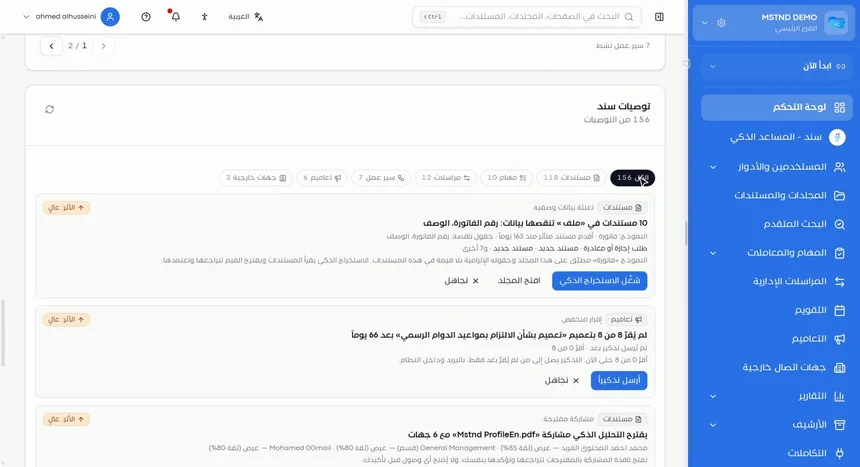
«Sanad», the AI assistant in Mstnd, analyzes the state of your documents and transactions and suggests actions, such as:
- Documents with missing data.
- Circulars that recipients have not acknowledged.
- Suggested shares.
Each recommendation shows its expected effect and the matching action, which you can carry out with one click. You can also dismiss a recommendation if it does not fit.
Step 10: Deal with «Needs your attention»
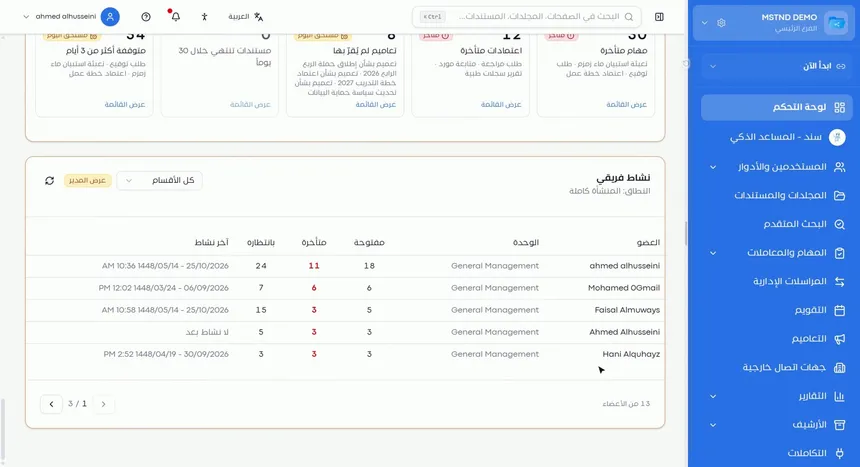
This section gathers the items in your scope that need intervention:
- Overdue tasks and approvals.
- Circulars that have not been read.
- Documents close to their expiry date.
- Stalled work.
It is your daily risk list. The earlier you deal with it, the less delay accumulates.
Step 11: Watch «My team's activity»
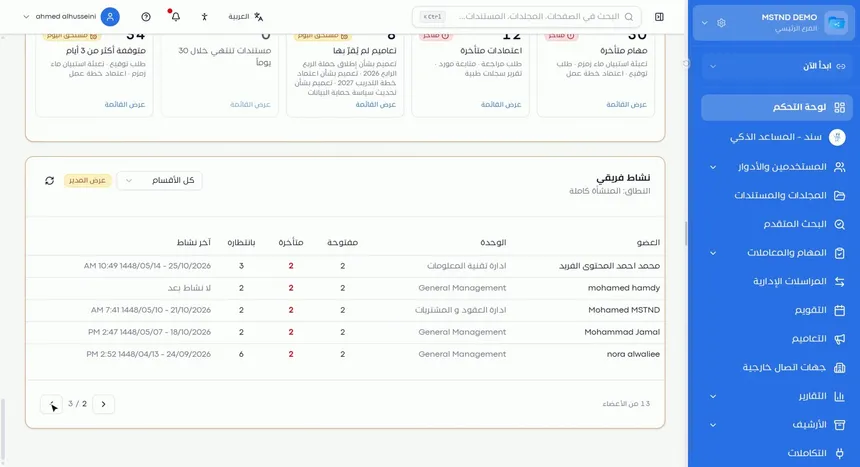
For each member of your team it shows:
- The number of open items.
- How many of them are overdue.
- The number of items waiting for them.
- The time of their last activity.
These numbers help you distribute work fairly: if one member is loaded with overdue items while another has capacity, you can redirect the tasks.
Step 12: Make the Dashboard your daily starting point
After this tour, the Dashboard becomes the command center of your day. A suggested order for daily use:
- «Needs your attention».
- «Waiting for you today».
- «Sanad recommendations».
- «My team's activity» at the end of the day.
Options and their effect
| Option or setting | What it does | When to use it |
|---|---|---|
| Clicking a type card | Filters the agenda on that type only | When clearing one type of work in one go |
| Picking a day in the agenda | Shows what is due on that day | For daily planning |
| Showing the whole week | Shows all of the week's due items | For weekly planning and spreading the effort |
| «Today» | Takes you back to today's date | After moving between weeks |
| «Assigned to me» | Limits the list to what needs your action | When focusing on your personal work |
| «To follow up» | Shows what you follow with others | For managers and follow-up officers |
| «Overdue only» | Shows what has passed its due date | To handle delays first |
| The action button in the item (such as «Start») | Carries out the action directly | To skip moving between screens |
| «Open my step» | Opens your step in the workflow | When the current step is yours |
| Carrying out or dismissing a recommendation | Applies Sanad's suggestion or hides it | Depending on how well the recommendation fits your context |
Practical scenarios
Scenario: A department manager in a government entity starts the day
Situation: A department manager receives incoming correspondence and approval requests from more than one section every day.
What you do in Mstnd:
- Open the Dashboard and read the summary line at the top.
- Open «Needs your attention» and deal with the overdue approvals.
- Click the «Correspondence» card to see what needs a reply today.
- Use «To follow up» to see what you referred to your team that has not been completed.
Result: Within minutes the manager knows the priorities and what to ask the team about.
Scenario: A contracts officer in a contracting company
Situation: Contracts with suppliers need a signature, and some of them are close to their expiry date.
What you do in Mstnd:
- Click the «Signatures» card to show the documents waiting for your signature.
- Review «Needs your attention» for the documents close to expiry.
- Review «Document activity» filtered on «Signature and stamp» to confirm what was signed this week.
Result: No contract renewal is missed, and no contract stays unsigned.
Scenario: An HR manager distributes the work
Situation: A team of five members and a growing number of requests.
What you do in Mstnd:
- Open «My team's activity» and compare the open and overdue items of each member.
- Identify the member with the lightest load.
- Redirect the new tasks to them from the Tasks page.
Result: A balanced distribution that reduces delays and improves the quality of the work.
Scenario: A corporate communication coordinator follows up circulars
Situation: An important circular was sent to all departments, and everyone's acknowledgment must be confirmed.
What you do in Mstnd:
- Review the «Sanad recommendations» that flag unread circulars.
- Carry out the suggested action or open the circular.
- Send a reminder to the late recipients from the circular details.
Result: Everyone's acknowledgment is achieved without following up person by person.
How it relates to other features
- Sanad, the AI assistant: the source of «Sanad recommendations»; you can also talk to it directly to carry out more complex requests.
- Tasks: the tasks that appear in the cards and the agenda are managed in detail from the Tasks page.
- Carrying out a task: the «Start» button in the agenda takes you to the same execution steps.
- Transactions: the «My workflows» section is a summary of what the Transactions page shows in detail.
- Administrative correspondence: the «Correspondence» card reflects what is waiting for your reply or follow-up there.
- Circulars: unread circulars appear in «Needs your attention» and in Sanad recommendations.
- Calendar: shows the same due items in a wider monthly and weekly view.
Tips and best practices
- Start your day from «Needs your attention»: the overdue piles up faster than the new.
- Complete work by type using the card filters instead of moving around at random.
- Use the week view every Sunday morning to spread your effort over the days of the week.
- Keep «Assigned to me» and «To follow up» apart: the first is for doing, the second is for following up with the team.
- Do not dismiss Sanad recommendations without reading their effect; some of them reveal missing data that affects search and reports later.
- Review «My team's activity» at least weekly to distribute work fairly.
- Use the reference number when writing about any item to avoid confusion.
Warnings and common mistakes
FAQ
What is the Mstnd Dashboard?
It is the main screen after signing in. It gathers what needs your action from correspondence, approvals, signatures, tasks and circulars, together with the week's agenda, workflows, Sanad recommendations and team activity.
How do I show only one type of item in the agenda?
Click the type's card in the «Waiting for you today» section, such as «Approvals», and the agenda is filtered on it. Click the card again to return to all types.
What is the difference between «Assigned to me» and «To follow up»?
«Assigned to me» shows what needs a direct action from you, while «To follow up» shows items held by others that you follow because of your responsibility.
Can I carry out a task directly from the Dashboard?
Yes. Each item in the agenda has the matching action button, such as «Start», which takes you straight to execution.
What are Sanad recommendations?
They are suggestions generated by the AI assistant Sanad from the state of your documents and transactions, such as completing a document's data or following up a circular that has not been read. Each recommendation comes with its effect and its action, and you can dismiss it.
How do I know which transactions are waiting for me?
From the «My workflows» section, which shows every active workflow, its current step and the step's owner. If the step is yours, an «Open my step» button appears.
How many days does the «Document activity» section cover?
It shows the operations performed on documents during the last seven days, with a filter by operation type.
Why is my Dashboard different from my colleague's?
Because its content depends on the tasks and transactions assigned to each user and on their permissions and scope in the organization.
Summary
- The Dashboard answers the question "what is required of me right now?" on one screen.
- The «Waiting for you today» cards split your work by type and filter the agenda with one click.
- The Action agenda and its filters help you plan daily and weekly.
- «My workflows» and «Needs your attention» reveal what is stalling before it falls further behind.
- «Sanad recommendations» and «My team's activity» turn data into decisions.
Try it free: Create your organization's account in Mstnd
Was this article helpful?
Related articles
 0:47
Sanad, the AI assistant in Mstnd: ask in your own words and let it do the work
Sanad is the Mstnd AI assistant: ask in your dialect; it searches and summarizes documents, asks to clarify and runs commands like creating a folder, with undo.
 0:56
The Tasks page in Mstnd: your tasks and your team's in one place
Mstnd's Tasks page lists your and your team's tasks with system number, operation, status, priority, assignees and due date, plus scopes, filters and a report.
 0:57
Carrying out a task in Mstnd: from «Start» to «Complete task»
Learn the Mstnd task page: view its data and routing, start work, preview the operation file, approve or reject it with a note, then complete and log the task.
 0:41
Transactions in Mstnd: follow every workflow from one screen
Learn the Mstnd Transactions page: see every workflow with its number, status, priority and progress, use scope and filters, export it and start a new workflow.
 0:50
Administrative correspondence in Mstnd: outgoing and incoming in one organized register
Administrative correspondence in Mstnd: outgoing and incoming in one register, indicators, filters by direction, status and confidentiality, and reply threads.
 0:32
Circulars in Mstnd: get your decisions to everyone and track their response
Learn the Circulars page in Mstnd: every sent and received circular with its action type, status, priority and category, plus filters, search and new circulars.
 0:44
The Mstnd Calendar: your full schedule and your team's in one place
Learn the Mstnd Calendar: tasks, circulars, reminders, document expiry, correspondence and invitations in Hijri and Gregorian, with five views and a day panel.