

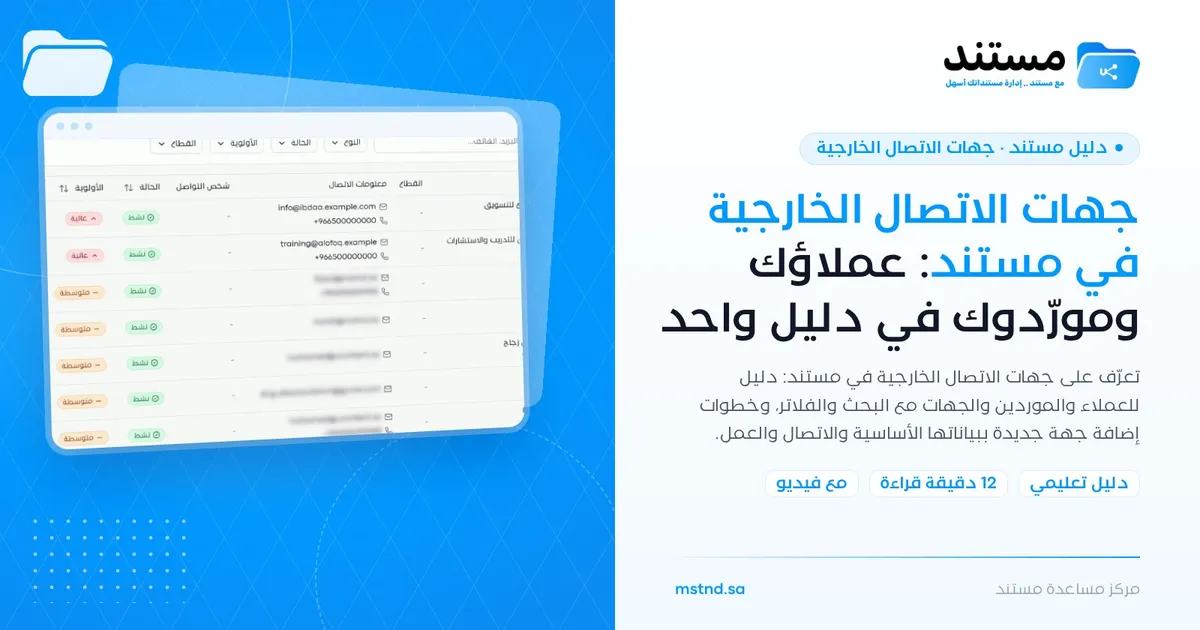
External contacts in Mstnd: your clients and suppliers in one directory
In this article
«External contacts» in Mstnd is a single directory of everyone your organization deals with outside it: clients, suppliers and other parties. For each contact it shows the type, contact information, contact person, status, priority and sector, with quick search and filters. From it you add a new contact with its basic information, contact and business information, key people and addresses, so it is ready for correspondence and external sharing.
Quick overview
| Item | Details |
|---|---|
| Module | External contacts |
| Where it is in the interface | Side menu → «External contacts» |
| Direct link | https://app.mstnd.sa/external-contacts |
| Goal | Organize the data of external parties in one directory you can search and filter, and add new contacts with complete data |
| Who it is for | Procurement, sales, legal affairs, secretarial and administrative communications teams, and anyone who deals with external parties |
| Video length | About one minute |
| What you will learn | Reading the contacts list, searching and filtering, adding a new contact through its tabs, and organizing contacts by sector |
Watch the video
In under a minute, the video shows the external contacts list with its search and filters, then adds a new contact of type «Supplier» step by step, shows it appearing at the top of the list, and points out the «Manage sectors» button.
Why this feature?
In many organizations, the data of external parties is scattered: phone numbers on employees' mobile phones, email addresses in personal inboxes, the commercial registration in the procurement file and the address on an old invoice. And when the employee responsible for a particular party leaves, the knowledge of how to reach that party leaves with them.
The external contacts directory makes this data the property of the organization, not of individuals. It also connects it to the rest of your work in Mstnd: the same contact is used in correspondence and in sharing documents externally, and documents and folders are linked to it.
| Before the directory | With external contacts |
|---|---|
| Contact data lives on employees' phones and in their email | A central directory owned by the organization |
| No distinction between a client, a supplier and any other party | Every contact has a type, status, priority and sector |
| Finding a contact's number takes time | Search by name, email or phone |
| The commercial registration and tax number sit in scattered files | Dedicated fields in «Business information» |
| You do not know who the responsible person at the party is | The «Key people» tab and the «Contact person» column |
| You cannot see which documents relate to the contact | The «Links» column shows the number of linked documents and folders |
Value for the organization: continuity of knowledge about external parties, and unified data that every department uses. Value for the individual: quick access to any contact's data without asking colleagues.
Where to find it
- Sign in to Mstnd.
- From the side menu, choose «External contacts».
- The «External contacts» page opens, with the number of contacts shown under its title.
Direct link: https://app.mstnd.sa/external-contacts
Concepts and terms
| Term | Meaning in Mstnd |
|---|---|
| External contact | Any party outside the organization that you deal with: a company, an individual or an entity |
| Type | The contact's classification by its relationship with you, such as supplier, client, consultant or logistics |
| Status | The state of the relationship with the contact, such as «Active» |
| Priority | How important the contact is to your organization: low, medium or high |
| Sector | The field the contact works in, managed from «Manage sectors» |
| Legal name | The contact's official registered name, which may differ from the name it goes by day to day |
| Contact person | The main person you deal with inside the contact's organization |
| Links | The number of documents and folders linked to the contact |
Step by step
Step 1: Get to know the contacts list
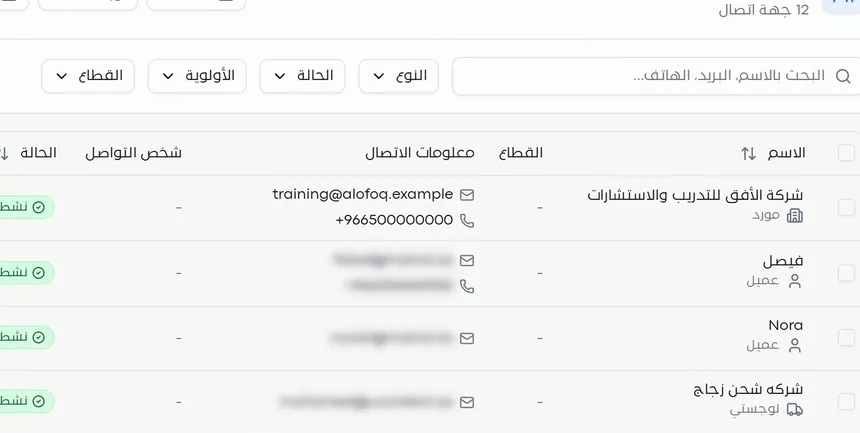
The page shows all contacts in a table. Each contact has a row that contains:
- Name: with the contact's type under it, such as «Supplier» or «Client».
- Sector.
- Contact information: the email address and the phone number.
- Contact person.
- Status: such as «Active».
- Priority: such as «High» or «Medium».
- Links: the number of linked documents and folders.
The name, status and priority columns can be sorted. At the top of the page are the «Reports», «Refresh», «Manage sectors» and «Add contact» buttons.
Step 2: Search and filter the list
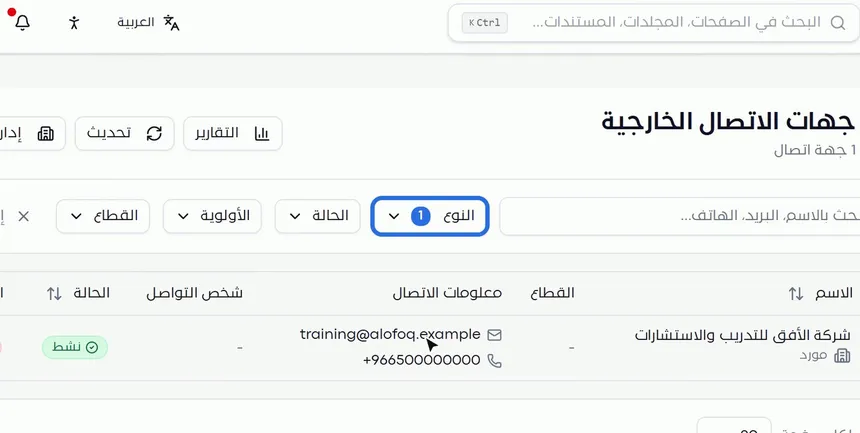
The search field accepts a name, an email address or a phone number. This is useful when you receive a call from a number you do not know, or an email from an address whose owner you want to identify.
Next to it are four filters:
- Type: to show only suppliers or only clients, for example.
- Status: to show the active contacts.
- Priority: to show the high-priority contacts.
- Sector: to show the contacts of a specific sector.
Step 3: Start adding a new contact
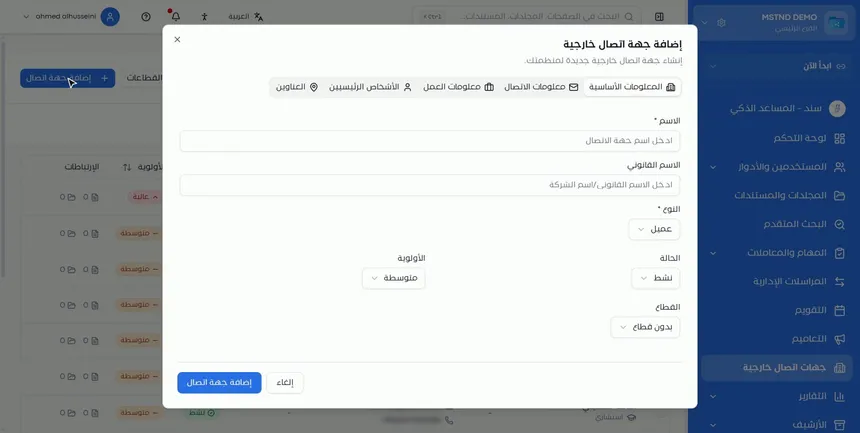
Click «Add contact» at the top of the page. The «Add external contact» window opens, with «Create a new external contact for your organization» under its title. At the top of the window are five tabs:
- Basic information.
- Contact information.
- Business information.
- Key people.
- Addresses.
Step 4: Fill in the basic information
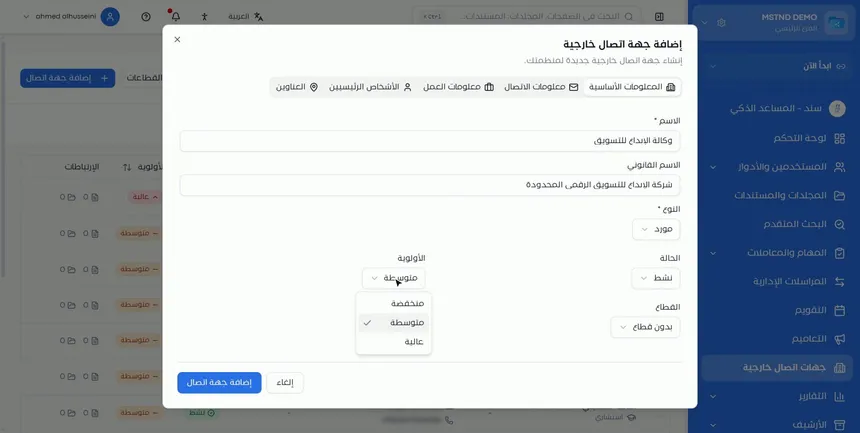
In the «Basic information» tab:
- Name (required): the name the contact goes by, such as «Al-Ibdaa Marketing Agency».
- Legal name: the official registered name, such as «Al-Ibdaa Digital Marketing Company Ltd».
- Type (required): such as «Supplier».
- Status: such as «Active».
- Priority: low, medium or high.
- Sector: starts as «No sector» if you do not set one.
Keeping the name and the legal name separate is useful: the first makes everyday searching easier, and you need the second in contracts and official correspondence.
Step 5: Add the contact information
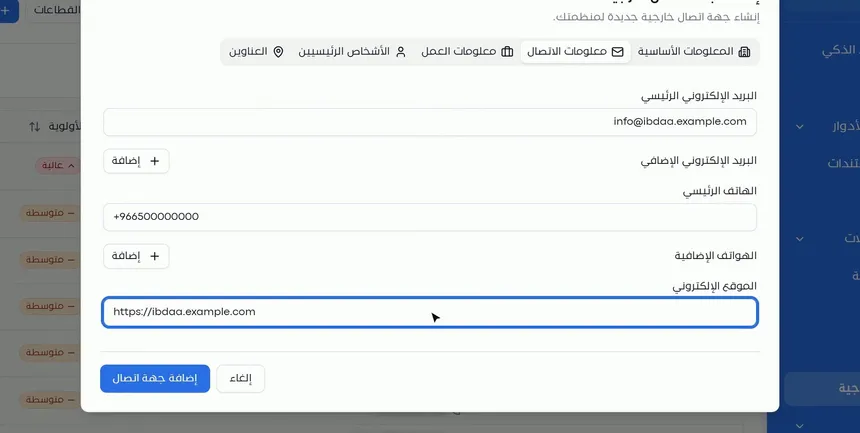
In the «Contact information» tab:
- Primary email.
- Additional email: with an «Add» button to add more than one address.
- Primary phone.
- Additional phones: with an «Add» button.
- Website.
The primary email and phone are what appear in the «Contact information» column of the list, and they are what the search looks up. So choose the address and number you use most as the primary ones.
Step 6: Complete the business information and the other tabs
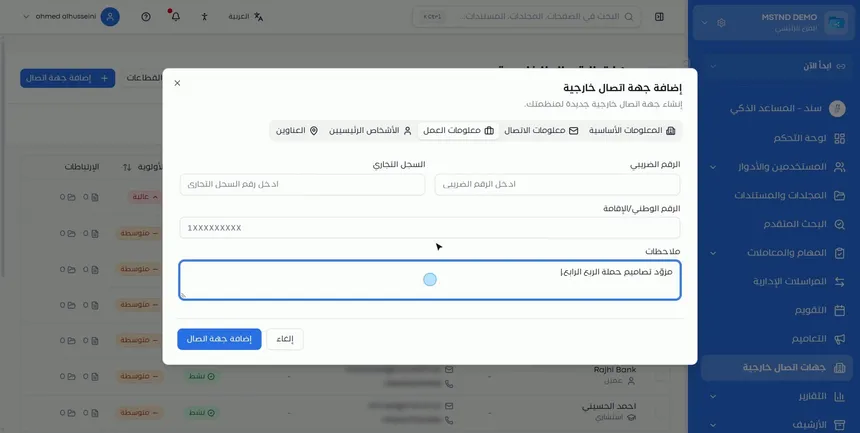
Three tabs remain:
- «Business information»: the tax number, the commercial registration, the national ID/Iqama number for individuals, and a «Notes» field for any information that helps your colleagues, such as «Design provider for the Q4 campaign».
- «Key people»: the people you deal with inside the contact's organization.
- «Addresses»: the contact's addresses.
These tabs are not required when adding a contact, and you can complete them later from the contact profile.
Step 7: Save the contact
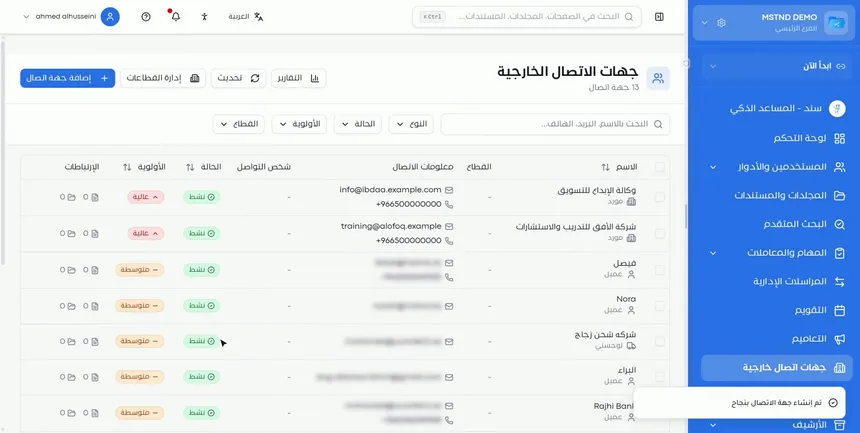
Click «Add contact» at the bottom of the window. The message «Contact created successfully» appears, and the window closes. If you want to leave without saving, click «Cancel».
Step 8: Check the contact and organize the sectors
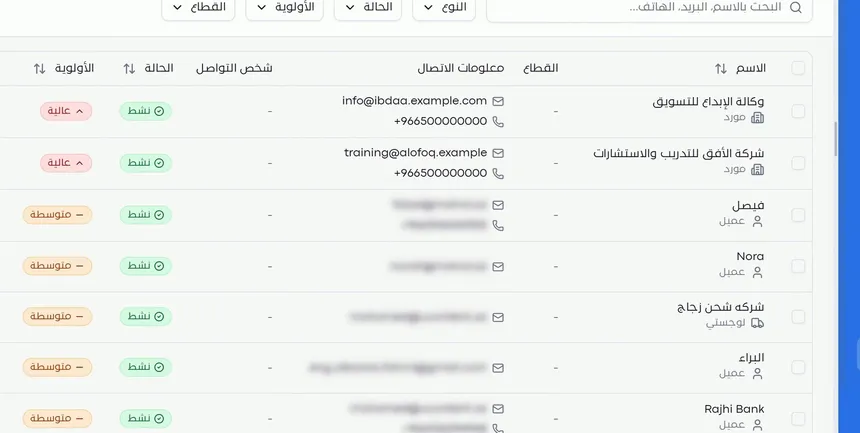
The new contact appears at the top of the list with its type, data, status and priority. Click its name to open its full profile.
To organize contacts by sector, use the «Manage sectors» button at the top of the page. Sectors make the «Sector» filter an effective tool, and they help you analyze your dealings by field, such as technology, construction or financial services.
Options and their effect
| Option or setting | What it does | When to use it |
|---|---|---|
| Search by name, email or phone | Narrows the list to what matches | To reach a specific contact quickly |
| Type filter | Shows one type of contact | For supplier or client lists |
| Status filter | Shows contacts by their status | To focus on active contacts |
| Priority filter | Shows contacts by their importance | To follow up strategic contacts |
| Sector filter | Shows the contacts of one sector | For analysis by field |
| Sorting by name, status or priority | Reorders the table | To see the most important first |
| «Add contact» | Opens the add window | When you start dealing with a new party |
| Priority: Low / Medium / High | Sets how important the contact is | Depending on the volume and impact of your dealings |
| Additional email and phone | Add other ways to reach the contact | For parties with several departments |
| «Business information» | Stores the tax number, commercial registration and ID | For the suppliers and clients you issue contracts and invoices to |
| «Manage sectors» | Organizes the list of sectors | When setting up the directory or adding a new field |
| «Reports» | Takes you to the reports | To analyze contacts and your dealings with them |
| «Refresh» | Reloads the list | After colleagues add or edit contacts |
Practical scenarios
Scenario: The procurement department in a government entity
Situation: The department deals with dozens of suppliers and needs each one's commercial registration and tax number when issuing correspondence.
What you do in Mstnd:
- Add each supplier with the type «Supplier» and its legal name.
- Enter the tax number and the commercial registration in «Business information».
- Set the priority according to the size of the contract.
- Organize the suppliers by sector from «Manage sectors».
Result: A unified supplier directory to refer to in every piece of correspondence and every contract, which is not lost when employees change.
Scenario: A contracting company manages its subcontractors
Situation: The company works with subcontractors, material suppliers and consultants across several projects.
What you do in Mstnd:
- Add each party with the right type, such as «Supplier» or «Consultant».
- Record the contact person in «Key people».
- Use the type filter «Consultant» when you need to review the consultants.
Result: The project manager knows whom to call at each party without going back to the head office.
Scenario: A law firm organizes its clients' data
Situation: The firm needs accurate data on its clients, both individuals and companies.
What you do in Mstnd:
- Add the client with the type «Client».
- For individuals, enter the national ID or Iqama number; for companies, the commercial registration.
- Set the priority to «High» for sensitive cases.
- Add notes on the nature of the relationship.
Result: A single profile for each client, used in correspondence and document sharing.
Scenario: A trading company identifies a party from a phone number
Situation: A call came in from an unsaved number, and the employee wants to know who it is before answering.
What you do in Mstnd:
- Open «External contacts».
- Type the number in the search field.
- Open the contact's profile to see its type, its contact person and the latest linked documents.
Result: The employee answers already knowing the party and the context of the relationship.
How it relates to other features
- Contact profile: from the list you open each contact's profile to add people and addresses and to review the linked documents.
- External sharing: the contacts registered here are the ones you share documents with externally, with a notification, permissions and an expiry date.
- Administrative correspondence: outgoing and incoming external correspondence is exchanged with external contacts.
- New correspondence: when you create external correspondence you choose the receiving party, and a complete directory makes that easier.
- Creating a circular: a circular can be linked to external contacts from the «Links» section.
- Report center: the «Reports» button on this page takes you to the reports so you can analyze your dealings.
Tips and best practices
- Search before you add: a duplicated contact splits documents and correspondence between two records.
- Always fill in the legal name; it is what you need in contracts and official correspondence.
- Agree within the organization on what each priority means, so that filtering by priority has value.
- Set up the sector list once from «Manage sectors» before entering a large number of contacts.
- Use the «Notes» field to record the context of the relationship, such as the related project or contract.
- Update a contact's status when the relationship ends instead of deleting it, to preserve the history of your dealings.
- Record at least one contact person for every important contact.
Warnings and common mistakes
FAQ
What are external contacts in Mstnd?
They are a directory that gathers the clients, suppliers and other parties your organization deals with, with the contact information, status, priority and sector of each one.
How do I add a new external contact?
Click «Add contact», fill in the name, the type and the rest of the basic information, then the contact and business information if you have it, and click «Add contact» to save.
Can I search for a contact by its phone number?
Yes. The search field accepts a name, an email address or a phone number.
What is the difference between the name and the legal name?
The name is the everyday name you search with, while the legal name is the official registered name used in contracts and official correspondence.
Can I add more than one email address or phone number for a contact?
Yes. The «Contact information» tab has an «Add» button for additional email addresses and another for additional phone numbers.
How do I organize contacts by sector?
Use «Manage sectors» to set up the sectors, then choose the sector of each contact, and filter the list with the «Sector» filter.
What does the «Links» column show?
It shows the number of documents and folders linked to the contact. You see them in detail in the «Documents» tab of the contact profile.
Do I have to fill in every tab when adding a contact?
No. The name and the type are required, and you can complete the key people, the addresses and the rest later from the contact profile.
Summary
- External contacts is a central directory of clients, suppliers and other parties, owned by the organization.
- The list shows the type, contact information, contact person, status, priority, sector and links of each contact.
- Searching by name, email or phone, together with the four filters, gets you to any contact quickly.
- The add window organizes the data into five tabs, and the name and type are required.
- «Manage sectors» organizes contacts by field and makes filtering more useful.
Try it free: Create your organization's account in Mstnd
Was this article helpful?
Related articles
 0:41
The contact profile in Mstnd: your dealings with an external party in one file
Learn the Mstnd external contact profile: contact and business information, key people and addresses, linked documents and folders, and editing or deleting.
 0:49
External sharing: send a document to an external party securely
Learn external sharing in Mstnd: send a document to an external party by private link via email or WhatsApp, with password, expiry date, permissions and Nafath.
 0:50
Administrative correspondence in Mstnd: outgoing and incoming in one organized register
Administrative correspondence in Mstnd: outgoing and incoming in one register, indicators, filters by direction, status and confidentiality, and reply threads.
 1:34
Creating new correspondence in Mstnd: from writing to stamping and sending
Create outgoing or incoming mail in Mstnd: recipient, follow-up owners, priority, confidentiality, reply date, attachments, digital sticker, send or register.
 0:43
The report center in Mstnd: all your organization's reports in one place
The Mstnd report center groups document, correspondence, task, transaction, circular and user reports by section, with quick search and an analytics dashboard.
 0:57
Creating a circular in Mstnd: circulate your decision and make sure it is read
Create a circular in Mstnd: title and subject, priority and category, action type, attachments and links, recipients, settings, then publish or save as a draft.