

Document translation in Mstnd: a translated copy with the same formatting
In this article
The «Translate» feature in Mstnd creates, from any document, a copy translated into the language you choose, while preserving the original page formatting. The system detects the source language automatically, applies the Saudi government terminology glossary for accurate terms, and saves the translation as a separate document in the same folder without changing the original. The feature helps any organization that deals with partners, employees or entities in different languages.
Quick overview
| Item | Details |
|---|---|
| Module | Document page |
| Where it is in the interface | The «Translate» button in the action bar at the top of the document page |
| Direct link | https://app.mstnd.sa/file/<document ID> |
| Goal | Produce a translated copy of the document in the same format, while the original stays as it is |
| Who it is for | External relations, procurement, HR and legal affairs departments, and anyone who deals with parties in other languages |
| Video length | A little under a minute |
| What you will learn | Starting a translation, choosing the target language, following progress from the «AI agent», opening the translated copy and understanding how it relates to the original |
Watch the video
In under a minute, the video shows the whole translation journey: from clicking «Translate» to opening the translated copy in the folder.
Why this feature?
In many organizations, translating official documents is a slow process. The text is copied into an external translation tool, the tables and headings are then rearranged by hand, and the file is saved somewhere the rest of the team may not know about. Every time a document leaves the system, the chances of information leaking increase, and the terminology varies from one translator to another.
The translation feature in Mstnd reduces these steps to a single action inside the system. The translation preserves the formatting, relies on a unified terminology glossary and saves the result as a separate document next to the original.
| Before the feature | With the feature |
|---|---|
| Copying the text into an external tool and pasting it back | Translating from inside the document page with one click |
| Rebuilding tables and headings by hand | The translation preserves the original page formatting |
| Terms that vary from one translator to another | The Saudi government terminology glossary is applied |
| Translated files scattered outside the system | A separate copy in the same folder, next to the original |
| The risk of replacing the original with the translation by mistake | The original never changes |
The value for the organization: consistent terminology, and documents that stay inside the system. The value for the individual: less time and less effort spent on formatting.
Where to find it
- From the side menu, open «Folders and documents».
- Open the folder, then the document you want.
- In the action bar at the top of the page, click «Translate».
Direct link: https://app.mstnd.sa/file/<document ID>
You can also translate a specific earlier version of the document from that version's menu in the «Versions» tab. See the guide Versions and operations log.
Concepts and terms
| Term | Meaning in Mstnd |
|---|---|
| Source language | The language of the original document; the system detects it automatically |
| Target language | The language you want to translate into; you choose it from the list of languages |
| Preserving the formatting | Headings, tables and page layout stay in the translated copy exactly as they are in the original |
| Government terminology glossary | A glossary the translation relies on to render official Saudi terms accurately |
| AI agent | A panel that shows AI operations in progress and completed, including translation; its indicator appears at the top of the screen |
| Translated copy | A new, separate document saved in the same folder; it does not replace the original |
Step by step
Step 1: Click «Translate» in the action bar
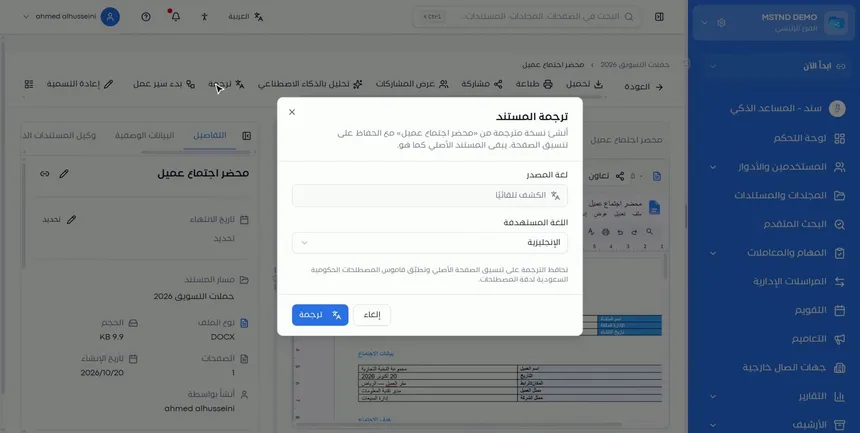
Open the document you want to translate. In the action bar at the top of the page you will find buttons such as «Download», «Share», «Analyze with AI» and «Translate». Click «Translate» to open the translation settings window.
Having translation in the action bar means it is available directly from the document page, without needing to download the file or move it anywhere else.
Step 2: Choose the target language
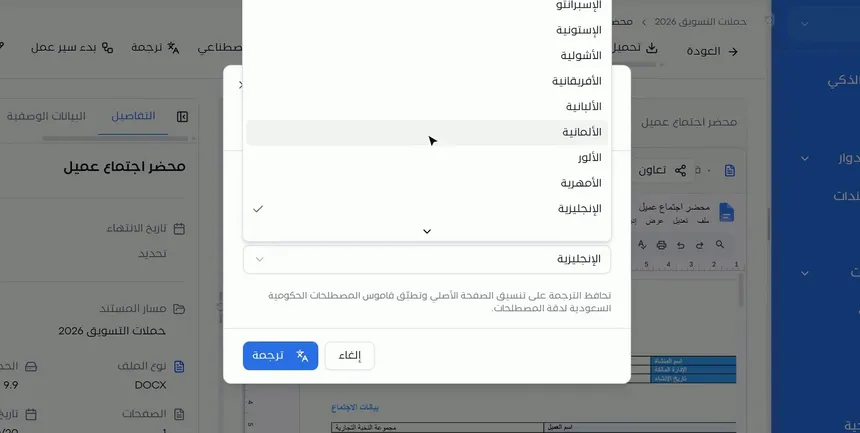
In the translation window, the system detects the source language automatically, so you do not need to specify it. Your only job is to choose the target language from the drop-down list, such as «English». The list includes dozens of languages, and you can scroll through it to pick the one you need.
Then click the «Translate» button to start the process, or «Cancel» to back out.
Step 3: Know what the translation does with formatting and terminology
The window explains that the translation preserves the original page formatting and applies the Saudi government terminology glossary for accurate terms.
Both points matter in official documents. Preserving the formatting means that tables, headings and the order of sections stay as they are, so the translated copy is ready to use without reformatting. The glossary ensures that the names of entities, job titles and official procedures are translated in a consistent form across all of the organization's documents.
Step 4: Follow the progress from the «AI agent»
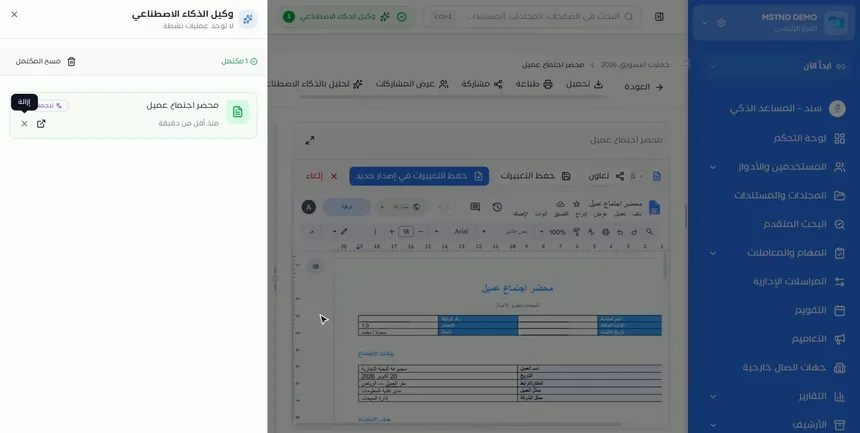
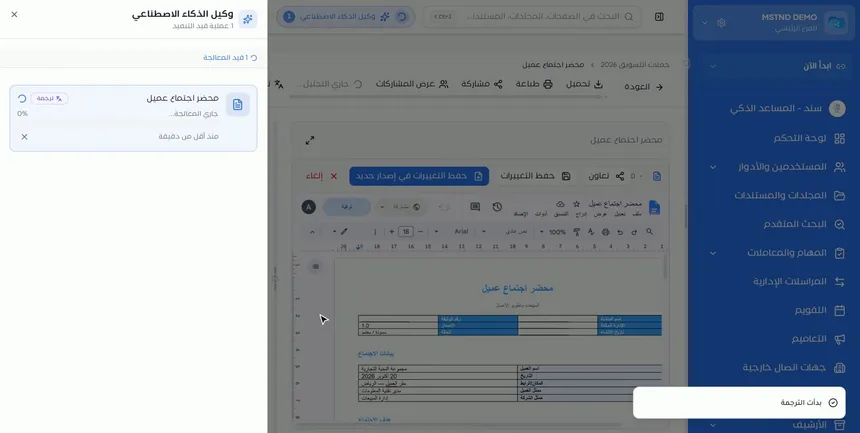
Once the translation starts, the process runs in the background. Follow its progress from the «AI agent» indicator at the top of the screen. Click it to open a panel that shows the active and completed operations, each with the document name, the operation type and its time.
From this panel you can also open the result, remove the operation from the list, or use «Clear completed» to clean finished operations out of the list.
Running in the background means you do not have to wait in front of the screen. You can carry on with your work and come back to the panel later.
Step 5: Open the translated copy
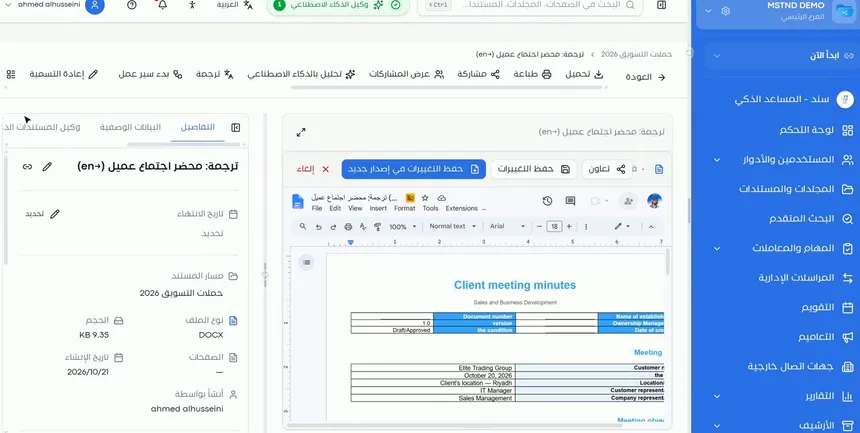
When the translation is complete, the operation appears in the panel with the status «Completed». Click the option to open the translated copy to go straight to it.
Review the translated copy before sending or approving it, especially for legal and financial documents. Machine translation takes care of most of the effort, but human review remains essential for sensitive documents.
Step 6: Understand the relationship between the translated copy and the original
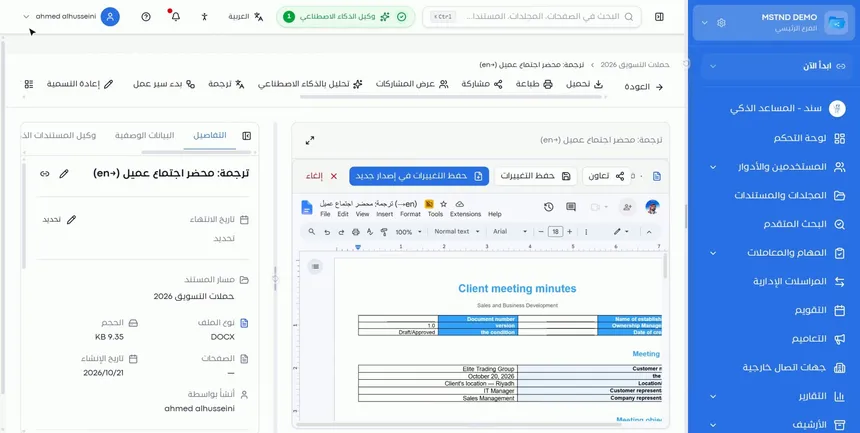
The translated copy is a separate document in the same folder, with the same formatting as the original. The original document does not change.
This means each copy has a life of its own: you can share the translated copy with an external party, start a workflow on it or edit it, without affecting the original. The original remains a fixed reference you can go back to when needed.
Options and their effect
| Option or setting | What it does | When to use it |
|---|---|---|
| «Translate» in the action bar | Opens the translation settings window | When you need a copy of the document in another language |
| Choosing the target language | Sets the language of the translated copy | Always, since the source language is detected automatically |
| The «Translate» button in the window | Starts the translation in the background | After choosing the language |
| «Cancel» | Closes the window without translating | If you opened it by mistake or wanted a different document |
| The «AI agent» panel | Shows the status of operations in progress and completed | To follow progress without waiting in front of the screen |
| Opening the translated copy | Takes you to the translated document | After the translation is complete, for review |
| «Remove» an operation from the panel | Deletes the operation from the panel's list | To keep the list tidy once you are done |
| «Clear completed» | Removes all completed operations from the panel | When finished operations pile up |
Practical scenarios
Scenario: The international relations department of a government entity
Situation: The minutes of a meeting with a foreign delegation were written in Arabic, and an English copy needs to be sent to the delegation.
What you do in Mstnd:
- Open the minutes and click «Translate».
- Choose «English» and click «Translate».
- Follow the progress from the «AI agent».
- Open the translated copy and review the official titles.
- Share the translated copy with the delegation through External sharing.
Result: A formatted English copy with consistent official terminology, while the Arabic minutes stay as they are.
Scenario: The procurement department of a contracting company
Situation: A technical proposal from a foreign supplier arrived in English, and the award committee needs an Arabic copy.
What you do in Mstnd:
- Open the technical proposal and click «Translate».
- Choose «Arabic» as the target language.
- Open the translated copy once it is complete, and share it with the committee members.
Result: The committee reads the proposal in its own language, while the original copy remains a reference whenever verification is needed.
Scenario: Human resources in a hospital
Situation: The employee policy handbook is in Arabic, and the hospital has medical staff of many nationalities.
What you do in Mstnd:
- Open the handbook and click «Translate».
- Choose «English» and start the translation.
- Review the translated copy, then publish it to the employees.
Result: The same policies reach everyone in a language they understand, with the same formatting and numbering.
Scenario: A law firm reviews a bilingual contract
Situation: A contract with a foreign partner, and the lawyer needs a quick comparison between the two texts.
What you do in Mstnd:
- Open the original contract and click «Translate», choosing the other party's language.
- Open the translated copy and use it as an initial reference for the comparison.
- Rely on your legal expertise to review the final wording.
Result: A ready translation draft that shortens the comparison time, while the legal decision stays in the hands of the specialist.
How it relates to other features
- Translation settings: where you configure the translation terminology glossary that the translation relies on.
- Versions and operations log: you can translate a specific earlier version from that version's menu.
- Smart document agent: detects the document's language as part of the file data, and works alongside translation among the AI tools on the document page.
- Document viewer: where you review the translated copy as you would any other document.
- External sharing: the usual next step for sending the translated copy to a party outside the organization.
- Folder content: where the translated copy appears next to the original in the same folder.
Tips and best practices
- Always treat the original as the reference, and use the translated copy for communication.
- Review the translated copy before sending it, especially for contracts and financial documents.
- Update the terminology glossary in the settings with your organization's own names and titles to improve the accuracy of future translations.
- Translate again after any substantial edit to the original, because the translated copy does not update automatically.
- Use the «AI agent» panel to follow several translations at once without waiting.
- Clean up the panel with «Clear completed» regularly so the operations in progress stay easy to see.
- When needed, give the translated copy a clear name that indicates its language, so the copies are easy to tell apart in the folder.
Warnings and common mistakes
FAQ
How do I translate a document in Mstnd?
Open the document, click «Translate» in the action bar, choose the target language, then click «Translate». Follow the progress from the «AI agent» and open the translated copy when it is complete.
Do I need to specify the language of the original document?
No. The system detects the source language automatically; you only choose the target language.
Does the translation preserve the document's formatting?
Yes. The translation preserves the original page formatting, so headings, tables and the order of the content stay as they are.
Does translation affect the original document?
No. The translation is saved as a separate document in the same folder, and the original stays completely unchanged.
What is the government terminology glossary?
It is a glossary the translation applies to render Saudi government terms accurately, so official names and titles are translated in a consistent form.
Where do I follow the status of a translation?
From the «AI agent» indicator at the top of the screen, which opens a panel with the active and completed operations.
Can an old version of the document be translated?
Yes. In the «Versions» tab, open the menu of the version you want and choose translation from it.
Does the translated copy update if I edit the original?
No. The translated copy is a separate document. If you edit the original and need an updated translation, translate it again.
Summary
- Translation in Mstnd starts from the «Translate» button in the document's action bar.
- The source language is detected automatically; you only choose the target language.
- The translation preserves the formatting and applies the Saudi government terminology glossary.
- You follow the progress from the «AI agent» without waiting in front of the screen.
- The result is a separate document in the same folder, and the original does not change.
Try it free: Create your organization's account in Mstnd
Was this article helpful?
Related articles
 0:32
Translation settings in Mstnd: a default language and an official terminology glossary
Set up translation in Mstnd: default target language, translation model, available languages, government glossary and auto-translation of incoming documents.
 0:38
Versions and the operations log in Mstnd: a complete history for every document
Mstnd versions and the operations log: save edits as a new version and keep the old one, view, download or translate any copy, and track who did what and when.
 0:59
The Mstnd smart document agent: understand your document before you read it
Mstnd's smart document agent analyzes each file: text, summary and entities, plus suggested status, categories, tags, tasks and access with a confidence score.
 0:51
The document viewer in Mstnd: view any document without downloading it
Learn the Mstnd document viewer: view a file in the system without downloading it, zoom or go full screen, and use the actions bar and side panel in one place.
 0:49
External sharing: send a document to an external party securely
Learn external sharing in Mstnd: send a document to an external party by private link via email or WhatsApp, with password, expiry date, permissions and Nafath.
 1:05
Folder content in Mstnd: find your file and manage it in seconds
The Mstnd folder content screen explained: file cards and status changes, multi-select and bulk actions, the folder side panel, and AI chat about the files.