

External sharing: send a document to an external party securely
In this article
External sharing in Mstnd is how you send a document to a party outside your organization, such as a supplier, a client or a government entity, through a link that belongs to that party alone. You choose the party from the external contacts, send it a notification by email or WhatsApp, protect the link with a password and an expiry date, and set what the party can do: download, sign, stamp or change the status, with the option of requiring verification through Nafath. After sharing, you follow the access log, and you can edit, resend or revoke the share.
Quick overview
| Item | Details |
|---|---|
| Module | Document page |
| Where it is in the interface | The «Share» button in the document page's actions bar → the «External sharing» tab |
| Direct link | https://app.mstnd.sa/file/<document ID> |
| Goal | Get the document to a specific external party with controlled permissions, protection and follow-up |
| Who it is for | Procurement, contracts, legal affairs and external relations departments, and anyone who exchanges documents with parties outside the organization |
| Video length | Less than a minute |
| What you will learn | Choosing the party, the notification method, the password and expiry date, the permissions, Nafath verification and managing the share after it is created |
Watch the video
In less than a minute, the video shows a complete external share being created, from choosing the party to the moment its private link and the buttons for managing it appear.
Why this feature?
Exchanging documents with external parties is one of the weakest points in any organization. The contract is sent as an email attachment, then printed, signed, scanned and sent back. Along the way copies get lost, the organization does not know whether the party has opened the document or not, and it cannot withdraw the document once it has been sent.
External sharing moves this exchange inside the system. The document stays in Mstnd, and the party gets a link of its own, with clear limits on what it can do and for a set period. If you need its signature or stamp, it can provide them through the same link, with the option of verifying its identity through Nafath.
| Before external sharing | With external sharing |
|---|---|
| Attaching the document to an email and losing control of it once it is sent | A link for that party alone, which can be edited or revoked at any time |
| Not knowing whether the party has seen the document | The «Access log» shows the party's access to the link |
| Printing, signing and scanning, then sending it back | A «Sign» or «Stamp» permission carried out directly through the link |
| No certainty about who opened the document | Requiring Nafath verification once the ID number is added |
| The file you sent stays available forever | An expiry date for the link, and a password that protects it |
| Manual follow-up messages as reminders | «Resend» the notification with one click |
Where to find it
- Side menu → «Folders and documents».
- Open the document you need.
- In the actions bar, click «Share».
- Go to the «External sharing» tab.
Direct link: https://app.mstnd.sa/file/<document ID>
Concepts and terms
| Term | Meaning in Mstnd |
|---|---|
| External sharing | Sharing the document with a registered party from outside the organization through a link of its own |
| External contact | The profile of an external party (supplier, client, government entity…) with its details, its type and its contact channels |
| Notify via | The channel through which the link reaches the party: email or WhatsApp |
| National ID/Iqama | The recipient's identity number, added to enable Nafath verification |
| Nafath verification | Confirming the recipient's identity through Nafath, the Saudi national single sign-on, before they open the file or carry out an action |
| Allow re-editing | An option that lets the party repeat actions, such as signing again or stamping again, on every visit to the link |
| Access log | A log that shows the party's access to the shared link |
Step by step
Step 1: Open «Share», then «External sharing»
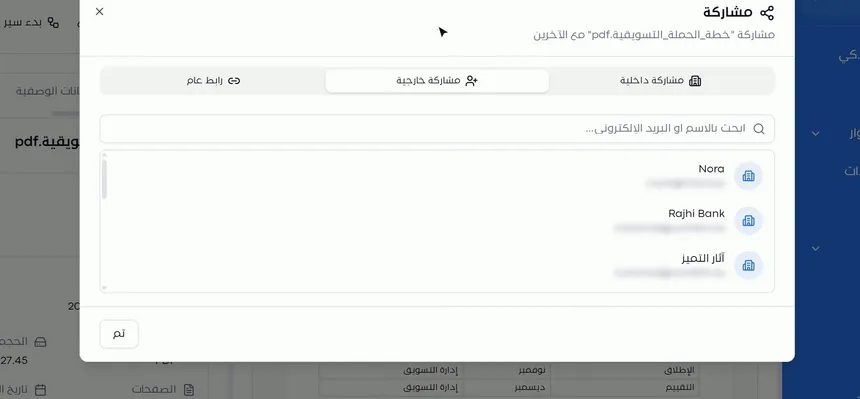
On the document page, click «Share», then choose the «External sharing» tab. This tab is only for parties outside the organization. Share with your colleagues from «Internal sharing» instead, because it gives them access through their own accounts in the system.
Step 2: Search for the party and select it
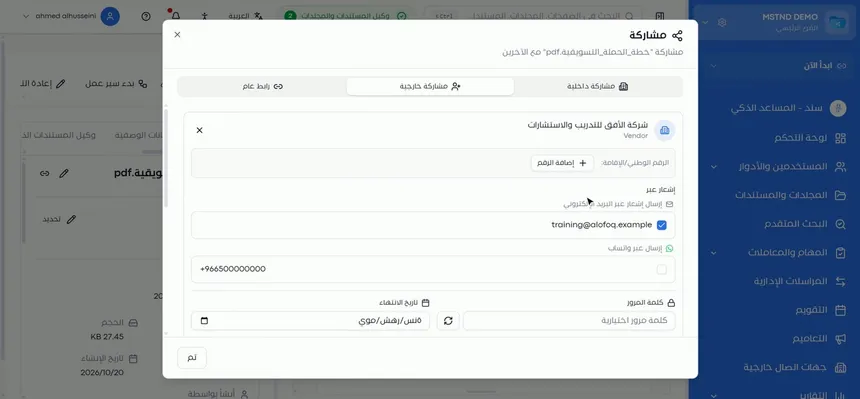
Search the external contacts and select the party you need. The party's card appears with its name and type, such as «Supplier», along with its registered details. Under the name is the «National ID/Iqama» field with an «Add number» button; you will need it if you want Nafath verification.
Choosing the party from the contacts, rather than typing an email by hand, links the share to the party's contact profile. This keeps all your dealings with it together in one place.
Step 3: Choose the notification method
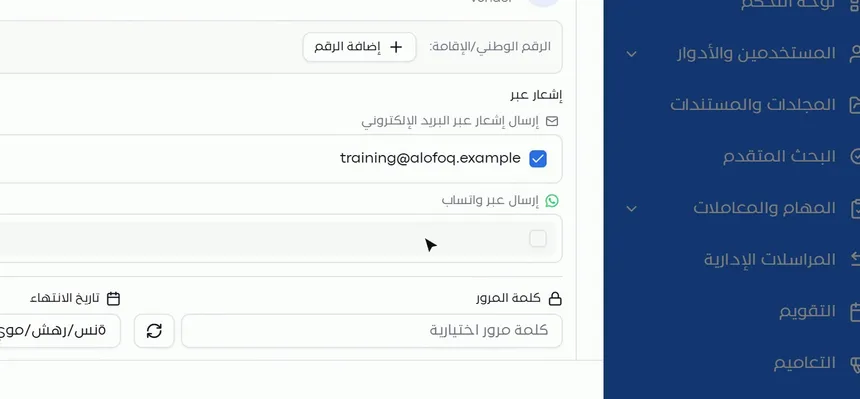
In the «Notify via» section, you choose how the link reaches the party:
- «Send notification by email»: the party's registered email appears, and you tick it.
- «Send via WhatsApp»: the party's registered number appears, and you tick it.
You can choose both channels together. Email suits formal correspondence, and WhatsApp is faster when you need the party to see the document urgently.
Step 4: Add a password and set the expiry date
In the «Password» field, you type a password yourself, or click the generate button next to it to have the system generate one automatically. Then you set the «Expiry date», after which the link stops working.
Step 5: Set the permissions
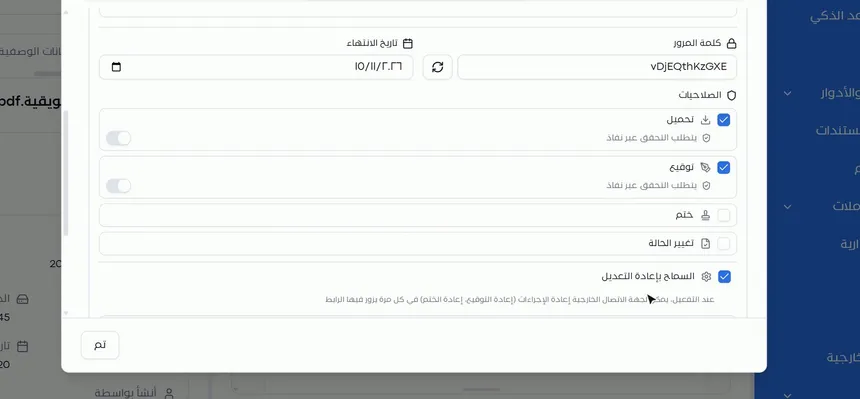
In the «Permissions» section, you set what the party can do when it opens the link:
| Permission | What it lets the party do | Example |
|---|---|---|
| Download | Download a copy of the document | A price quote or a final report |
| Sign | Sign the document electronically | A contract or a receipt record |
| Stamp | Apply a stamp to the document | A document that needs the party's stamp |
| Change status | Change the document's status | A party that approves the document on its side |
Next to some permissions, such as «Download» and «Sign», there is a «Requires Nafath verification» toggle, so the permission can only be used after the recipient has verified their identity.
Under the permissions is the «Allow re-editing» option. When it is on, the party can repeat actions, such as signing again or stamping again, every time it visits the link. Leave it off if you want the signature to be final the first time.
Step 6: Require Nafath verification
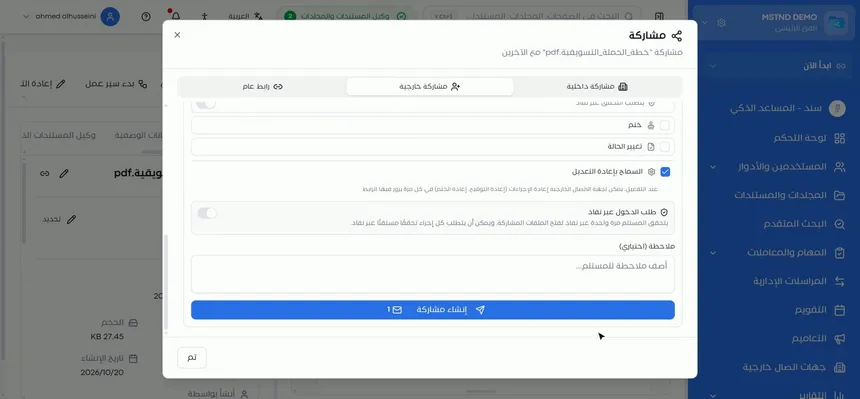
If you added the recipient's ID number in Step 2, you can turn on «Require Nafath sign-in». The recipient then verifies once through Nafath to open the shared files, and each action can require a separate Nafath verification.
This option matters when the signer's identity is part of what makes the document valid, as with contracts and acknowledgments. It ensures that whoever opened the link and signed is the intended person, not just anyone the link reached.
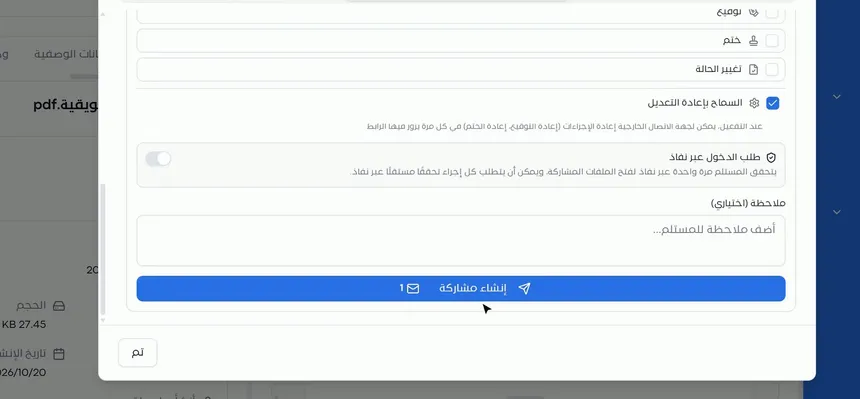
Step 7: Add a note and click «Create share»
In the «Note (optional)» field, write what you need from the recipient, such as «Please review and sign the contract before the end of the week». Then click «Create share».
A clear note cuts down on questions. An external recipient does not know the context of the document on your side, and the note tells them what to do and when.
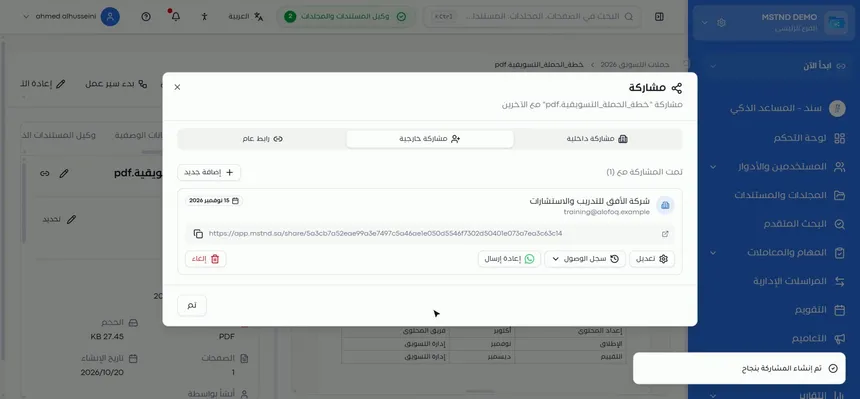
Step 8: The document is shared through the party's own link
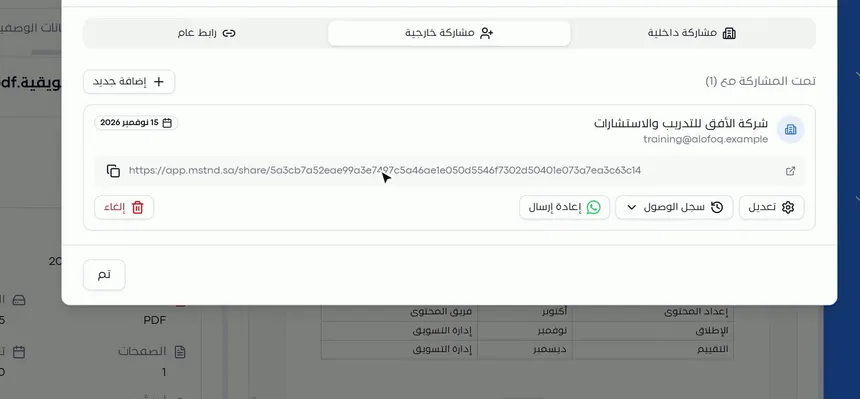
Once the share is created, the heading «Shared with» appears with the number of parties, along with a card for the party showing its name, its email, the share's expiry date and its private link, with a button to copy the link and a button to open it. An «Add new» button also appears in case you want to share the document with another party.
The link here belongs to this party alone. If you shared the document with three parties, each one would have a separate link that you control individually.
Step 9: Manage the share: edit, access log, resend, revoke
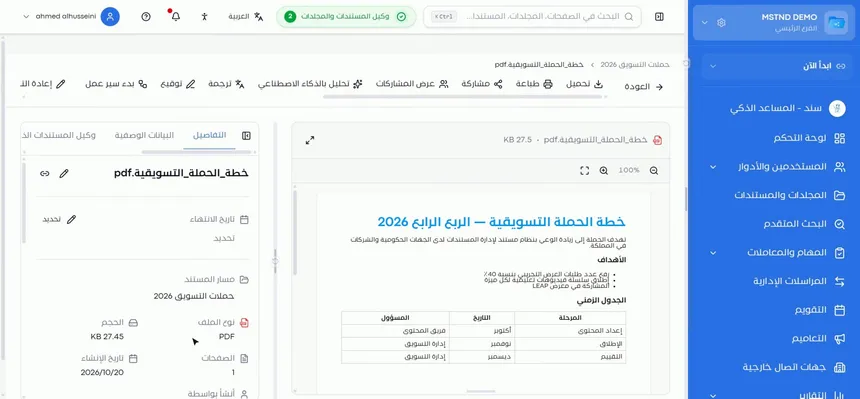
The share card has four buttons for managing it:
- «Edit»: to change the permissions, the password or the expiry date.
- «Access log»: to see the party's access to the link.
- «Resend»: to send the notification again, for example if the party did not notice it.
- «Revoke»: to stop the share immediately.
When you are done, click «Done» to close the dialog and return to the document page. To reach these management options later, open «Share», then «External sharing» again.
Options and their effect
| Option or setting | What it does | When to use it |
|---|---|---|
| Choosing the party from the external contacts | Identifies the recipient and links the share to their profile | Always, as it is the basis of external sharing |
| «Add number» (National ID/Iqama) | Adds the recipient's identity | When you need Nafath verification |
| «Send notification by email» | Sends the link to the party's email | For formal correspondence |
| «Send via WhatsApp» | Sends the link to the party's number | For quick communication |
| «Password» / automatic generation | Protects the link | In almost every share |
| «Expiry date» | Stops the link automatically | To set a deadline for the required action |
| «Download» | Allows the document to be downloaded | When the party needs a copy on its side |
| «Sign» | Allows signing through the link | Contracts, records and acknowledgments |
| «Stamp» | Allows stamping through the link | Documents that require the party's stamp |
| «Change status» | Allows changing the document's status | When the party has a role in approving it |
| «Requires Nafath verification» for a permission | Requires verification before the permission is used | For actions with legal effect |
| «Allow re-editing» | Allows signing or stamping again on every visit | When the action may need correcting |
| «Require Nafath sign-in» | Requires verification to open the files | For confidential or sensitive documents |
| «Note (optional)» | A message to the recipient | To explain what is required and the deadline |
| «Edit» / «Access log» / «Resend» / «Revoke» | Manage the share after it is created | For ongoing follow-up and control |
Practical scenarios
Scenario: A contracting company sends a supply contract to a supplier for signature
Situation: A materials supply contract is ready, and the supplier's signature is needed within a week, with a verified identity.
What you do in Mstnd:
- Open the contract → «Share» → «External sharing», and choose the supplier.
- Add the ID number of the authorized signatory.
- Choose «Send notification by email», generate a password and set an expiry date one week out.
- Turn on «Sign» with «Requires Nafath verification».
- Write a note with what is required and click «Create share».
Result: The supplier signs electronically after verifying their identity, without printing or scanning.
Scenario: A government entity shares a report with a regulatory body
Situation: A quarterly report is required by the regulatory body, for viewing and downloading only.
What you do in Mstnd:
- Choose the regulatory body from the external contacts.
- Turn on «Download» only, and do not turn on «Sign», «Stamp» or «Change status».
- Turn on «Require Nafath sign-in» after adding the ID number.
- Create the share, and review the «Access log» a few days later.
Result: The report reached only the intended recipient, and you have a record showing that it reached them.
Scenario: A law firm exchanges a draft agreement with a client
Situation: A client needs to review a draft settlement agreement, and the draft may change more than once.
What you do in Mstnd:
- Share the draft with the client via WhatsApp so they can see it quickly.
- Set the permission to «Download» only during the review stage.
- Once the final text is agreed, use «Edit» to add the «Sign» permission.
- If the client does not respond, use «Resend».
Result: A single share that evolves with the stages of the work, without creating multiple links.
Scenario: A hospital sends an equipment receipt record to a maintenance company
Situation: A medical equipment receipt record needs the maintenance company's stamp, and a correction may be requested.
What you do in Mstnd:
- Choose the maintenance company and turn on «Stamp».
- Turn on «Allow re-editing» so the company can stamp again if needed.
- Set a short expiry date and create the share.
- Once the record is stamped, end the share with «Revoke».
Result: A stamped record without visits or paper correspondence, and a link that does not stay open once it is no longer needed.
How it relates to other features
- Internal sharing and public link: the other two tabs in the share dialog. Use internal sharing for your colleagues, and the public link for anyone who is not registered as a contact.
- External contacts: the source of the parties that appear in the search, including each party's email and number.
- Contact profile: gathers the party's details, type and contact channels, which is the data external sharing relies on for notification and verification.
- Nafath, the Saudi national single sign-on: the integration setting that enables the «Require Nafath sign-in» and «Requires Nafath verification» options.
- Signing: the «Sign» permission gives the external party what your users do from the document page.
- Stamping: the «Stamp» permission lets the party apply its stamp to the document.
- Versions and operations log: to follow the actions performed on the document and its versions.
Tips and best practices
- Update the party's details in the external contacts before sharing, since the notification is sent to the registered email and number.
- Grant the lowest permission that is enough: «Download» for viewing, and «Sign» or «Stamp» only when they are required.
- Turn on Nafath verification for every permission with legal effect, such as signing contracts.
- Use the automatically generated password, and set an expiry date close to the actual deadline.
- State clearly in the note what is required and the deadline, because the external party does not know the context of your documents.
- Turn on «Allow re-editing» only if you expect that the signature or stamp may need correcting.
- Check the «Access log» before sending a reminder: the party may already have seen the document.
- Revoke the share once the required action is complete, and do not wait for the expiry date.
Warnings and common mistakes
FAQ
How do I share a document with a party outside the organization?
Open the document and click «Share», then «External sharing», and choose the party from the external contacts. Set the notification method, the password, the expiry date and the permissions, then click «Create share».
Can I send the document to the party via WhatsApp?
Yes. In the «Notify via» section, you can choose «Send via WhatsApp» to the party's registered number, or email, or both together.
Can the external party sign or stamp the document?
Yes, if you grant it the «Sign» or «Stamp» permission when you create the share. You can also require Nafath verification before the permission is used.
How can I be sure of the identity of whoever opens the document?
Add the recipient's ID number in the «National ID/Iqama» field, then turn on «Require Nafath sign-in», and the recipient verifies through Nafath before opening the files.
What does «Allow re-editing» mean?
When it is on, the external party can repeat actions, such as signing again or stamping again, every time it visits the link.
Will I know whether the party has opened the document?
Yes. With the «Access log» button on the share card, you can review the party's access to the link.
How do I revoke an external share after sending it?
Open «Share», then «External sharing», and click «Revoke» on the share card; the link stops working immediately.
What is the difference between external sharing and a public link?
External sharing is addressed to a specific party through a link of its own, with a notification, an access log and Nafath verification. A public link, on the other hand, can be used by anyone who has it.
Summary
- External sharing sends the document to a specific party through a link of its own, without attaching files.
- You choose the party from the external contacts, and send the notification by email or WhatsApp.
- The password, the expiry date and the permissions set the limits of access precisely.
- Nafath verification confirms the recipient's identity before they open or sign.
- The «Edit», «Access log», «Resend» and «Revoke» buttons keep the share under your control.
Try it free: Create your organization's account in Mstnd
Was this article helpful?
Related articles
 0:57
Sharing a document internally and by public link in Mstnd
Learn document sharing in Mstnd: internally to people, units or positions with view, edit or delete permission, or by public link with password and expiry date.
 0:56
External contacts in Mstnd: your clients and suppliers in one directory
Learn Mstnd external contacts: a client and supplier directory with search and filters, and how to add a new contact with its basic, contact and business data.
 0:41
The contact profile in Mstnd: your dealings with an external party in one file
Learn the Mstnd external contact profile: contact and business information, key people and addresses, linked documents and folders, and editing or deleting.
 0:57
Nafath in Mstnd: sign-in and signing with a verified identity
Set up Nafath in Mstnd: sign-in verification, tracking the Nafath request balance, registering member ID numbers and choosing which actions require Nafath.
 0:52
Electronic signature in Mstnd: sign your documents without printing
Learn electronic signature in Mstnd: draw, type or upload your signature, place it on the page, save it as a new version and verify your identity via Nafath.
 0:25
Electronic stamp in Mstnd: stamp your documents with your organization's stamps
Learn electronic stamps in Mstnd: choose an approved organization stamp, place it on the page at the right size and apply it, authenticated via Nafath.