

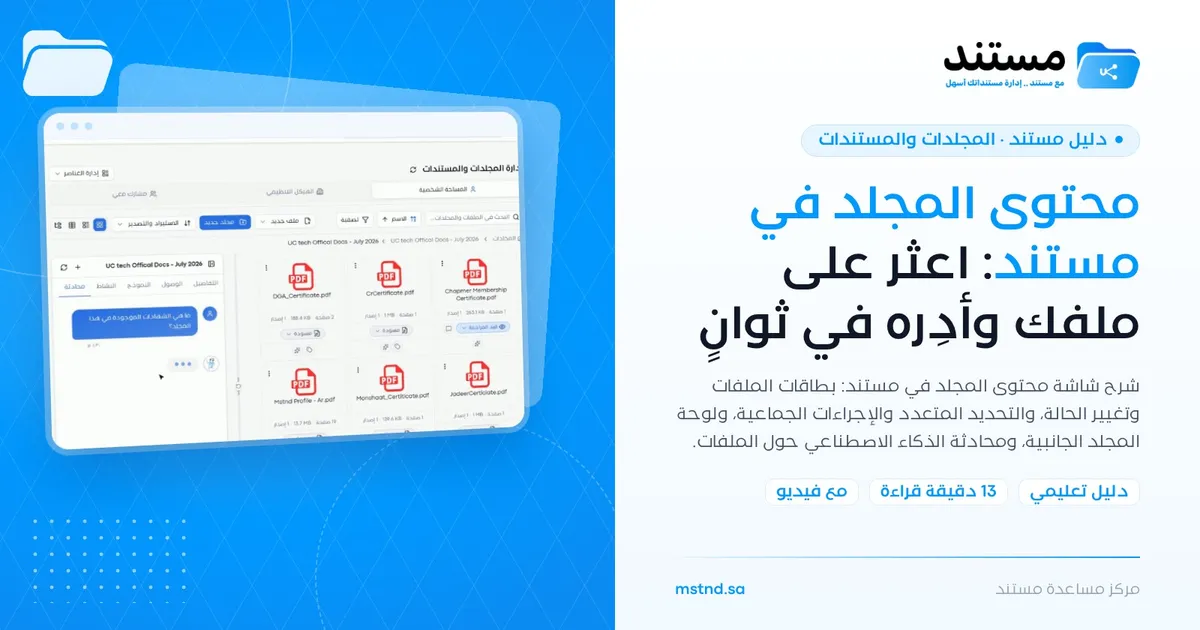
Folder content in Mstnd: find your file and manage it in seconds
In this article
The folder content screen in Mstnd is what you see when you open any folder: the files are displayed as cards that show the number of pages, the size, the version number and the status, with a breadcrumb at the top and a side panel for the folder's details. It lets you change a document's status from its card, carry out bulk actions on several files at once, and ask AI about all of the folder's files. It helps everyone who works daily on their department's documents and needs to reach and manage them quickly.
Quick overview
| Item | Details |
|---|---|
| Module | Folders and documents |
| Where it is in the interface | The side menu → «Folders and documents» → open any folder |
| Direct link | https://app.mstnd.sa/folders?folderId=<folder ID> |
| Goal | Display the folder's files with their basic information and manage them individually and in bulk from one screen |
| Who it is for | Every user who works on documents, and especially records officers and department coordinators who manage large numbers of files |
| Video length | About 1 minute and 5 seconds |
| What you will learn | Reading a file card, changing the status with a reason, multi-select and the actions bar, a file's ⋮ menu, the folder side panel, folder chat and the breadcrumb |
Watch the video
In about a minute, the video shows what is inside a folder: the cards and their information, changing the status, bulk actions, the file menu, the folder side panel and its tabs, the AI chat, and going back through the breadcrumb.
Why this feature?
A folder that holds dozens of files quickly turns into a list of names that does not say much. You do not know which copy is the latest, which file is still a draft, or which one is waiting for review. And when you need to move or tag twenty files, you repeat the same action twenty times.
The folder content screen solves this in three ways. First, every card shows what you need to know before you open the file. Second, bulk actions carry out the work on several files at once. Third, the folder panel and its chat give you a picture of the whole folder, not just of a single file.
| Before | With the folder content screen |
|---|---|
| You open the file to find out its number of pages and its version | The card shows the number of pages, the size and the version number |
| Changing a document's status requires opening it | You change the status directly from the card and state the reason |
| Moving or tagging several files is done one file at a time | You select the files and carry out the action on all of them with one click |
| To find out what is in the folder, you read the files one by one | You ask AI about all of the folder's files from «Chat» |
| You get back to the main folder by clicking «Back» several times in a row | You click any level in the breadcrumb and go straight to it |
Where to find it
- From the side menu, choose «Folders and documents».
- Choose the relevant tab: «Personal space», «Organizational structure» or «Shared with me».
- Open any folder by clicking its card.
Direct link: https://app.mstnd.sa/folders?folderId=<folder ID>
Concepts and terms
| Term | Meaning in Mstnd |
|---|---|
| Breadcrumb | The chain of folders from «Folders» down to the current folder; you can click any level to go back to it |
| File card | A short view of the file that includes its name, type, number of pages, size, version number and status |
| Document status | The document's stage in its work cycle, such as «Draft» or «Under review» |
| Version number | The number of saved versions of the document; it increases every time a new version is saved |
| Multi-select | Choosing more than one file with the checkbox to carry out a single action on them together |
| Actions bar | A bar that appears at the bottom of the screen when you select files, showing how many are selected and the available actions |
| Folder side panel | A panel with the «Details», «Access», «Template», «Activity» and «Chat» tabs |
| Folder chat | A tab where you ask AI about the content of all of the folder's files |
Step by step
Step 1: Read the breadcrumb and the file cards
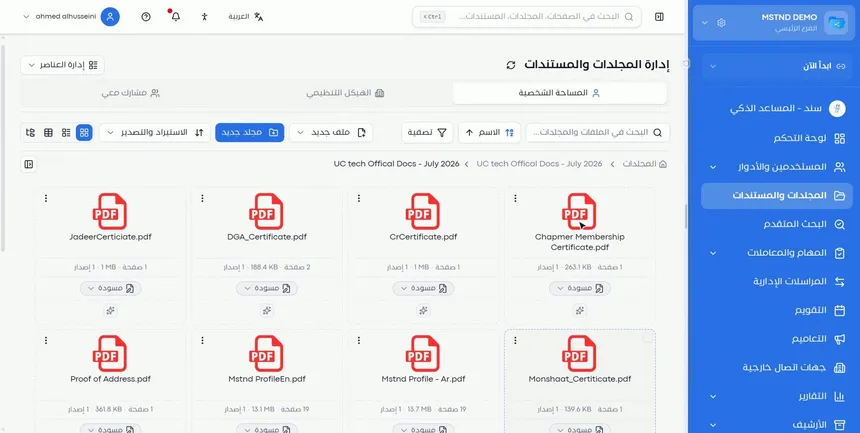
When you open the folder, the breadcrumb appears at the top. It starts from «Folders» and ends with the name of the current folder, passing through the parent folders. Below it, the files are displayed as cards.
The breadcrumb always answers the question "where am I?". This matters when folders at different levels have similar names, such as a «2026» folder inside more than one project.
Step 2: Get to know the card's information
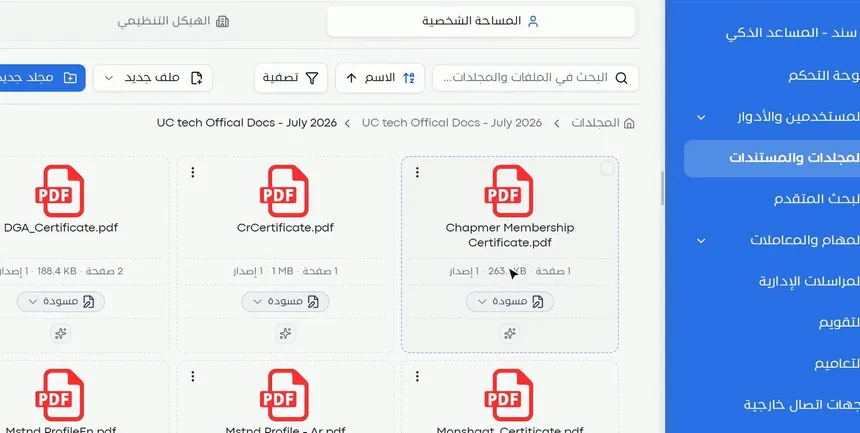
Under the file name, each card shows three pieces of information:
- Number of pages: such as «19 pages».
- Size: such as «188.4 KB» or «13.1 MB».
- Version number: such as «1 version».
The document status appears below them. This information helps you make decisions without opening the file. If you see two files with the same name, the version number points you to the latest one. If the size is large, you know that the download may take a while.
Step 3: Change the document status from the card
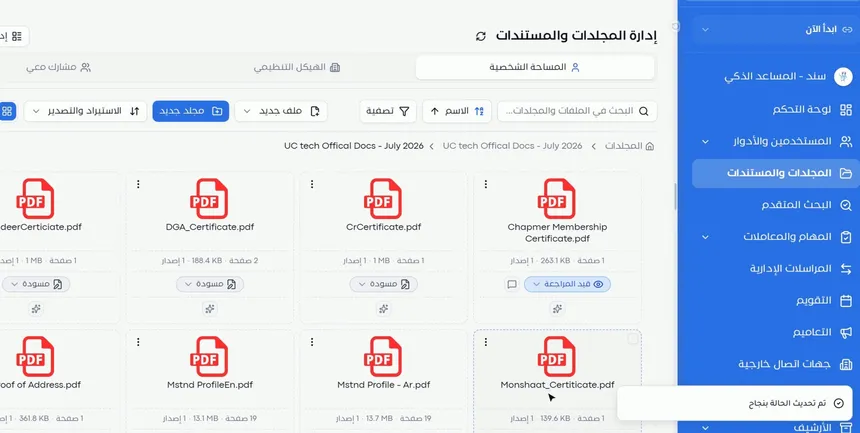
Click the document status on the card, such as «Draft», and the available statuses appear. Choose the new status, such as «Under review», and write the reason for the change. The message «Status updated successfully» appears, and the status on the card changes immediately.
Writing the reason is not a formality. It remains a reference that explains why the document moved from one stage to another, and it helps anyone who reviews the document's history later.
Step 4: Select more than one file
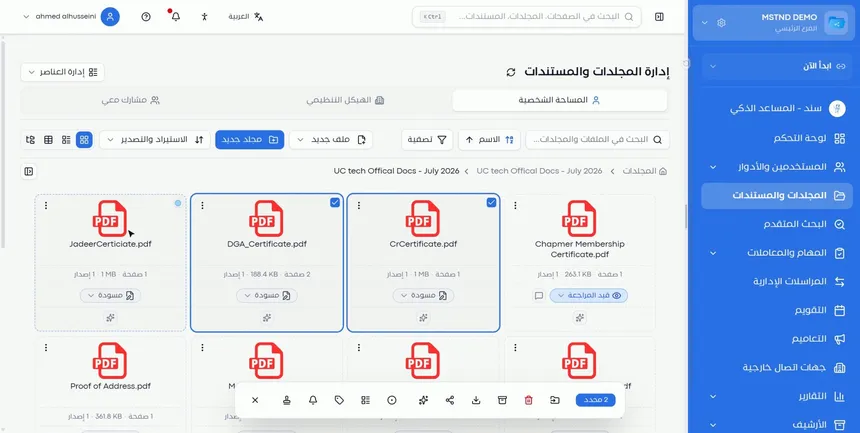
To carry out an action on more than one file, tick the checkbox in the corner of each card you want. The selected cards are highlighted with a clear border, so you know what you have chosen before you carry out the action.
Step 5: Use the bulk actions bar
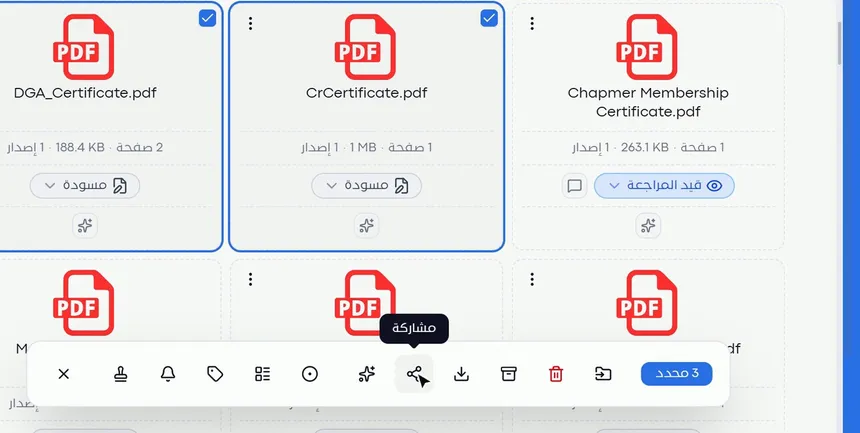
As soon as you select one or more files, an actions bar appears at the bottom of the screen. At one end it shows the number of selected files, such as «3 selected», followed by the actions:
| Action | What it does with the selected files |
|---|---|
| Move | Moves them to another folder |
| Delete | Deletes them |
| Archive | Moves them to the archive |
| Download | Downloads them to your device |
| Share | Shares them with others |
| Tags | Adds a tag to them |
To clear the selection and hide the bar, click the × button at its end.
Step 6: Add a tag to several files at once
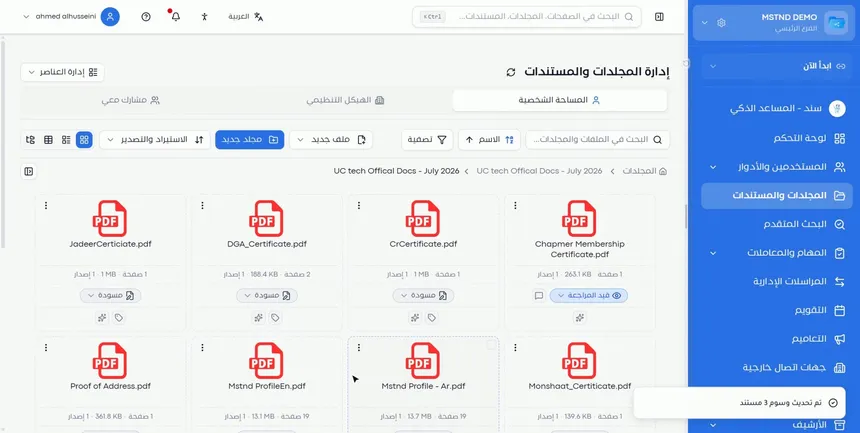
This is one of the most useful applications: select the files, then the tags button in the bar, and add a single tag to all of them with one click. The tag then appears on every card.
A shared tag brings files from different folders together under one topic. For example, an «Audit 2026» tag on all the documents the external auditor has requested, whatever folder they are in.
Step 7: Open a file's ⋮ menu
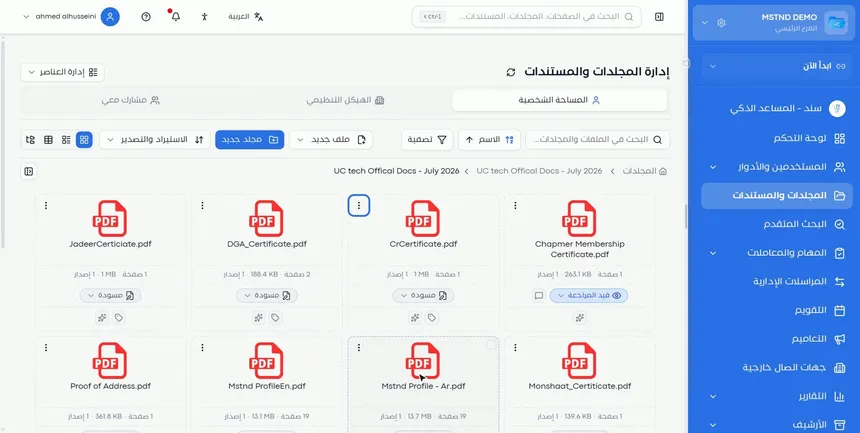
Every file card has a three-dot ⋮ menu that gathers all of the document's actions in one place. Use it when you want to carry out an action on a single file without opening it.
The difference between the ⋮ menu and the actions bar is simple: the menu is for one file and includes all of the document's actions, while the bar is for several files and includes the actions that can be applied in bulk. For details of each action, see the guide Document viewer and the guides linked to it.
Step 8: Explore the folder side panel
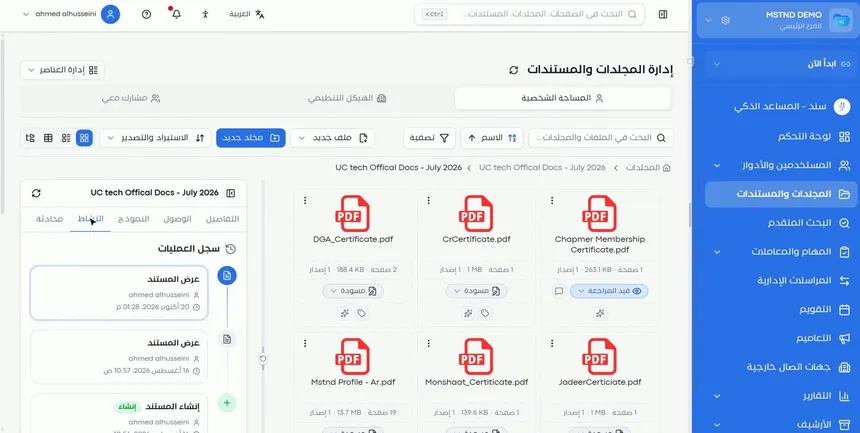
Open the folder's side panel from the button next to the breadcrumb. It shows the folder's name and five tabs:
| Tab | What it shows |
|---|---|
| «Details» | The folder's basic information |
| «Access» | Who can reach the folder |
| «Template» | The metadata template linked to the folder |
| «Activity» | The «Operations log» for the folder and its files, such as «Document viewed» and «Document created», with the performer and the date |
| «Chat» | A chat with AI about the folder's files |
The «Access» tab is useful for checking that only the people concerned can reach the folder. The «Activity» tab answers questions such as "who opened this document?" and "when was it created?".
Step 9: Ask AI about the folder's files
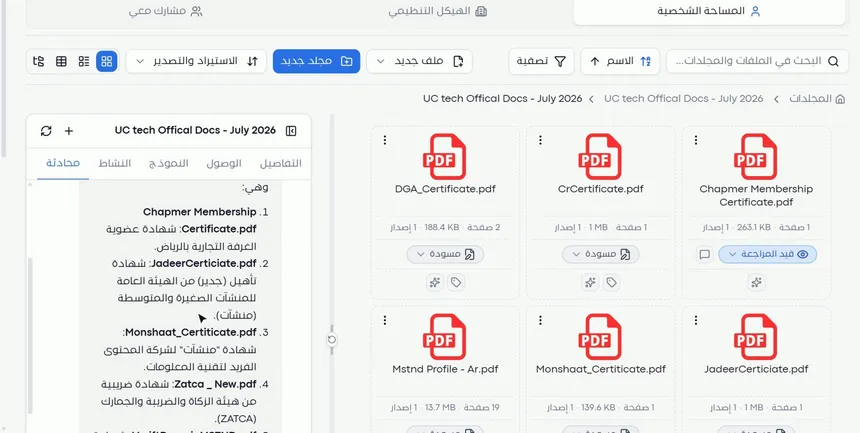
In the «Chat» tab, type your question, and AI answers based on all of the folder's files. Examples of useful questions:
- "Which certificates expire this year?"
- "Summarize the contracts in this folder for me."
- "Which file contains the company's national address details?"
The difference between this and Sanad chat about the document is that folder chat covers all of the folder's files, while document chat is limited to a single document.
Step 10: Go back to any level from the breadcrumb
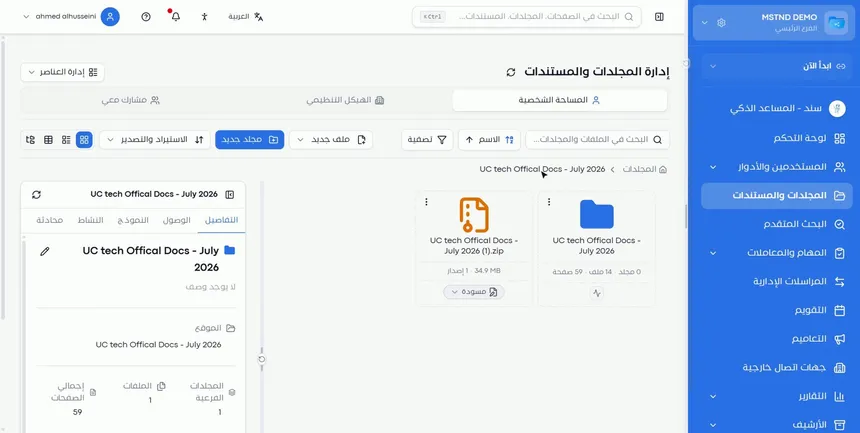
Click any name in the breadcrumb to go straight to that level. Click «Folders» to return to the main Folders page. This is much faster than going back step by step, especially in deep structures.
Options and their effect
| Option or setting | What it does | When to use it |
|---|---|---|
| The document status on the card | Changes the status, with a reason | When the document moves from one stage to another |
| The checkbox | Selects the file for bulk actions | When working on more than one file |
| Move (bulk) | Moves the selected files | When reorganizing the folder |
| Delete (bulk) | Deletes the selected files | To remove files that are no longer needed, after double-checking |
| Archive (bulk) | Archives the selected files | For files whose work is finished |
| Download (bulk) | Downloads the selected files | When you need local copies |
| Share (bulk) | Shares the selected files | When giving a colleague access to a set of files |
| Tags (bulk) | Adds a tag to the selected files | To group files under one topic |
| × in the actions bar | Clears the selection | When you are done, or after a selection mistake |
| A file's ⋮ menu | Shows all of the document's actions | For an action on a single file |
| The folder side panel | Shows the details, access, template, activity and chat | To understand and review the folder |
| «Chat» | Answers your questions about all of the folder's files | To extract information without opening the files |
| The breadcrumb | Takes you to any higher level | For quick navigation between levels |
Practical scenarios
Scenario: A trading company prepares its annual audit file
Situation: The external auditor has requested a set of certificates and licenses, which are spread across the official documents folder.
What you do in Mstnd:
- Open the official documents folder.
- From «Chat», ask: "Which certificates in this folder are still valid?"
- Select the required files with the checkboxes.
- Add the «Audit 2026» tag to them from the actions bar.
- Click «Download» to prepare a copy for the auditor.
Result: The audit file is ready within minutes, and the tag makes it easy to come back to the same documents next year.
Scenario: A law firm moves a case's documents to the review stage
Situation: A lawyer has finished drafting the memoranda for a case; they are now in «Draft» and need the partner's review.
What you do in Mstnd:
- Open the case folder.
- Change the status of each memorandum from «Draft» to «Under review» from its card.
- Write the reason: "Drafting complete, awaiting the partner's review".
- Check in the «Access» tab that the partner can reach the folder.
Result: Each memorandum's status is clear on its card, and the reason for the change is documented.
Scenario: A school reorganizes the school year's files
Situation: The school year has ended, and the plan and report files are still in the current year's folder.
What you do in Mstnd:
- Open the school year folder.
- Select all the finished files.
- Choose «Archive» from the actions bar.
- Go back to the level above from the breadcrumb and create the new year's folder.
Result: A clean folder for the new year, with the previous year's files kept in the archive.
Scenario: A hospital checks who has seen a sensitive file
Situation: The quality manager wants to know who opened a medical incident report during the week.
What you do in Mstnd:
- Open the folder that contains the report.
- Open the side panel → the «Activity» tab.
- Review the «Document viewed» operations, the users and their dates.
- Review the «Access» tab to make sure the folder is limited to the people concerned.
Result: A documented picture of who has seen the report, and a check that the access settings are correct.
How it relates to other features
- Folders: the page you start from before opening any folder, where you create folders and choose the view modes.
- Uploading files: with the «New file» button inside the folder you add files, which appear immediately as cards.
- Document viewer: clicking a file card opens the document page with all of its actions.
- Reminders, tags and categories: the tags you add in bulk here are managed in detail from each document's page.
- Move, archive and rename: bulk moving and archiving extend the same actions you take on a single document.
- Sanad chat about the document: a chat at the level of a single document that complements folder chat.
- Metadata: the «Template» tab in the folder panel is linked to the metadata templates.
- Internal sharing and public link: bulk sharing from the bar uses the same sharing mechanism.
Tips and best practices
- Read the version number before opening a file, especially when there are files with similar names.
- Write the reason for a status change clearly, because it becomes part of the document's history.
- Use bulk actions for repetitive work, such as archiving the files of a finished period or tagging a project's documents.
- Agree with your team on specific tags before using them in bulk, so that one topic does not end up with several tags.
- Use «Chat» when you need information from several files, instead of opening them one by one.
- Review the «Access» tab of sensitive folders regularly.
- Rely on the breadcrumb to confirm where you are before any move or deletion.
Warnings and common mistakes
FAQ
How do I change a document's status without opening it?
Click the status shown on the document's card inside the folder, choose the new status and write the reason for the change. The status updates immediately.
Can I move or delete several files at once?
Yes. Select the files with the checkboxes, and an actions bar appears with move, delete, archive, download, share and tags.
How do I add a tag to a group of files together?
Select the files, then choose tags from the actions bar and add the tag. It is added to all of the selected files at once.
What does a file card show?
It shows the file's name and type, its number of pages, its size, its version number and its current status, such as «Draft» or «Under review».
What does the folder side panel contain?
Five tabs: «Details», «Access», «Template», «Activity», which shows the operations log, and «Chat» with AI.
Can I ask AI about all of the folder's files?
Yes. From the «Chat» tab in the folder side panel, you ask about the content of the folder's files and AI answers based on them.
What is the difference between a file's ⋮ menu and the actions bar?
The ⋮ menu is for a single file and includes all of the document's actions, while the actions bar appears when you select files and applies the action to all of them.
How do I quickly get back to a higher folder?
Click the name of the folder you want in the breadcrumb at the top of the page, and you go straight to it without passing through the levels in between.
Summary
- The file card shows the number of pages, the size, the version number and the status, so you know a lot before you open the file.
- Changing the status from the card, with a reason, documents the document's move between stages.
- Multi-select and the actions bar handle moving, deleting, archiving, downloading, sharing and tagging for several files together.
- The folder side panel gives you the details, access, template and operations log, and «Chat» answers your questions about all of the files.
- The breadcrumb shows where you are and takes you back to any level with one click.
Try it free: Create your organization's account in Mstnd
Was this article helpful?
Related articles
 1:26
Folders in Mstnd: organize your organization's documents from day one
Learn the Mstnd Folders page: Personal space, structure folders, Shared with me, new folders with a confidentiality level, color and icon, views and actions.
 0:49
Uploading files to Mstnd: drag and drop, and the system does the rest
Mstnd file upload: drag and drop several files at once, change the destination folder, set status, category and tags, automatic analysis and import from a link.
 0:51
The document viewer in Mstnd: view any document without downloading it
Learn the Mstnd document viewer: view a file in the system without downloading it, zoom or go full screen, and use the actions bar and side panel in one place.
 0:47
Reminders, tags and categories: organize your document and never miss a date
Learn how to set a document reminder in Mstnd with a date, time and advance alert, and add tags and categories from the action bar to ease search and filtering.
 0:32
Sanad chat about the document: ask your document and get an answer
Learn the «Chat» tab on the Mstnd document page: ask the AI assistant Sanad about a specific document, get its summary and rate answers drawn from its text.
 0:42
Moving, archiving and renaming: organize your documents in seconds
Learn to rename a document in Mstnd, move it between folders and archive it without deleting it from the file's three-dot menu, and restore it from the Archive.