

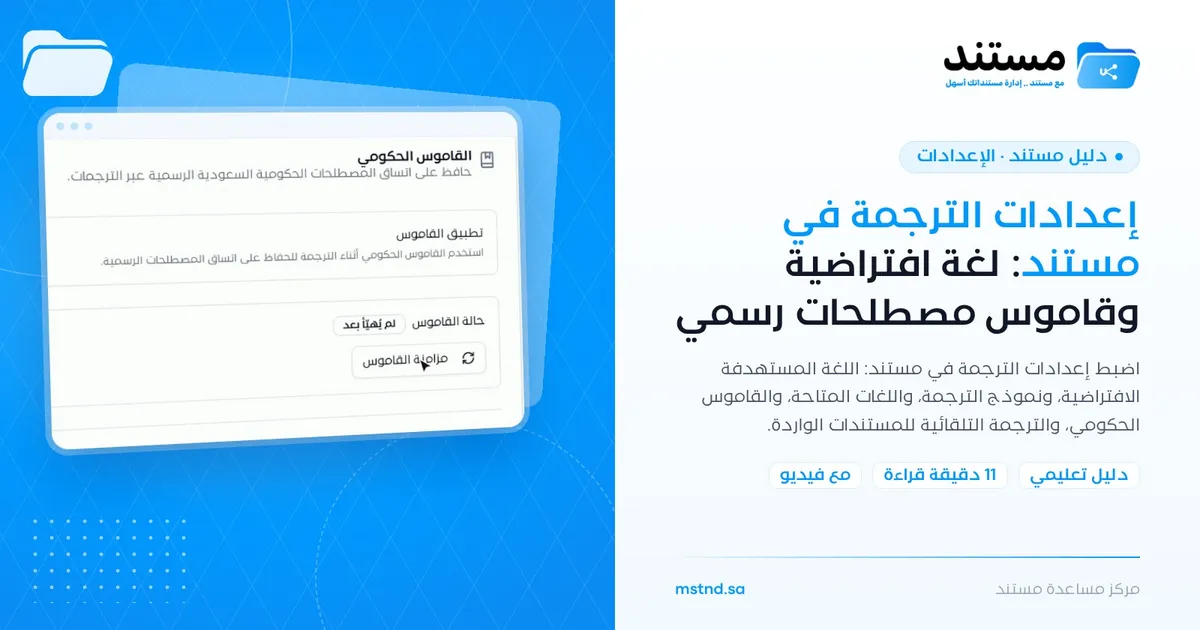
Translation settings in Mstnd: a default language and an official terminology glossary
In this article
The «Translation» settings in Mstnd are where your organization sets the rules for translating documents once, for everyone: the default target language, the translation model, and the languages your team is allowed to translate into. They also let you turn on the «Government glossary» to keep official Saudi terminology consistent, and switch on automatic translation of incoming documents. This page serves the people who manage the organization's settings, and its result reaches every user who clicks the «Translate» button on any document page.
Quick overview
| Item | Details |
|---|---|
| Module | Settings |
| Where it is in the interface | Side menu → «Settings» → «Translation», with three tabs: «General», «Terminology glossary» and «Automatic translation» |
| Direct link | https://app.mstnd.sa/settings/translation |
| Goal | Standardize how documents are translated in the organization and keep official terminology consistent |
| Who it is for | The people who manage the organization's settings, entities that work with documents in more than one language, and legal affairs and external relations teams |
| Video length | About half a minute |
| What you will learn | Choosing the default language and the translation model, limiting the available languages, turning on and syncing the government glossary, and switching on automatic translation |
Watch the video
In about half a minute, the video shows the three tabs of the translation settings in order: «General», then «Terminology glossary», then «Automatic translation».
Why this feature?
Translating documents in organizations is more than moving words from one language to another. A translated contract or a letter addressed to an official entity must use the same approved terms every time. When each employee translates in their own way, picks a different language or uses an external tool, conflicting translations of the same term appear, and quality becomes hard to control.
The translation settings solve this problem by moving the decision from the individual level to the organization level. You set in advance the most used language, the model that translates, and the allowed languages, and you turn on a glossary that preserves official terminology. As a result, every user gets a consistent translation without needing to know these details.
| Before configuring the translation settings | After configuring them |
|---|---|
| Each user chooses the target language manually every time | A default target language is preselected when translating any document |
| Official terms are translated in more than one form | The «Government glossary» keeps official Saudi terminology consistent |
| Your team translates into any language without control | «Available languages» limits translation to the languages the organization needs |
| Incoming documents in a foreign language wait for someone to translate them | «Automatic translation» creates a translated copy of them automatically |
Value for the organization: consistent terminology, control over the languages used, and fewer errors in official documents. Value for the individual: fewer steps when translating, and more confidence in the quality of the result.
Where to find it
- From the side menu, open «Settings».
- Choose «Translation».
- The «Translation» page appears with its subtitle «Configure document translation for your organization», and the tabs: «General», «Terminology glossary» and «Automatic translation».
Direct link: https://app.mstnd.sa/settings/translation
Concepts and terms
| Term | Meaning in Mstnd |
|---|---|
| Default target language | The language preselected when translating any document; the user can change it at translation time |
| Translation model | How documents are translated. All the available models preserve the original page formatting |
| «Advanced (recommended)» | A model that delivers higher-quality, context-aware translation using the language model |
| Available languages | The languages your team can translate into. Leaving all of them unselected allows every language |
| Government glossary | A glossary that keeps official Saudi government terminology consistent across translations |
| Apply glossary | An option that makes translation use the government glossary while it works |
| Sync glossary | A button that updates the glossary with the latest terms, with the «Glossary status» next to it |
| Automatic translation | Automatically creating a translated copy of newly received documents |
Step by step
Step 1: Set up the «General» tab
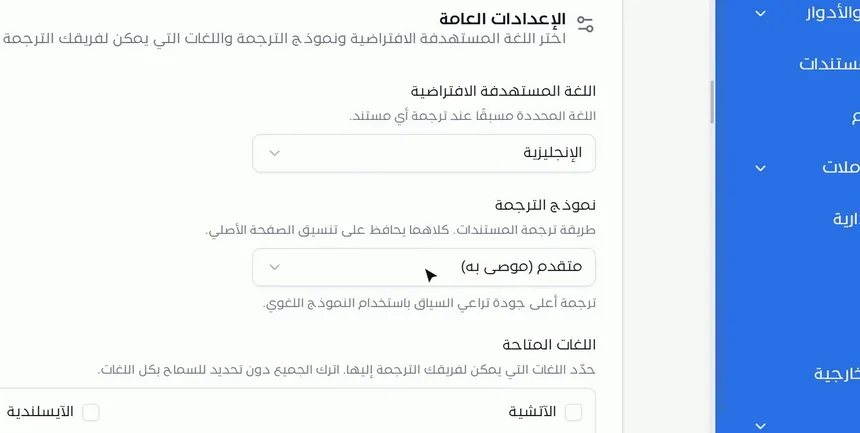
Open the «General» tab. You will find the «General settings» section, with three settings that define translation behavior for all members of the organization:
- «Default target language»: choose the language that is preselected when any document is translated. In the example, «English» was chosen. Choose the language most requested in your work, since it is the one users will find ready without searching.
- «Translation model»: defines how documents are translated. The interface explains that all models preserve the original page formatting. The «Advanced (recommended)» option delivers higher-quality, context-aware translation using the language model.
- «Available languages»: select the languages your team can translate into by ticking each language. If you leave all of them unselected, every language is allowed.
Why does this tab matter? Because it removes repeated decisions. Instead of each employee choosing the language every time, the most used language becomes the default. And by limiting the available languages, you prevent translation into languages the organization does not need, so the list users see stays short and clear.
Step 2: Open «Terminology glossary» and get to know the government glossary
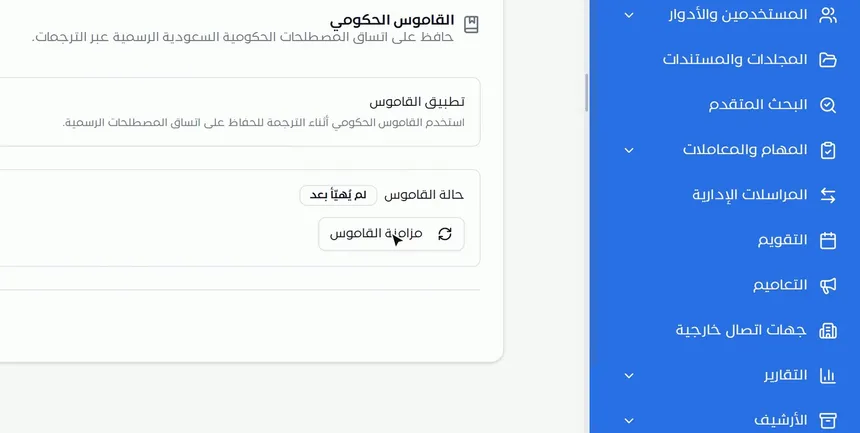
Go to the «Terminology glossary» tab. You will find the «Government glossary» card and its description: keeping official Saudi government terminology consistent across translations.
The glossary is a fixed reference for terminology. When an official term appears in a document, the translation uses the wording in the glossary instead of a different wording each time. This matters in official letters, contracts and reports addressed to government entities, where translating the same title in different ways causes confusion.
Step 3: Turn on «Apply glossary», then «Sync glossary»
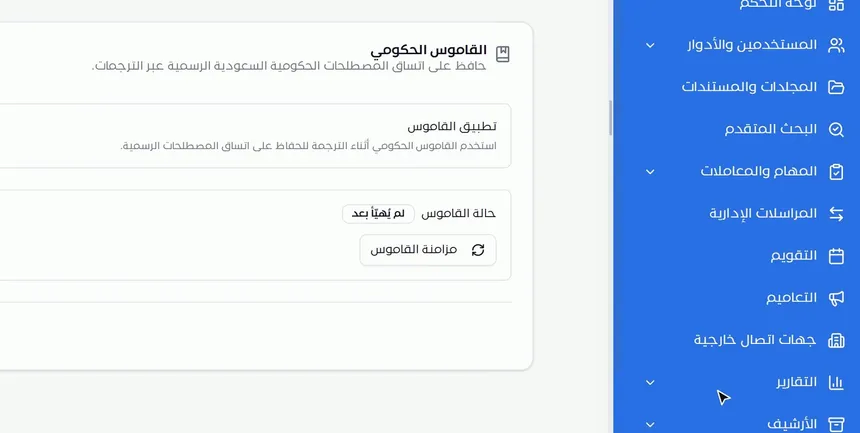
Inside the Government glossary card there are two elements:
- «Apply glossary»: turn it on so that the system uses the government glossary during translation, to keep official terminology consistent.
- «Glossary status» and the «Sync glossary» button: the status shows the current state of the glossary, and the screenshot shows «Not initialized yet». Click «Sync glossary» to update it with the latest terms.
What happens next? The translations carried out in the organization rely on the glossary. That is why the Translation guide states that translation from the document page uses the Saudi government terminology glossary.
Step 4: Switch on «Automatic translation» for incoming documents
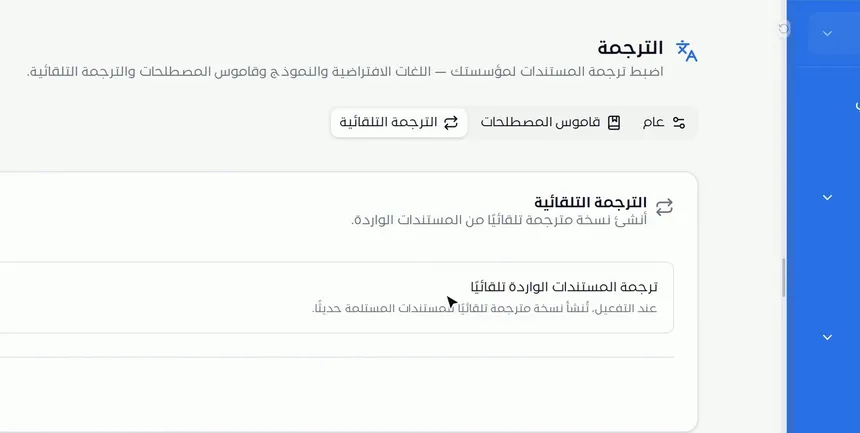
Open the third tab, «Automatic translation». You will find the «Automatically translate incoming documents» option, with the description: when it is turned on, a translated copy of newly received documents is created automatically.
When should you turn it on? When your organization regularly receives documents in a language other than its working language and needs to translate them every time before reading them. Turning it on saves a repeated manual step and keeps the translated copy ready when it is needed.
And when should you leave it off? When incoming documents are mostly in the working language, or when you prefer translation to be a manual decision for each document separately.
Options and their effect
| Option or setting | What it does | When to use it |
|---|---|---|
| «Default target language» | Sets the language preselected when translating any document | Always; choose the language most requested in your organization |
| «Translation model» | Sets how translation is done, while preserving the original page formatting | Choose «Advanced (recommended)» when context-aware quality matters to you |
| «Available languages» | Limits the languages your team translates into | When you want a short, controlled list of languages |
| Leaving «Available languages» unselected | Allows every language | For organizations that deal with parties of many nationalities |
| «Apply glossary» | Uses the government glossary during translation | For official, government and legal documents |
| «Sync glossary» | Updates the glossary with the latest terms | At the first setup, and whenever you want to update the terms |
| «Automatically translate incoming documents» | Creates a translated copy of newly received documents | When you regularly receive documents in a foreign language |
Practical scenarios
Scenario: A government entity communicates with international partners
Situation: The international relations department of a government entity translates letters and memoranda of understanding into English, and needs official titles to stay the same in every letter.
What you do in Mstnd:
- Make «English» the «Default target language».
- Choose the «Advanced (recommended)» translation model.
- Turn on «Apply glossary» and click «Sync glossary».
- Employees translate the letters with the «Translate» button on each document's page.
Result: Translations that preserve the formatting of the original letter and use the same official terms every time.
Scenario: A trading company receives supplier offers in different languages
Situation: An import company receives price quotations and specifications from suppliers in different countries, and the procurement team needs to read them in Arabic.
What you do in Mstnd:
- Make «Arabic» the «Default target language».
- Turn on «Automatically translate incoming documents» in the «Automatic translation» tab.
- The procurement team opens the translated copy directly, and goes back to the original when needed.
Result: No offer waits for someone to translate it, and the original stays saved for reference.
Scenario: A law firm controls its working languages
Situation: A law firm works in Arabic and English only, and wants to prevent translations into other languages that might be used by mistake in client documents.
What you do in Mstnd:
- In «Available languages», select Arabic and English only.
- Turn on «Apply glossary» to keep official terminology in check in documents addressed to government entities.
- Leave automatic translation off, so that translation remains a manual decision made by the responsible lawyer.
Result: A short list of languages in front of the team, and full control over when each document is translated.
Scenario: A hospital handles medical reports in English
Situation: The patient affairs department of a hospital receives reports and letters in English from external parties, and needs an Arabic copy for internal procedures.
What you do in Mstnd:
- Make «Arabic» the default language.
- Turn on automatic translation for incoming documents.
- Review the translated copy before using it in any official procedure.
Result: An Arabic copy ready for every incoming document, with the English original kept as the reference.
How it relates to other features
- Translation: this is where your settings actually apply. When you click «Translate» on the document page, the default language appears, government terminology is used, and a separate copy is created with the same formatting.
- AI and document processing: a neighboring settings page that sets automatic document analysis and confidentiality classification. Set up both pages together to define how smart processing behaves in your organization.
- Smart document agent: it detects the document's language as part of the file data, and from the agent panel you follow the translation's progress until it completes.
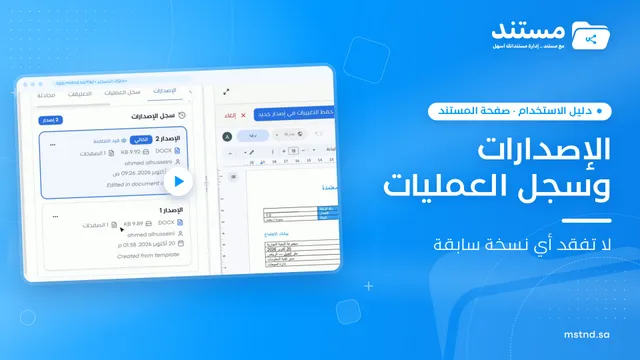
- Versions and operations log: you can translate an earlier version of the document from that version's own menu, and the same translation settings apply to it.
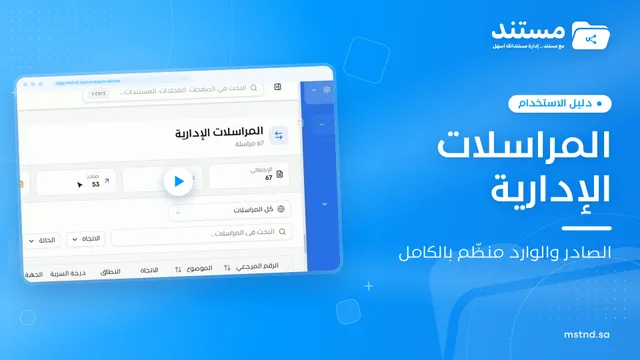
- Administrative correspondence: outgoing and incoming letters are among the documents that most need unified official terminology, and the government glossary serves them directly.
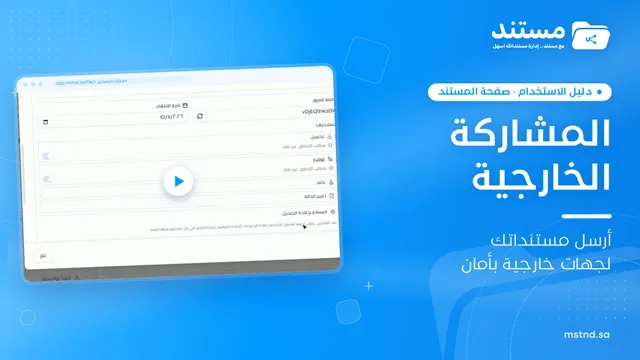
- External sharing: when you share a translated copy with an external party, the settings make sure the translation is consistent with what was sent before.
Tips and best practices
- Choose the «Default target language» based on the language that is actually most requested, not on the language that is most common in general.
- Use «Advanced (recommended)» for official documents and contracts, because it takes context into account.
- Limit «Available languages» to the languages your organization works with; a short list reduces errors.
- Turn on «Apply glossary» if your documents address Saudi government entities or include official titles.
- Click «Sync glossary» after the first setup, and check the «Glossary status» regularly.
- Turn on automatic translation only if incoming documents in a foreign language are frequent, so that no copies are created that nobody needs.
- Agree with the teams that the original copy remains the legal reference, and that the translation is a supporting working copy.
Warnings and common mistakes
FAQ
How do I change the default translation language in Mstnd?
Open «Settings», then «Translation», and in the «General» tab choose the language from the «Default target language» list. This language becomes preselected when any document is translated.
What is the government glossary in Mstnd?
It is a terminology glossary that keeps official Saudi government terminology consistent across translations. You turn it on with «Apply glossary» and update it with «Sync glossary».
Can I prevent employees from translating into certain languages?
Yes. In «Available languages», select only the allowed languages. If you leave all of them unselected, every language is allowed.
What is the difference between the translation models?
All models preserve the original page formatting. The «Advanced (recommended)» model delivers higher-quality, context-aware translation using the language model.
Does automatic translation change the original document?
No. It creates a translated copy of newly received documents, and the original stays as it is.
What does the glossary status «Not initialized yet» mean?
It means the glossary has not been prepared for use yet. Click «Sync glossary» to update it with the latest terms.
Do the translation settings apply to all users?
Yes. They are organization-level settings, and they apply to everyone who uses the «Translate» button on the document page.
How do I translate a document after configuring the settings?
Open the document and click «Translate» in the action bar, choose the language or keep the default, then follow the progress until the translated copy is complete.
Summary
- The «Translation» settings standardize how documents are translated at the organization level.
- The «General» tab sets the default language, the translation model and the available languages.
- The «Government glossary», with «Apply glossary» and «Sync glossary», keeps official Saudi terminology consistent.
- «Automatic translation» creates a translated copy of newly received documents without manual intervention.
- A translation is always a separate copy with the same formatting, and the original does not change.
Try it free: Create your organization's account in Mstnd
Was this article helpful?
Related articles
 0:38
Document translation in Mstnd: a translated copy with the same formatting
Mstnd translation makes a separate copy in the same format, detects the source language and applies the Saudi government glossary without changing the original.
 0:31
AI and document processing: automatic analysis and confidentiality classification
Set the smart document analysis mode in Mstnd (for all, for specific folders or manual) and AI confidentiality classification: off, suggest or automatic.
 0:59
The Mstnd smart document agent: understand your document before you read it
Mstnd's smart document agent analyzes each file: text, summary and entities, plus suggested status, categories, tags, tasks and access with a confidence score.
 0:38
Versions and the operations log in Mstnd: a complete history for every document
Mstnd versions and the operations log: save edits as a new version and keep the old one, view, download or translate any copy, and track who did what and when.
 0:50
Administrative correspondence in Mstnd: outgoing and incoming in one organized register
Administrative correspondence in Mstnd: outgoing and incoming in one register, indicators, filters by direction, status and confidentiality, and reply threads.
 0:49
External sharing: send a document to an external party securely
Learn external sharing in Mstnd: send a document to an external party by private link via email or WhatsApp, with password, expiry date, permissions and Nafath.