

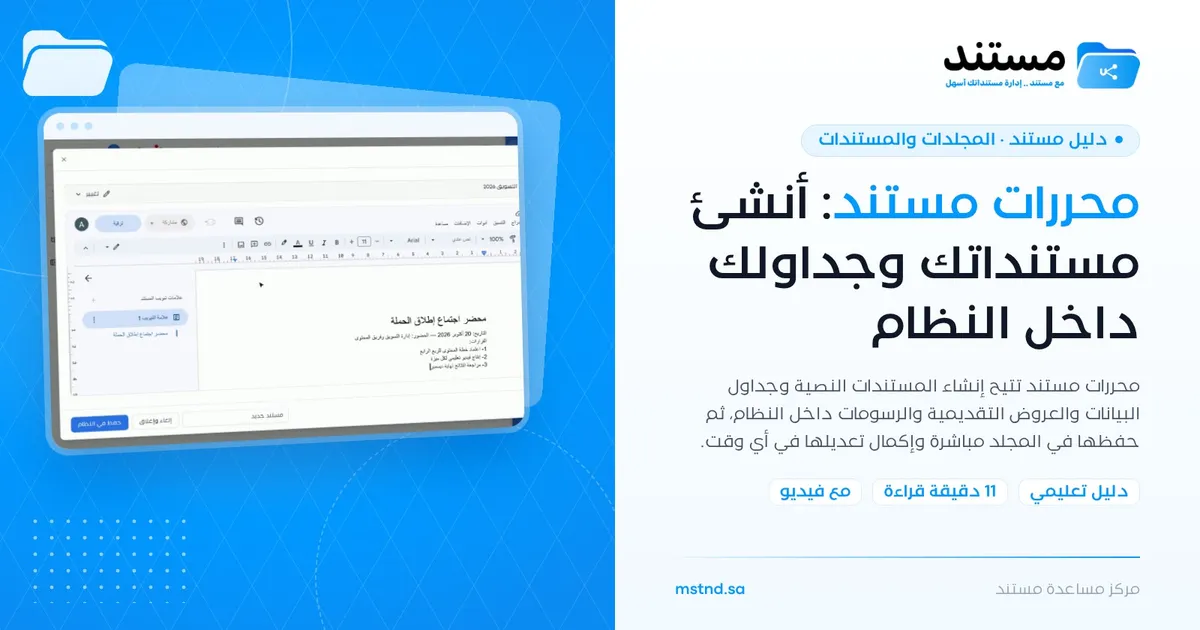
The Mstnd editors: create your documents and spreadsheets inside the system
In this article
The Mstnd editors are editing tools built into the system that let you create four types of files without leaving it: text documents, spreadsheets, presentations and drawings. You open them from «New file» inside any folder, write and format directly, then name the file and save it to the folder with a click on «Save to system». They help anyone who writes minutes, memos and reports and wants them saved in the right place from the very first moment.
Quick overview
| Item | Details |
|---|---|
| Module | Folders and documents |
| Where it is in the interface | Inside any folder → «New file» → the «MSTND editors» section |
| Direct link | https://app.mstnd.sa/folders?folderId=<folder ID>; after saving, the document opens at https://app.mstnd.sa/file/<document ID> |
| Goal | Create and edit files inside the system and save them directly in the right folder |
| Who it is for | Every employee who writes or prepares files, such as meeting coordinators, memo writers and report preparers |
| Video length | About 38 seconds |
| What you will learn | Choosing the editor type, writing and formatting inside the system, naming and saving the file, and continuing to edit it later |
Watch the video
In under a minute, the video shows how to create a text document from «MSTND editors», starting with choosing the editor, through writing and naming, until the document appears saved inside the folder.
Why this feature?
The usual way of creating a document goes through several steps: you open a program on your device, write, save a local copy, then upload it to the system. Each step carries a chance of error: forgetting to upload, uploading an old copy, or ending up with several copies on different devices with no way of knowing which one is the latest.
The Mstnd editors cut this journey down to a single step. The file is created inside the system, saved in the folder you choose, and stays a single copy that everyone goes back to.
| Before the Mstnd editors | With the Mstnd editors |
|---|---|
| You write on your device, then upload the file | You write inside the system, and the file is saved in its place |
| Several copies on different devices | One copy in the folder that everyone goes back to |
| You may forget to upload the latest edit | Edits are made to the file saved in the system itself |
| You need a different program for each type of file | Four editors from the same menu |
| A new file does not inherit the folder's organization | The file is saved directly in the chosen folder and appears among its files |
Value for the organization: fewer scattered copies, and the assurance that every document created starts its life inside the system, where permissions and organization apply to it. Value for the individual: no need to switch between programs or to remember to upload the file.
Where to find it
- From the side menu, choose «Folders and documents».
- Open the folder you want to save the file in.
- Click «New file».
- Scroll down to the «MSTND editors» section and choose the type of editor.
Direct link: https://app.mstnd.sa/folders?folderId=<folder ID>
Concepts and terms
| Term | Meaning in Mstnd |
|---|---|
| MSTND editors | A section in the «New file» menu with four editors built into the system |
| Document editor | For creating a new text document, such as minutes, a memo or a letter |
| Spreadsheet editor | For creating a new spreadsheet, such as a budget or a follow-up list |
| Presentation editor | For creating a new presentation |
| Drawing editor | For creating a new drawing, such as a diagram or an illustration |
| «Save to system» | Saving the file under its name in the selected folder |
| Destination folder | The folder where the file will be saved; it appears in «Uploading to» |
Step by step
Step 1: Choose the editor from «New file»
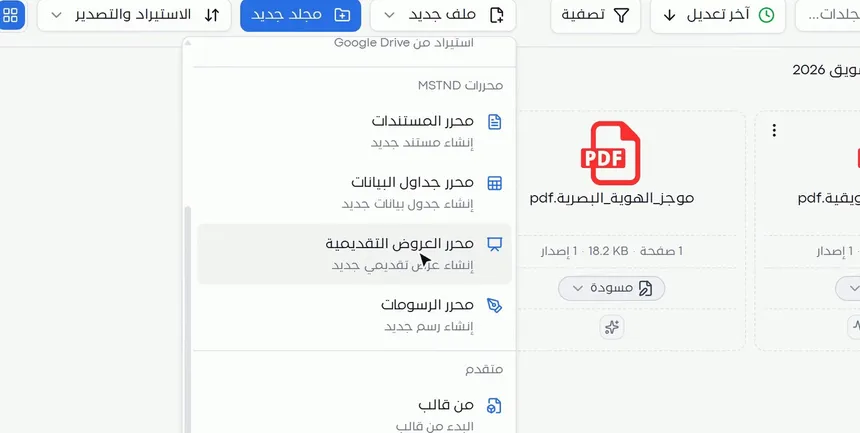
Inside the folder, click «New file», then go to the «MSTND editors» section. You will find four options:
| Editor | Description in the interface | Examples of use |
|---|---|---|
| «Document editor» | Create a new document | Meeting minutes, internal memos, letters and policies |
| «Spreadsheet editor» | Create a new spreadsheet | Budgets, follow-up lists, attendance sheets and asset inventories |
| «Presentation editor» | Create a new presentation | Management presentations, performance reports and project presentations |
| «Drawing editor» | Create a new drawing | Flowcharts and simple illustrations |
Choose the editor that suits the type of work. In the video, «Document editor» is chosen to write meeting minutes.
Step 2: Write and format inside the editor
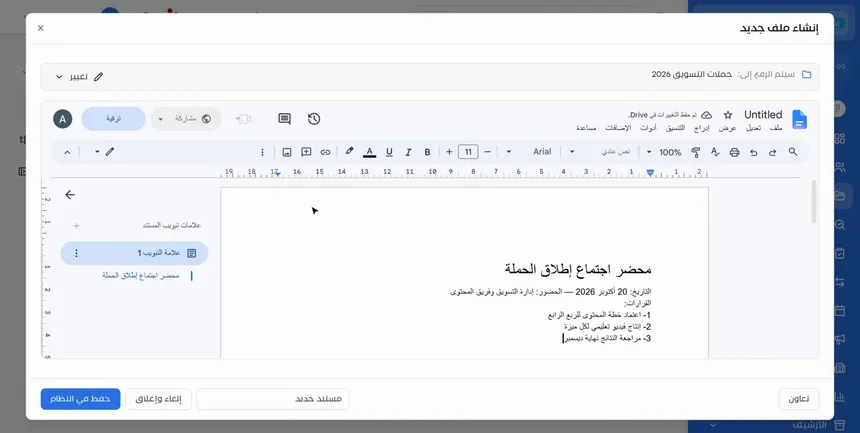
The «Create new file» window opens with the editor inside it. At the top is «Uploading to» with the folder's name, and a «Change» button for choosing another folder. Below that is the editor with its menus and formatting toolbar: font type and size, bold, italic and underline, text color, alignment, and inserting images, links and comments.
Write directly. In the example, meeting minutes were written with the title «Campaign launch meeting minutes», followed by the date and the attendees, then a numbered list of decisions. All of this without leaving the system.
Step 3: Name the file and click «Save to system»
At the bottom of the window is a field for the file name, which shows «New document» by default. Replace it with a clear name that describes the content, such as «Campaign launch meeting minutes». Then click «Save to system».
Next to the field is a «Cancel and close» button in case you want to back out without saving. At the other end of the window is a «Collaborate» button for working on the file together with your colleagues.
Step 4: The document is saved in the folder, and you can continue it whenever you like
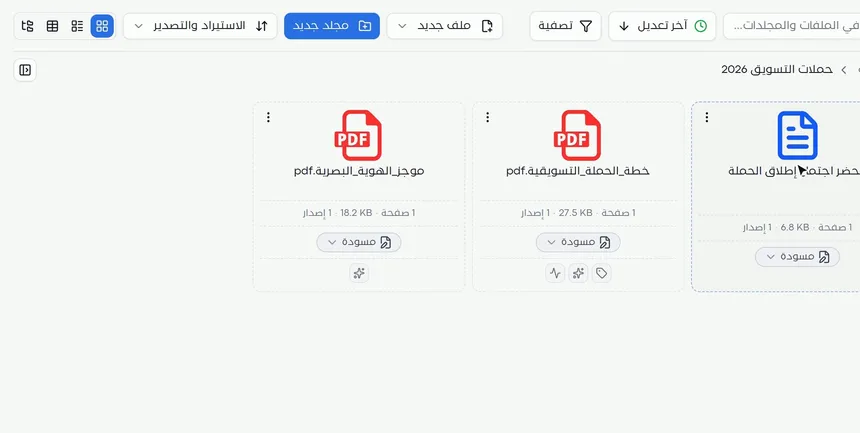
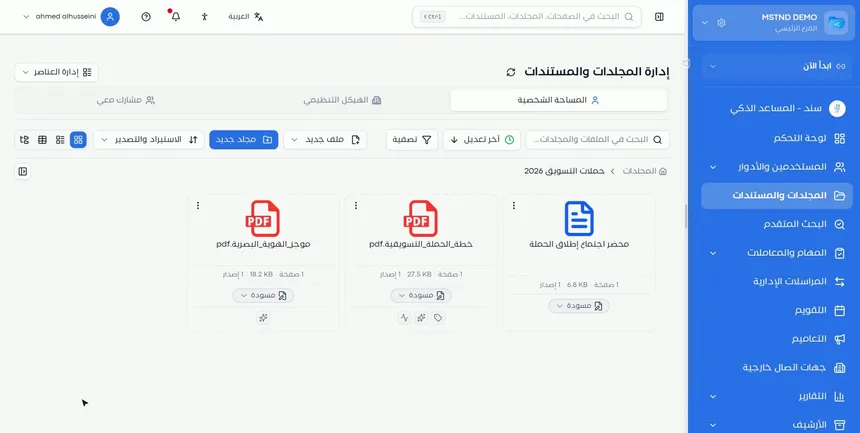
After saving, the document appears as a card inside the folder next to the rest of the files. The card shows its number of pages, its size, its version number «1 version» and its status «Draft».
To continue working, open the document from its card at any time and carry on editing. The document becomes like any other file in the system: you can share it, change its status, send it through a workflow for approval, or sign it.
Options and their effect
| Option or setting | What it does | When to use it |
|---|---|---|
| «Document editor» | Creates a new text document | For minutes, memos and letters |
| «Spreadsheet editor» | Creates a new spreadsheet | For numbers, lists and follow-ups |
| «Presentation editor» | Creates a new presentation | For presentations and visual reports |
| «Drawing editor» | Creates a new drawing | For diagrams and illustrations |
| «From template» | Starts the file from a ready-made template | When there is an approved form for the document |
| «Change» | Changes the destination folder | If you are not in the right folder |
| File name field | Sets the name of the saved file | Always, before saving |
| «Collaborate» | Lets you work together with colleagues | When more than one person takes part in preparing the file |
| «Cancel and close» | Closes the editor without saving | To back out |
| «Save to system» | Saves the file in the folder | After writing and naming |
Practical scenarios
Scenario: The marketing department of a trading company documents a meeting
Situation: A marketing campaign launch meeting has just ended, and the decisions need to be documented right away.
What you do in Mstnd:
- Open the «Marketing campaigns 2026» folder.
- «New file» → «Document editor».
- Write the title, the date, the attendees and the numbered decisions.
- Name the file «Campaign launch meeting minutes» and click «Save to system».
Result: The minutes are saved in the campaign folder within minutes of the meeting ending, available to everyone who has access to the folder.
Scenario: The finance department of a government entity prepares a follow-up spreadsheet
Situation: The department needs a spreadsheet to follow up spending on budget items during the quarter.
What you do in Mstnd:
- Open the finance department folder for the current quarter.
- «New file» → «Spreadsheet editor».
- Create columns for the item, the approved amount, the amount spent and the remaining amount.
- Name the spreadsheet after the quarter and save it.
- Open it weekly to update the numbers.
Result: One up-to-date spreadsheet inside the system, instead of several copies exchanged by email.
Scenario: A school prepares a presentation for a parents' meeting
Situation: The vice principal for academic affairs is preparing a presentation on the term's results.
What you do in Mstnd:
- Open the «Parents' meetings» folder.
- «New file» → «Presentation editor».
- Prepare the slides, and use «Collaborate» so the teachers can add the data of their classes.
- Name the presentation and save it.
Result: A shared presentation ready in its folder, without the teachers exchanging files.
Scenario: A contracting company illustrates a procedure
Situation: The quality manager wants a simple drawing that shows the stages of receiving materials on site.
What you do in Mstnd:
- Open the «Quality procedures» folder.
- «New file» → «Drawing editor».
- Draw the receiving stages with shapes and arrows.
- Save the drawing with a clear name.
Result: An illustration saved with the quality procedures, which the site team can go back to.
How it relates to other features
- Creating from a template: the alternative when a ready-made form exists; it opens in the same editor with all of its formatting.
- Uploading files: for files that already exist on your device, instead of creating them again.
- Folder content: the saved document appears there as a card, and from there you manage its status and tags.
- Document viewer: when you open the document, you go to its page with all of its actions.
- Versions and operations log: for following the document's versions and going back to an earlier version.
- Starting a workflow on the document: for sending the document you wrote through a review and approval path.
- Signing: for signing the document electronically once it is complete.
- Comments: for gathering your colleagues' feedback on the document after it is saved.
Tips and best practices
- Open the right folder before choosing the editor, so it becomes the default destination.
- Choose the editor according to the nature of the content: text goes in the document editor, numbers in spreadsheets.
- Give the file a name that describes its content and date, such as «Meeting minutes – Campaign launch – October».
- If the document has an approved form in the organization, start «From template» instead of a blank page.
- Use structured headings in long documents to make navigation easier.
- Save the document early and then continue working on it, instead of writing all of it before the first save.
- Leave the document as «Draft» until it is complete, then change its status or send it for approval.
Warnings and common mistakes
FAQ
How do I create a new document in Mstnd?
Open the folder, click «New file» and choose «Document editor» from the «MSTND editors» section. Write the content, name the file, then click «Save to system».
What types of files can I create with the Mstnd editors?
Four types: text documents, spreadsheets, presentations and drawings, each with its own editor in the «MSTND editors» section.
Do I need an external program to edit documents?
No. The editor opens inside the system in the «Create new file» window, and you write and format in it without leaving Mstnd.
Where is the document saved after it is created?
In the folder shown in «Uploading to» at the top of the editor window, which by default is the folder you opened «New file» from. You can change it with the «Change» button.
Can I continue editing the document later?
Yes. The document is saved in the folder as a card, and you can open it from there at any time to continue editing.
Can my colleagues work with me on the same document?
Yes. The editor window has a «Collaborate» button for working on the file together with your colleagues.
What is the difference between the document editor and creating from a template?
The document editor starts with a blank page, while «From template» starts with a ready-formatted document from the template library, and you only fill in its fields.
What is the document's status after it is created with the editor?
The new document appears with «Draft» status and one version, and you can change its status later from its card or from its page.
Summary
- There are four Mstnd editors: documents, spreadsheets, presentations and drawings, all of them available from «New file».
- The editor opens inside the system, so you write and format without external programs.
- «Uploading to» shows the folder where the file will be saved, and «Change» lets you choose another one.
- Give the file a clear name, then click «Save to system» so it appears as a card in the folder.
- The saved document is a full file in the system: you can continue editing it, share it and send it for approval at any time.
Try it free: Create your organization's account in Mstnd
Was this article helpful?
Related articles
 0:37
Creating from a template in Mstnd: a ready document in one click
Creating from a template in Mstnd: a library sorted by department, search and filter by position, preview, fill it in the editor and save it as a new version.
 0:49
Uploading files to Mstnd: drag and drop, and the system does the rest
Mstnd file upload: drag and drop several files at once, change the destination folder, set status, category and tags, automatic analysis and import from a link.
 1:05
Folder content in Mstnd: find your file and manage it in seconds
The Mstnd folder content screen explained: file cards and status changes, multi-select and bulk actions, the folder side panel, and AI chat about the files.
 0:51
The document viewer in Mstnd: view any document without downloading it
Learn the Mstnd document viewer: view a file in the system without downloading it, zoom or go full screen, and use the actions bar and side panel in one place.
 0:38
Versions and the operations log in Mstnd: a complete history for every document
Mstnd versions and the operations log: save edits as a new version and keep the old one, view, download or translate any copy, and track who did what and when.
 1:14
Starting a workflow on a document in Mstnd: launch the approval from the document
Learn to start a workflow from a Mstnd document: pick a template, set priority and due date, assign steps and launch the transaction with the document attached.