

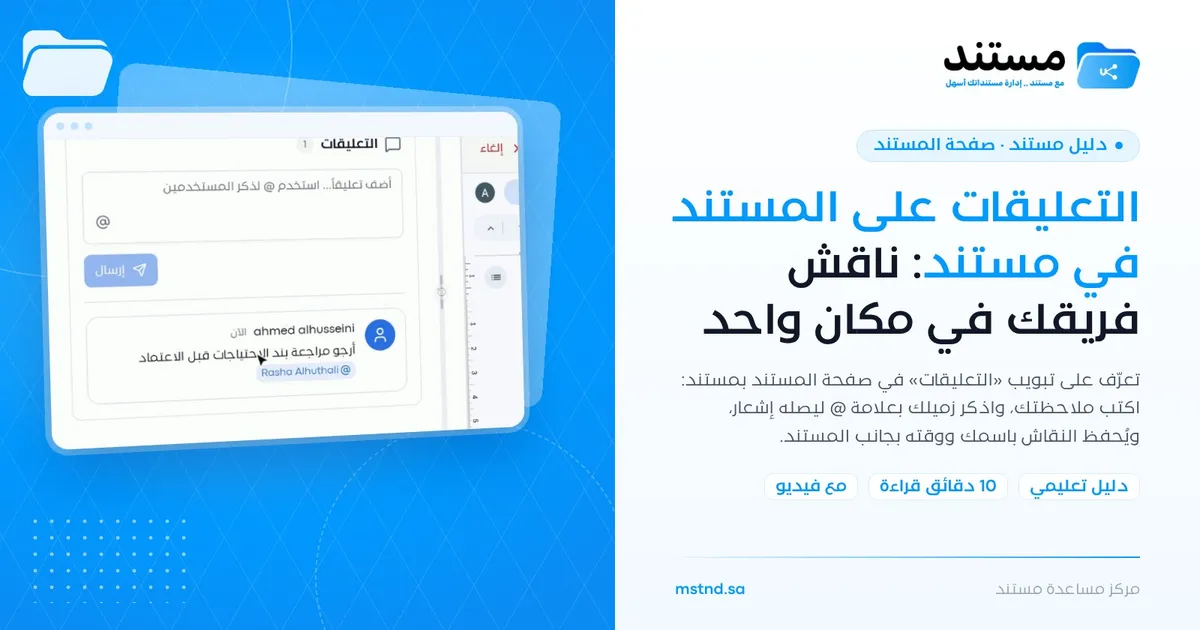
Document comments in Mstnd: discuss with your team in one place
In this article
The «Comments» tab on the Mstnd document page is a discussion space tied to the document itself, where you write your note and mention a colleague with @ so they receive a notification. Each comment appears with its author's name and time, so the discussion stays on record next to the file instead of being scattered across email and chat apps. The feature helps any team that reviews documents or prepares them for approval together.
Quick overview
| Item | Details |
|---|---|
| Module | Document page |
| Where it is in the interface | The side panel on the document page → the «Comments» tab |
| Direct link | https://app.mstnd.sa/file/<document ID> |
| Goal | Manage the discussion about the document where the document is, and alert the colleagues concerned with @ |
| Who it is for | Review and approval teams, people who prepare contracts, policies and reports, and anyone who needs a colleague's opinion on a specific file |
| Video length | About 20 seconds |
| What you will learn | Opening the comments tab, writing a comment, mentioning a colleague with @, and sending the comment and reading it once it appears |
Watch the video
In about 20 seconds, the video shows the full comment cycle: from opening the «Comments» tab, to mentioning a colleague and sending the comment, and then the comment appearing with the author's name and time.
Why this feature?
When a document is reviewed within a team, short notes multiply: "Check this clause", "The number in the table is wrong", "Is this the final wording?". If these notes go back and forth in email or chat apps, they become separated from the file. A few weeks later it is hard to know why a clause was changed, or who asked for the change.
The «Comments» tab solves this by tying the discussion to the document itself. Whoever opens the document sees the notes next to it and knows who wrote them and when. And with @, you do not need to send a separate message to alert your colleague: the system sends them a notification.
| Before comments | With comments |
|---|---|
| You send the note by email or chat and paste the file link | You write the note right next to the document |
| The note's context is lost when the file is opened later | Everyone who opens the document sees the notes attached to it |
| You call your colleague to point out the note | You mention them with @ and they receive a notification |
| You do not know who asked for the change and when | Each comment appears with its author's name and time |
Value for the organization: a documented discussion tied to the document, which reduces confusion during the review and approval stages and preserves the context of decisions.
Value for the individual: a quick way to ask for an opinion or a review without leaving the document, and a direct alert to the person concerned only.
Where to find it
- Open any document from Folders, from Folder content or from the search results.
- The document page opens: the viewer in the middle and the side panel at the side.
- In the side panel, choose the «Comments» tab. It sits between the «Operations log» and «Chat» tabs.
Direct link: https://app.mstnd.sa/file/<document ID>
Concepts and terms
| Term | Meaning in Mstnd |
|---|---|
| The «Comments» tab | The document's discussion space in the side panel; it shows the number of comments next to its title |
| Comment | A text note tied to the document, shown with its author's name and the time it was written |
| Mention (@) | Typing @ and then choosing a colleague from the list, so they receive a notification about the comment |
| Notification | An alert that reaches the colleague you mentioned so they know there is a comment for them |
| «Send» | The button that posts the comment to the list of comments |
| «No comments» | The state shown when there are no comments on the document yet |
Step by step
Step 1: Open the «Comments» tab
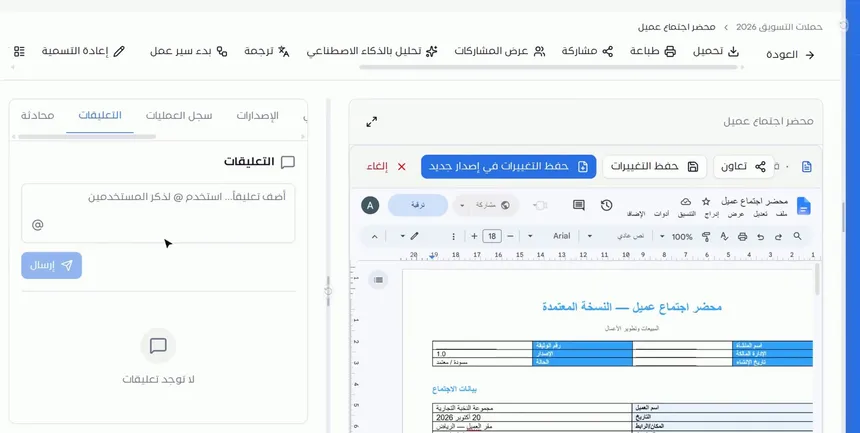
On the document page, choose the «Comments» tab in the side panel. The comment box appears at the top, with the list of earlier comments under it. If nobody has commented yet, the message «No comments» appears.
The advantage of this placement is that the document stays open in the viewer in front of you. You read the clause you want to comment on and write your note next to it without switching between windows.
Step 2: Write your comment and use @ to mention a colleague
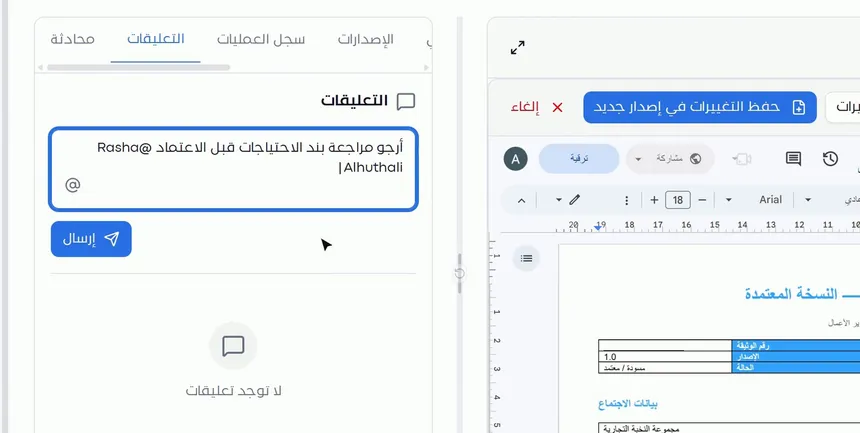
Write your note in the box. The placeholder text inside it guides you: «Add a comment... Use @ to mention users». When you type @, a list of your colleagues' names appears; you can also click the @ icon under the box.
Write a specific comment that says where the note applies, such as "Please review the requirements clause before approval". A specific comment saves your colleague from searching through the document.
Step 3: Choose the colleague from the list, then «Send»
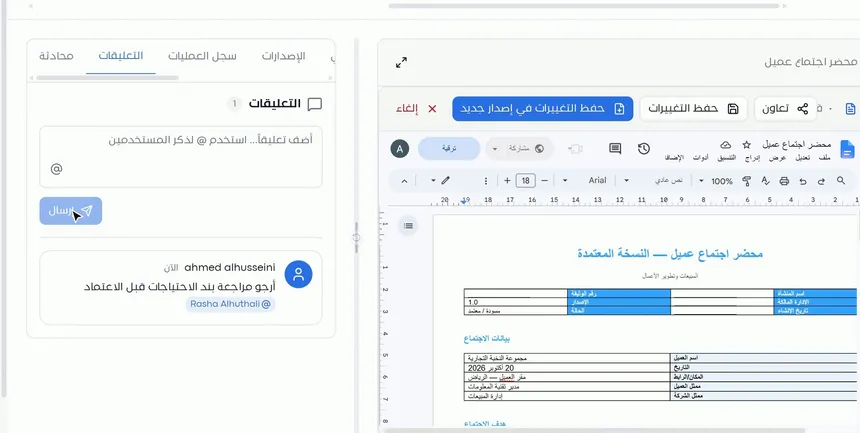
Choose the colleague's name from the list that appeared after the @. Their name is inserted into the comment. Then click «Send».
After you send it, your colleague receives a notification that you mentioned them in a comment on this document. That is why you should pick the name from the list rather than typing it by hand: choosing from the list is what links the comment to your colleague's account.
Step 4: Review the comment once it appears
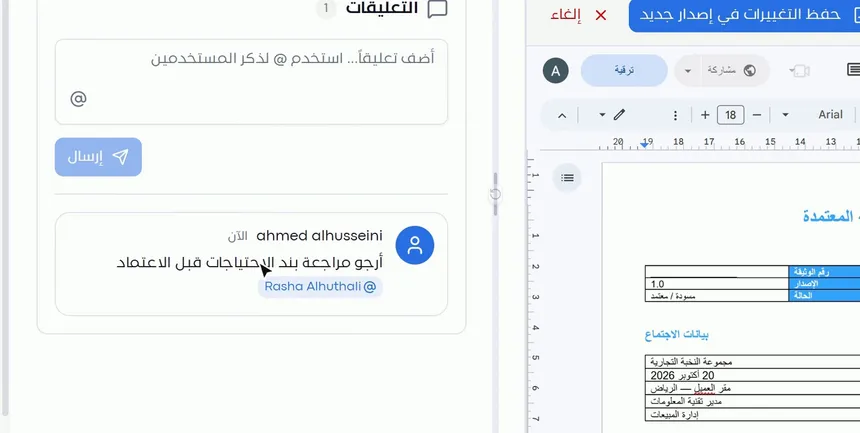
The comment appears in the list with your name and its time, together with the colleague you mentioned, highlighted with @. The number next to the «Comments» title updates to reflect the number of comments on the document.
From this point on, the comment is part of the document's context. Anyone who opens the document later and has access to it sees the note, who wrote it and when. This helps in later reviews and in understanding the reasons for edits.
Options and their effect
| Option or setting | What it does | When to use it |
|---|---|---|
| The «Comments» tab | Shows the comment box and the list of earlier comments | When you want to read the discussion or add a note |
| The comment box | Where you write the text of your note | For any note, question or review request |
| The @ sign or the @ icon | Opens the list of colleagues so you can choose whom to mention | When a specific colleague needs to read the comment or act on it |
| Choosing a colleague from the list | Inserts their name in the comment and sends them a notification | When the note is addressed to a particular person |
| «Send» | Posts the comment with your name and its time | After reviewing the comment text |
| The comment counter | Shows the number of comments on the document | To find out whether there is an earlier discussion before you start reviewing |
Practical scenarios
Scenario: Reviewing meeting minutes in a trading company
Situation: The sales department prepared the minutes of a meeting with a client, and the requirements clause needs to be reviewed by the account manager before it is approved.
What you do in Mstnd:
- Open the minutes, then the «Comments» tab.
- Type: "Please review the requirements clause before approval".
- Type @ and choose the account manager, then click «Send».
- After the edit is made, save the minutes as a new version.
Result: The request reaches the account manager immediately, and the note stays on record with the minutes.
Scenario: Checking a contract in a law firm
Situation: A lawyer is reviewing a draft contract and wants a specialist colleague's opinion on the indemnity clause, and another colleague's opinion on the dispute resolution clause.
What you do in Mstnd:
- Open the draft contract, then the «Comments» tab.
- Write a comment about the indemnity clause and mention the first colleague.
- Write a separate comment about the dispute resolution clause and mention the second colleague.
Result: Each colleague receives a notification only for the comment that concerns them, and each clause keeps its own clear discussion.
Scenario: Preparing an internal policy in a hospital
Situation: The quality department is preparing a new infection control policy and needs the head of nursing's comments before sending it for approval.
What you do in Mstnd:
- Open the draft policy, then the «Comments» tab.
- Mention the head of nursing and ask for a review of the procedures section.
- Once their comments arrive, edit the draft and save it as a new version.
- Start a workflow on the document to approve it formally.
Result: The policy reaches the approval stage after a documented review, and the approver knows what was discussed beforehand.
Scenario: Coordinating a project plan in a government entity
Situation: A team in the planning department is working on an operational plan, and each member is responsible for one section of it.
What you do in Mstnd:
- The plan coordinator adds a comment for each section and mentions the person responsible for it.
- Each member replies with a comment explaining what they have completed or what is still missing.
- The coordinator reviews the comments before the follow-up meeting.
Result: A clear picture of the status of each section, without an extra meeting or scattered messages.
How it relates to other features
- Document viewer: comments are one of the side panel tabs in the viewer, so you read the document and comment on it on the same screen.
- Versions and operations log: comments identify what needs to change, and versions save the actual edit while keeping the previous copy.
- Sanad chat about the document: comments are for discussion with colleagues, and chat is for asking Sanad about the document's content. The two tabs sit next to each other in the side panel.
- Internal sharing and public link: share the document with the colleagues whose review you want, then mention them in the comments.
- Starting a workflow on the document: once the discussion in the comments is over, launch the formal approval cycle from the document itself.
- Carrying out a task: tasks also have their own «Comments» tab for communicating with the team on the task itself.
Tips and best practices
- Specify where the note applies in the document: the clause number, the table name or the page.
- Mention only the person concerned: unnecessary notifications reduce your colleagues' attention to the important ones.
- Write a separate comment for each topic, and do not combine several requests for different people in one comment.
- Choose the colleague from the list after the @ instead of typing their name by hand, so that the notification reaches them.
- Read the earlier comments before you start reviewing; a colleague may already have raised the same point.
- After making the requested edit, save it as a new version so the original stays saved.
- Use clear, professional language: the comment remains part of the document's record.
Warnings and common mistakes
FAQ
How do I add a comment to a document in Mstnd?
Open the document, choose the «Comments» tab in the side panel, write your note in the box and click «Send». The comment appears with your name and its time.
How do I mention a colleague in a comment?
Type @ in the comment box or click the @ icon, then choose the colleague from the list. After you send the comment, they receive a notification about it.
Does the colleague I mention receive a notification?
Yes. When you mention a colleague by choosing them from the list after the @, they receive a notification about the comment.
Does a comment change the document's content?
No. A comment is a discussion tied to the document and does not edit its content. Edits are made in the editor and saved as a new version.
How do I know whether the document already has comments?
Open the «Comments» tab: you will see either the list of comments, with their number next to the title, or the message «No comments».
What is the difference between the «Comments» tab and the «Chat» tab?
«Comments» is for discussing the document with your colleagues and alerting them with @, while «Chat» is for asking the AI assistant Sanad about the content of the document itself.
Can I mention more than one colleague in the same comment?
The system lets you mention a colleague with @ by choosing them from the list. However, it is clearer to write a separate comment for each person when the requests differ.
Do comments appear in the document's record?
Each comment appears in the «Comments» tab with its author's name and time, so it stays on record with the document. To follow the other actions taken on the document, see the «Operations log».
Summary
- The «Comments» tab ties the discussion to the document itself instead of scattered emails and chats.
- Typing @ and choosing a colleague from the list sends them a direct notification.
- Each comment appears with its author's name and time, so the context of decisions is preserved.
- A comment does not edit the document; edits are made in the editor and saved as a new version.
- For formal actions, use tasks and workflows, and keep comments for discussion and clarification.
Try it free: Create your organization's account in Mstnd
Was this article helpful?
Related articles
 0:51
The document viewer in Mstnd: view any document without downloading it
Learn the Mstnd document viewer: view a file in the system without downloading it, zoom or go full screen, and use the actions bar and side panel in one place.
 0:38
Versions and the operations log in Mstnd: a complete history for every document
Mstnd versions and the operations log: save edits as a new version and keep the old one, view, download or translate any copy, and track who did what and when.
 0:32
Sanad chat about the document: ask your document and get an answer
Learn the «Chat» tab on the Mstnd document page: ask the AI assistant Sanad about a specific document, get its summary and rate answers drawn from its text.
 0:57
Carrying out a task in Mstnd: from «Start» to «Complete task»
Learn the Mstnd task page: view its data and routing, start work, preview the operation file, approve or reject it with a note, then complete and log the task.
 1:14
Starting a workflow on a document in Mstnd: launch the approval from the document
Learn to start a workflow from a Mstnd document: pick a template, set priority and due date, assign steps and launch the transaction with the document attached.
 0:57
Sharing a document internally and by public link in Mstnd
Learn document sharing in Mstnd: internally to people, units or positions with view, edit or delete permission, or by public link with password and expiry date.