

The contact profile in Mstnd: your dealings with an external party in one file
In this article
The contact profile in Mstnd is a dedicated page for each external party, whether it is a client, a supplier, a consultant or anything else. It shows the party's name, type, status and priority, and gathers in separate tabs the contact and business information, the key people you deal with, the party's addresses, and the documents and folders linked to it. From it you edit the contact's data or delete it, so it becomes the complete reference for your relationship with that party.
Quick overview
| Item | Details |
|---|---|
| Module | External contacts |
| Where it is in the interface | Side menu → «External contacts» → the contact's name |
| Direct link | https://app.mstnd.sa/external-contacts/<id> |
| Goal | Gather all of an external party's data, people, addresses and documents on one page |
| Who it is for | Procurement, sales and contracts officers, legal affairs, secretarial staff, and anyone who deals with a specific party |
| Video length | About 41 seconds |
| What you will learn | Reading the overview, adding a primary contact person, adding a primary address, reviewing linked documents, and editing or deleting the contact |
Watch the video
In under a minute, the video shows the profile of a contact of type «Supplier»: the overview, then adding a contact person, adding a primary address, the Documents tab, and the edit and delete buttons.
Why this feature?
The contacts list tells you whom you deal with, but daily work needs more than that. When you write a letter to a supplier, you need its legal name and address. When you call it, you need the name of the responsible person and their job title. And when someone asks about an old contract, you need the documents linked to it.
The contact profile brings these needs together in one place. Instead of the knowledge about the party living in one employee's memory or inbox, it lives in a profile that everyone in the organization who deals with that party can see.
| Before the contact profile | With the contact profile |
|---|---|
| The name of the supplier's responsible person is on one employee's phone | The «Key people» tab shows the names, job titles and email addresses |
| The party's address is on an old invoice or contract | The «Addresses» tab, with the primary address marked |
| You search for the party's documents across several folders | The «Documents» tab gathers the linked documents and folders |
| The commercial registration and tax number are in the procurement file | The «Business information» card in the overview |
| You update the data by emailing a colleague | The «Edit» button in the profile header |
Value for the organization: an institutional memory of external relationships that is not lost when employees change. Value for the individual: everything you need about the party is one click away.
Where to find it
- From the side menu, choose «External contacts».
- Search for the contact by name, email or phone, or filter the list.
- Click the contact's name to open its profile.
To return to the list, click «Back to contacts» at the top of the profile.
Link: https://app.mstnd.sa/external-contacts/<id>, where the id is specific to each contact.
Concepts and terms
| Term | Meaning in Mstnd |
|---|---|
| Profile header | The top part that shows the contact's name, type, legal name, status and priority |
| Overview | The default tab; it shows the «Contact information» and «Business information» cards |
| Key people | The people you deal with inside the party, with their job titles and how to reach them |
| Primary contact | The person designated as the first point of contact inside the party |
| Primary address | The party's official address, shown with a «Primary» badge |
| Address label | A descriptive name for the address, such as «Head office» or «Warehouse» |
| Linked documents | The documents and folders that have been linked to the contact in Mstnd |
Step by step
Step 1: Read the profile header and the overview
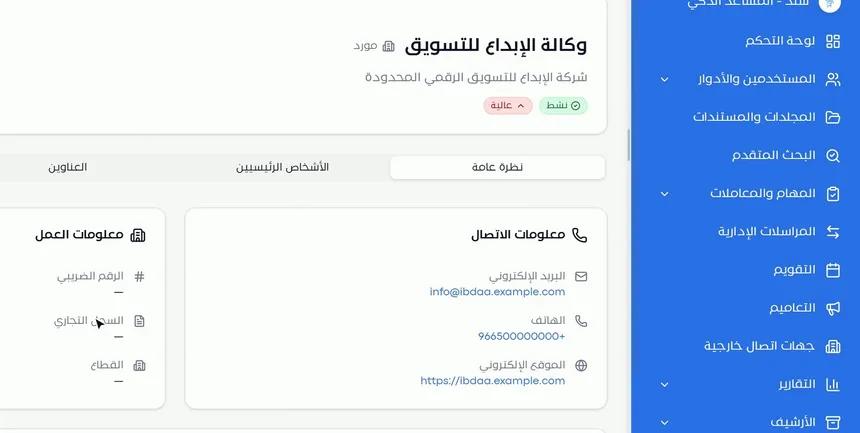
In the profile header:
- The contact's name and type, such as «Supplier».
- The legal name under it.
- The status and priority badges, such as «Active» and «High».
Under the header are four tabs: «Overview», «Key people», «Addresses» and «Documents».
The «Overview» tab shows two cards:
- Contact information: the email address, the phone number and the website.
- Business information: the tax number, the commercial registration and the sector.
If a dash appears instead of a value, the field is empty. You can complete it with the «Edit» button.
Step 2: Add the contact person at the party
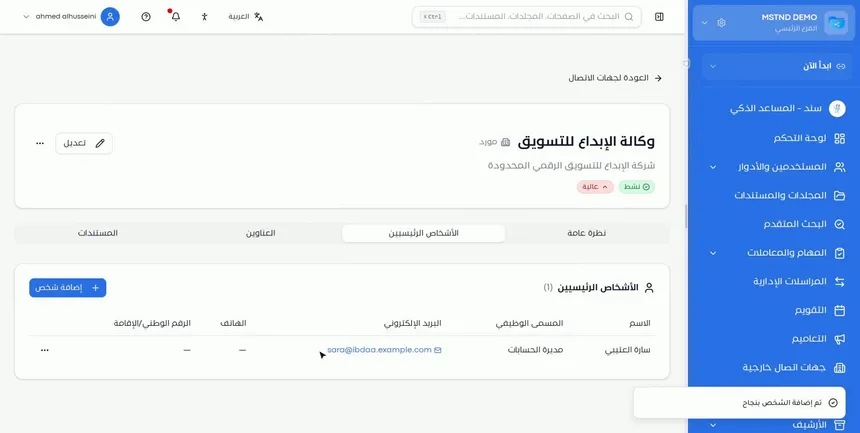
Open the «Key people» tab and click «Add person». Enter:
- The person's name.
- Their position or job title.
- Their email address.
Then mark them as the primary contact if they are the first point of contact with the party.
After saving, the message «Person added successfully» appears, and the person is listed in a table with the columns name, job title, email, phone and national ID/Iqama number. Next to each person is a «⋯» button for the actions on that person.
Step 3: Go to the «Addresses» tab
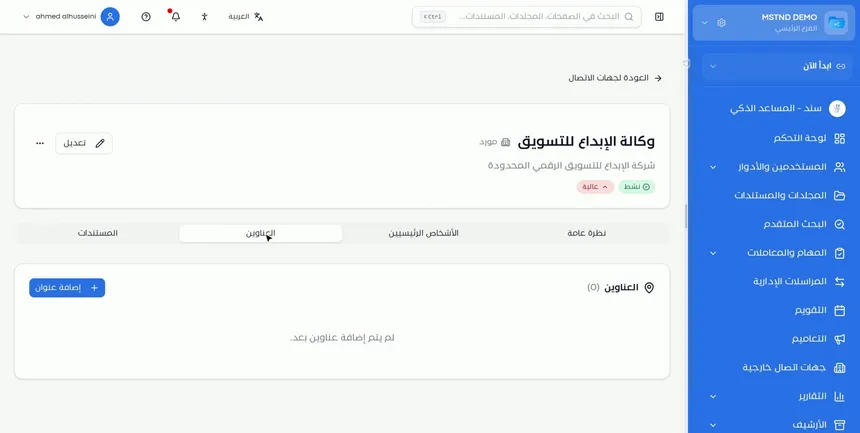
Once added, the person appears in the list immediately, and the number of people next to the section title goes up. Then move to the «Addresses» tab, which gathers the party's addresses.
A party may have more than one address: a head office, a branch, a warehouse and a project site. Recording all of them helps with correspondence, deliveries and visits.
Step 4: Add an address and mark it as primary
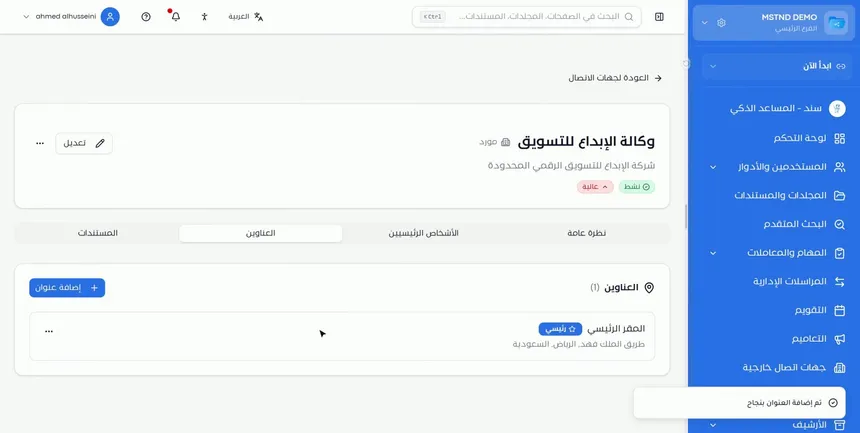
Click «Add address» and fill in:
- Label: such as «Head office».
- Street.
- City.
- Country.
Then mark it as the primary address if it is the party's official address. After saving, the message «Address added successfully» appears, and the address is shown with its label, a «Primary» badge and its details, together with a «⋯» button for its actions.
Step 5: Review the linked documents and folders
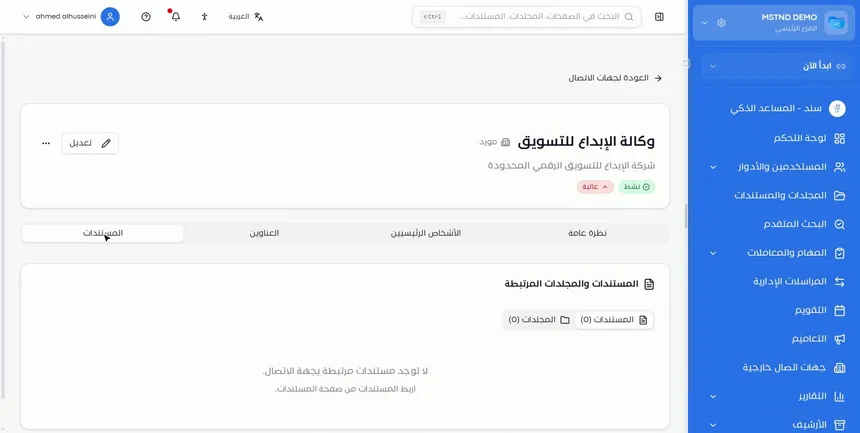
The «Documents» tab shows the «Linked documents and folders» of the contact, with two sub-tabs, «Documents» and «Folders», each with its own count.
If no documents have been linked yet, the message «No documents are linked to this contact» appears, with a pointer to link documents from the documents page. In other words, the link is made from the document's side, and then it appears here automatically.
This tab is what makes the profile useful in the long run. When someone asks "which contracts have been signed with this supplier?", you find the answer here.
Step 6: Edit or delete the contact
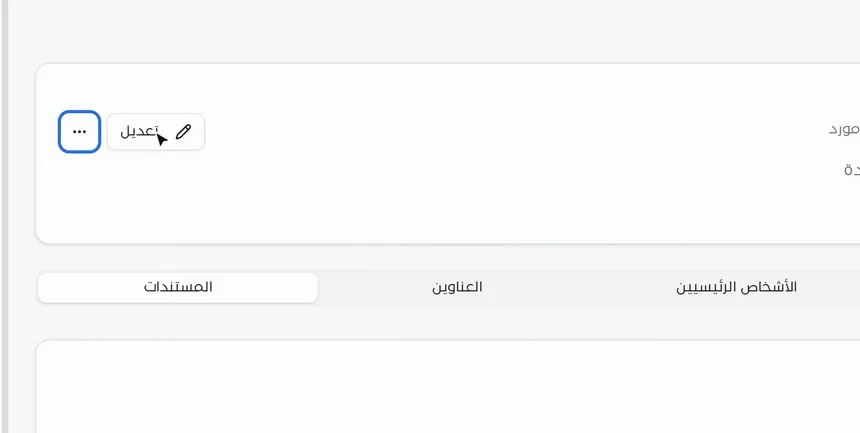
The profile header has an «Edit» button for updating the contact's data, such as changing the status or the priority, or adding the tax number and the commercial registration. Next to it is the «⋯» button, which lets you delete the contact.
Options and their effect
| Option or setting | What it does | When to use it |
|---|---|---|
| «Back to contacts» | Takes you back to the contacts list | When you are done with the profile |
| «Overview» | Shows the contact and business information | For quick access to contact details and registration numbers |
| «Key people» → «Add person» | Adds a contact person inside the party | When you start dealing with the party or its responsible person changes |
| Marking the primary contact | Highlights the first point of contact | For parties that have several people |
| «Addresses» → «Add address» | Adds an address for the party | To record the head office, branches and sites |
| Marking the address as primary | Makes it the official address for correspondence | For the official head office address |
| «Documents» | Shows the linked documents and folders | To review contracts, letters and invoices |
| «⋯» next to a person or an address | Shows the actions available on the item | To manage the person or the address after adding it |
| «Edit» | Updates the contact's data | When the status or the data changes |
| «⋯» in the profile header | Lets you delete the contact | For duplicated contacts or contacts added by mistake |
Practical scenarios
Scenario: A government entity's contracts department prepares an award letter
Situation: The department needs the supplier's legal name, its official address and the name of its authorized person.
What you do in Mstnd:
- Open the supplier's profile from «External contacts».
- Take the legal name from the profile header and the commercial registration from «Business information».
- Open «Addresses» and take the primary address.
- Open «Key people» to find the primary contact.
Result: A letter with accurate data, without writing to the supplier to ask.
Scenario: A contracting company follows up a subcontractor
Situation: A subcontractor works on two sites and has a financial officer and a technical officer.
What you do in Mstnd:
- Add both officers in «Key people» with their job titles.
- Mark the technical officer as the primary contact.
- Add the addresses of both sites in «Addresses» with two clear labels.
- Review «Documents» to see the linked contract and handover reports.
Result: The project team knows whom to call and where to deliver, and accounting knows who the financial officer is.
Scenario: A hospital manages the profile of a medical supplies supplier
Situation: A strategic supplier whose contracts are reviewed every year, and whose representative changes from time to time.
What you do in Mstnd:
- Update «Key people» when the representative changes.
- Make sure the priority is «High».
- Review the «Documents» tab before the renewal date to see the previous contracts.
Result: A renewal based on a complete history of dealings, and communication always with the right person.
Scenario: A law firm takes on a new client's file
Situation: A new corporate client, with whom the firm has several cases.
What you do in Mstnd:
- Complete «Business information» with the «Edit» button.
- Add the company's legal representative in «Key people».
- Link the case documents to the contact so they appear in the «Documents» tab.
Result: A single client profile that gathers the client's data, representatives and case documents.
How it relates to other features
- External contacts: the list from which you open each contact's profile and add new contacts.
- External sharing: you share documents with the party with a notification and defined permissions, and the contact information in the profile is the basis of this sharing.
- Administrative correspondence: external correspondence needs the party's accurate data, such as its name and address.
- Metadata: a document's metadata helps you organize and find the documents related to external parties.
- Folder content: the folders linked to the contact appear in the «Documents» tab, and their content is managed from the folder itself.
- Internal sharing and public link: to share the party's documents with your colleagues inside the organization.
Tips and best practices
- Complete «Business information» for every supplier and client you contract with; it is what you need in contracts and correspondence.
- Set one primary contact for each party, so everyone knows whom to start with.
- Use clear labels for addresses, such as «Head office» and «Jeddah warehouse».
- Update the key people as soon as you learn that the party's responsible person has changed.
- Link important documents to the contact, such as contracts and award letters, so they appear in the «Documents» tab.
- Review the profiles of high-priority contacts periodically to make sure they are complete.
- When a relationship ends, prefer updating the status to deleting the contact.
Warnings and common mistakes
FAQ
What is a contact profile in Mstnd?
It is a page for each external party that shows its basic data, its contact and business information, its key people, its addresses, and the documents and folders linked to it.
How do I add a contact person for an external party?
Open the contact's profile, then the «Key people» tab, click «Add person» and enter their name, position and email. You can also mark them as the primary contact.
How do I add an address for a contact?
In the «Addresses» tab, click «Add address», enter the label, street, city and country, and mark it as the primary address if it is the official one.
Can a party have more than one address?
Yes. You can add several addresses with different labels and mark one of them as the primary address.
Where do I see a contact's documents?
In the «Documents» tab of the contact profile, which shows the documents and folders linked to it, with the count of each.
Why do no documents appear in the contact profile?
Because no documents have been linked to it yet. Linking is done from the documents page, and after that they appear in the profile's «Documents» tab.
How do I edit or delete an external contact?
In the contact profile header, click «Edit» to update the data, or the «⋯» button next to it to delete the contact.
Summary
- The contact profile gathers everything about an external party on one page with four tabs.
- «Overview» shows the contact and business information at a glance.
- «Key people» and «Addresses» define whom you contact and where, with the primary one of each marked.
- «Documents» shows the documents and folders linked to the contact.
- «Edit» updates the data, and deleting is reserved for duplicated or mistaken contacts.
Try it free: Create your organization's account in Mstnd
Was this article helpful?
Related articles
 0:56
External contacts in Mstnd: your clients and suppliers in one directory
Learn Mstnd external contacts: a client and supplier directory with search and filters, and how to add a new contact with its basic, contact and business data.
 0:49
External sharing: send a document to an external party securely
Learn external sharing in Mstnd: send a document to an external party by private link via email or WhatsApp, with password, expiry date, permissions and Nafath.
 0:50
Administrative correspondence in Mstnd: outgoing and incoming in one organized register
Administrative correspondence in Mstnd: outgoing and incoming in one register, indicators, filters by direction, status and confidentiality, and reply threads.
 1:02
Metadata: structured fields for every document, powered by AI
Learn the «Metadata» tab in Mstnd: create a field template with AI or link an existing one, auto-extract the values with a confidence level, then confirm them.
 1:05
Folder content in Mstnd: find your file and manage it in seconds
The Mstnd folder content screen explained: file cards and status changes, multi-select and bulk actions, the folder side panel, and AI chat about the files.
 0:57
Sharing a document internally and by public link in Mstnd
Learn document sharing in Mstnd: internally to people, units or positions with view, edit or delete permission, or by public link with password and expiry date.