

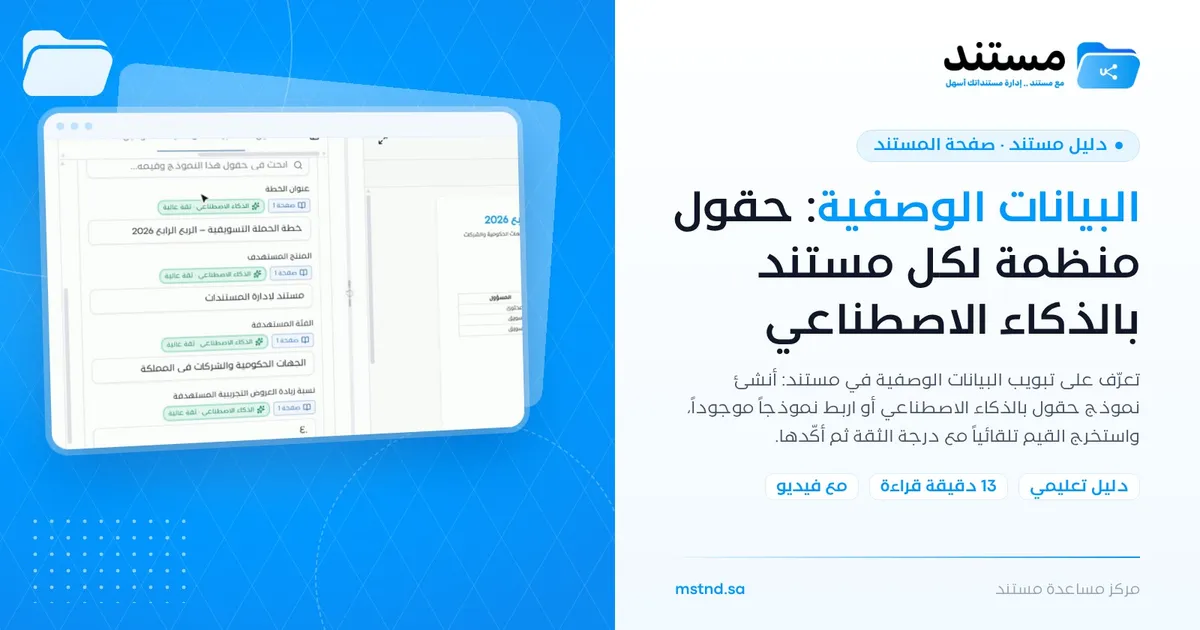
Metadata: structured fields for every document, powered by AI
In this article
In Mstnd, metadata is a set of structured fields that describe a document's content, such as the plan title, the target product or the responsible parties, gathered in a template linked to the document. From the «Metadata» tab you can ask AI to analyze the document and suggest a suitable template and fields, or link an existing template from the library. The smart agent then extracts the field values from the document automatically, with a confidence level for each field; you review and confirm them, and the data becomes searchable and usable in reports.
Quick overview
| Item | Details |
|---|---|
| Module | Document page |
| Where it is in the interface | The side panel of the document page → the «Metadata» tab |
| Direct link | https://app.mstnd.sa/file/<document ID> |
| Goal | Turn the document's content into structured fields you can search and report on, without manual entry |
| Who it is for | Document and records officers; contracts, procurement, HR and finance departments; and anyone who builds reports on document data |
| Video length | About a minute |
| What you will learn | Creating a template with AI, editing and ordering the fields, linking an existing template, running the extraction, and reviewing and confirming the values and the confidence level |
Watch the video
In about a minute, the video shows the whole journey: from an empty tab, to a template generated by AI, to extracted and confirmed values.
Why this feature?
In its original form, a document is free text. To answer a question such as "which contracts exceed a certain amount?" or "which plans target a certain audience?", you need to read every document. The traditional solution is to enter this data manually into a separate spreadsheet, which is slow, error-prone work that usually stops after a few weeks.
Metadata makes this information part of the document itself, in fields with defined types. AI takes on the tiring part: it suggests the fields that suit the document type, extracts their values and shows how confident it is in each value. The final decision stays with you, through review and confirmation.
| Without metadata | With metadata |
|---|---|
| Important information is buried in the document's text | Clear fields such as the title, the party and the figures |
| Manual entry into separate spreadsheets | Automatic extraction from the document itself |
| Every employee describes documents in their own way | One unified template for each document type |
| You do not know how accurate the entered data is | A confidence level for each field, and the source of the value in the document |
| Keyword search only | Search and reports built on field values |
Where to find it
- Side menu → «Folders and documents».
- Open the document you need.
- In the side panel, choose the «Metadata» tab, next to «Details».
Direct link: https://app.mstnd.sa/file/<document ID>
If the document has no template, the tab shows a notice that no metadata template is linked to this document or to any parent folder, with three buttons: «Metadata template», «Create template with AI» and «Manage templates».
Concepts and terms
| Term | Meaning in Mstnd |
|---|---|
| Metadata | Structured fields that describe the document's content and are stored with it |
| Metadata template | A set of fields defined for a type of document, such as a campaign plan template or an invoice template |
| Field | A single item in the template with a name and a type, such as «Plan title» |
| Field type | The nature of the value: «Short text», «Number», «Multi-select» and others |
| Library | The organization's library of templates and fields, where templates are saved for reuse |
| Extraction | Reading the document and extracting each field's value from it automatically |
| Confidence level | How confident the AI is in the extracted value, such as «High confidence» |
| AI agent | The indicator at the top of the screen that shows the AI operations in progress |
Step by step
Step 1: Open the «Metadata» tab
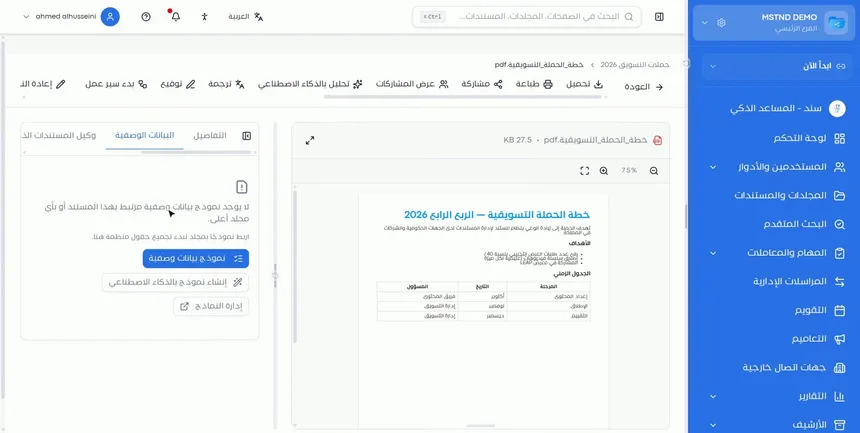
Open the document, then the «Metadata» tab. The purpose of this tab is to give every document structured fields. If the document has no template, you have three options:
- «Metadata template»: to link an existing template.
- «Create template with AI»: to have AI suggest a template from the document.
- «Manage templates»: to go to the template library.
Step 2: Ask AI to create a template
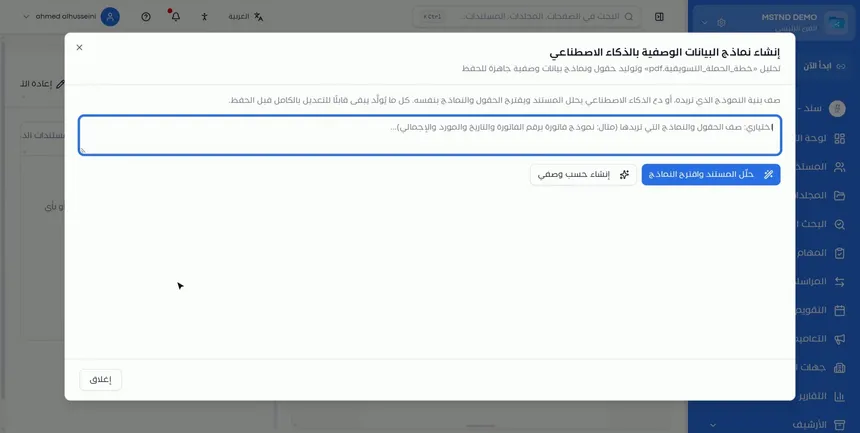
Click «Create template with AI». A window opens explaining that you can describe the structure of the template you want, or let AI analyze the document and suggest the fields and templates itself, and that everything generated stays fully editable before saving. You have two buttons:
- «Analyze document and suggest templates»: leaves it to AI to determine the fields from the content.
- «Create from my description»: builds the template according to what you write in the optional field, such as "An invoice template with the invoice number, date, supplier and total".
Step 3: Review the summary and the merge suggestions
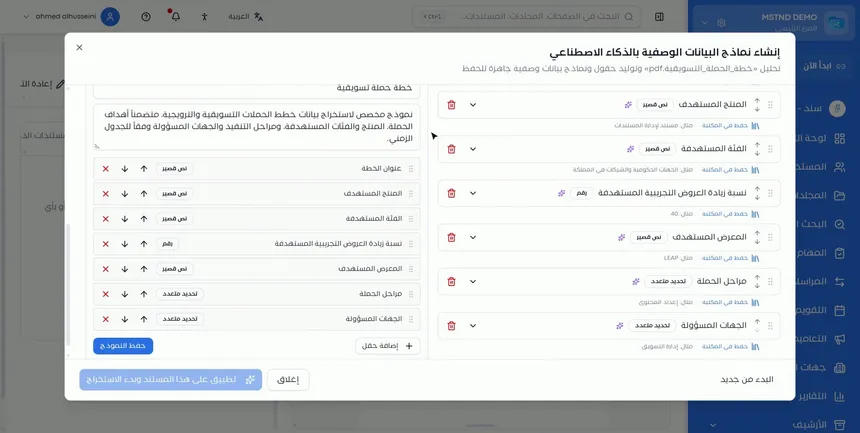
After the analysis, the system shows you a summary of the document and suggests whether any templates can be merged with templates already in the library. The suggested template appears with a name and a description, such as a template dedicated to extracting the data of marketing campaign plans, along with the list of fields.
The merge suggestion matters for keeping the library clean. Instead of creating a new template for every similar document, you make use of an existing template and expand it.
Step 4: Edit and order the generated fields before saving
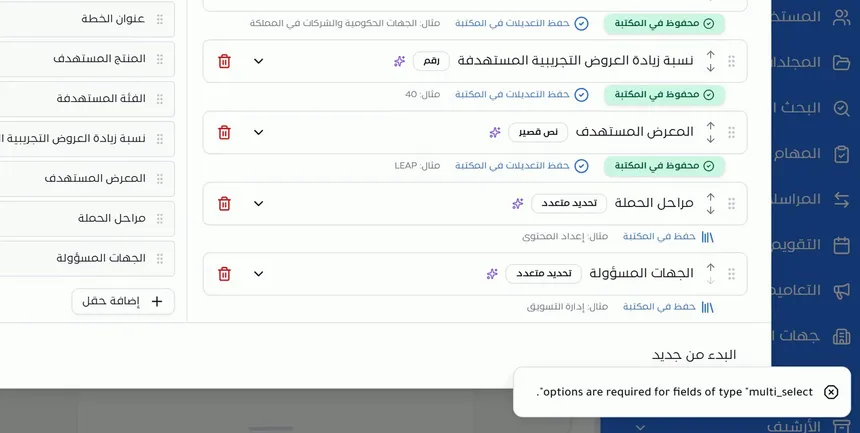
The generated fields appear in two side-by-side lists:
- The suggested template's fields: each field has a name and a type, buttons to move it up or down, a button to delete it, and an «Add field» button to add new fields.
- The details of each field: its type, an example of its value from the document, and a «Save to library» button to save the field to the organization's library. After saving, it shows a «Saved to library» mark.
The field types in the example: «Short text», such as «Plan title»; «Number», such as «Target percentage increase in demos»; and «Multi-select», such as «Campaign phases» and «Responsible parties».
Step 5: Or link an existing template
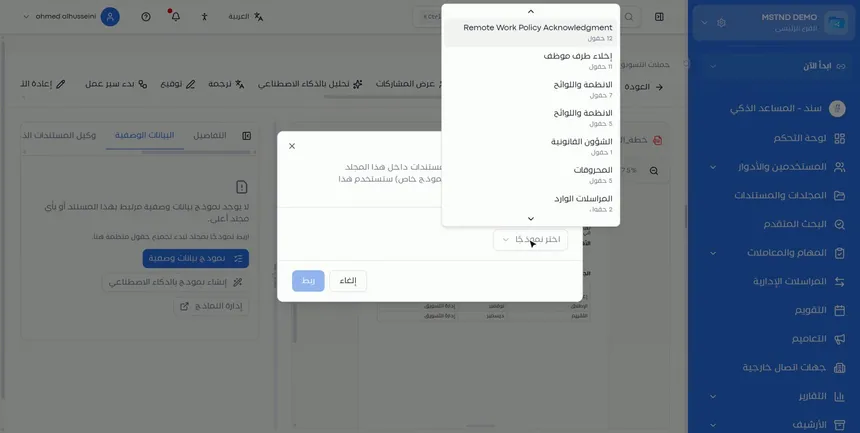
If the library has a template that suits the document, there is no need to create a new one. Click «Metadata template», then open the «Choose a template» list. The list shows the available templates with the number of fields in each. Choose the template, then click «Link».
Reusing templates ensures that similar documents, such as all contracts or all meeting minutes, are described with the same fields. This is a basic condition for consistent reports.
Step 6: Save the template and start the extraction
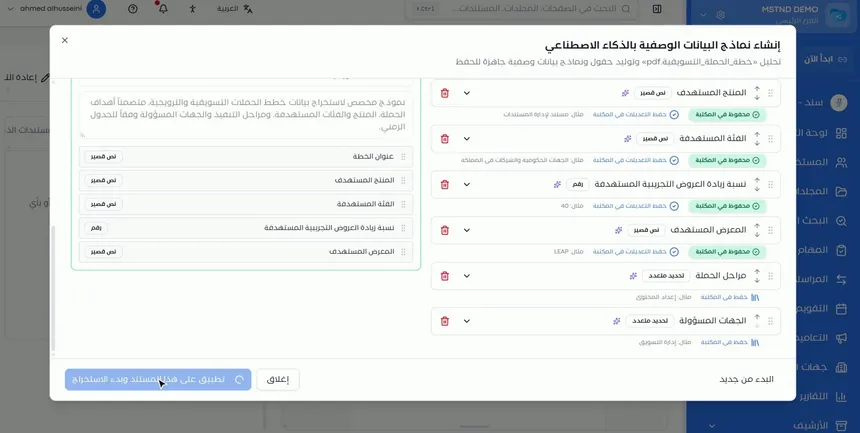
After reviewing the fields, click «Save template», then «Apply to this document and start extraction». The template is linked to the document, and AI starts reading the document to extract each field's value.
At the bottom of the window there are also «Start over», if you want to try again with a different description, and «Close» to exit.
Step 7: Follow the extraction from «AI agent»
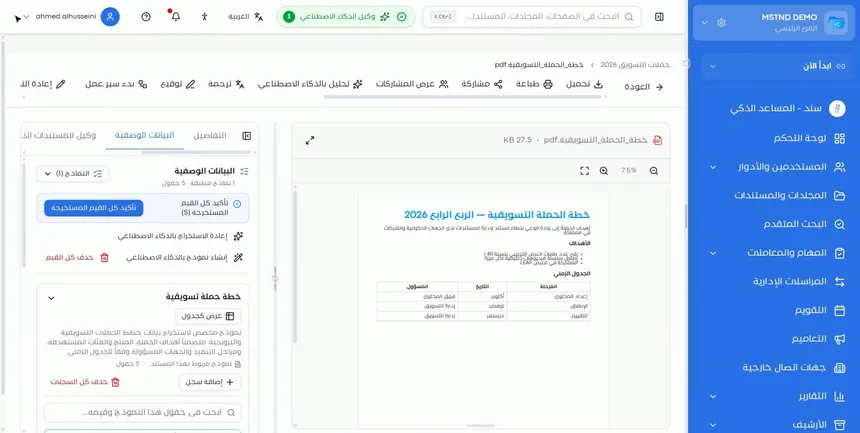
During the extraction, the «AI agent» indicator appears in the top bar and shows the operations in progress. The smart agent extracts the values from the document automatically, and you do not need to stay on the same page until it finishes.
Step 8: Review the values and the confidence level, then confirm
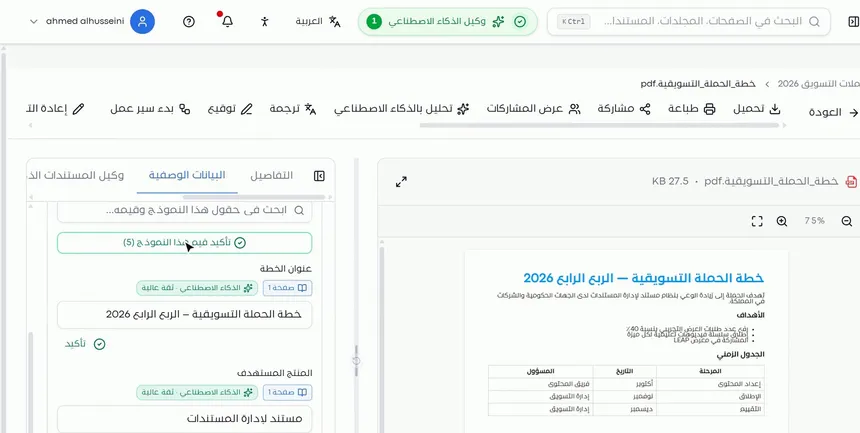
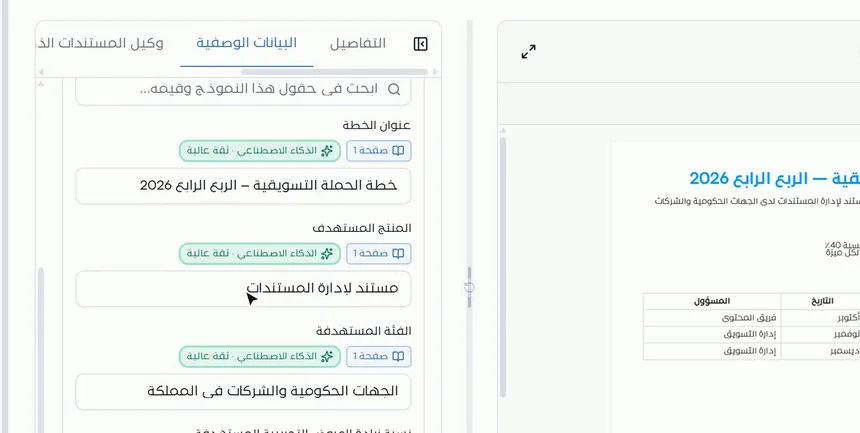
The extracted values appear in the «Metadata» tab. For each field:
- The extracted value, which you can edit.
- The page the value was extracted from, such as «Page 1».
- The value's source and confidence level, such as «AI · High confidence».
- A «Confirm» button to approve the field's value.
At the top of the list there is a search field for the template's fields and values, and a «Confirm this template's values» button showing the number of fields, to confirm them all at once.
Step 9: Use the data in search and reports
After confirmation, the metadata is saved with the document. These values become useful when searching for documents and in the reports the organization builds. The more documents carry a unified template, the more valuable this data becomes.
Options and their effect
| Option or setting | What it does | When to use it |
|---|---|---|
| «Metadata template» | Links an existing template from the library | When a suitable template exists for the document type |
| «Create template with AI» | Opens the template generation window | For a new document type with no template |
| «Manage templates» | Takes you to the template library | To review and organize templates |
| «Analyze document and suggest templates» | Suggests fields from the content automatically | When exploring a new document type |
| «Create from my description» | Builds the template according to your description | When you know the required fields |
| Moving a field up or down | Orders the fields | For a logical order that makes review easier |
| Deleting a field | Removes a field that is not needed | For suggested fields that are not useful |
| «Add field» | Adds a new field | For a field that AI did not suggest |
| «Save to library» | Saves the field to the organization's library | For reusable fields |
| «Save template» | Saves the template | After the review is complete |
| «Apply to this document and start extraction» | Links the template and starts the extraction | After saving the template |
| «Start over» | Restarts the generation | If the result does not suit you |
| «Confirm» for a field | Approves the value of one field | After reviewing the value |
| «Confirm this template's values» | Approves all the values at once | After reviewing all the fields |
Practical scenarios
Scenario: The procurement department of a government entity organizes contracts
Situation: Hundreds of contracts uploaded as PDF files, and the department needs a report of the contracts by supplier, value and expiry date.
What you do in Mstnd:
- Open one of the contracts, and click «Create template with AI».
- Choose «Create from my description» and write: "A contract template with the supplier, value, start date, end date and contract number".
- Review the fields and save them to the library, then save the template and apply it.
- For the other contracts, use «Metadata template» and link the same template.
Result: Unified data for all contracts, searchable and ready for reports without manual entry.
Scenario: The HR department of a contracting company
Situation: Various employee files, including clearance forms that need organized follow-up.
What you do in Mstnd:
- Open a clearance form, and link it to the «Employee clearance» template that exists in the library.
- Wait for the extraction to finish, following it from the «AI agent» indicator.
- Review the employee's name, the last working day and the confidence level, then confirm.
Result: An organized record of clearances that can be searched by name or date.
Scenario: A hospital classifies medical device reports
Situation: Maintenance reports for medical devices from different companies, in various formats.
What you do in Mstnd:
- Click «Analyze document and suggest templates» on one of the reports.
- Review the merge suggestions if a similar template exists in the library.
- Add a field for the device serial number if AI did not suggest one.
- Save the template and apply it, then confirm the values after comparing them with the referenced pages.
Result: Maintenance reports with unified fields despite their different original formats.
Scenario: The marketing department of a trading company
Situation: Several campaign plans, and management wants to compare the target audiences and the numeric goals.
What you do in Mstnd:
- Create a «Marketing campaign plan» template with AI from the first plan.
- Save fields such as «Target audience» and «Target product» to the library.
- Link the template to the rest of the plans and extract their values.
Result: Comparing the plans becomes possible through the fields, not by reading every plan.
How it relates to other features
- Metadata templates: the central template library where templates and fields are saved; the «Manage templates» button leads to it.
- Smart document agent: analyzes the document and extracts entities and insights, while metadata stores values in the fields of a specific template.
- Smart search agent: searching by describing the document benefits from the documents' structured content.
- Text search: complements searching by fields with searching inside the content of files.
- Report center: confirmed metadata is useful in the reports the organization builds.
- Document details: the neighboring tab, which shows the document's general properties, such as the status and the confidentiality level.
- AI and document processing: the organization-level settings for AI and document processing.
Tips and best practices
- Search the library before creating a new template, and link the existing template if it fits.
- Accept merge suggestions when templates are similar, so that the library stays organized.
- Choose the right field type: «Number» for figures that will be added up or compared, and «Multi-select» for multiple values.
- Delete suggested fields that you will not use in search or reports; too many fields slow down the review.
- Save to the library the fields that recur across several document types.
- Review the values with the lowest confidence first, and compare them with the referenced page.
- Use «Confirm this template's values» only after reviewing all the fields.
- Start with one frequently used document type, such as contracts or invoices, then expand.
Warnings and common mistakes
FAQ
What is document metadata in Mstnd?
It is a set of structured fields that describe the document's content, such as the title, the party and the figures, gathered in a template linked to the document. It is useful for search and reports.
Can AI create the metadata template?
Yes. With «Create template with AI», it analyzes the document and suggests the fields and the template, or it builds the template according to a description you write. Everything generated can be edited before saving.
How do I link an existing template to a document?
In the «Metadata» tab, click «Metadata template», choose the template from the «Choose a template» list, then click «Link».
What does the confidence level next to the extracted value mean?
It is how confident the AI is in the accuracy of the value it extracted, such as «High confidence». It helps you identify the values that need a closer review.
Do I need to confirm the extracted values?
Yes. Review each value and click «Confirm» for it, or use «Confirm this template's values» to confirm them all after reviewing them.
What field types are available in the template?
Among the types that appear in the interface are «Short text», «Number» and «Multi-select». You choose the type according to the nature of the value.
What is the difference between metadata and the smart document agent?
The smart document agent provides a comprehensive analysis of the document, with a summary, entities and insights, while metadata stores specific values in the fields of a unified template for search and reporting.
Where do I follow the progress of the extraction?
From the «AI agent» indicator in the top bar, which shows the AI operations in progress.
Summary
- Metadata turns the document's content into structured fields you can search and report on.
- You can create the template with AI, by analysis or from your description, or link an existing template.
- You edit, order and save the fields to the library before saving the template.
- The smart agent extracts the values with the page and the confidence level, and you review and confirm them.
- One unified template for each document type is the basis of consistent reports.
Try it free: Create your organization's account in Mstnd
Was this article helpful?
Related articles
 0:52
Metadata templates in Mstnd: design the fields you need
Learn to create metadata templates in Mstnd: text, number, date and list fields, required fields, AI auto-fill and a library of reusable fields.
 0:59
The Mstnd smart document agent: understand your document before you read it
Mstnd's smart document agent analyzes each file: text, summary and entities, plus suggested status, categories, tags, tasks and access with a confidence score.
 0:54
The smart search agent in Mstnd: describe what you want and find it
Learn the Mstnd smart search agent: describe a document in your words to find it by meaning, with a match percentage and reason, or search AI-extracted values.
 1:16
Text search in Mstnd: search inside the content of your files
Learn Mstnd text search: find a word, number or date inside file names, content and extracted values, with highlighted matches, filters and saved searches.
 0:43
The report center in Mstnd: all your organization's reports in one place
The Mstnd report center groups document, correspondence, task, transaction, circular and user reports by section, with quick search and an analytics dashboard.
 0:44
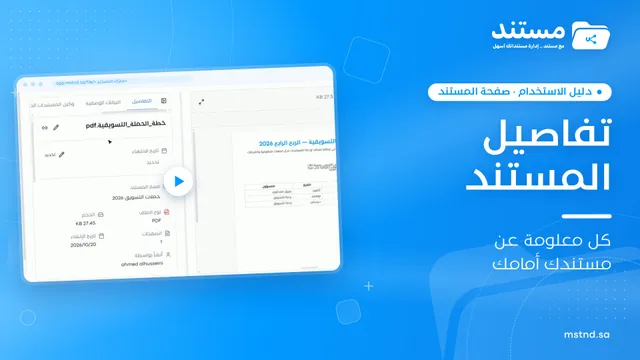
Document details: everything about your document in one place
Learn the «Details» tab in Mstnd: expiry date, path, type, size, creator, confidentiality and status changes with a reason, reminder, tags and system number.