

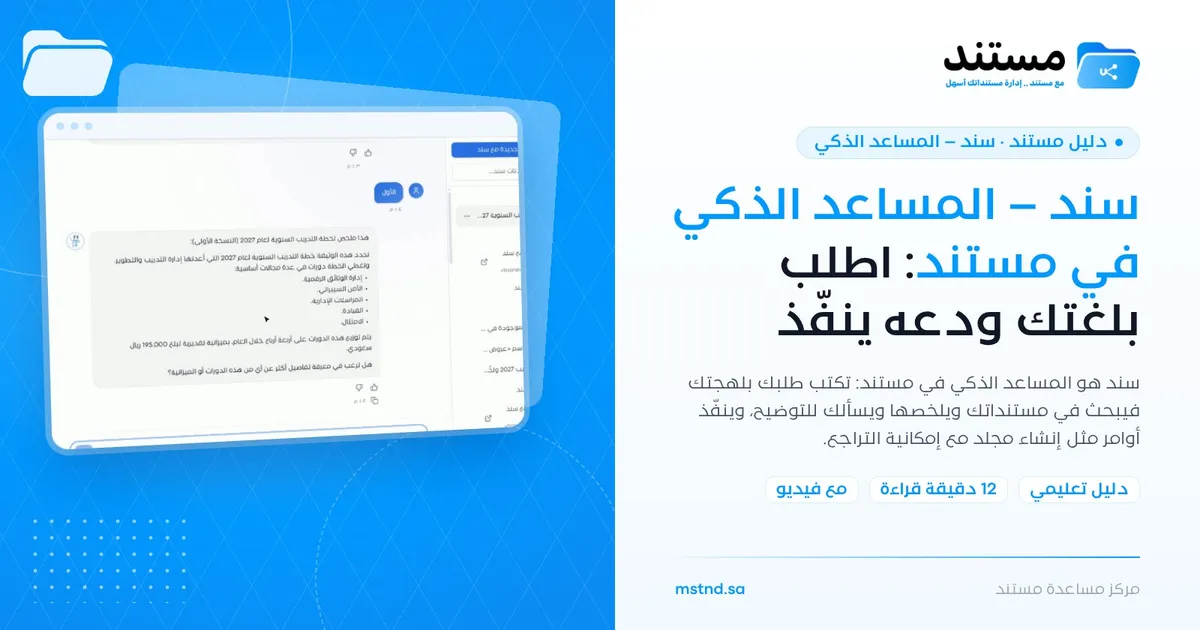
Sanad, the AI assistant in Mstnd: ask in your own words and let it do the work
In this article
Sanad is the AI assistant built into Mstnd, and you talk to it the way you would talk to a colleague at work. You write your request in your own style and dialect, and it searches your documents, asks you for clarification when it needs to, and gives you a summary of the key points within seconds. It does not stop at answering: it also carries out commands inside the system, such as creating a new folder, and you can undo them with one click.
Quick overview
| Item | Details |
|---|---|
| Module | Sanad, the AI assistant |
| Where it is in the interface | The «Sanad, the AI assistant» item in the side menu, directly under «Dashboard» |
| Direct link | https://app.mstnd.sa/sanad-agent |
| Goal | Reach information and get tasks done with a request written in natural language, instead of moving between screens |
| Who it is for | Every user in the organization, and especially those who often search for documents or need quick summaries |
| Video length | Less than a minute |
| What you will learn | Using the quick suggestions, going back to previous conversations, wording your request, handling clarifying questions, and carrying out commands and undoing them |
Watch the video
The video shows a complete conversation with Sanad: a request to summarize a document, a clarifying question, then the summary, then a command to create a folder being carried out and undone.
Why this feature?
Finding a specific document in a large system usually requires you to know where it is, its exact name or the words it contains. Once you find it, you need to read all of it to extract what matters to you. And if you want to carry out a simple action such as creating a folder, you have to go to the right page and fill in the form.
Sanad condenses all of this into a conversation. You describe what you want in your own words, and it takes care of the searching, reading, summarizing and carrying out. It aims to be as close as possible to a colleague who knows the system and your documents well: you ask and it answers, you make a request and it acts on it.
| Before Sanad | With Sanad |
|---|---|
| You have to remember the file's name and location to find it | You describe the document in your own words and it searches for it |
| You read the whole document to learn what matters most in it | It gives you a summary of the key points within seconds |
| You go to the Folders page and fill in the form | You type «Create a folder named…» and it is done |
| You word your search with precise keywords | You write in your own style and dialect, with no set format |
| You worry about carrying out an action by mistake | The «Undo» button cancels what was done with one click |
Its value for the individual: less time spent searching and reading, and less effort on repetitive actions. Its value for the organization: the organization's knowledge stored in documents becomes available to anyone who asks, instead of being reserved for those who know where it is.
Where to find it
- From the side menu → «Sanad, the AI assistant».
- Or directly through the link: https://app.mstnd.sa/sanad-agent
Sanad also appears in other places in Mstnd:
- On the Dashboard, through the «Sanad recommendations» section.
- On the document page, through the chat tab, where you ask Sanad about the open document itself. See Sanad chat about the document.
Concepts and terms
| Term | Meaning in Mstnd |
|---|---|
| Sanad | The AI assistant in Mstnd; it understands requests written in natural language, searches and carries out actions |
| Conversation | The series of messages between you and Sanad about one topic; it is saved automatically |
| Quick suggestions | Ready-made cards for the most common requests, which start a conversation with one click |
| Clarifying question | A question Sanad asks before continuing when a request could have more than one meaning |
| Command | A request that carries out an action inside the system, such as creating a folder, rather than just giving an answer |
| Undo | A button that appears after a command is carried out, to cancel what was done |
| Previous conversations | A side list of all your conversations in time order, which you can also search |
Step by step
Step 1: Get to know Sanad
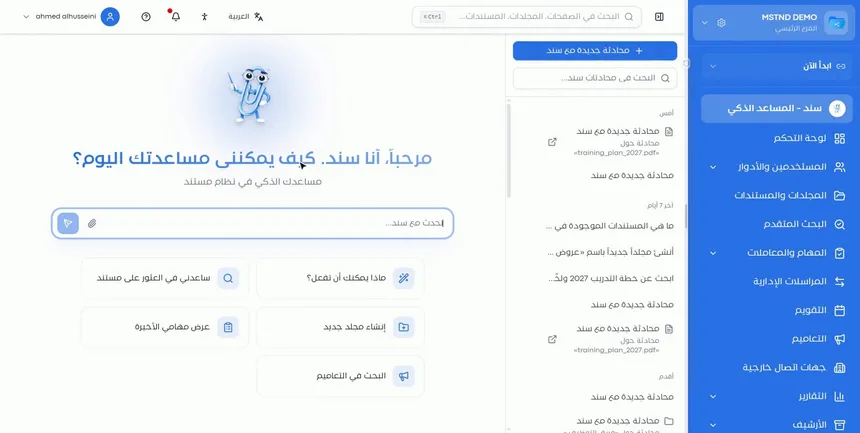
When you open Sanad, a welcome screen appears: «Hello, I'm Sanad. How can I help you today?» Below it is the «Talk to Sanad...» input field. The basic idea is simple: talk to Sanad the way you talk to your colleague. You do not need special commands or keywords.
Step 2: Use the quick suggestions
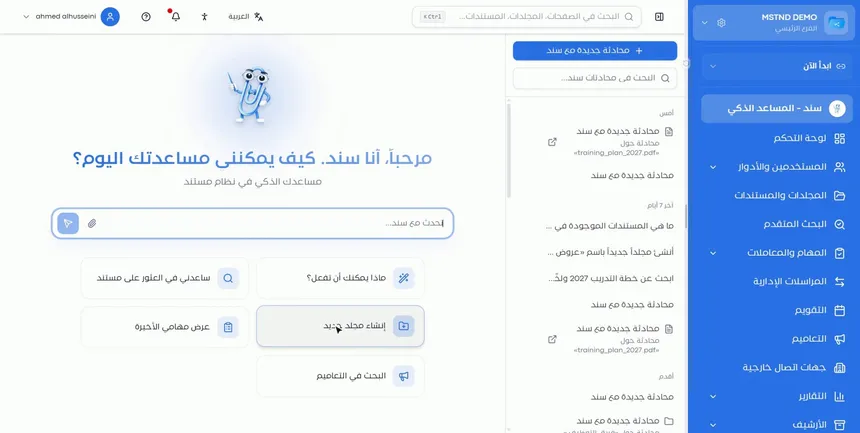
Under the input field you find quick suggestions for the tasks users ask for most, including:
- «What can you do?»
- «Help me find a document»
- «Create a new folder»
- «Show my recent tasks»
- «Search circulars»
Click any suggestion to start the conversation with it right away. If this is your first time using Sanad, start with «What can you do?» to learn about its capabilities from Sanad itself.
Step 3: Go back to your previous conversations
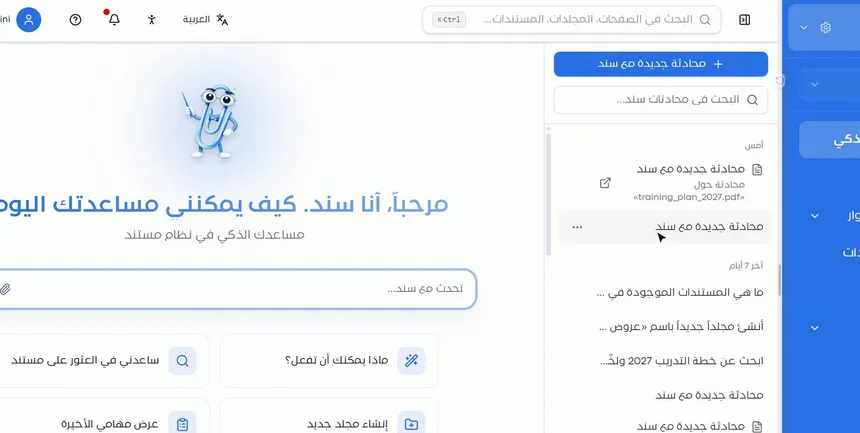
On the side of the screen you find all your previous conversations saved and arranged by time in groups such as «Today», «Yesterday», «Last 7 days» and «Older». You can go back to any conversation and continue it whenever you like, or search them from the «Search Sanad conversations...» field.
You will notice that some conversations carry the description «Conversation about» followed by a file name. These are conversations you started from inside a specific document's page; they also appear here so that you find all your conversations in one place.
Step 4: Write your request in your own dialect
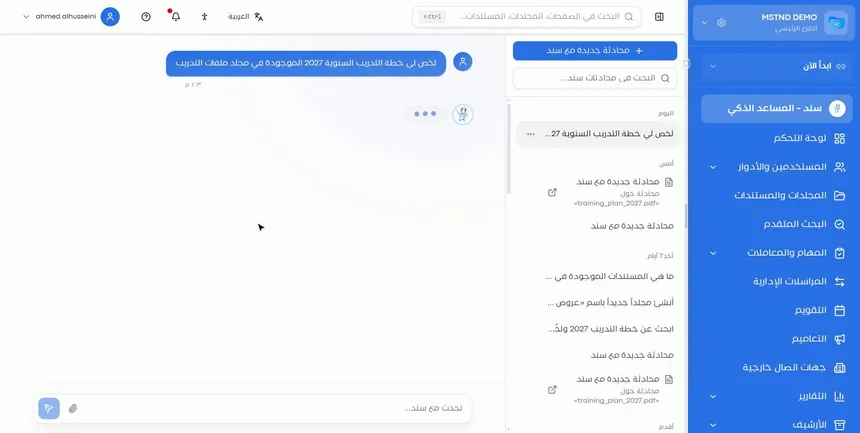
Write your request in your own style and dialect; it does not need any particular format. Examples of requests you can write:
- «Summarize for me the annual training plan in the Training files folder»
- «What's in the Contracts folder?»
- «Create a folder called Supplier contracts in my Personal space»
The more useful details you add, such as the folder name, the year or the document type, the faster Sanad gets to what you want.
Step 5: Sanad searches and asks you for clarification when needed
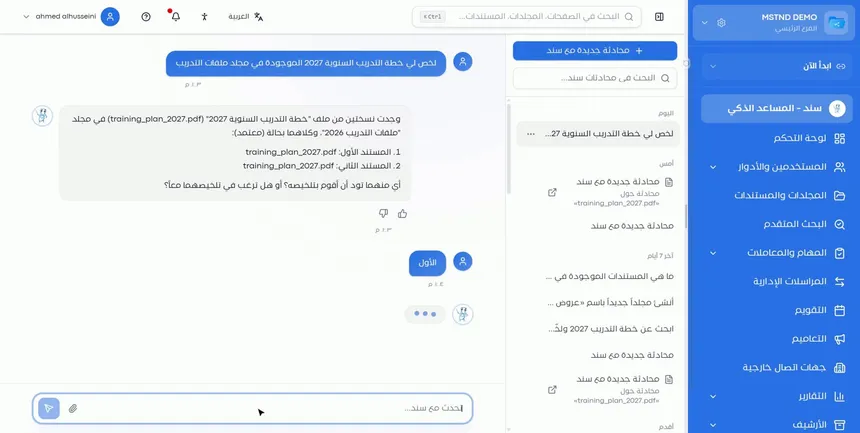
After you send the request, Sanad searches your documents. If it finds something that could mean more than one thing, it asks you before continuing. In the example shown, it was asked to summarize the annual training plan and found two copies of the file in the same folder, both with the «Approved» status, so it asked: Which one would you like me to summarize? Or would you like me to summarize both together?
Answer simply, for example «The first one», and Sanad continues working on what you chose.
Step 6: Get the summary with the key points
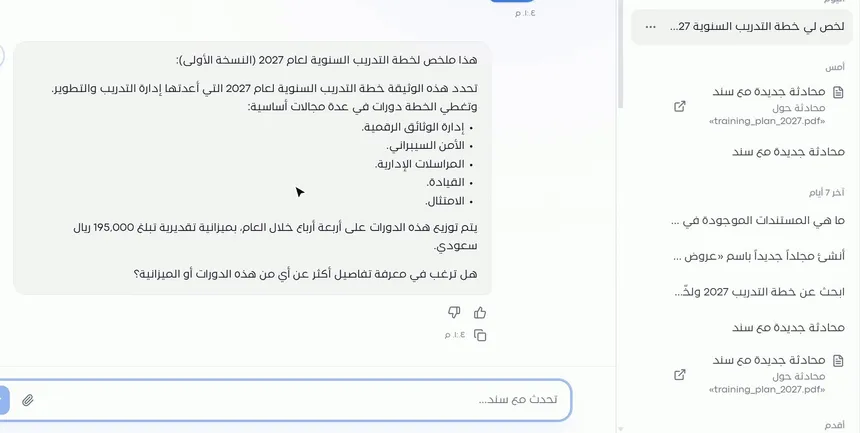
Within seconds Sanad shows the summary with the key points of the document, and it may end it with a question that suggests going deeper, such as learning more details about a specific part.
Under every answer you find two rating icons (like and dislike) for rating the quality of the answer, along with the time of the message. You can continue the conversation with questions about the summary itself, without naming the document again.
Step 7: Ask it to carry out a command, such as creating a folder
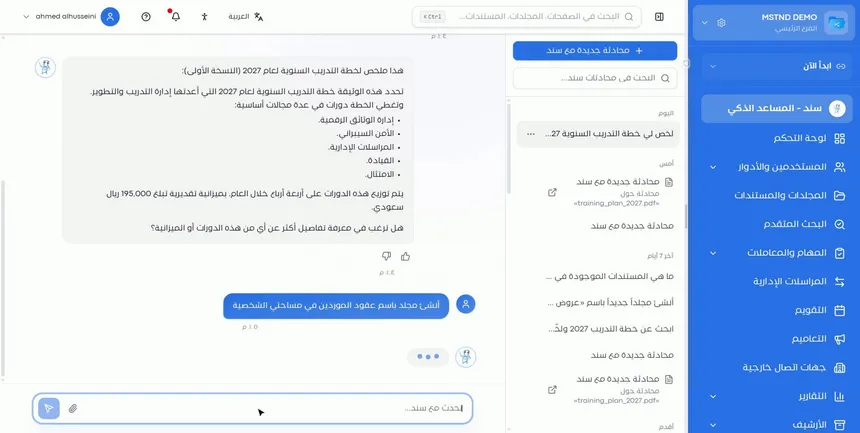
Sanad does not stop at answering; it carries out commands inside the system. For example, write «Create a folder called Supplier contracts in my Personal space», and Sanad creates the folder in the specified place.
State clearly in your command what is needed: the folder name and its location. If you do not specify the location, Sanad may ask you about it before carrying out the command.
Step 8: Done, and you can undo with one click
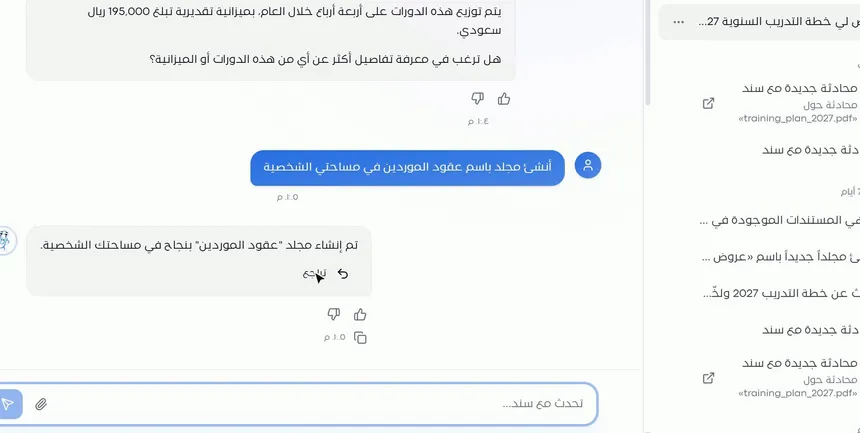
After carrying out the command, Sanad confirms what was done, for example: The «Supplier contracts» folder was created successfully in your Personal space. An «Undo» button appears under the message. If you change your mind or discover a mistake in the name, click it to cancel what was done.
Next to the message you also find a copy icon for copying the text of the reply, which is useful when you want to move a summary into a message or another document.
Step 9: Start a new topic with «New conversation with Sanad»
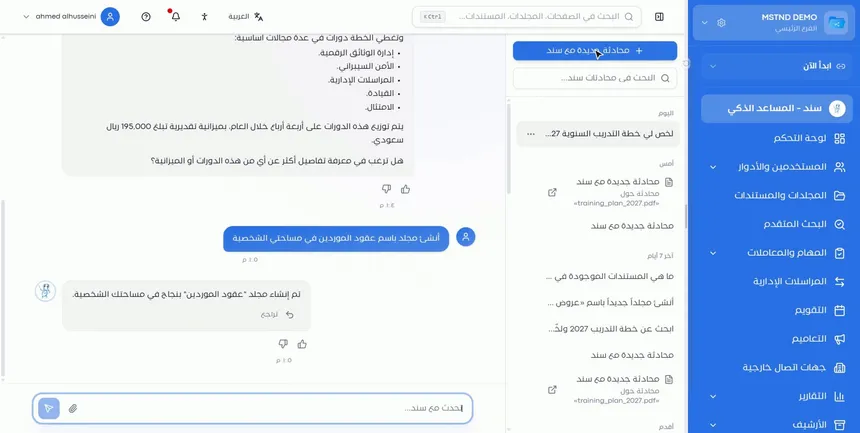
When you want to move to a different topic, click «New conversation with Sanad» at the top of the conversations list. A new conversation starts with a clean context, and the previous conversation stays saved in the list.
Separating topics into their own conversations improves the accuracy of the answers, because Sanad does not mix up the context of the old topic with the new one.
Options and their effect
| Option or setting | What it does | When to use it |
|---|---|---|
| Quick suggestions | Start a conversation with a ready-made request | For common requests, or when exploring Sanad for the first time |
| The «Talk to Sanad...» field | Where you type your request in your own style | For any question or command |
| Previous conversations | Open an old conversation so you can continue it | To go back to a summary or continue an earlier topic |
| «Search Sanad conversations...» | Searches the titles of your conversations | When you have many conversations |
| Answering the clarifying question | Tells Sanad what you mean | When Sanad finds more than one possible result |
| The rating icons | Rate the quality of the answer | When an answer is very useful or inaccurate |
| The copy icon | Copies the text of the reply | To move the summary somewhere else |
| «Undo» | Cancels the command that was carried out | When you change your mind or discover a mistake |
| «New conversation with Sanad» | Starts a conversation with a fresh context | When moving to a different topic |
Practical scenarios
Scenario: A training manager in a government entity prepares for a meeting
Situation: The manager of the training department has a meeting in a quarter of an hour and needs the main figures of the annual training plan.
What you do in Mstnd:
- Open Sanad and write: «Summarize for me the annual training plan in the Training files folder».
- If Sanad asks which copy you mean, choose the latest approved copy.
- Ask a follow-up question: «What is the estimated budget? And how are the courses spread over the year?»
- Copy the summary with the copy icon and add it to your meeting notes.
Result: The manager walks into the meeting knowing the most important points of the plan without reading all of it.
Scenario: A procurement officer in a contracting company organizes her files
Situation: A procurement officer has started dealing with new suppliers and wants a folder for their contracts.
What you do in Mstnd:
- Write to Sanad: «Create a folder called Supplier contracts in my Personal space».
- Check the confirmation message.
- If you discover that the name needs changing, click «Undo», then repeat the request with the correct name.
Result: A folder is ready within seconds, without leaving the conversation.
Scenario: A lawyer in a law firm searches for a document by describing it
Situation: A lawyer remembers that there is a memo about a lease dispute, but remembers neither its name nor its location.
What you do in Mstnd:
- Click the «Help me find a document» suggestion.
- Describe the document: «A memo about a lease dispute with a commercial tenant, written last year».
- Answer any clarifying question Sanad asks.
- Ask for a summary of the document it found.
Result: You reach the document and understand its content without searching through the folders by hand.
Scenario: A hospital employee catches up on circulars and her tasks
Situation: An employee is back from leave and wants to know what she missed while she was away.
What you do in Mstnd:
- Click «Show my recent tasks» to see what is assigned to you.
- Start a new conversation, click «Search circulars» and ask about the circulars of the past period.
Result: A quick picture of the tasks and circulars without moving between several pages.
How it relates to other features
- Dashboard: its «Sanad recommendations» section suggests actions based on the state of your documents and transactions.
- Sanad chat about the document: you ask Sanad about a specific open document, and these conversations also appear in your conversations list.
- Smart search agent: search by description with a match percentage; it complements what Sanad offers when you need a detailed list of results.
- Smart document agent: extracts from a document a summary, a description, amounts, parties and actionable insights, inside the document page.
- Folders: the folders Sanad creates at your command appear there and are managed like any other folder.
- AI and document processing: the organization-level settings for AI and document processing.
Tips and best practices
- In your request, mention what distinguishes the document: the folder name, the year, the document type or the entity.
- On your first use, start with the «What can you do?» suggestion to discover Sanad's capabilities.
- Answer clarifying questions precisely; they make sure Sanad works on the right item.
- Keep different topics in separate conversations using «New conversation with Sanad».
- Review the confirmation message after any command, and use «Undo» right away if the result is not what you want.
- Use follow-up questions instead of repeating the whole request, since Sanad remembers the context of the conversation.
- Rate inaccurate answers with the dislike icon; this helps improve the experience.
Warnings and common mistakes
FAQ
What is Sanad in Mstnd?
Sanad is the AI assistant built into Mstnd. You write your request to it in natural language, and it searches and summarizes your documents, answers your questions and carries out commands such as creating a folder.
Does Sanad understand the Saudi dialect?
Yes. You can write your request in your own style and dialect, with no set format.
Can Sanad carry out actions, not just answer?
Yes. Sanad carries out commands inside the system, such as creating a new folder in the place you specify, and then confirms that it has done so.
How do I undo a command Sanad carried out?
After the command is carried out, an «Undo» button appears under the confirmation message. Click it to cancel what was done.
Why does Sanad ask me questions before answering?
Because it found more than one possibility for your request, such as two copies of the same file. It asks so that it works on the right item instead of guessing.
Are my conversations with Sanad saved?
Yes. All your conversations are saved in the side list in time order, and you can go back to them or search them.
What is the difference between Sanad and the smart search agent?
Sanad is a conversational assistant that searches, summarizes and carries out commands, while the smart search agent is a search-by-description tool that shows a list of results with a match percentage.
How do I start a new topic with Sanad?
Click «New conversation with Sanad» at the top of the conversations list. A conversation with a fresh context starts, and the previous one stays saved.
Summary
- Sanad is an AI assistant you talk to in your own style and dialect, with no set format.
- The quick suggestions and the saved conversations make it easy to start and to come back.
- Sanad searches your documents, asks you for clarification when needed, then summarizes the key points within seconds.
- It carries out commands inside the system, such as creating a folder, with an «Undo» button to cancel what was done.
- «New conversation with Sanad» keeps topics apart and keeps the answers accurate.
Try it free: Create your organization's account in Mstnd
Was this article helpful?
Related articles
 1:57
The Mstnd Dashboard: everything waiting for you on one screen
Learn the Mstnd Dashboard: the «Waiting for you today» cards, the Action agenda, workflows, Sanad recommendations, team activity and how to plan your day.
 0:32
Sanad chat about the document: ask your document and get an answer
Learn the «Chat» tab on the Mstnd document page: ask the AI assistant Sanad about a specific document, get its summary and rate answers drawn from its text.
 0:54
The smart search agent in Mstnd: describe what you want and find it
Learn the Mstnd smart search agent: describe a document in your words to find it by meaning, with a match percentage and reason, or search AI-extracted values.
 0:59
The Mstnd smart document agent: understand your document before you read it
Mstnd's smart document agent analyzes each file: text, summary and entities, plus suggested status, categories, tags, tasks and access with a confidence score.
 1:26
Folders in Mstnd: organize your organization's documents from day one
Learn the Mstnd Folders page: Personal space, structure folders, Shared with me, new folders with a confidentiality level, color and icon, views and actions.
 0:31
AI and document processing: automatic analysis and confidentiality classification
Set the smart document analysis mode in Mstnd (for all, for specific folders or manual) and AI confidentiality classification: off, suggest or automatic.