


The smart search agent in Mstnd: describe what you want and find it
In this article
The smart search agent in Mstnd lets you find documents in two ways that rely on AI. In «Descriptive search», you describe the document you have in mind in your everyday words, and it ranks the results for you by meaning, with the match percentage and the reason for the match. In «Search by extracted values», you search by specific fields that AI has extracted from your documents, such as the name of an exhibition or an entity. This feature helps anyone looking for a document whose exact words they do not remember.
Quick overview
| Item | Details |
|---|---|
| Module | Advanced search |
| Where it is in the interface | Side menu → «Advanced search» → the «Descriptive search» or «Search by extracted values» tab |
| Direct link | https://app.mstnd.sa/search?mode=ai |
| Goal | Find documents by meaning or by extracted values, not only by matching words |
| Who it is for | Managers, knowledge and archive officers, project teams, and anyone who deals with a large number of documents |
| Video length | About 54 seconds |
| What you will learn | Writing a good description, reading the match percentage and its reason, searching by metadata template, field, operator and value, and adding conditions |
Watch the video
In less than a minute, the video shows a descriptive search for a plan with a timeline for launching an awareness campaign and taking part in an exhibition, then a search by extracted values for campaign plans that target a particular exhibition.
Why this feature?
Traditional search requires you to know the words that are in the document. But you often remember the idea of a document rather than its words: "the plan that had the launch dates and the exhibition", or "the contract with a delay penalty". And if the document was written in terms different from the ones in your mind, text search does not find it.
«Descriptive search» solves this problem because it searches by meaning. «Search by extracted values» solves another problem: when you want the documents in which a specific field holds a specific value, such as all the plans whose «Target exhibition» is one particular exhibition.
| Traditional search | Smart search agent |
|---|---|
| You must know the words that are in the document | You describe the document in your own words, even if the words differ |
| Results are ordered by occurrences of the word | Results are ranked by AI according to meaning |
| You do not know why a document appeared | You see the match percentage, its reason and a summary of the document |
| Searching for a field's value means opening the documents | You search directly by field and value and see the result in a table |
Its value for the organization: Making use of the knowledge kept in documents, even if nobody remembers their names.
Its value for the individual: Reaching a document by describing it, and understanding why it appeared before opening it.
Where to find it
- From the side menu, choose «Advanced search».
- Choose one of the two tabs:
- «Descriptive search» to search by meaning.
- «Search by extracted values» to search by fields.
Direct link: https://app.mstnd.sa/search?mode=ai
Concepts and terms
| Term | Meaning in Mstnd |
|---|---|
| Descriptive search | A search in which you describe what you want in natural language, and it finds the related documents by meaning even if the words differ |
| Match percentage | A percentage shown with each result that indicates how close the document is to your description |
| «Ranked by AI» | A tag showing that the results were ranked by meaning |
| Match reason | An explanation of why this document appeared in the results |
| Search by extracted values | A search by the fields that AI has extracted in metadata templates |
| Metadata template | A set of fields that describes a type of document, such as «Marketing campaign plan» |
| Operator | How the field is compared with the value, such as «Contains» |
| Condition | One set of template, field, operator and value; you can add more than one condition |
Step by step
Step 1: Open «Descriptive search» and describe what you want in your own words
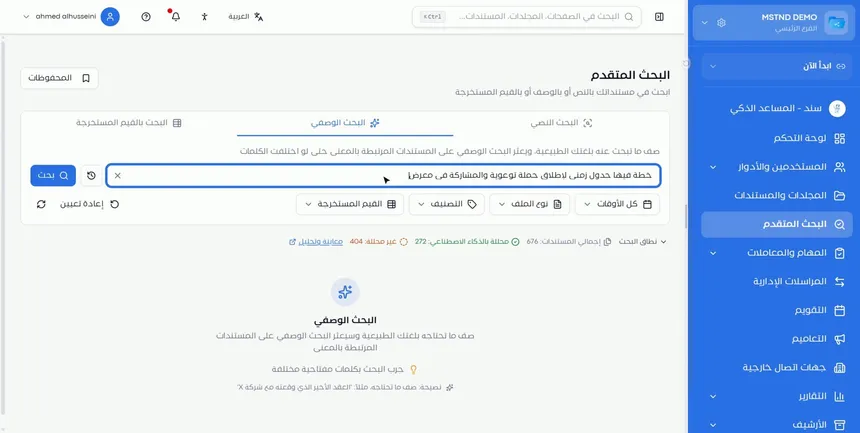
Choose the «Descriptive search» tab. The text above the field explains the idea: describe what you are looking for in natural language, and descriptive search finds the related documents by meaning even if the words differ.
You do not need to know the exact words in the document. Write the way you would explain to a colleague what you are looking for.
Step 2: Write a clear description, then «Search»
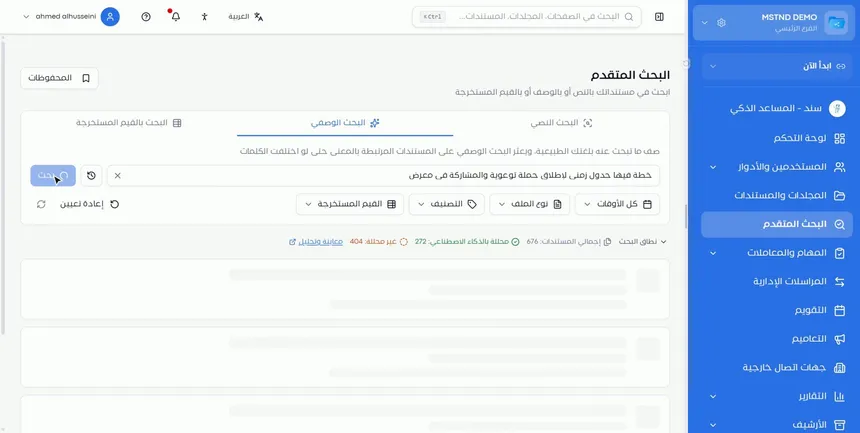
Type the description in the field, then click «Search». In the video, the description was: "a plan with a timeline for launching an awareness campaign and taking part in an exhibition".
A good description combines several elements:
| Element | Example |
|---|---|
| Document type | Plan, contract, minutes, report |
| Distinctive content | Timeline, delay penalty, recommendations |
| Topic or entity | Awareness campaign, equipment supplier, quality committee |
| Event or context | Taking part in an exhibition, license renewal |
Step 3: Review the AI-ranked results and the match percentage
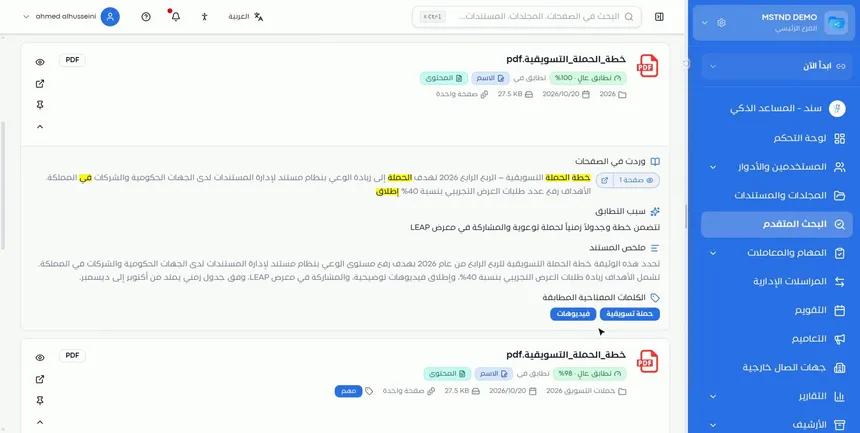
The «Descriptive search results» appear with the «Ranked by AI» tag. AI ranks the results by meaning, and each document shows its match percentage, such as «High match · 100%».
As in text search, tags show where the match occurred, such as the name or the content, along with the document's information: folder, date, size and number of pages.
Step 4: Understand why the document appeared
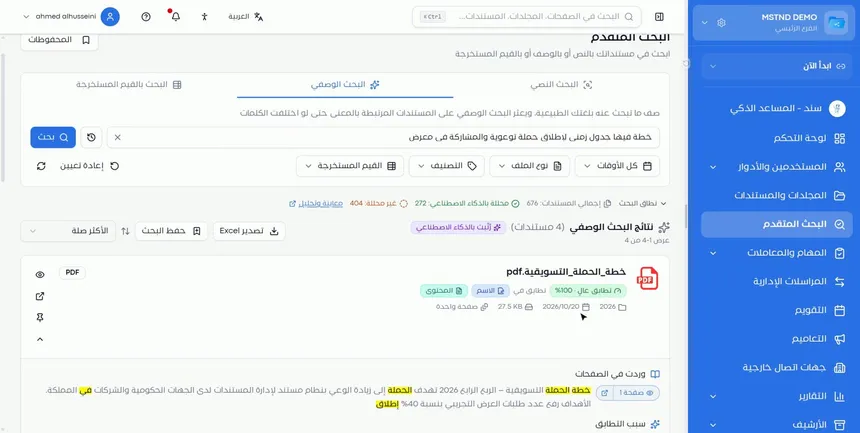
Under each result, the search agent explains why this document appeared:
- Match reason: an explanation of how the document relates to your description.
- Document summary: a quick idea of its content.
- Matching words: with the pages where they appeared, and the matches highlighted.
This explanation lets you judge the result before opening it. If the match reason is far from what you mean, you move straight to the next result.
Step 5: Move to «Search by extracted values»
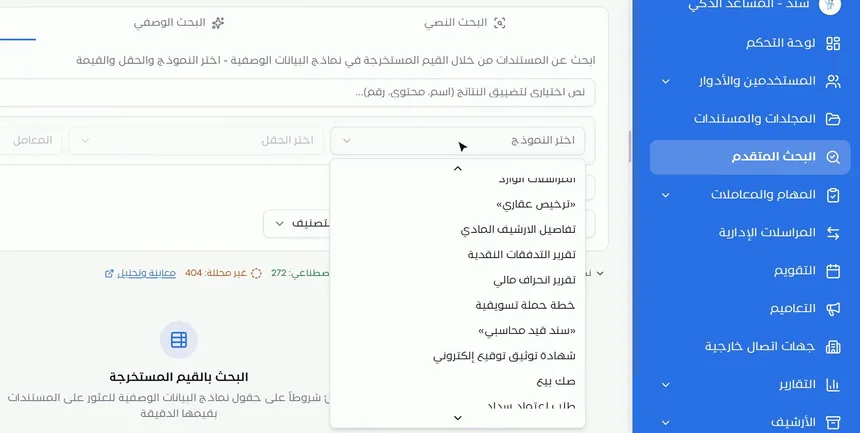
Choose the «Search by extracted values» tab. The text above it explains what it does: searching for documents through the values extracted in metadata templates, by choosing the template, the field and the value.
This search fits when you know the specific piece of information you want, such as the name of an entity or the value of a field, and you want every document that holds it.
Step 6: Choose the metadata template, then the field, the operator and the value
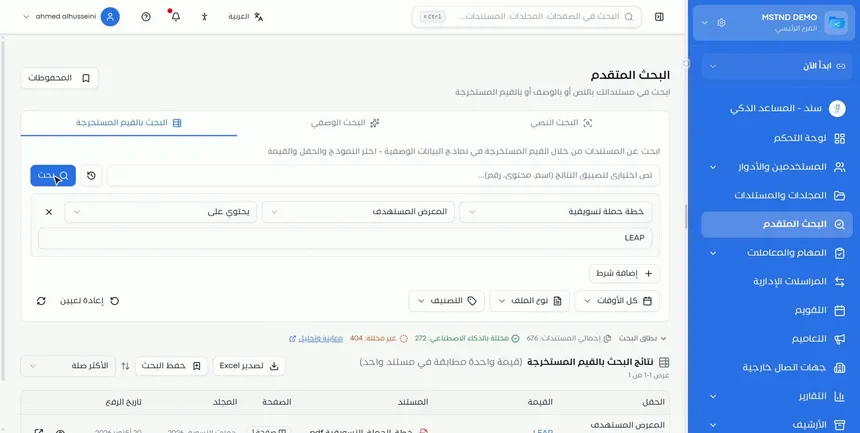
Build the search condition from four parts:
- Metadata template: such as «Marketing campaign plan».
- Field: one of the template's fields, such as «Target exhibition».
- Operator: the comparison method, such as «Contains».
- Value: what you are looking for, such as the exhibition's name.
Then click «Search». You can also type optional text in the top field to narrow the results by a name, content or a number.
Step 7: Read the result in the table and add conditions when needed
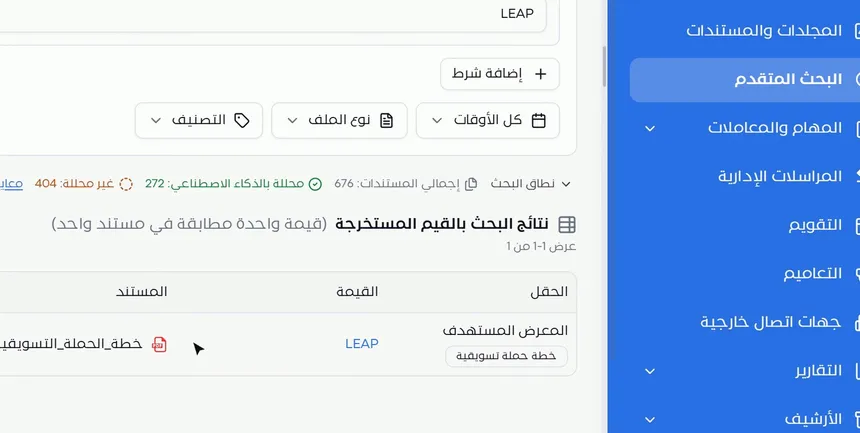
The «Search by extracted values results» appear in a table, with the number of matching values and the number of documents. The table's columns:
| Column | What it shows |
|---|---|
| Field | The field's name and the metadata template it belongs to |
| Value | The extracted value that matched the condition |
| Document | The document the value was extracted from |
| Page | The number of the page where the value appeared |
The table also shows information such as the folder and the upload date. If you want to narrow the results further, click «Add condition» and add another field and its value.
Options and their effect
| Option or setting | What it does | When to use it |
|---|---|---|
| «Descriptive search» | Searches by meaning according to your description | When you do not know the exact words in the document |
| Match percentage | Shows how close the document is to the description | To prioritize which results to review first |
| Match reason and summary | Explain why the document appeared | To judge the result before opening it |
| «Search by extracted values» | Searches by template fields and their values | When you know the specific information you need |
| Metadata template | Sets the type of documents being searched | Always, in a search by values |
| Field | Sets the information being searched for | Always, in a search by values |
| Operator (such as «Contains») | Sets the comparison method | Depending on how precisely you know the value |
| Optional text | Narrows the results by a name, content or a number | To reduce a large number of results |
| «Add condition» | Adds another condition to the search | For more precise results across more than one field |
| Period, file type and category | Extra filters for the results | To limit the results by time or by type |
| «Save search» and «Saved» | Save the search and run it again | For recurring searches |
Practical scenarios
Scenario: A marketing manager in a trading company looks for an old plan
Situation: The manager remembers a previous campaign plan with a timeline for taking part in an exhibition, but remembers neither its name nor the year.
What you do in Mstnd:
- Open «Descriptive search».
- Type: "a campaign plan with a timeline and taking part in an exhibition".
- Review the match percentage and the match reason of the top results.
- Open the closest plan.
Result: The plan is found by describing its idea, without remembering its name.
Scenario: The procurement department of a government entity gathers a supplier's contracts
Situation: All the contracts in which a particular supplier's name appears in the «Second party» field are needed.
What you do in Mstnd:
- Open «Search by extracted values».
- Choose the contracts template, the field for the second party and the «Contains» operator, and type the supplier's name.
- Review the table, and add another condition if you want to limit it to a particular type of contract.
Result: A table of all the matching contracts, with the number of the page where the value appeared.
Scenario: A counsel at a law firm looks for a precedent
Situation: The counsel is looking for a previous memo that dealt with a dispute over the late delivery of a construction project.
What you do in Mstnd:
- Open «Descriptive search».
- Type: "a memo about a dispute caused by the late delivery of a construction project and delay penalties".
- Read the summary of each result and its match reason.
- Open the most suitable one and ask Sanad about it from the «Chat» tab.
Result: A similar memo is found, even if it used different terms.
Scenario: The quality department of a hospital reviews reports
Situation: All the incident reports in which the department field holds the value of the emergency department are needed.
What you do in Mstnd:
- Open «Search by extracted values».
- Choose the incident reports template and the department field, and type the value.
- Narrow by time period.
- Save the search to review it monthly.
Result: A ready review list that updates every time you run the search.
How it relates to other features
- Text search: when you know the exact word or number, text search is faster and more precise, and it is on the same page.
- Metadata: linking documents to metadata templates is what makes searching by extracted values possible.
- Metadata templates: the library of templates and fields you choose from in a search by values.
- Smart document agent: analyzes the document and extracts the summary and the entities that search makes use of.
- Sanad, the AI assistant: you can also ask Sanad, in your own words, to look for a document and summarize it.
- Sanad chat about the document: once you find the document, ask Sanad about its details from the «Chat» tab.
Tips and best practices
- In descriptive search, mention the document's type, its distinctive content and its context.
- Do not type a single word in descriptive search; it is designed for descriptions, not single words.
- Read the match reason before opening the document to save your time.
- Use search by extracted values when you know the field and the value precisely.
- Use «Contains» when you do not know the full value as it was written.
- Add conditions gradually to see the effect of each condition on the results.
- Make sure documents are linked to the right metadata templates; this improves the results of searching by values.
Warnings and common mistakes
FAQ
What is descriptive search in Mstnd?
It is an AI search in which you describe the document you want in natural language. It finds the related documents by meaning even if the words differ, and ranks them with a match percentage.
Do I need to know the words in a document to search for it?
No. In «Descriptive search», it is enough to describe the document's idea and content in your own words.
What does the match percentage mean in smart search results?
It is a percentage that shows how close the document is to your description, and it comes with the match reasons, a summary of the document and the matching words.
How do I search for a specific field's value inside documents?
In the «Search by extracted values» tab, choose the metadata template, then the field, then the operator such as «Contains», type the value and click «Search».
Can I search by more than one field at the same time?
Yes. Click «Add condition» to add another field and its value to the search.
What is the difference between text search and descriptive search?
Text search finds words and numbers exactly as you typed them inside documents, while descriptive search understands your description and finds the related documents by meaning even if the words differ.
What does the Search by extracted values results table show?
It shows the field, the value, the document and the page number, along with information such as the folder and the upload date.
Can I save smart searches?
Yes. A «Save search» button appears above the results, and you will find your saved searches in «Saved».
Summary
- «Descriptive search» finds documents from your description of them, even if the words differ.
- Each result appears with its match percentage, its reason, a summary of the document and the matching words.
- «Search by extracted values» searches by metadata template, field, operator and value.
- Results by value appear in a table that identifies the document and the page, and you can add more conditions.
- Choose text search for exact words, descriptive search for ideas and extracted values for specific fields.
Try it free: Create your organization's account in Mstnd
Was this article helpful?
Related articles
 1:16
Text search in Mstnd: search inside the content of your files
Learn Mstnd text search: find a word, number or date inside file names, content and extracted values, with highlighted matches, filters and saved searches.
 1:02
Metadata: structured fields for every document, powered by AI
Learn the «Metadata» tab in Mstnd: create a field template with AI or link an existing one, auto-extract the values with a confidence level, then confirm them.
 0:52
Metadata templates in Mstnd: design the fields you need
Learn to create metadata templates in Mstnd: text, number, date and list fields, required fields, AI auto-fill and a library of reusable fields.
 0:59
The Mstnd smart document agent: understand your document before you read it
Mstnd's smart document agent analyzes each file: text, summary and entities, plus suggested status, categories, tags, tasks and access with a confidence score.
 0:47
Sanad, the AI assistant in Mstnd: ask in your own words and let it do the work
Sanad is the Mstnd AI assistant: ask in your dialect; it searches and summarizes documents, asks to clarify and runs commands like creating a folder, with undo.
 0:32
Sanad chat about the document: ask your document and get an answer
Learn the «Chat» tab on the Mstnd document page: ask the AI assistant Sanad about a specific document, get its summary and rate answers drawn from its text.