

AI and document processing: automatic analysis and confidentiality classification
In this article
The «AI and document processing» page in the Mstnd settings is where your organization decides when AI analyzes its files and how it handles their confidentiality level. You choose the automatic analysis mode (for all files, for specific folders, or manually on request), then choose the behavior of «AI confidentiality classification»: off, suggest or automatic. The goal is to get the benefits of smart analysis to the extent you want, and to keep confidentiality levels consistent without relying entirely on individual judgment.
Quick overview
| Item | Details |
|---|---|
| Module | Settings |
| Where it is in the interface | Side menu → «Settings» → «AI and document processing» |
| Direct link | https://app.mstnd.sa/settings/ai |
| Goal | Set the scope of smart document analysis, and how the confidentiality level is determined with the help of AI |
| Who it is for | The system administrator, the information security officer and the records and archive officer in the organization |
| Video length | About half a minute |
| What you will learn | The difference between the three analysis modes, when to choose «Off», «Suggest» or «Automatic» for confidentiality classification, and how to save the settings |
Watch the video
In about half a minute, the video shows the page's two sections in order: the automatic analysis mode, then AI confidentiality classification, and it ends with saving the settings.
Why this feature?
Smart analysis in Mstnd reads the document, extracts its text, summarizes it, and suggests categories, tags, dates and actions for it, as the Smart document agent guide explains. This is a useful capability, but organizations differ in the volume and nature of their files. Some organizations want every file analyzed as soon as it arrives, some want to limit analysis to their core work folders, and some prefer that users decide for themselves when to analyze.
The confidentiality level, for its part, is one of the most sensitive pieces of data in any records system. When each employee sets it by their own judgment, two problems appear: sensitive documents stay at a low level because nobody noticed their content, and similar documents carry different levels because different people uploaded them. This page was designed to let the system read the content and suggest the right level from the words it finds, so that the levels stay consistent.
| Before configuring the setting | After configuring the setting |
|---|---|
| The confidentiality level depends on the attention of whoever uploaded the file | The system reads the document and suggests the level from its content |
| Similar documents with different confidentiality levels | One standard applied to everything that arrives |
| A sensitive document may stay unprotected until someone discovers it | In «Automatic» mode, the level is raised as soon as the need is detected |
| Analyzing all files or none, with no middle option | Analysis for all, for specific folders, or manual, as needed |
Value for the organization: consistent information protection, and control over the scope of smart processing in line with the organization's policy. Value for the individual: less effort spent thinking about the confidentiality level at every upload; employees get a ready suggestion that they review and approve.
Where to find it
- From the side menu, open «Settings».
- Choose «AI and document processing».
- The page appears with two sections: «Automatic analysis settings for folders and documents», then «AI confidentiality classification», with a «Save» button at the bottom.
Direct link: https://app.mstnd.sa/settings/ai
Concepts and terms
| Term | Meaning in Mstnd |
|---|---|
| Smart analysis | Processing that AI performs on a file to extract its text, summary, data and suggestions |
| Automatic analysis mode | The setting that decides when smart analysis is applied without intervention: to everything, to specific folders, or only manually |
| Automatic for all | Applying smart analysis automatically to every file in all folders, without exception |
| Customize for specific folders | Applying smart analysis automatically only to the files of the folders you choose |
| Manual per folder or file | Running smart analysis yourself on any folder or file from the folders page, whenever you want |
| Confidentiality level | A document's sensitivity level, which determines how strongly it is protected; it is set for documents and for folders |
| AI confidentiality classification | The system reads each document and suggests a suitable confidentiality level from the words it finds in it |
| Raise only | A restriction in «Automatic» mode: the system applies the detected level if it raises the protection level, and does not use it to lower it |
Step by step
Step 1: Choose the automatic analysis mode
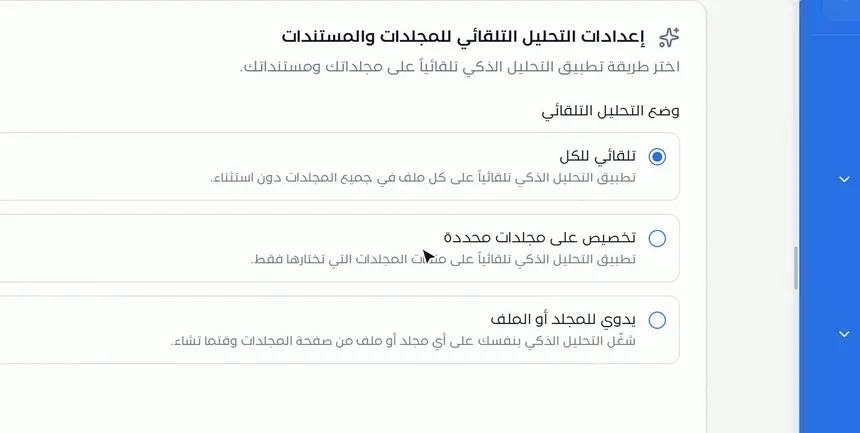
At the top of the page is the «Automatic analysis settings for folders and documents» section, with the subtitle «Choose how smart analysis is applied automatically to your folders and documents». Under it, «Automatic analysis mode» offers three options:
- «Automatic for all»: smart analysis is applied automatically to every file in all folders, without exception.
- «Customize for specific folders»: smart analysis is applied automatically only to the files of the folders you choose.
- «Manual per folder or file»: you run smart analysis yourself on any folder or file from the folders page, whenever you want.
Choose «Automatic for all» if you want every file to be ready for content search and agent suggestions as soon as it is uploaded. Choose «Customize for specific folders» if you have core work folders that are worth analyzing and other folders that do not need it. «Manual» suits an organization that wants the analysis decision to be in the user's hands every time.
Step 2: Get to know the confidentiality classification options
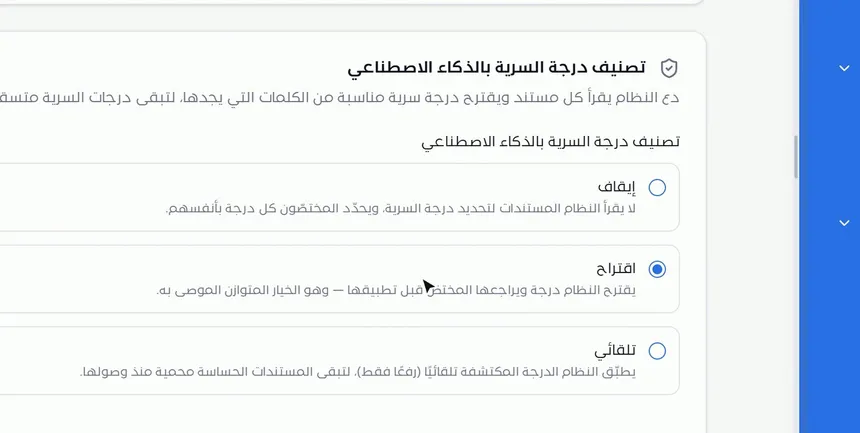
The second section is titled «AI confidentiality classification», and its description invites you to let the system read each document and suggest a suitable confidentiality level from the words it finds, so that confidentiality levels stay consistent. The three options:
- «Off»: the system does not read documents to determine the confidentiality level, and the specialists set each level themselves.
- «Suggest»: the system suggests a level, and the specialist reviews it before it is applied.
- «Automatic»: the system applies the detected level automatically (raise only), so that sensitive documents are protected from the moment they arrive.
The essential difference between the options is who makes the final decision. With «Off», the decision belongs to a person alone. With «Suggest», the system suggests and a person decides. With «Automatic», the system applies the level directly, but in one direction only: raising the protection level.
Step 3: Choose «Suggest» and save
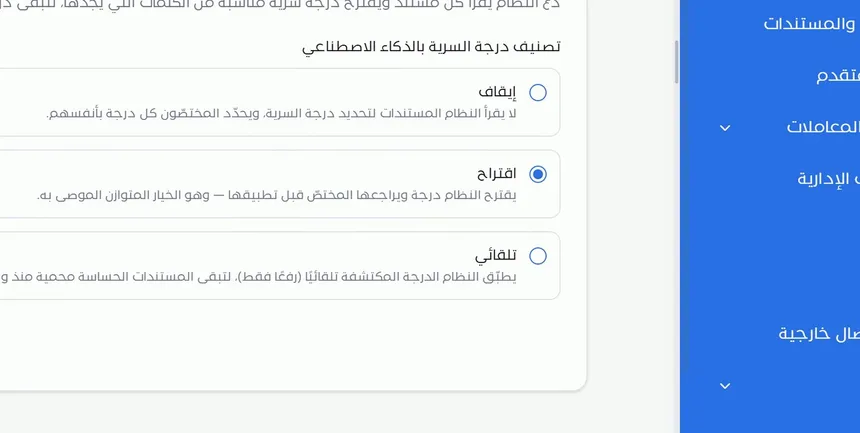
The option the interface recommends is «Suggest», which it describes as «the balanced option». In this mode, the system reads the document and suggests the level, and then the document owner or the specialist approves it. This way you combine two advantages: the system does not miss sensitive words that an employee might overlook, and no level is applied without human review.
After choosing the right mode in both sections, scroll down to the bottom of the page and click «Save». No change is applied before you save.
Step 4: Check the save message
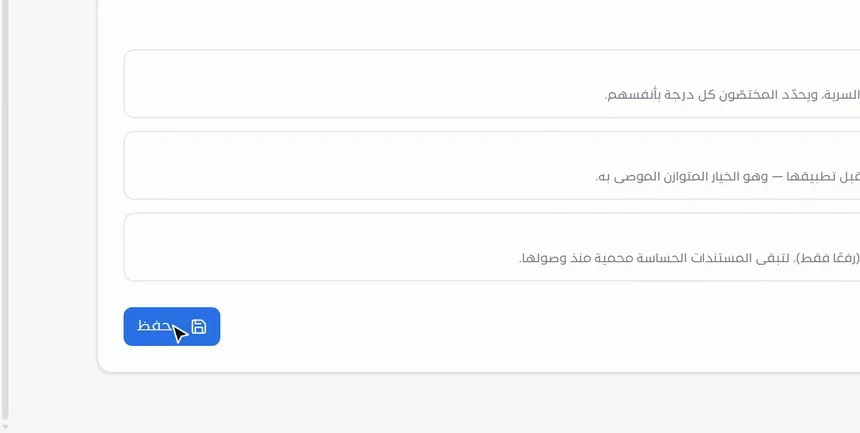
After you click «Save», a message confirms that the settings were saved. From that moment, the system handles files according to the mode you chose: it analyzes them automatically or waits for your request, and it suggests the confidentiality level, applies it, or leaves it to the specialists.
Options and their effect
| Option or setting | What it does | When to use it |
|---|---|---|
| «Automatic for all» | Analyzes every file in all folders automatically | When you want all of the organization's content to be searchable and analyzable as soon as it is uploaded |
| «Customize for specific folders» | Analyzes only the files of the selected folders | When you have core folders that are worth analyzing and others that do not need it |
| «Manual per folder or file» | Analyzes only when a user runs the analysis from the folders page | When you prefer the analysis decision to be in the user's hands every time |
| Confidentiality classification: «Off» | The system does not read documents to determine confidentiality | When the organization relies entirely on the specialists' judgment |
| Confidentiality classification: «Suggest» | The system suggests the level and the specialist approves it | The balanced option, recommended for most organizations |
| Confidentiality classification: «Automatic» | Applies the detected level automatically, raise only | When protecting sensitive documents from the moment they arrive is a top priority |
| «Save» | Applies the settings at the organization level | After any change in either section |
Practical scenarios
Scenario: A government entity protects its sensitive correspondence
Situation: A government entity receives letters and documents from many entities every day, and some of them contain information that must not stay at a low confidentiality level, even for a few hours.
What you do in Mstnd:
- Open «AI and document processing».
- In the analysis mode, choose «Automatic for all» so that all files are analyzed as soon as they arrive.
- In confidentiality classification, choose «Automatic» so that the level is raised as soon as sensitive words are detected.
- Click «Save», then turn on «Confidentiality level watermark» in the Smart watermark settings.
Result: A sensitive document gets a suitable confidentiality level from the moment it arrives, and its level appears on its pages, without waiting for a manual review.
Scenario: A law firm balances accuracy and speed
Situation: A law firm has contracts, memos and correspondence with clients. The lawyers want help in determining the level, but they want the final decision to be theirs.
What you do in Mstnd:
- Choose «Customize for specific folders» and select the case and contract folders.
- In confidentiality classification, choose «Suggest».
- Click «Save».
- The lawyer who owns the document reviews the suggested level and approves or edits it from the «Details» tab.
Result: Consistent confidentiality levels on the case files, while the final decision stays with the specialist.
Scenario: A hospital limits analysis to administrative files
Situation: A hospital's administration uses Mstnd for its administrative files, such as policies, supply contracts and correspondence, and wants to define exactly which folders are subject to smart processing.
What you do in Mstnd:
- Choose «Customize for specific folders».
- Select the policies, supply contracts and administrative correspondence folders.
- Choose «Suggest» for confidentiality classification and click «Save».
Result: Smart analysis runs only where the administration wants it, and the decision on the confidentiality level stays with the specialists.
Scenario: A small trading company starting to use the system
Situation: A company has just started uploading its archive and wants to get to know the analysis results before applying it widely.
What you do in Mstnd:
- Choose «Manual per folder or file».
- Run the analysis on one folder from the folders page, and review the results in the «Smart agent» tab for a number of its documents.
- Once you are confident, go back to the settings, choose «Customize for specific folders» or «Automatic for all», and save.
Result: A gradual, well-considered move to automatic analysis, based on real experience.
How it relates to other features
- Smart document agent: it shows the analysis results for each document, from the extracted text and the summary to the suggestions you can apply, and the analysis mode on this page decides when it runs.
- Document details: in the «Details» tab you see the document's current confidentiality level and change it; it is the natural place to review the suggested level.
- Folders: you set a folder's confidentiality level when you create it, and you run manual analysis from there when the «Manual» mode is selected.
- Uploading files: after upload, files are analyzed automatically if the analysis mode covers the folder they were uploaded to.
- Text search: the search scope shows how many documents have been analyzed by AI and how many have not, which depends directly on the analysis mode.
- Smart watermark: its «Confidentiality level watermark» option shows the classified document's level on every page, which completes the effect of smart classification.
- Metadata: extracting field values with AI is part of the same smart processing system.
Tips and best practices
- Choose «Suggest» as the starting point for confidentiality classification; it is the balanced option the interface recommends.
- Do not move to «Automatic» before you review a sample of the suggestions and are confident that they fit the nature of your documents.
- If you choose «Customize for specific folders», review the folder list whenever you create new work folders.
- Link this setting to the organization's written information classification policy, so that employees understand the reason for the suggested level.
- Turn on «Confidentiality level watermark» so that the level is visible to everyone who views the document.
- Train document owners to review the suggested level in the «Details» tab instead of accepting it without reading.
- Record every change on this page and its reason, because its effect covers the whole organization.
Warnings and common mistakes
FAQ
What is the «AI and document processing» page in Mstnd?
It is a settings page where you decide when AI analyzes your organization's files and how it handles their confidentiality level, for the whole organization.
What is the difference between «Automatic for all» and «Customize for specific folders»?
«Automatic for all» analyzes every file in all folders without exception, while «Customize for specific folders» limits automatic analysis to the files of the folders you choose.
How do I run smart analysis manually?
Choose the «Manual per folder or file» mode and save, then run the analysis yourself on any folder or file from the folders page, whenever you want.
Can AI determine a document's confidentiality level in Mstnd?
Yes. With «AI confidentiality classification», the system reads the document and suggests a suitable confidentiality level from the words it finds in it, and you can have it only suggest the level or apply it automatically.
What is the difference between «Suggest» mode and «Automatic» mode in confidentiality classification?
In «Suggest», the system suggests the level and the specialist approves it before it is applied; in «Automatic», the system applies the detected level directly, raise only.
What does «raise only» mean?
It means that automatic mode applies the detected level to raise a document's protection level and does not use it to lower its level, so that sensitive documents stay protected from the moment they arrive.
Which option is recommended for confidentiality classification?
The interface recommends the «Suggest» option and describes it as the balanced option, because it combines the system reading the content with the specialist's review before the level is applied.
Does the confidentiality level of documents change as soon as I choose a mode?
No setting is applied before you click «Save». After saving, the system handles documents according to the mode you chose.
Summary
- The «AI and document processing» page sets the scope of smart analysis and confidentiality classification for the whole organization.
- The analysis mode has three options: «Automatic for all», «Customize for specific folders» and «Manual per folder or file».
- AI confidentiality classification has three options: «Off», «Suggest», and «Automatic», which only raises the level.
- «Suggest» is the recommended balanced option, because the final decision stays with the specialist.
- The effect of classification is complete with the confidentiality level watermark and with reviewing the level in the document details.
Try it free: Create your organization's account in Mstnd
Was this article helpful?
Related articles
 0:59
The Mstnd smart document agent: understand your document before you read it
Mstnd's smart document agent analyzes each file: text, summary and entities, plus suggested status, categories, tags, tasks and access with a confidence score.
 0:44
Document details: everything about your document in one place
Learn the «Details» tab in Mstnd: expiry date, path, type, size, creator, confidentiality and status changes with a reason, reminder, tags and system number.
 1:26
Folders in Mstnd: organize your organization's documents from day one
Learn the Mstnd Folders page: Personal space, structure folders, Shared with me, new folders with a confidentiality level, color and icon, views and actions.
 1:28
The smart watermark in Mstnd: protect your documents with your brand identity
Design a smart watermark with your logo, user details and date, set when and where Mstnd adds it to documents and correspondence, plus a confidentiality mark.
 1:16
Text search in Mstnd: search inside the content of your files
Learn Mstnd text search: find a word, number or date inside file names, content and extracted values, with highlighted matches, filters and saved searches.
 0:49
Uploading files to Mstnd: drag and drop, and the system does the rest
Mstnd file upload: drag and drop several files at once, change the destination folder, set status, category and tags, automatic analysis and import from a link.