

Sanad chat about the document: ask your document and get an answer
In this article
The «Chat» tab on the Mstnd document page lets you talk with the AI assistant «Sanad» about one specific document. You ask it for a summary, or ask it a question about the content in your own words, and it answers from the text of the document itself; you can then rate the answer. This feature helps anyone who needs to understand a long document quickly, or to pull a specific piece of information out of it without reading it in full.
Quick overview
| Item | Details |
|---|---|
| Module | Document page |
| Where it is in the interface | The side panel on the document page → the «Chat» tab |
| Direct link | https://app.mstnd.sa/file/<document ID> |
| Goal | Ask Sanad questions about a specific document and get answers based on its text |
| Who it is for | Managers and decision makers, legal and financial reviewers, and anyone who deals with long documents |
| Video length | About 32 seconds |
| What you will learn | Opening the chat, using the ready-made suggestions, requesting the summary, asking free-form questions, rating the answer and starting a new chat |
Watch the video
In about half a minute, the video shows how to ask Sanad for a summary of a marketing campaign plan, then ask it a specific question about who is responsible for the launch phase and when it takes place, and how to start a new chat.
Why this feature?
Long documents take time. A twenty-page plan, a contract with dozens of clauses or an annual report all need careful reading before you know what matters to you in them. And what you need is often a single line: a date, a responsible person or an amount.
«Chat» shortens that path. Instead of reading the whole document, you ask Sanad directly, and it answers from the text of the document open in front of you. The chat is limited to this document, so the answer does not get mixed up with other documents.
| Before Sanad chat | With Sanad chat |
|---|---|
| You read the whole document to grasp its general idea | You request «Summarize this document» and get the summary in seconds |
| You search the tables by hand for a date or a responsible person | You ask a direct question in your own words and get the answer |
| You write a summary yourself before the meeting | You use Sanad's summary as a starting point and check it against the document |
| You do not know whether your understanding of the document is accurate | You compare the answer with the text shown in the viewer next to it |
Value for the individual: less time spent reading, and direct answers to specific questions.
Value for the organization: faster decisions based on the actual content of documents, and rating the answers helps improve the quality of the assistant.
Where to find it
- Open any document from the folders or from the search results.
- In the side panel of the document page, choose the «Chat» tab, next to the «Comments» tab.
- The heading «Chat with this document» appears, with a line that names the document and explains that you are talking to Sanad about it.
Direct link: https://app.mstnd.sa/file/<document ID>
Concepts and terms
| Term | Meaning in Mstnd |
|---|---|
| Sanad | The AI assistant in Mstnd; it understands your questions in your language and answers them |
| The «Chat» tab | The space for talking with Sanad inside the document page; its scope is «This document» |
| Ready-made suggestions | Suggested questions you can start with in one click, such as «Summarize this document» and «What are the key points in this document?» |
| Summary | A short overview of the document's most important content, such as the goals, the timeline and the responsibilities |
| Rating the answer | The like and dislike icons under each answer, used to rate its quality |
| «New chat with Sanad» | A button that starts a new conversation about the same document on a different topic |
| The «Talk to Sanad...» field | The box where you type your free-form question |
Step by step
Step 1: Open the «Chat» tab
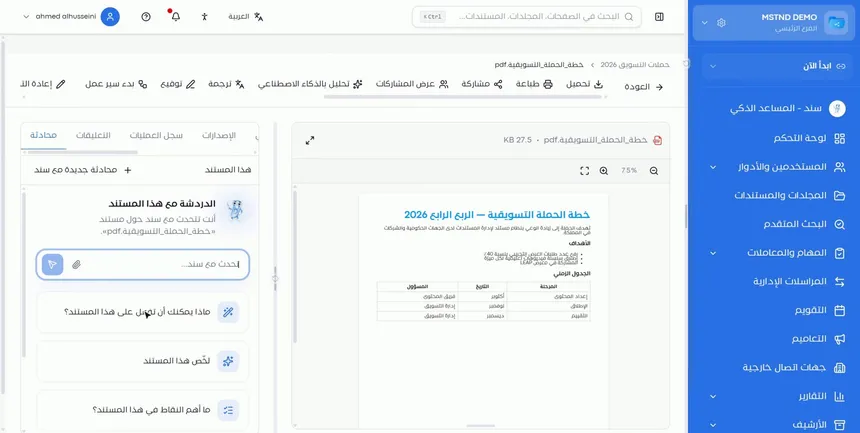
On the document page, choose the «Chat» tab in the side panel. The heading «Chat with this document» appears, and under it a line that reminds you of the name of the document you are talking about. At the top of the panel you see the chat's scope, «This document», and the «New chat with Sanad» button.
Under the input field are ready-made suggestions, including:
- «What can you do with this document?»
- «Summarize this document»
- «What are the key points in this document?»
The advantage here is that the document stays displayed in the viewer next to the chat, so you can read Sanad's answer and check it against the text at the same time.
Step 2: Start with a ready-made suggestion such as «Summarize this document»
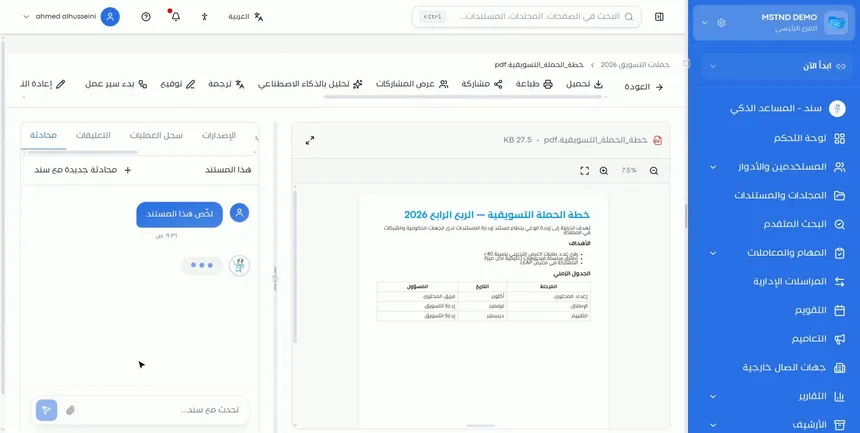
Click the «Summarize this document» suggestion. Your request appears in the chat with the time it was sent, and an indicator shows that Sanad is preparing the answer.
Ready-made suggestions are useful when you open a document for the first time and do not know what you are looking for. Start with the summary to get the general picture, then move on to specific questions.
Step 3: Read the summary
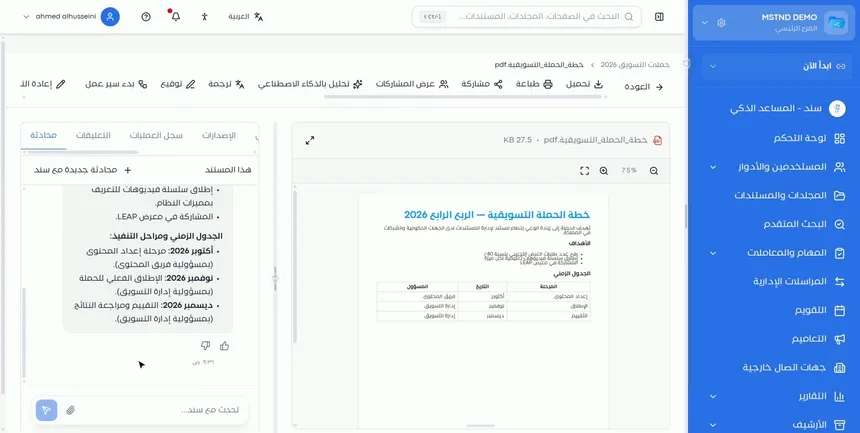
Within seconds, Sanad shows the summary organized in bullet points. In the video's example, a marketing campaign plan, the summary covered:
- The goals the plan aims to achieve.
- The timeline and implementation phases, by month.
- Who is responsible for each phase, such as the content team or the marketing department.
The summary follows the structure of the document itself: if the document contains a table of phases, dates and responsible parties, that shows up in the summary. Under the answer are the rating icons and the time of the reply.
Step 4: Ask any question about the content in your own words
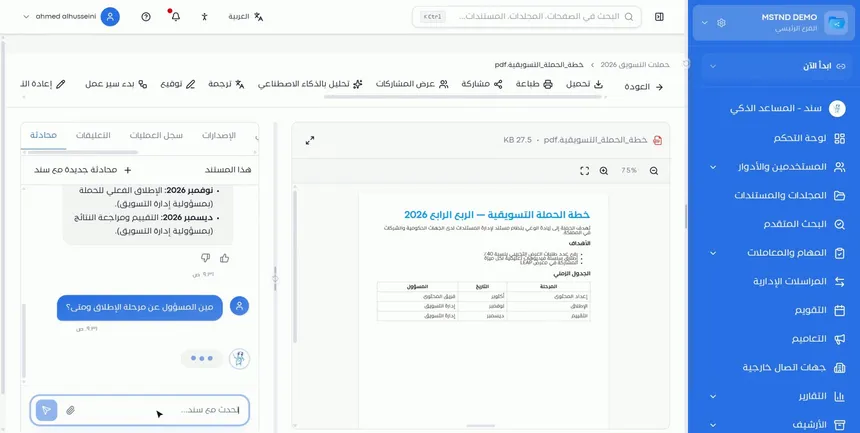
After the summary, type your question in the «Talk to Sanad...» field the way you normally would, then send it. You do not need any particular wording. In the video, the question was: «Who's responsible for the launch phase, and when?»
Specific questions give more precise answers. Instead of «What is in the document?», ask «When is the evaluation phase?» or «What are the numeric targets in the plan?»
Step 5: Get a precise answer from the document's text and rate it
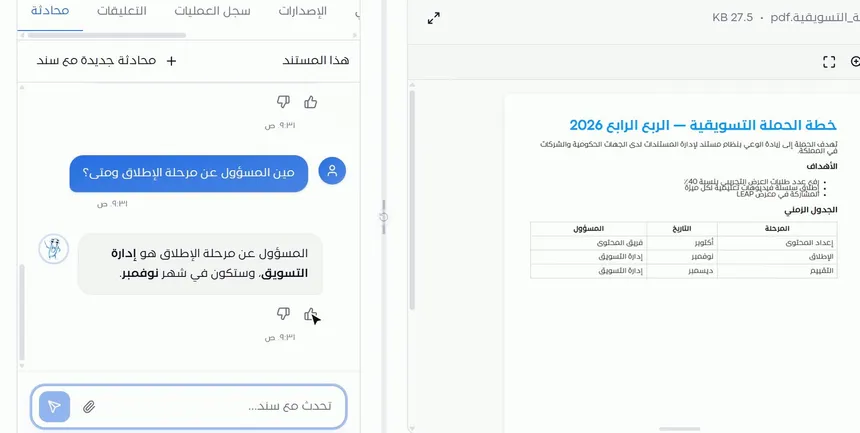
Sanad answers directly from the text of the document. In the example, it answered that the marketing department is responsible for the launch phase and that it will take place in November, which matches the table shown in the document next to the chat.
Under each answer are two icons for rating it: like or dislike. Use the rating after comparing the answer with the text.
Step 6: Start a new topic with «New chat with Sanad»
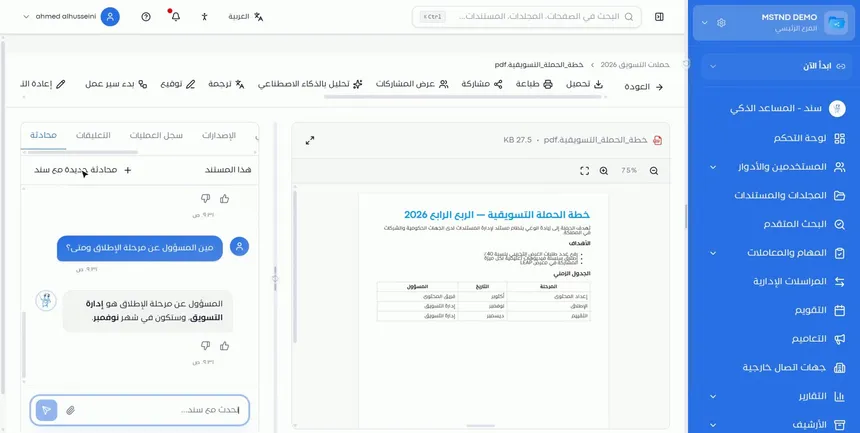
When you have finished with one topic and want to move to another, click «New chat with Sanad» at the top of the tab. A new chat about the same document begins.
Starting a new chat for each topic keeps the answers focused. For example: one chat to understand the timeline, and another to review the financial obligations.
Options and their effect
| Option or setting | What it does | When to use it |
|---|---|---|
| «What can you do with this document?» | Shows what Sanad can offer for this document | On first use, or with a new type of document |
| «Summarize this document» | Shows an organized summary of the content | To get a general idea before reading or before a meeting |
| «What are the key points in this document?» | Extracts the main points | For a quick review or to prepare for a discussion |
| The «Talk to Sanad...» field | Sends a free-form question in your own words | To look for a specific piece of information inside the document |
| The like icon | Rates the answer as helpful | When the answer matches the document's text and serves its purpose |
| The dislike icon | Rates the answer as unhelpful | When the answer is incomplete or inaccurate |
| «New chat with Sanad» | Starts a new conversation about the same document | When moving to a different topic |
Practical scenarios
Scenario: A marketing manager in a trading company prepares for a meeting
Situation: The marketing manager has been asked to present next quarter's campaign plan at a meeting in an hour, and the plan is long.
What you do in Mstnd:
- Open the plan, then the «Chat» tab.
- Click «Summarize this document».
- Ask: «What are the numeric targets in the plan?»
- Ask: «Who is responsible for each phase?»
Result: The manager walks into the meeting knowing the goals, the phases and the responsibilities, after checking them against the document.
Scenario: A legal advisor in a law firm reviews a contract
Situation: A long supply contract, and the contract's duration and termination conditions need to be found quickly.
What you do in Mstnd:
- Open the contract, then the «Chat» tab.
- Ask: «What is the duration of the contract?»
- Open «New chat with Sanad» and ask: «What are the conditions for terminating the contract?»
- Review the clauses referred to in the text of the contract.
Result: The advisor reaches the important clauses quickly, then spends their time analyzing them.
Scenario: A procurement officer in a contracting company
Situation: A price quotation from a supplier contains many tables, and the delivery period and payment terms need to be found.
What you do in Mstnd:
- Open the price quotation, then the «Chat» tab.
- Ask: «What delivery period is stated?»
- Ask: «What are the payment terms?»
- Rate the answers after matching them against the quotation.
Result: The officer prepares the supplier comparison summary in less time.
Scenario: An employee in a government entity reads a new regulation
Situation: A new internal regulation has been issued, and the employee wants to know which parts of it concern their department.
What you do in Mstnd:
- Open the regulation, then the «Chat» tab.
- Click «What are the key points in this document?»
- Ask about the procedures required of your department specifically.
Result: The employee understands what concerns them without reading the whole regulation the first time.
How it relates to other features
- Sanad, the AI assistant: the general Sanad page searches all your documents and carries out commands, while the «Chat» tab keeps the conversation within the open document.
- Smart document agent: the agent analyzes the document automatically and shows the summary, entities and insights; the chat lets you ask about whatever did not appear in the analysis.
- Comments: the neighboring tab; use the chat to understand the document, and comments to discuss what you understood with your colleagues.
- Document viewer: the document stays displayed next to the chat, so you can match the answer with the text directly.
- Smart search agent: when you do not know which document to ask, search by description first, then open the result and ask it from the «Chat» tab.
- Translation: if the document is in another language, you can create a translated copy and then talk with Sanad about it.
Tips and best practices
- Start with «Summarize this document» to understand the context, then move on to specific questions.
- Write one clear question in each message instead of several questions at once.
- Use the document's own terms in your question, such as the name of the phase or the clause.
- Open «New chat with Sanad» when you change the topic, to keep the answers focused.
- Match every important answer with the text shown in the viewer before relying on it.
- Rate the answers honestly; the rating shows the quality of each answer.
- Use the summary as a starting point for your notes, then add whatever comments the team needs.
Warnings and common mistakes
FAQ
How do I ask Sanad about a specific document in Mstnd?
Open the document, choose the «Chat» tab in the side panel, then type your question in the «Talk to Sanad...» field or pick a ready-made suggestion.
How do I summarize a document with AI in Mstnd?
From the «Chat» tab on the document page, click the «Summarize this document» suggestion, and Sanad shows an organized summary within seconds.
Does Sanad answer from outside the open document?
The «Chat» tab is dedicated to the open document: its scope is «This document», and the answers come from its text. To search all documents, use the general Sanad page.
Do I need a particular format to write the question?
No. Write your question the way you normally would; the more specific the question, the more precise the answer.
How do I rate Sanad's answer?
Under each answer there are two icons: like and dislike. Click the one that fits after comparing the answer with the document's text.
How do I start a new topic in the chat?
Click «New chat with Sanad» at the top of the «Chat» tab to start a new conversation about the same document.
What is the difference between Sanad chat and the smart document agent?
The agent analyzes the document automatically and shows a ready-made summary, entities and insights, while the chat lets you ask your own questions and get direct answers.
What is the difference between the «Chat» tab and the «Comments» tab?
«Chat» is a conversation between you and Sanad about the document's content, while «Comments» is a discussion between you and your colleagues, in which you can mention them with @.
Summary
- The «Chat» tab lets you ask Sanad about the open document specifically.
- Ready-made suggestions, such as «Summarize this document», give you the general picture in seconds.
- You can ask any question in your own words, and Sanad answers from the document's text.
- Rate the answers with the like and dislike icons, and match them with the text before relying on them.
- «New chat with Sanad» keeps each topic in its own separate, focused chat.
Try it free: Create your organization's account in Mstnd
Was this article helpful?
Related articles
 0:47
Sanad, the AI assistant in Mstnd: ask in your own words and let it do the work
Sanad is the Mstnd AI assistant: ask in your dialect; it searches and summarizes documents, asks to clarify and runs commands like creating a folder, with undo.
 0:59
The Mstnd smart document agent: understand your document before you read it
Mstnd's smart document agent analyzes each file: text, summary and entities, plus suggested status, categories, tags, tasks and access with a confidence score.
 0:20
Document comments in Mstnd: discuss with your team in one place
Learn the «Comments» tab in Mstnd: write a note, mention a colleague with @ to notify them, and keep the discussion beside the document with your name and time.
 0:51
The document viewer in Mstnd: view any document without downloading it
Learn the Mstnd document viewer: view a file in the system without downloading it, zoom or go full screen, and use the actions bar and side panel in one place.
 0:54
The smart search agent in Mstnd: describe what you want and find it
Learn the Mstnd smart search agent: describe a document in your words to find it by meaning, with a match percentage and reason, or search AI-extracted values.
 0:38
Document translation in Mstnd: a translated copy with the same formatting
Mstnd translation makes a separate copy in the same format, detects the source language and applies the Saudi government glossary without changing the original.