


Text search in Mstnd: search inside the content of your files
In this article
«Text search» in Mstnd lets you search by keyword, number or date inside file names, inside their text content and in the values extracted from them, not only in their names. Each result shows where the match was found and the pages where the word appears, with the matches highlighted, and you can narrow the results with filters and save the search to come back to it. This feature helps anyone who needs to reach a document whose content they partly remember but whose name or location they do not.
Quick overview
| Item | Details |
|---|---|
| Module | Advanced search |
| Where it is in the interface | Side menu → «Advanced search» → the «Text search» tab |
| Direct link | https://app.mstnd.sa/search?mode=ocr |
| Goal | Reach documents by searching their names, their text and the values extracted from them |
| Who it is for | All users, and especially archive, contracts, procurement and legal affairs officers |
| Video length | About 1 minute and 16 seconds |
| What you will learn | Reading the search scope, writing the query, understanding where each match was found, previewing with highlights, filters and match options, saving a search and managing saved searches |
Watch the video
In about a minute and a quarter, the video shows a search for the phrase "marketing campaign", then narrows the results with filters and match options until only two documents remain, then saves the search and runs it from «Saved».
Why this feature?
Searching by name alone is not enough in most organizations. File names are written in different ways, and many documents carry generic names such as "letter" or "scan_001". And when you remember that a contract mentions a particular supplier's name or a specific number, searching by name does not help you.
«Text search» searches the content of the documents themselves, including scanned documents once they have been analyzed, and the values that AI has extracted from them. It shows you exactly where it found the word, so you reach the information without opening files one after another.
| Before text search | With text search in Mstnd |
|---|---|
| You search by name and fail if you do not remember it exactly | You search by any word, number or date that appears inside the document |
| Scanned files are images that cannot be searched | Analyzed documents are searched in their extracted text |
| You open files one after another to find the information | You see the pages where the word appears, highlighted |
| You repeat the same search from scratch every week | You save the search and run it with one click from «Saved» |
Its value for the organization: Less time spent searching, and real use of the scanned archive.
Its value for the individual: Reaching the document you need by what you remember of its content, not of its name.
Where to find it
- From the side menu, choose «Advanced search».
- The «Advanced search» page appears with three tabs: «Text search», «Descriptive search» and «Search by extracted values».
- Choose the «Text search» tab.
Direct link: https://app.mstnd.sa/search?mode=ocr
Concepts and terms
| Term | Meaning in Mstnd |
|---|---|
| Text search | A search by words, numbers or dates in file names, their text content and the values extracted from them, with the matches highlighted |
| Search scope | A summary showing the total number of documents, how many of them AI has analyzed and how many it has not |
| Analyzed document | A document whose text and values AI has extracted, so its content can be searched |
| Extracted values | Fields and data that AI has extracted from the document, such as names, dates and amounts |
| «Matched in» | Tags under each result that show where the word was found: the name, the content or the extracted values |
| «Found on pages» | A section that shows the pages where the word appeared, with a highlighted excerpt |
| Pin | An action on a result that pins the document to the search results when you save the search |
| «Saved» | The list of searches saved under your name, which you can run, rename or delete |
Step by step
Step 1: Open «Advanced search» and choose «Text search»
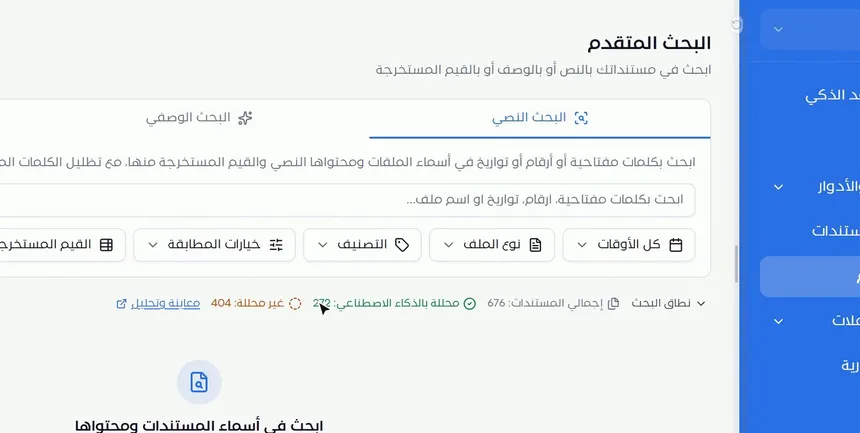
From the side menu, open «Advanced search», then choose the «Text search» tab. The text above the field explains what it does: searching by keywords, numbers or dates in file names, their text content and the values extracted from them, with the matching words highlighted.
Step 2: Check the search scope
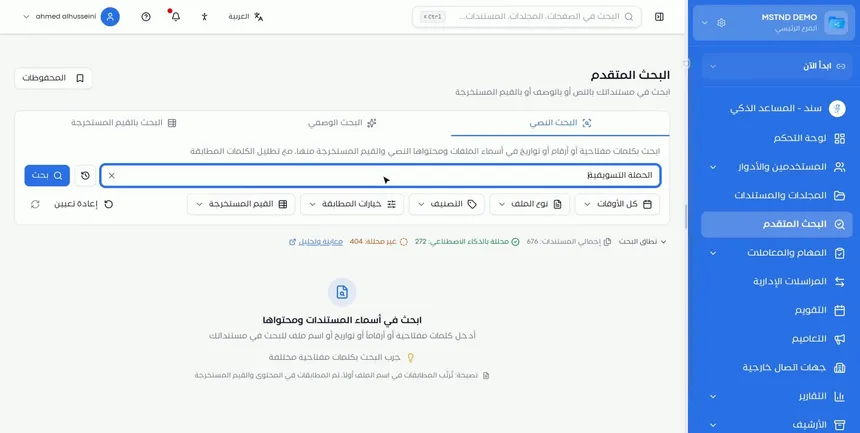
The «Search scope» appears under the filters. It shows:
- The total number of documents.
- The number of documents analyzed by AI.
- The number of documents not analyzed.
This number matters for understanding the results, because searching the content and the extracted values depends on the document having been analyzed. If a large share of your documents has not been analyzed, some documents may not appear when you search for a word from their content.
Step 3: Type a word, number or date, then «Search»
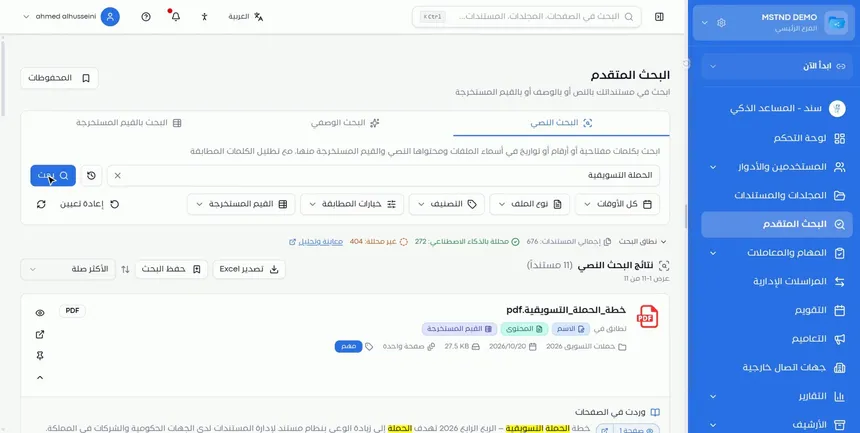
Type what you are looking for in the field, then click «Search». It can be:
- A keyword: such as the name of a project or an entity.
- A number: such as a contract number, an invoice number or an organization's ID number.
- A date: such as the date of a meeting or an issue date.
In the video, the search was for the phrase "marketing campaign".
Step 4: Read the results and where each one matched
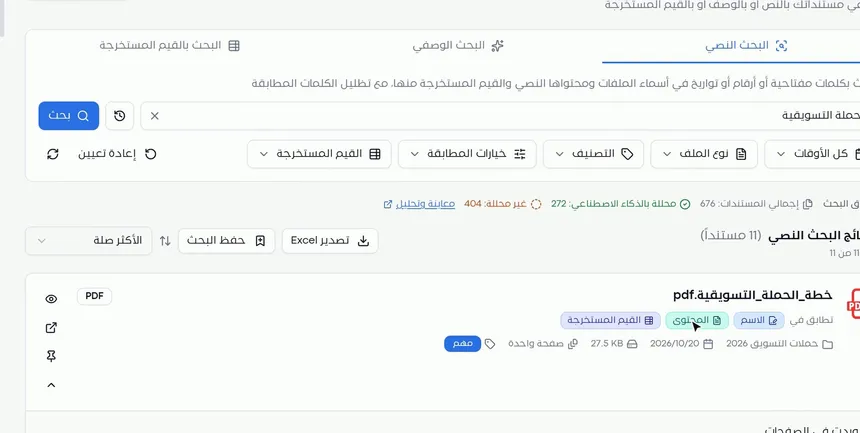
The «Text search results» appear with the number of documents. Each result shows:
- The file name and type.
- The «Matched in» tags: Name, Content or Extracted values.
- The folder, date, size, number of pages and categories.
The match tags help you judge how relevant a result is. A document that matched in both the name and the content is usually closer to what you are looking for than a document that mentions the word in passing. You can sort the results from the sort list, for example by «Most relevant».
Step 5: Review the pages where the word appears
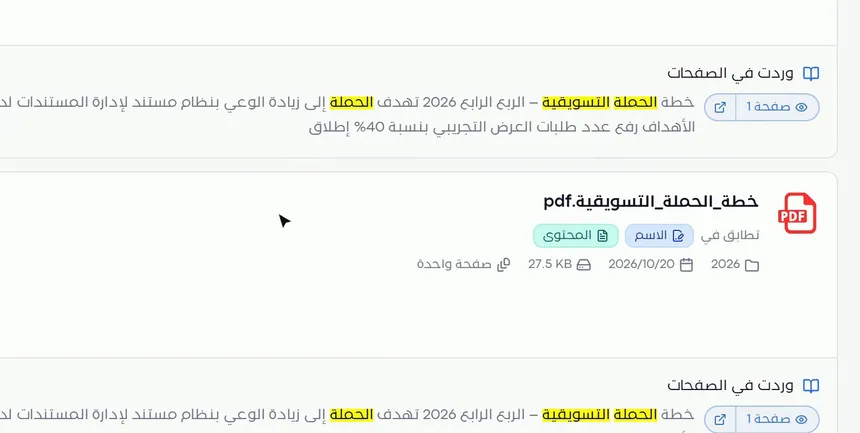
Under each result there is a «Found on pages» section. It shows the number of each page where the word appeared, an excerpt of the text around it, and the matches highlighted in yellow.
This section saves you from opening the document. From the excerpt you can tell whether the context is what you are looking for, and from the page button you can go to that page directly.
Step 6: Use the result actions: quick preview, open, pin
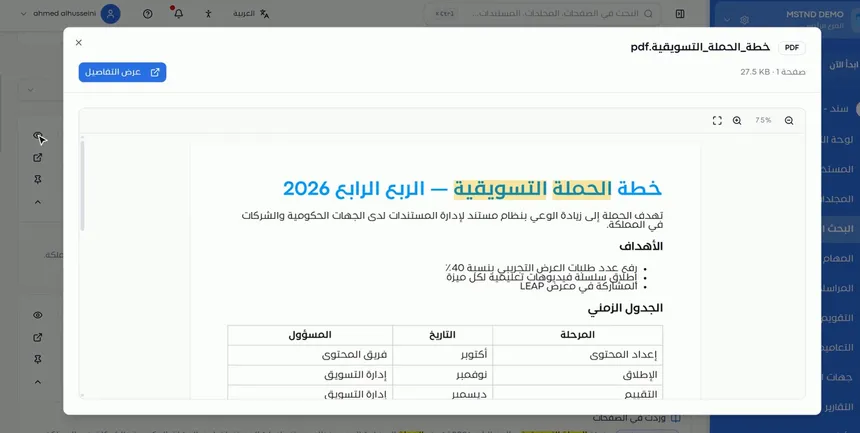
Next to each result there are three actions:
| Action | What it does | When to use it |
|---|---|---|
| Quick preview | Shows the document with the words highlighted, without leaving the search page | To confirm that it is the document you need |
| Open document | Takes you to the full document page | When you want to work on the document |
| Pin | Pins the document to the results of this search | For important documents you want to keep with the saved search |
Step 7: Preview the document with the words highlighted inside it
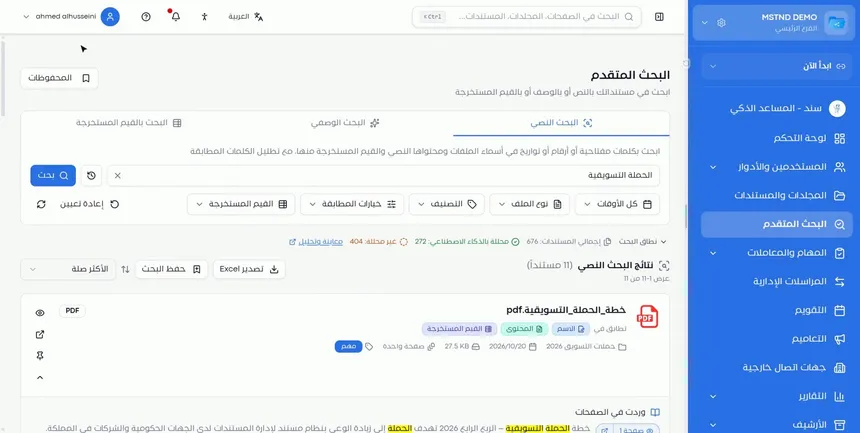
When you choose to preview, the document itself opens, with the matching words highlighted inside its pages. You read the full context around the word without searching for it manually inside the document.
Step 8: Narrow the results with filters
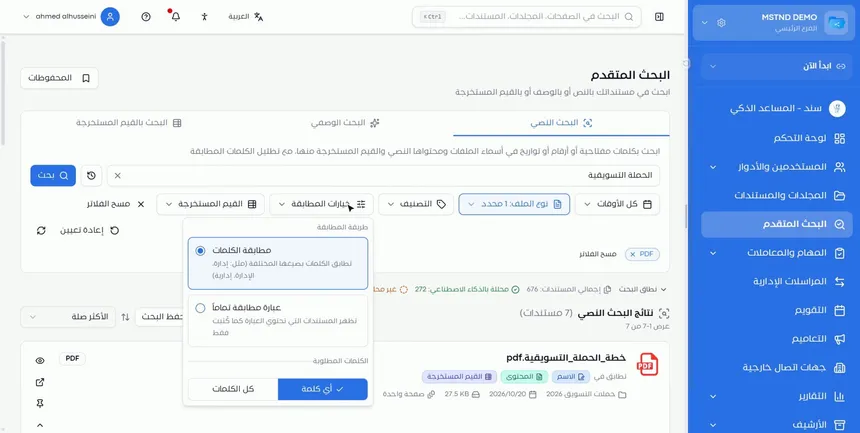
If there are many results, narrow them with the filters above the results:
- Period: such as «All time» or a specific period.
- File type: such as PDF.
- Category: to limit the results to a particular category.
- Extracted values: to filter by values.
- Match options: to set how words are matched.
Active filters appear as tags under the field, and you can remove them with «Clear filters» or start over with «Reset».
Step 9: Set the «Match options»
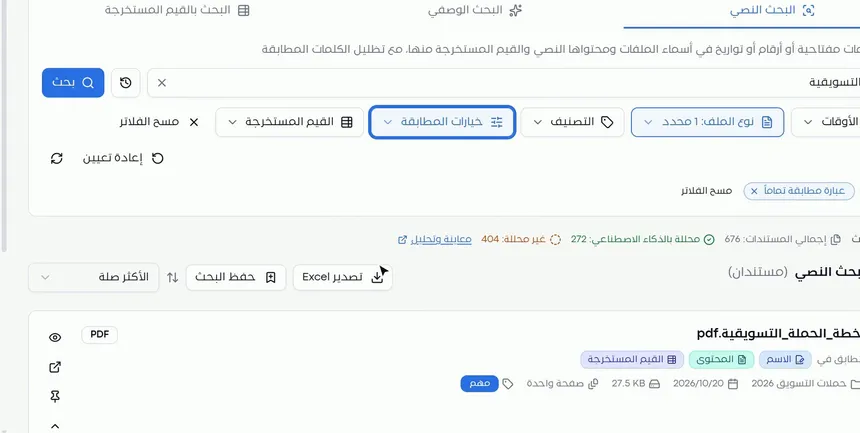
«Match options» control how precise the search is, and they have two parts:
Match method:
| Option | What it does | Example |
|---|---|---|
| «Match words» | Matches words in their different forms | Searching for "administration" also finds "administrations" and "administrative" |
| «Exact phrase» | Shows only the documents that contain the phrase exactly as written | Searching for "marketing campaign" finds this phrase only when its words appear together |
Required words:
| Option | What it does | When to choose it |
|---|---|---|
| «Any word» | One of your words being present is enough | When you want broader results |
| «All words» | All the words must be present in the document | When you want more precise results |
Step 10: Notice how the results became more precise
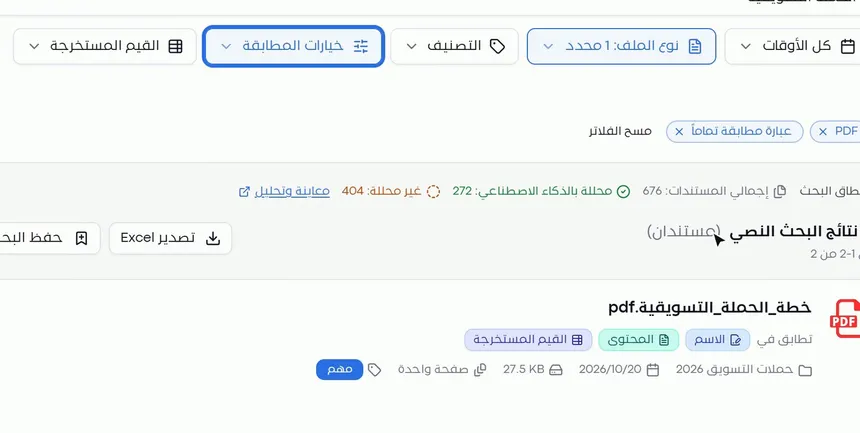
After applying the filters and match options, the results in the video shrank to only two documents. This is the practical benefit of filters: instead of reviewing a long list, you go straight to the documents closest to what you want.
Step 11: Save the search with a clear name
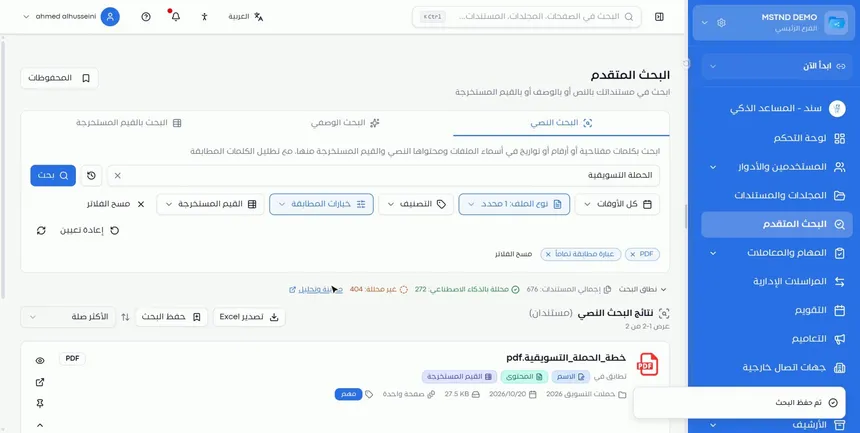
If you will need the same search later, click «Save search» and give it a name that describes its purpose. The search is saved with its words and filters, so you do not need to rebuild it.
The same bar also has an «Export to Excel» button and the list for sorting the results.
Step 12: Run a saved search from «Saved», or manage it
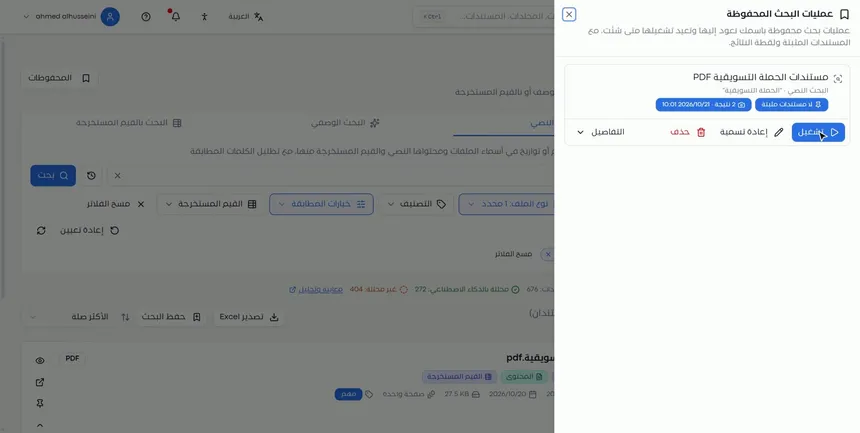
Click «Saved» at the top of the Advanced search page, and the «Saved searches» panel opens. The panel explains that these are searches saved under your name that you can come back to and run again whenever you like, together with the pinned documents and a snapshot of the results.
For each saved search:
- «Run»: runs the search again with one click.
- «Rename»: changes its name.
- «Delete»: removes it from your saved searches.
- «Details»: shows the search's information.
Options and their effect
| Option or setting | What it does | When to use it |
|---|---|---|
| The search field and «Search» | Runs the search in names, content and extracted values | In every search |
| Period | Limits the results to a time period | When you roughly know when the document was created |
| «File type» | Limits the results to a particular file type | When you are looking only for PDF files, for example |
| «Category» | Limits the results to a category | When your documents are well categorized |
| «Extracted values» | Filters by the extracted values | For searches tied to data fields |
| «Match words» | Matches the different forms of a word | For broad searches |
| «Exact phrase» | Matches the phrase only exactly as written | For official names and precise phrases |
| «Any word» / «All words» | Sets whether one word is enough or all of them must be present | To widen or narrow the results |
| «Clear filters» | Removes the active filters | When you want broader results |
| «Reset» | Returns the search page to its initial state | To start a new search |
| Sorting the results | Sorts the results, for example by «Most relevant» | To show the most important results first |
| Preview / Open / Pin | Actions on each result | Depending on what you need from the document |
| «Save search» | Saves the search under a name | For recurring searches |
| «Saved» | Shows the saved searches | To run or manage a previous search |
Practical scenarios
Scenario: The contracts department of a contracting company searches for a contract number
Situation: The project manager asks for all the documents related to a particular contract, and nobody remembers where they were saved.
What you do in Mstnd:
- Open «Advanced search» → «Text search».
- Type the contract number and click «Search».
- Review «Matched in» to tell the contract itself apart from the documents that mention it.
- Save the search under the project's name.
Result: The contract, its annexes and the correspondence that mentioned its number are in one list.
Scenario: The archive section of a government entity searches scanned letters
Situation: An old scanned letter has been requested, and all that is known is that it mentions the name of a particular entity.
What you do in Mstnd:
- Check in «Search scope» that the scanned documents have been analyzed.
- Type the entity's name and choose «Exact phrase».
- Narrow by period if it is roughly known.
- Use the preview to confirm it is the right letter before opening it.
Result: The scanned letter is found by searching its text, not its file name.
Scenario: Procurement in a trading company follows up a supplier
Situation: All the price quotations and invoices received from a particular supplier during the quarter need to be reviewed.
What you do in Mstnd:
- Search by the supplier's name.
- Set the period and the file type.
- Pin the important documents.
- Save the search, and run it from «Saved» every quarter.
Result: A periodic review of the supplier's documents with one click.
Scenario: Legal affairs in a hospital searches for a clause
Situation: The legal counsel wants every agreement that includes both a "confidentiality" clause and an "indemnity" clause.
What you do in Mstnd:
- Type both words in the search field.
- From «Match options», choose «All words».
- Review «Found on pages» for each result.
Result: A precise list of the agreements that contain both clauses, with the location of each clause.
How it relates to other features
- Smart search agent: when you do not know the words in the document, describe what you want in «Descriptive search», or search by fields in «Search by extracted values».
- Smart document agent: extracts the document's text and entities, which is what makes searching the content possible.
- Metadata: the fields linked to metadata templates support searching by extracted values.
- Scanning: scanned documents become searchable in their text once they have been analyzed.
- Document viewer: «Open document» in a search result takes you to the viewer and all of the document's actions.
- AI and document processing: the processing settings affect the number of analyzed documents in the search scope.
Tips and best practices
- Check «Search scope» before you conclude that a document does not exist.
- Use unique numbers, such as a contract or invoice number; they are more precise than generic words.
- Use «Exact phrase» for the official names of entities and projects.
- Use «Match words» when you do not know the form in which the word was written.
- Add filters gradually so you know the effect of each one.
- Read «Found on pages» before opening the document to confirm the context.
- Save recurring searches with clear names, and pin the important documents in them.
Warnings and common mistakes
FAQ
How do I search inside the content of files in Mstnd?
Open «Advanced search» from the side menu, choose «Text search», type the word, number or date and click «Search». The system searches file names, their content and the values extracted from them.
Can I search scanned documents?
Yes. Scanned documents that AI has analyzed are searched in their extracted text, and «Search scope» shows how many documents are analyzed and how many are not.
How do I know where the word was found in the document?
Under each result, «Matched in» tags show whether the match is in the name, the content or the extracted values, and the «Found on pages» section shows the pages with the matches highlighted.
What is the difference between «Match words» and «Exact phrase»?
«Match words» matches a word in its different forms, such as administration, administrations and administrative, while «Exact phrase» shows only the documents that contain the phrase exactly as written.
What is the difference between «Any word» and «All words»?
«Any word» is satisfied when one of the search words is present, while «All words» requires all of them to be in the document, so the results are more precise.
How do I save a search to come back to it?
Click «Save search» and name it. You will then find it in «Saved» at the top of the page, where you can run, rename or delete it.
What is the point of pinning a result in a search?
Pinning keeps the document within the saved search: the saved searches panel keeps the pinned documents together with a snapshot of the results.
Why does a document I know contains the word not appear?
The document may not have been analyzed yet, a filter from a previous search may still be active, or you may not have permission to access it.
Summary
- «Text search» searches file names, their content and the extracted values, not just the names.
- «Search scope» shows how many analyzed documents can be searched in their content.
- The «Matched in» tags and «Found on pages» pinpoint where the word is, with highlighting.
- Filters and «Match options» turn a large number of results into precise ones.
- «Save search» and «Saved» put recurring searches one click away.
Try it free: Create your organization's account in Mstnd
Was this article helpful?
Related articles
 0:54
The smart search agent in Mstnd: describe what you want and find it
Learn the Mstnd smart search agent: describe a document in your words to find it by meaning, with a match percentage and reason, or search AI-extracted values.
 0:59
The Mstnd smart document agent: understand your document before you read it
Mstnd's smart document agent analyzes each file: text, summary and entities, plus suggested status, categories, tags, tasks and access with a confidence score.
 1:02
Metadata: structured fields for every document, powered by AI
Learn the «Metadata» tab in Mstnd: create a field template with AI or link an existing one, auto-extract the values with a confidence level, then confirm them.
 1:02
Scanning in Mstnd: turn paper into a digital PDF file
Scanning in Mstnd turns paper documents into a PDF with a phone or device camera: capture several pages, reorder them, retake what you need, save to the folder.
 0:51
The document viewer in Mstnd: view any document without downloading it
Learn the Mstnd document viewer: view a file in the system without downloading it, zoom or go full screen, and use the actions bar and side panel in one place.
 0:31
AI and document processing: automatic analysis and confidentiality classification
Set the smart document analysis mode in Mstnd (for all, for specific folders or manual) and AI confidentiality classification: off, suggest or automatic.