

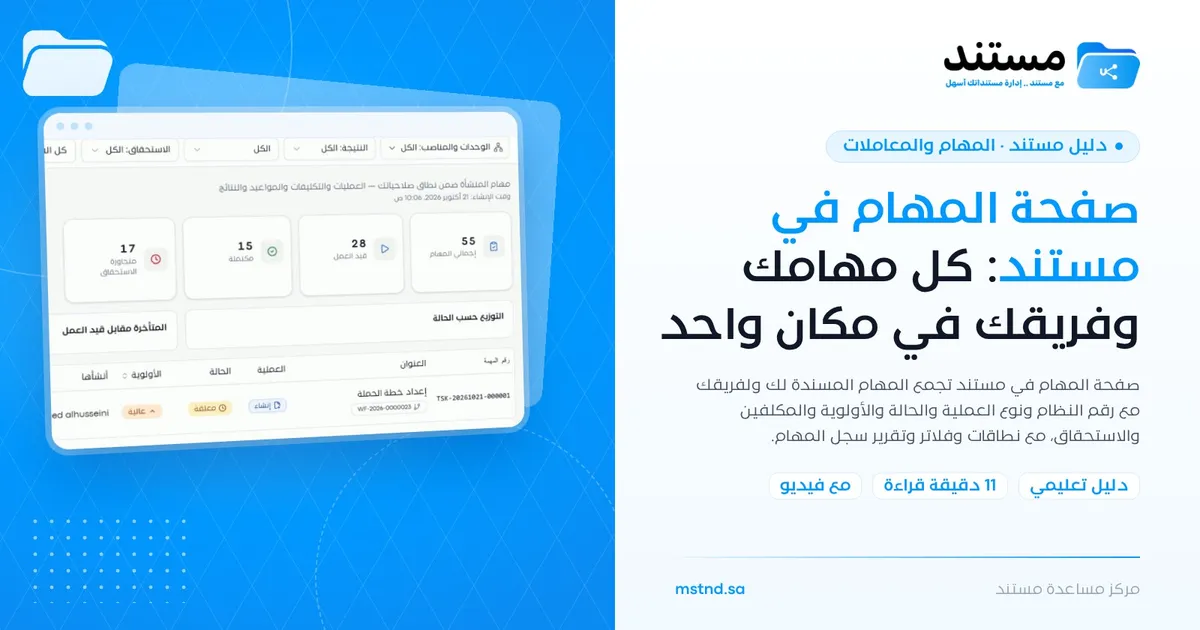
The Tasks page in Mstnd: your tasks and your team's in one place
In this article
The «Tasks» page in Mstnd gathers all the tasks assigned to you and your team in one list, and shows for each task its number in the system, the operation type, the status, the priority, the assignees and the due date. You can set the scope, such as «My assignments» or the tasks addressed to your units or positions, filter by status, priority and operation type, switch between the table and card views, and open the «Task log» report for statistics. The page helps employees organize their work and helps managers follow their team's progress.
Quick overview
| Item | Details |
|---|---|
| Module | Tasks and workflows |
| Where it is in the interface | Side menu → «Tasks and workflows» → «Tasks» |
| Direct link | https://app.mstnd.sa/tasks |
| Goal | View, follow up and organize tasks by scope, status, priority and due date |
| Who it is for | Every employee who has tasks, as well as department managers, team leads and follow-up officers |
| Video length | About one minute |
| What you will learn | Reading the table columns, choosing the scope, using the filters, recognizing workflow tasks, switching between views and opening the «Task log» report |
Watch the video
In about a minute, the video goes through the Tasks page from top to bottom: the columns, the scopes, the filters, a task that comes from a workflow, the views and the statistics report.
Why this feature?
When tasks are assigned by email, messages and meetings, they end up spread over several channels. Employees do not know what is required of them first, and managers do not know where each piece of work stands. Tasks addressed to a whole department get lost, because each person assumes someone else will take care of them.
The Tasks page solves this by gathering tasks in one organized register. Each task has a unique system number, a clear operation type, a status, a priority, assignees and a deadline. Every user can see what concerns them, and every manager can see what concerns their team.
| Before the Tasks page | With the Tasks page |
|---|---|
| Tasks scattered across email and messages | All tasks in one list |
| You do not know what matters most | The priority is visible for every task, and you can filter by it |
| Tasks addressed to a department get lost between individuals | The «Addressed to my units or positions» scope shows them to everyone concerned |
| You discover delays too late | The due date is visible, and overdue tasks stand out in a different color |
| Progress reports are compiled by hand | The «Task log» report shows the numbers directly |
Value for the organization: a clear view of the volume of work and how much of it is done. Value for the individual: an organized work list that tells you what is required and when.
Where to find it
- From the side menu, open «Tasks and workflows».
- Choose «Tasks».
Direct link: https://app.mstnd.sa/tasks
Tasks also appear in the «Tasks» card and in the Action agenda on the Dashboard, from where you can start carrying out a task directly.
Concepts and terms
| Term | Meaning in Mstnd |
|---|---|
| Task | A specific piece of work assigned to one or more employees, with an operation type and a due date |
| System number | A unique number the system generates for each task, starting with the code TSK, used to search for the task and refer to it |
| Operation type | The nature of the work required in the task, such as «Creation», «Review», «Approval» or «Signature» |
| Status | The current state of the task, such as «Pending» or «Completed» |
| Priority | How important the task is, such as «High» or «Normal» |
| Assignees | The employees, teams or departments the task is assigned to |
| Scope | Sets which group of tasks is shown: my assignments, those addressed to my units or positions, those I created, drafts, or all |
| Workflow | A path of consecutive steps, in which each step becomes a task for the person responsible for it |
Step by step
Step 1: Open the «Tasks» page
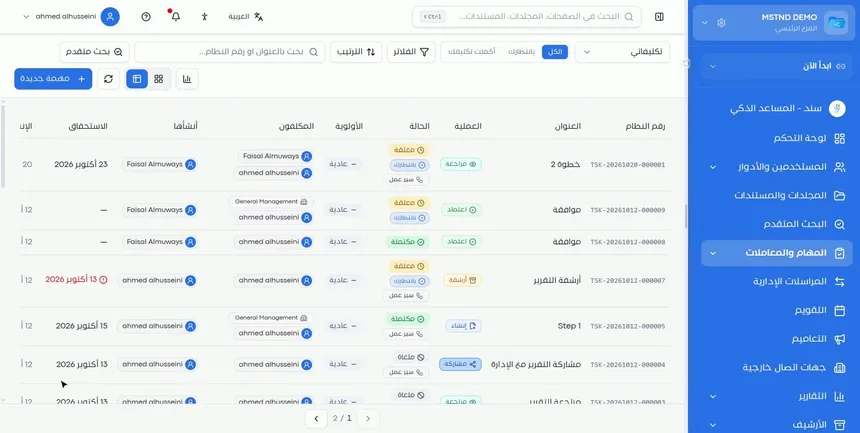
Open «Tasks» from the side menu. A list of all the tasks assigned to you and your team appears. At the top of the page you will find the controls: the scope list, «Filters», «Sort», the field for searching by title or system number, «Advanced search», the view, refresh and statistics buttons, and the «New task» button.
This page is where your day of hands-on work starts: from it you learn what is required, and from it you open a task to carry it out.
Step 2: Read the task columns
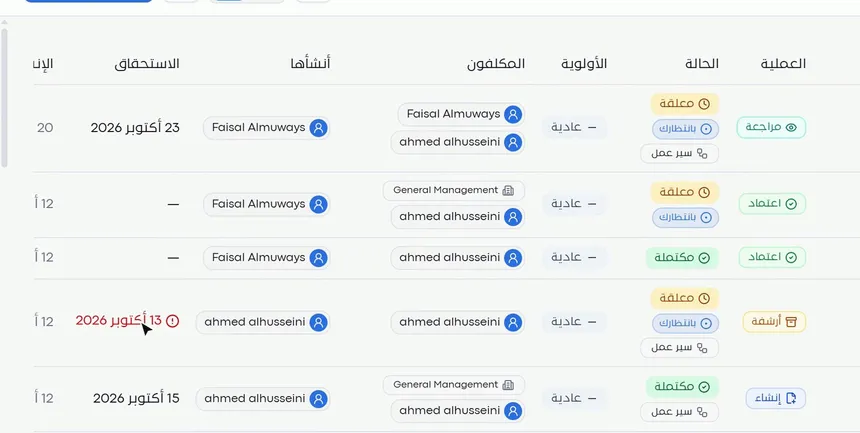
For each task, the table shows the following information:
- System number: a unique number such as TSK followed by the date and a sequence number.
- Title: what is required, in brief.
- Operation: the type of work, such as «Creation», «Review», «Approval» or «Signature».
- Status: such as «Pending» or «Completed». Extra badges may appear, such as «Waiting» or «Workflow».
- Priority: such as «High» or «Normal».
- Assignees: the people, teams and departments the task is assigned to.
- Created by: who created the task.
- Due date: the completion deadline; it appears in a warning color if the task has passed it.
Reading these columns together gives you a full picture of each task without opening it.
Step 3: Choose the right scope
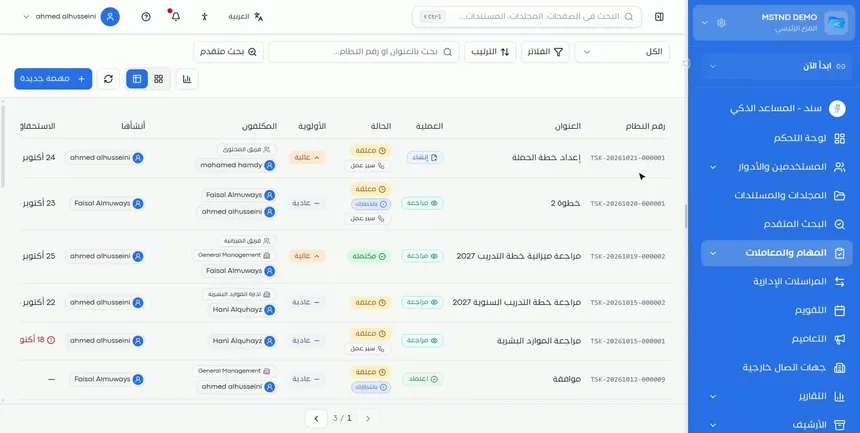
From the scope list at the top of the page, you set which group of tasks you want to see:
- My assignments: the tasks assigned to you personally.
- Addressed to my units or positions: the tasks addressed to your department, team or position, even if they were not assigned to you by name.
- Created by me: the tasks you created and assigned to others.
- Drafts: the tasks you saved as drafts and have not created yet.
- All: all the tasks available to you.
Choosing the right scope changes the nature of the page. «My assignments» is your work list, «Created by me» is your follow-up list, and «Drafts» is a reminder of what you started and have not finished.
Step 4: Filter the tasks
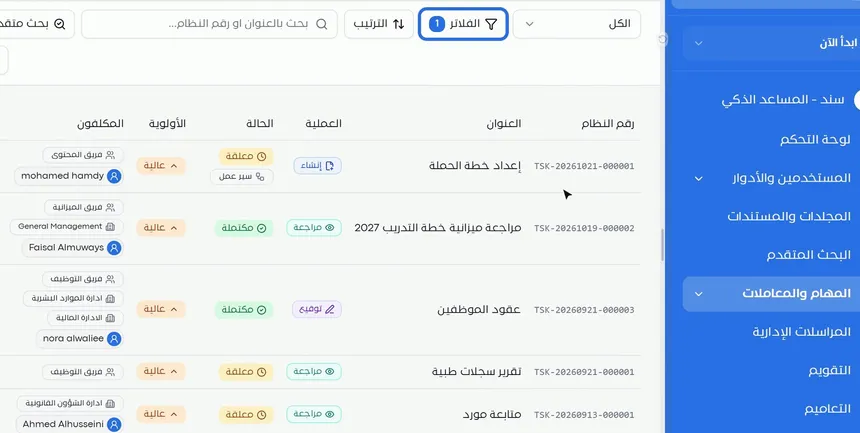
Click «Filters» to filter the tasks by:
- Status
- Priority
- Operation type
For example, choose the priority «High» to show only urgent tasks. The «Filters» button shows the number of active filters, so you always know that the list is filtered.
You can combine the scope and the filters. For example, the «My assignments» scope with the «High» priority gives you the most important things waiting for you personally.
Step 5: Recognize the tasks that come from a workflow
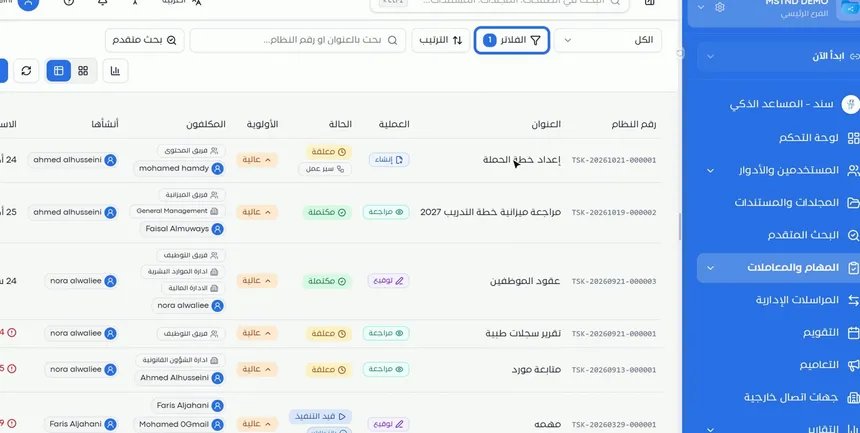
Some tasks are not created by anyone manually; they come from a workflow. In the example, the first task is the «Prepare the campaign plan» step from a workflow transaction that started a moment ago. It carries a «Workflow» badge under the status.
This means that the workflow automatically turns each step into a task for the person responsible for it. The step appears on the Tasks page like any other task, and once it is completed the workflow moves on to the next step.
Step 6: Switch the view
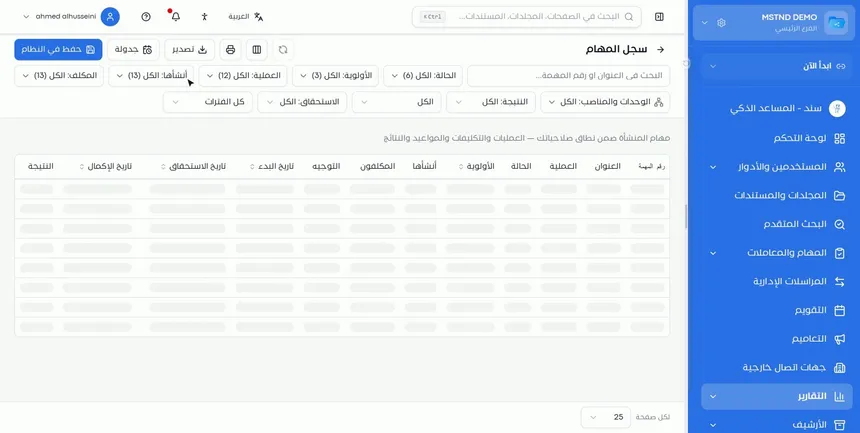
You can switch between two views:
- Table: rows and columns, suited to comparing, sorting and reviewing a large number of tasks.
- Cards: one card for each task, suited to visual browsing and to focusing on a smaller number of tasks.
Choose the table when you review the whole workload, and the cards when you browse your daily tasks.
Step 7: Open the «Task log» report
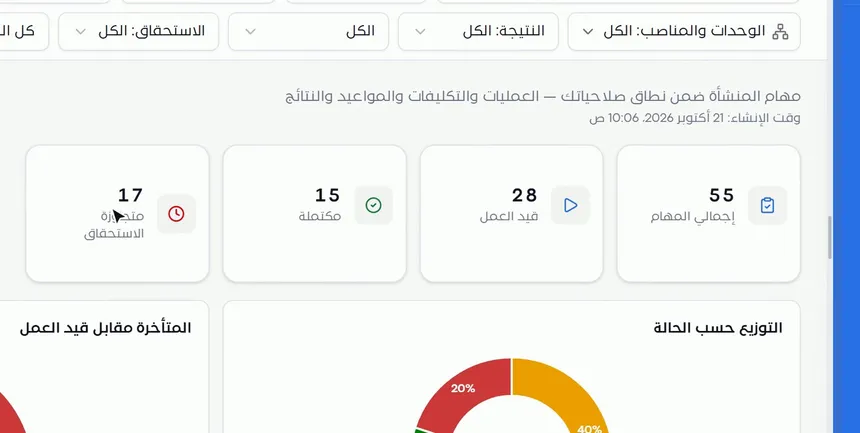
Click the statistics button to go to the «Task log» report. The report shows the organization's tasks within the scope of your permissions as key indicators:
- Total tasks.
- In progress.
- Completed.
- Past due.
Below them are charts, such as «Distribution by status» and «Overdue vs. in progress». You can filter the report, for example by units and positions, outcome and due date.
This report is the manager's tool for answering questions such as: how many tasks are overdue in the department? Is completion keeping pace with assignment?
Options and their effect
| Option or setting | What it does | When to use it |
|---|---|---|
| The «My assignments» scope | Shows the tasks assigned to you personally | To organize your daily work |
| The «Addressed to my units or positions» scope | Shows the tasks addressed to your department or position | To pick up tasks addressed to the unit before they fall behind |
| The «Created by me» scope | Shows the tasks you assigned to others | To follow up what you asked others to do |
| The «Drafts» scope | Shows the tasks saved as drafts | To finish tasks you started preparing |
| The «All» scope | Shows all the tasks available to you | For a comprehensive review |
| «Filters» | Filters by status, priority or operation type | To focus on a specific category of tasks |
| «Sort» | Changes the order in which tasks are shown | To order the list in the way that suits you best |
| Searching by title or system number | Finds a specific task | When you know its number or part of its title |
| «Advanced search» | Allows a search with broader criteria | When you need more criteria than the regular search offers |
| Table or card view | Changes how tasks are displayed | Depending on the size of the list and the way you work |
| The statistics button | Opens the «Task log» report | To follow completion and delays in numbers |
| «New task» | Opens the task creation form | When assigning new work |
Practical scenarios
Scenario: A department manager in a government entity follows up the team
Situation: The department receives tasks addressed to the whole department, and the manager wants to make sure none of them falls behind.
What you do in Mstnd:
- Open «Tasks» and choose the «Addressed to my units or positions» scope.
- Turn on the «High» priority filter.
- Review the «Due date» column and start with the overdue tasks.
- Open the «Task log» report to see how many tasks are past due.
Result: A clear picture of the department's load, and early intervention in the tasks at risk of delay.
Scenario: A project engineer in a contracting company
Situation: The engineer receives tasks to review and approve drawings from more than one project.
What you do in Mstnd:
- Choose the «My assignments» scope.
- Filter by the operation type «Review».
- Sort the tasks and start with the ones due soonest.
Result: A focused daily work list, without jumping between task types.
Scenario: A coordinator in a hospital's HR department
Situation: The coordinator assigned tasks for signing new employees' contracts to several parties, and wants to know what has been completed.
What you do in Mstnd:
- Choose the «Created by me» scope.
- Filter by the operation type «Signature».
- Review the «Status» column to tell the completed tasks from the pending ones.
Result: Precise follow-up of what was assigned, without asking each party separately.
Scenario: A marketing manager in a trading company
Situation: A marketing campaign is run through a workflow, and each of its stages is a step with a team.
What you do in Mstnd:
- Open «Tasks» and look for the tasks that carry the «Workflow» badge.
- Make sure the «Prepare the campaign plan» step has reached the responsible team.
- Follow the progress of the whole transaction from the Transactions page.
Result: A clear link between the campaign steps and the people carrying them out.
How it relates to other features
- New task: with the «New task» button on the Tasks page, you create a task and assign it.
- Carrying out a task: opening any task from the list takes you to its execution page.
- Transactions: the tasks with the «Workflow» badge are steps of transactions that you can follow in full there.
- Starting a workflow on a document: starting a workflow on a document generates tasks that appear on this page.
- Dashboard: the «Tasks» card and the agenda show a summary of what is on the Tasks page.
- Report page: the «Task log» report is one of the reports that you browse and filter in the same way.
Tips and best practices
- Start your day with the «My assignments» scope and the «High» priority filter.
- Review the «Addressed to my units or positions» scope daily; it is where tasks usually get lost.
- Use the «Created by me» scope weekly to follow up what you assigned to others.
- Do not leave drafts for long; review the «Drafts» scope periodically to finish what you started.
- Use the system number in every message or meeting about a task.
- Review the «Task log» report periodically, and compare overdue tasks with those in progress to spot bottlenecks.
- Watch the filter counter on the button so that you do not assume the list is complete when it is filtered.
Warnings and common mistakes
FAQ
What is the Tasks page in Mstnd?
It is a page that gathers all the tasks assigned to you and your team, and shows for each task the system number, operation type, status, priority, assignees and due date.
How do I show only the tasks assigned to me?
Choose the «My assignments» scope from the scope list at the top of the Tasks page.
What is the difference between «My assignments» and «Addressed to my units or positions»?
«My assignments» shows the tasks assigned to you by name, while «Addressed to my units or positions» shows the tasks addressed to your department, team or position.
How do I show only high-priority tasks?
Click «Filters» and choose the priority «High». The button shows the number of active filters.
Why do some tasks carry a «Workflow» badge?
Because these tasks are steps of a workflow transaction, in which each step becomes a task for the person responsible for it.
Can I show tasks as cards instead of a table?
Yes. You can switch between the table view and the card view with the view buttons at the top of the page.
Where do I find task statistics?
Click the statistics button to open the «Task log» report, which shows the total, in progress, completed and past due tasks, with charts.
Where do I find the tasks I saved but have not created?
In the «Drafts» scope of the scope list.
Summary
- The «Tasks» page gathers your tasks and your team's, with all their details, in one table.
- The scopes set your angle of view: your work, your unit's work, what you assigned or your drafts.
- The filters narrow the list by status, priority and operation type.
- Workflow tasks appear here automatically with a «Workflow» badge.
- The «Task log» report turns tasks into numbers that help with follow-up and decision-making.
Try it free: Create your organization's account in Mstnd
Was this article helpful?
Related articles
 1:03
Creating a new task in Mstnd: assign the work and follow its progress
Learn to create a new task in Mstnd: title, description, dates, priority, operation type, files, routing, assignment and links, then create or save as a draft.
 0:57
Carrying out a task in Mstnd: from «Start» to «Complete task»
Learn the Mstnd task page: view its data and routing, start work, preview the operation file, approve or reject it with a note, then complete and log the task.
 0:41
Transactions in Mstnd: follow every workflow from one screen
Learn the Mstnd Transactions page: see every workflow with its number, status, priority and progress, use scope and filters, export it and start a new workflow.
 1:14
Starting a workflow on a document in Mstnd: launch the approval from the document
Learn to start a workflow from a Mstnd document: pick a template, set priority and due date, assign steps and launch the transaction with the document attached.
 1:57
The Mstnd Dashboard: everything waiting for you on one screen
Learn the Mstnd Dashboard: the «Waiting for you today» cards, the Action agenda, workflows, Sanad recommendations, team activity and how to plan your day.
 0:56
The report page in Mstnd: filter, export and schedule your report
Learn the Mstnd report page: indicators and charts, filters, the data table, export to Excel, CSV and PDF, scheduling, and saving as a document in the system.