


Search by extracted values in Mstnd: search your documents' data
In this article
«Search by extracted values» in Mstnd lets you find documents by the data that AI has extracted from inside them, not only by words. You choose a metadata template, then the field, the operator and the value, and it shows you a table of the matching values, the document and the number of the page where each value appeared. This feature helps anyone who looks for a specific piece of information, such as an entity's name, a date or an amount, across a large number of documents.
Quick overview
| Item | Details |
|---|---|
| Module | Advanced search |
| Where it is in the interface | Side menu → «Advanced search» → the «Search by extracted values» tab |
| Direct link | https://app.mstnd.sa/search?mode=metadata |
| Goal | Find documents by the extracted values of their fields, such as the entity, the date or the amount |
| Who it is for | Marketing, procurement, finance and quality teams, archive officers, and anyone looking for specific information across many documents |
| Video length | About 1 minute and 16 seconds |
| What you will learn | Choosing the metadata template and the field, the difference between the «Contains», «Equals» and «Is empty» operators, reading the results table, adding conditions, and saving and exporting the search |
Watch the video
In 1 minute and 16 seconds, the video shows a search for marketing campaign plans whose «Target exhibition» field contains the value «LEAP», from choosing the template to reading the results table, then adding conditions and saving and exporting the search.
Why this feature?
The information you are looking for is often a specific value inside a document: the exhibition's name in a campaign plan, the supplier's name in a contract, or the amount in a journal voucher. Searching by words finds every document in which the word appears, even when it appears in a context that does not matter to you. And opening documents one by one to read the value of a field in them takes a great deal of time.
«Search by extracted values» solves this problem. AI extracts the data from inside your documents and fills it into each document's metadata, according to the metadata template that describes its type. When you search, you set exactly the field you want, and you get the documents in which this field holds the value you need, along with the number of the page where it appeared.
| Searching by words | Search by extracted values |
|---|---|
| Finds the word wherever it appears in the document | Finds the value only in the field you set |
| Returns documents of different types | Focuses on the type of document you choose through the metadata template |
| To learn a field's value, you open the document and read it | You see the field, the value, the document and the page in a single table |
| Does not reveal incomplete documents | The «Is empty» operator reveals the documents that are missing a particular field |
Its value for the organization: Turning the content of documents into data that can be searched, counted and exported, without manual entry.
Its value for the individual: Reaching a document through a piece of information you know about it, even if you do not remember its name or where it is saved.
Where to find it
- From the side menu, choose «Advanced search».
- Choose the «Search by extracted values» tab, the third tab after «Text search» and «Descriptive search».
Direct link: https://app.mstnd.sa/search?mode=metadata
Concepts and terms
| Term | Meaning in Mstnd |
|---|---|
| Extracted values | Data that AI has extracted from inside a document, such as an entity's name, a date or an amount, and filled into its metadata |
| Metadata template | A set of fields that describes a type of document, such as «Marketing campaign plan» or «Sale deed» |
| Field | One piece of information among the template's fields, such as «Target exhibition» |
| Operator | How the field's value is compared with what you type: «Contains», «Equals» or «Is empty» |
| Value | The text you are looking for in the field, such as «LEAP» |
| Condition | One set of template, field, operator and value; you can add more than one condition |
| Search coverage | A bar that shows the total number of documents and how many have or have not been analyzed by AI |
Step by step
Step 1: Open the «Search by extracted values» tab

On the «Advanced search» page, choose the «Search by extracted values» tab. The text above the form explains what it does: searching for documents through the values extracted in metadata templates, by choosing the template, the field and the value.
This tab differs from a regular search. Instead of searching by words, you search in the data that AI has extracted from inside your documents, such as an entity's name, a date or an amount. Before you create any condition, a message explains the idea: create conditions on the fields of metadata templates to find documents by their exact values.
Step 2: Choose the metadata template

Open the «Select form» list and choose the metadata template, that is, the type of document you want to search in. The list shows your organization's templates, such as «Marketing campaign plan», «Cash flow report» and «Sale deed». In the video, the choice was «Marketing campaign plan».
Choosing the template makes the search focus only on documents of this type. So always start with the question: what type of document holds the information I am looking for?
Step 3: Choose the extracted field

Open the «Select field» list and choose the field you want to search in, such as «Target exhibition». The fields that appear are the fields of the template you chose in the previous step.
These are the same fields that AI extracts and fills into each document's metadata. So if you know where the information appears in a document's «Metadata» tab, that is the field to choose here.
Step 4: Set the operator
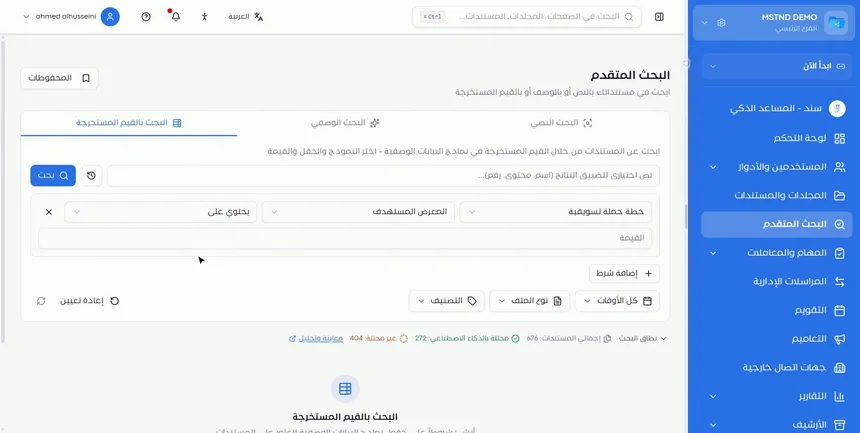
Open the «Operator» list and set the comparison method. The search gives you three operators:
| Operator | What it finds | Example |
|---|---|---|
| «Contains» | Every value that includes the text you type | Exhibitions whose name includes the word «LEAP» |
| «Equals» | The value that exactly matches what you type | An entity written with exactly the same name |
| «Is empty» | Documents that have no value in this field | Plans in which no target exhibition was set |
After you choose the «Contains» operator, the «Value» field appears below the condition, as in the screenshot.
Step 5: Type the value you need

Type what you are looking for in the «Value» field. In the video, the value was «LEAP».
Above the condition is an optional text field for narrowing the results by a name, content or a number. Use it when you want to limit the results further, such as by typing part of the file name.
Step 6: Click «Search»
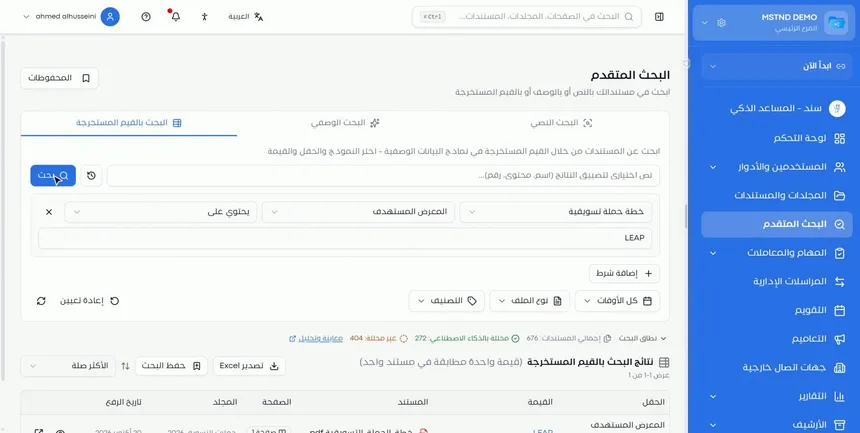
Click «Search». The system searches the extracted values of the documents linked to the template, and shows the results directly below the search form.
If you want to change the search, change any part of the condition and click «Search» again.
Step 7: Read the results table

The «Extracted values results» appear in a table, with a summary of the number of matching values and documents, such as «one matching value in one document». The table's columns:
| Column | What it shows |
|---|---|
| Field | The field's name, with the name of the metadata template it belongs to |
| Value | The extracted value that matched the condition |
| Document | The name of the file the value was extracted from |
| Page | The number of the page where the value appeared |
| Folder | The folder in which the document is saved |
| Upload date | The date the document was uploaded to Mstnd |
From each row, you can preview the document or open it. The page number saves you from searching inside the document, because you know in advance where the value appeared.
Step 8: Add more conditions, and save or export the search

To narrow the results further, click «Add condition» and add another field and its value. Below the conditions are extra filters: the time period «All time», «File type» and «Category», along with «Reset» to clear the conditions and start again.
Above the results table you will find:
- «Save search»: saves the search so you can come back to it later from «Saved».
- «Export Excel»: exports the results to an Excel file.
- Sorting: such as «Most relevant».
This way you find any document by its actual content, even if you do not remember its name.
Options and their effect
| Option or setting | What it does | When to use it |
|---|---|---|
| «Select form» | Sets the type of documents being searched | Always; it is the starting point |
| «Select field» | Sets the information being searched for within the template | Always, after choosing the template |
| The «Contains» operator | Finds values that include the text you type | When you know part of the value |
| The «Equals» operator | Finds the exactly matching value | When you know the full value precisely |
| The «Is empty» operator | Finds documents that are missing this field | To review whether data is complete |
| «Value» | The text required in the field | With «Contains» and «Equals» |
| Optional text | Narrows the results by a name, content or a number | When there are many results |
| «Add condition» | Adds another condition to the search | For more precise results across more than one field |
| «All time», «File type» and «Category» | Extra filters for the results | To limit the results by time or by type |
| «Reset» | Clears the conditions and the filters | To start a new search |
| «Save search» and «Saved» | Save the search and run it again | For recurring searches |
| «Export Excel» | Exports the results table | To share or analyze the results |
Practical scenarios
Scenario: The marketing team of a trading company gathers the plans for a particular exhibition
Situation: The team is preparing to take part in an exhibition and wants to review every previous plan that targeted the same exhibition.
What you do in Mstnd:
- Open «Search by extracted values».
- Choose the «Marketing campaign plan» template, the «Target exhibition» field and the «Contains» operator, and type the exhibition's name.
- Review the table, then export the results to Excel to share them with the team.
Result: A list of every plan linked to the exhibition, with the document and the page where its name appeared.
Scenario: The procurement department of a government entity gathers a supplier's contracts
Situation: All the contracts in which a particular supplier's name appears in the field for the second party are needed.
What you do in Mstnd:
- Open «Search by extracted values».
- Choose the contracts template, the field for the second party and the «Contains» operator, and type the supplier's name.
- Add another condition if you want to limit it to a particular type of contract.
Result: A table of all the matching contracts, with the number of the page where the value appeared.
Scenario: The quality department of a hospital reviews reports
Situation: All the incident reports in which the department field holds the value of the emergency department are needed.
What you do in Mstnd:
- Open «Search by extracted values».
- Choose the incident reports template and the department field, and type the value.
- Narrow the results by time period.
- Save the search to review it every month.
Result: A ready review list that updates every time you run the search.
Scenario: The finance department of a contracting company finds missing data
Situation: Before the monthly closing, the department wants to make sure that every saved journal voucher holds a value in an essential field.
What you do in Mstnd:
- Open «Search by extracted values».
- Choose the «Journal voucher» template, the required field and the «Is empty» operator.
- Click «Search» and review the documents that are missing the field.
- Open each of these documents and review its «Metadata» tab.
Result: A precise list of the documents that need to be completed, instead of reviewing every voucher by hand.
How it relates to other features
- Smart search agent: when you do not know the field or the value, describe the document in your own words in «Descriptive search» and it finds it by meaning.
- Text search: when you know a word or a number that appears in the document without knowing its field, text search looks through names, content and extracted values.
- Metadata: the document tab that shows the extracted value of each field, where you review and confirm them.
- Metadata templates: the library of templates and fields you choose from in a search by extracted values.
- Smart document agent: analyzes the document and extracts the text and the entities, which are the basis of the extracted values.
- Report center: confirmed metadata helps in reports just as it helps in search.
Tips and best practices
- Start with the right metadata template; it sets the documents being searched.
- Use «Contains» when you do not know the full value, and «Equals» when you know it precisely.
- Try the «Is empty» operator regularly to find documents that are missing an important field.
- Add conditions gradually to see the effect of each condition on the results.
- Use the «Page» column to go straight to where the value appears in the document.
- Save recurring searches, such as a monthly review, to run them again quickly.
- Export the results to Excel when you need to share or analyze them.
- Keep an eye on the «Search coverage» bar; documents that have not been analyzed are not included in extracted-values results.
Warnings and common mistakes
FAQ
What is search by extracted values in Mstnd?
It is a search in which you choose the metadata template, the field, the operator and the value. It finds the documents in which the field holds the value you need, from the data that AI has extracted from inside them.
What is the difference between search by extracted values and text search?
Text search finds the word wherever it appears in the name or the content, while search by extracted values searches in a specific field of a specific metadata template and shows the value and the page in a table.
What is the difference between the «Contains» and «Equals» operators?
«Contains» finds every value that includes the text you typed, while «Equals» finds only the exactly matching value.
How do I find the documents that are missing a particular field?
Choose the template and the field, then the «Is empty» operator, and click «Search». The documents that have no value in this field appear.
Can I search by more than one field at the same time?
Yes. Click «Add condition» to add another field and its value to the search.
What does the Search by extracted values results table show?
It shows the field and its template, the value, the document and the number of the page where the value appeared, along with the folder and the upload date.
Can I export the results of a search by extracted values?
Yes. Click «Export Excel» above the results table to export them to an Excel file.
Why does a document that I know holds the value not appear?
The document may not be linked to the template you chose, or it may not have been analyzed by AI yet. Check the «Search coverage» bar and the document's «Metadata» tab.
Summary
- «Search by extracted values» searches the data that AI has extracted from inside your documents.
- You build each condition from a metadata template, a field, an operator and a value.
- There are three operators: «Contains» for part of a value, «Equals» for an exact match and «Is empty» for missing fields.
- The results appear in a table that identifies the field, the value, the document and the page.
- You can add more conditions, save the search and export the results to Excel.
Try it free: Create your organization's account in Mstnd
Was this article helpful?
Related articles
 0:28
The smart search agent in Mstnd: describe what you want and find it
Learn descriptive search in Mstnd: describe the document you want in your words and it finds it by meaning, ranking results by AI with match percentage and reason.
 1:16
Text search in Mstnd: search inside the content of your files
Learn Mstnd text search: find a word, number or date inside file names, content and extracted values, with highlighted matches, filters and saved searches.
 1:02
Metadata: structured fields for every document, powered by AI
Learn the «Metadata» tab in Mstnd: create a field template with AI or link an existing one, auto-extract the values with a confidence level, then confirm them.
 0:52
Metadata templates in Mstnd: design the fields you need
Learn to create metadata templates in Mstnd: text, number, date and list fields, required fields, AI auto-fill and a library of reusable fields.
 0:59
The Mstnd smart document agent: understand your document before you read it
Mstnd's smart document agent analyzes each file: text, summary and entities, plus suggested status, categories, tags, tasks and access with a confidence score.