


Important documents in Mstnd: track your commercial registration and licenses
In this article
«Important documents» in Mstnd is a page that gathers your organization's official documents, such as the commercial registration, licenses and certificates, in one place and tracks their expiry dates. You upload a document, AI reads it and suggests its name, type and description, then you set the issue and expiry dates in Hijri or Gregorian. After saving, the document appears with its status, «Valid» or «Expiring soon», and the system alerts you before it expires so that you can renew it on time.
Quick overview
| Item | Details |
|---|---|
| Module | Settings |
| Where it is in the interface | Side menu → «Settings» → «Important documents»; the page title is «Company important documents» |
| Direct link | https://app.mstnd.sa/settings/official-documents |
| Goal | Keep the organization's official documents and follow their expiry dates so that no renewal is missed |
| Who it is for | Administrative, legal and government affairs officers, and managers of small and medium-sized organizations |
| Video length | Less than a minute |
| What you will learn | Reading each document's status, previewing, downloading and deleting, adding a document with AI, and setting dates in Hijri or Gregorian |
Watch the video
In less than a minute, the video shows the list of documents and their statuses, then adds a new document: uploading it, accepting the AI suggestions, setting the dates and saving.
Why this feature?
Every organization has documents that expire and need periodic renewal: the commercial registration, municipal and professional licenses, and registration certificates with various authorities. These documents are often scattered between email, employees' devices and paper files, and remembering their renewal dates depends on one person's memory. When that person is away or the date is forgotten, the organization's dealings may be held up, or it may be exposed to violations.
The «Important documents» page gathers these documents in a single list and shows each document's status and expiry date next to it. Most importantly, the system alerts you before expiry, so renewal turns from something that depends on memory into an organized procedure.
| Before «Important documents» | After «Important documents» |
|---|---|
| Documents are scattered between devices, email and paper files | All official documents in a single list |
| Finding the expiry date means opening each document | The date shows under the document's name, in Hijri and Gregorian |
| Renewal depends on an employee's memory | An «Expiring soon» status and an alert before expiry |
| Each document's data is entered manually | AI suggests the name, type and description |
Value for the organization: protection against work being held up by an expired document, and constant readiness whenever documents are requested. Value for the individual: a single reference for reaching any document and knowing its status at once.
Where to find it
- From the side menu, open «Settings».
- Choose «Important documents».
- The «Company important documents» page appears with the description «Manage official documents and track renewal dates», and below it «Uploaded documents».
Direct link: https://app.mstnd.sa/settings/official-documents
Concepts and terms
| Term | Meaning in Mstnd |
|---|---|
| Important documents | The organization's official documents that need central storage and follow-up of their expiry dates |
| Uploaded documents | The list of saved documents; each document has its name, file, expiry date and status |
| Valid | The status of a document whose expiry date is not near |
| Expiring soon | A status that warns that the document's expiry date is near |
| AI suggestions | Suggested values for the name, type and description that AI extracts from the uploaded file |
| Document type | The document's classification, such as commercial registration, license or memo |
| Issue date and expiry date | The dates on which the document's validity starts and ends; they are set in Hijri or Gregorian |
Step by step
Step 1: Get to know the «Important documents» page

The page shows all of your organization's official documents in one place, such as the commercial registration and licenses, and tracks their expiry dates. Under each document you see its file name and an «Expires on» line with both the Hijri and the Gregorian dates.
This list is your reference whenever the organization's documents are requested, whether by a government entity, a bank or a client in a tender. Instead of searching through folders and email, you find the document and its status at a glance.
Step 2: Read the status and use the action icons

Each document has a clear status badge:
- «Valid» in green: the document is valid and its expiry date is not near.
- «Expiring soon» in orange: the expiry date is near, and it is time to start the renewal procedures.
Next to each document there are three icons:
| Icon | Action |
|---|---|
| The eye | Preview the document without downloading it |
| The down arrow | Download the document |
| The × mark | Delete the document |
Step 3: Click «Add document»
To add a new document, click «Add document». The add form appears above the list of uploaded documents.
Step 4: Upload the file and let AI analyze it
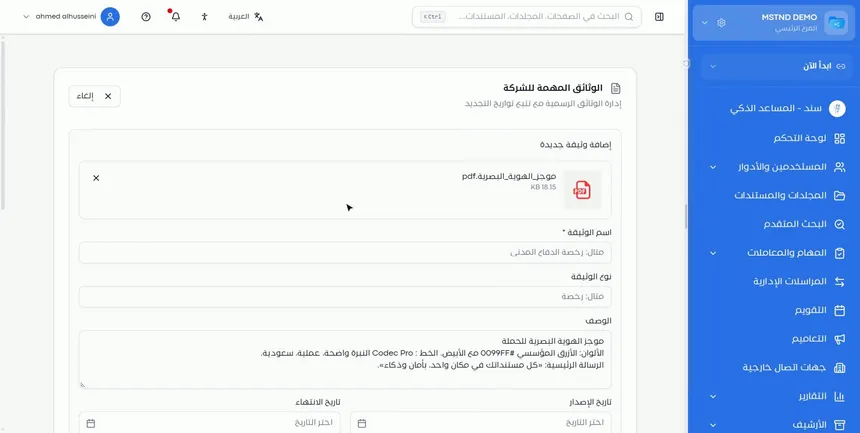
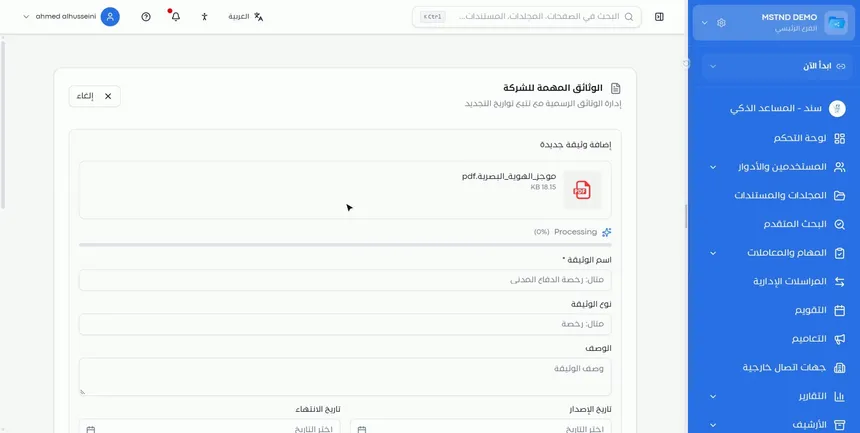
Upload the document file. The file name and size appear at the top of the form, and below them the fields «Document name», which is required, «Document type» and «Description». After the upload, AI reads the file and extracts its data automatically, so you do not need to type every field yourself.
This step saves time, especially when you enter the organization's documents for the first time and have a large batch of documents in front of you at once.
Step 5: Accept the suggested name, type and description

Suggestions appear for the document's name, type and description. Click a suggestion and it is applied straight to the matching field.
In the example, the system suggested the document type «Memo» and a description that summarizes the document's content. Review each suggestion before accepting it, and edit the field manually if you need to. A clear name makes the document easier to find later, and an accurate type helps when you review the list.
Step 6: Set the issue and expiry dates in Hijri or Gregorian

Set the «Issue date» and the «Expiry date». Above the two fields you can choose the calendar: «Gregorian» or «Hijri». In the example, the Hijri calendar was opened to choose the expiry date.
Why does the calendar choice matter? Because many official Saudi documents are issued with Hijri dates, while other contracts and certificates are issued with Gregorian dates. Choose the calendar written on the document itself to avoid manual conversion errors. After saving, the system shows the date in both calendars together.
Step 7: Save and follow the document in the list

Click «Save changes». The message «Document saved successfully» appears, and the document shows in the list with its status and expiry date. From now on, the system follows this date and alerts you before the document expires, so that you can renew it on time.
Options and their effect
| Option or setting | What it does | When to use it |
|---|---|---|
| «Add document» | Opens the add document form | When you obtain a new document or renew a document |
| Uploading the file | Saves the document and starts its AI analysis | For every official document that needs follow-up |
| Name, type and description suggestions | Fill in the fields with one click | When the suggestion is accurate |
| «Issue date» | Records the date on which the validity starts | To refer back to it at renewal or during an audit |
| «Expiry date» | Sets when the alert is due and the document's status | Always; it is the most important field on the page |
| «Gregorian» / «Hijri» | Sets the calendar used to enter the date | According to the calendar written on the document |
| «Save changes» | Saves the document to the list | After reviewing the data and the dates |
| Preview | Shows the document without downloading it | For a quick look |
| Download | Downloads a copy of the document | When sending it to an entity that requests it |
| Delete | Removes the document from the list | When you no longer need it at all |
Practical scenarios
Scenario: A contracting company prepares for a government tender
Situation: A contracting company bids in government tenders that require a valid commercial registration and valid certificates, and it once missed an opportunity because of an expired certificate.
What you do in Mstnd:
- Upload the commercial registration and all the required certificates to «Important documents».
- Accept the name and type suggestions, and set the expiry date in the calendar written on each document.
- Review the list before every tender, and make sure every document is «Valid».
- Download the required documents directly with the download icon.
Result: A tender file that is always ready, and no surprise expired documents.
Scenario: A private hospital follows its licenses
Situation: The quality department of a private hospital follows several operating licenses and accreditation certificates, each with a different date.
What you do in Mstnd:
- Add each license and certificate as a separate document with a clear name.
- Use «Expiring soon» as the signal to start the renewal procedures.
- After renewal, upload the new document with its new date.
Result: No license renewal runs late, and the documents stay up to date for inspections.
Scenario: A trading startup without a legal section
Situation: The founder of a small trading company follows the commercial registration and licenses personally, and has no time to track the dates.
What you do in Mstnd:
- Upload the documents once.
- Accept the AI suggestions to save data entry time.
- Rely on the system's alert before expiry.
Result: Organized follow-up without separate tools or manual reminders.
Scenario: A law firm keeps its incorporation documents
Situation: A law firm frequently needs to present its license to practice and its registration certificates to its clients and to judicial authorities.
What you do in Mstnd:
- Keep the documents in «Important documents» under consistent names.
- Use preview to check details quickly during calls.
- Download a copy and send it when requested.
Result: Instant access to the right document and its status.
How it relates to other features
- Organization: stores the organization's basic data, such as the commercial registration and the tax number, as fields, while «Important documents» stores the document files themselves and follows their expiry.
- Dashboard: the «Needs your attention» section includes documents close to expiry among the items that need your intervention.
- Calendar: shows document expiry events among its events, in Hijri, in Gregorian or in both.
- Document details: for regular documents in folders, you set the expiry date from the «Details» tab, which is the counterpart of expiry tracking in important documents.
- Date and time: sets how Hijri and Gregorian dates are displayed across the whole system, including the «Expires on» line.
- Smart document agent: the same technology that reads documents and extracts their data works here to suggest the document's name, type and description.
Tips and best practices
- Enter all of the organization's official documents at once when you start using Mstnd, and do not stop at the commercial registration.
- Use consistent names that include the document type and the entity, such as «Municipal license – Main branch».
- Enter the date in the calendar written on the document itself, to avoid conversion errors.
- Review the AI suggestions before accepting them, especially the document type.
- When you renew a document, upload the new one with its new date right away.
- Delete expired and replaced documents only after making sure the replacement has been uploaded.
- Assign someone to follow the page weekly, especially the documents with the «Expiring soon» status.
Warnings and common mistakes
FAQ
How do I track the expiry date of the commercial registration in Mstnd?
Upload the commercial registration in «Settings» → «Important documents», and set its expiry date. Its status appears in the list, and the system alerts you before it expires.
Can I enter the date in Hijri?
Yes. Choose «Hijri» or «Gregorian» before setting the issue and expiry dates. The system shows the date in both calendars in the list.
What does the «Expiring soon» status mean?
It means that the document's expiry date is near and that it is a good time to start the renewal procedures.
Does AI fill in the document's data automatically?
Yes. After you upload the file, AI reads it and suggests the name, type and description. You click a suggestion to accept it, and you can edit it.
How do I download an official document to send it to an entity?
Click the download icon next to the document in the «Uploaded documents» list.
Does the system alert me before a document expires?
Yes. The system follows the expiry date and alerts you before the document expires, so that you can renew it on time.
What is the difference between «Important documents» and regular documents in folders?
«Important documents» is dedicated to the organization's official documents, with central tracking of their expiry dates in the settings. Regular documents are kept in folders, and their expiry date is set from each document's details.
Summary
- «Important documents» gathers the organization's official documents and their expiry dates in a single list.
- Each document has a clear status, «Valid» or «Expiring soon», with preview, download and delete.
- AI reads the file and suggests the name, type and description, which you accept with one click.
- Dates are entered in Hijri or Gregorian, and are shown in both calendars together.
- The system alerts you before a document expires, so that no renewal slips past you.
Try it free: Create your organization's account in Mstnd
Was this article helpful?
Related articles
 0:21
Organization settings in Mstnd: your organization's official data in one place
Learn Mstnd organization settings: name, type, commercial registration and tax number, how to edit and save them, and why the unique identifier is display-only.
 1:57
The Mstnd Dashboard: everything waiting for you on one screen
Learn the Mstnd Dashboard: the «Waiting for you today» cards, the Action agenda, workflows, Sanad recommendations, team activity and how to plan your day.
 0:44
The Mstnd Calendar: your full schedule and your team's in one place
Learn the Mstnd Calendar: tasks, circulars, reminders, document expiry, correspondence and invitations in Hijri and Gregorian, with five views and a day panel.
 0:44
Document details: everything about your document in one place
Learn the «Details» tab in Mstnd: expiry date, path, type, size, creator, confidentiality and status changes with a reason, reminder, tags and system number.
 0:25
Date and time settings in Mstnd: Hijri, Gregorian or both
Learn Mstnd date and time settings: choose the 24-hour or 12-hour clock, enable Gregorian, Hijri or both dates, and format each one with an instant preview.
 0:59
The Mstnd smart document agent: understand your document before you read it
Mstnd's smart document agent analyzes each file: text, summary and entities, plus suggested status, categories, tags, tasks and access with a confidence score.