

Reminders, tags and categories: organize your document and never miss a date
In this article
From the action bar on the document page you can add three organizing elements to any document in Mstnd: «Set reminder» with a date, a time and an advance alert (1 hour, 1 day or 1 week before) plus a note; «Set tags», where you choose existing tags or add a new one; and «Edit categories» to categorize the document. All of these appear in the «Details» tab and make it easier for you to search, filter and follow up later.
Quick overview
| Item | Details |
|---|---|
| Module | Document page |
| Where it is in the interface | The action bar at the top of the document page: «Set reminder», «Set tags» and «Edit categories» |
| Direct link | https://app.mstnd.sa/file/<document ID> |
| Goal | Link the document to a follow-up date, and describe it with tags and categories that make it easier to reach |
| Who it is for | Anyone who manages documents that have dates or need organizing, such as contracts, procurement and administrative affairs officers |
| Video length | Less than a minute |
| What you will learn | Setting and editing a reminder, adding tags and creating a new tag, categorizing the document, and where this information appears |
Watch the video
In less than a minute, the video shows the three actions in order: the reminder, then tags, then categories, and it ends with them appearing in the «Details» tab.
Why this feature?
A document that is uploaded and then forgotten is a common problem: a contract that needs a review before its renewal, a price quote that must be answered before a certain date, or a plan that needs follow-up after a month. When an employee relies on memory or on a separate personal calendar, dates are missed and the alert is not linked to the document itself.
Likewise, when documents pile up in folders without any description, finding "all the important contracts" or "all the marketing documents" becomes a long manual search. Tags and categories add a layer of description to the document that goes beyond its name and its folder.
| Without these actions | With them |
|---|---|
| Dates live in the employee's memory or in a separate calendar | A reminder linked to the document itself, with a note that explains what is needed |
| The alert comes on the day of the deadline itself | You choose to be alerted 1 hour, 1 day or 1 week before |
| The document is known only by its name and folder | Tags and categories describe it from several angles |
| Finding the documents on a given topic is a manual search | Tags and categories make searching and filtering easier |
| A colleague does not know why this document matters | The categories, tags and reminder appear in «Details» for everyone who views it |
Where to find it
- Side menu → «Folders and documents».
- Open the document you need.
- In the action bar at the top of the page you will find «Edit categories», «Set reminder» and «Set tags». If they do not all appear, scroll the bar horizontally.
Direct link: https://app.mstnd.sa/file/<document ID>
The results appear in the «Details» tab in the side panel of the document page, and you can also edit categories and tags from there.
Concepts and terms
| Term | Meaning in Mstnd |
|---|---|
| Action bar | The bar at the top of the document page that holds the buttons for operations on the document |
| Reminder | An alert linked to the document on a date and at a time you set, with an optional note |
| Remind me | How long before the reminder time the alert reaches you: 1 hour, 1 day or 1 week before |
| Tags | Descriptive words attached to the document; you choose from the existing ones or add a new tag |
| Categories | Placing the document in a category that helps organize and filter it |
| The «Details» tab | The side panel that gathers the document's information, including the reminder, categories and tags |
Step by step
Step 1: Get to know the action bar buttons
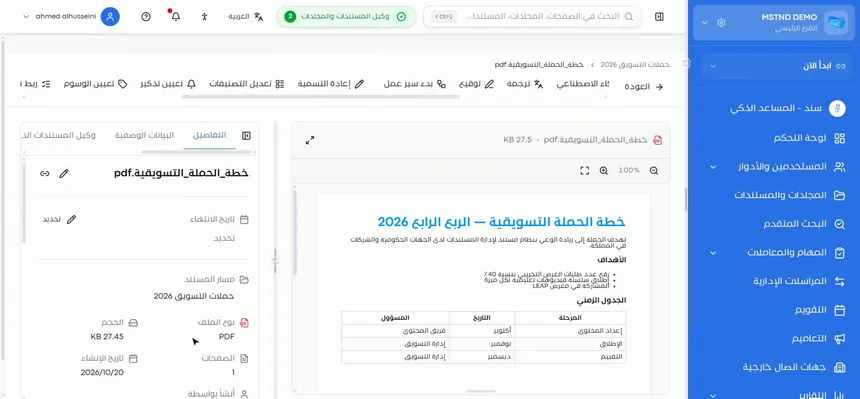
At the top of the document page is an action bar that holds many operations. What matters here are three buttons next to each other: «Edit categories», «Set reminder» and «Set tags». You can scroll the bar horizontally if not all of the buttons appear on your screen.
All three serve one goal: the document carries organizing information that helps you and your colleagues follow it up and find it.
Step 2: Open «Set reminder»
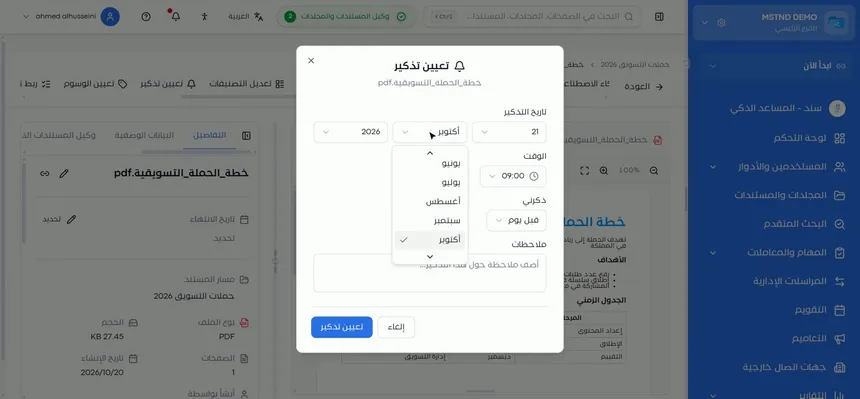
Click «Set reminder». A window with the same title opens, with the document name shown under the title. The window contains:
- «Reminder date»: three lists for the day, the month and the year.
- «Time»: the hour of the reminder.
- «Remind me»: when the alert reaches you before the date.
- «Notes»: optional text.
Step 3: Set the date, the time and the alert, and add a note
Choose the date and the time, then pick when to be alerted from the «Remind me» list:
| Option | Suitable for |
|---|---|
| 1 hour before | Same-day appointments, such as a meeting to discuss the document |
| 1 day before | Tasks that need a little preparation |
| 1 week before | Renewals and reviews that need time to prepare |
Then write in «Notes» what needs to be done when the date arrives, and click «Set reminder».
Step 4: Confirm that the reminder is set
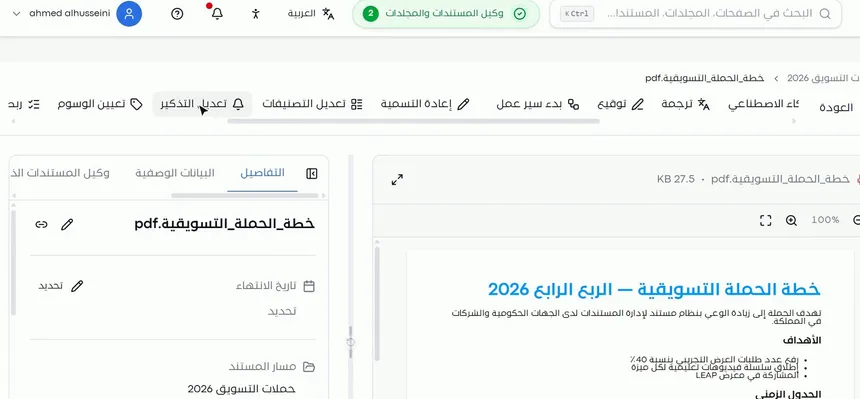
After saving, the button in the action bar changes from «Set reminder» to «Edit reminder». This is a quick sign that the document carries a reminder. From the same button you can edit the date, the time or the note if the date changes.
Step 5: Add tags from «Set tags»
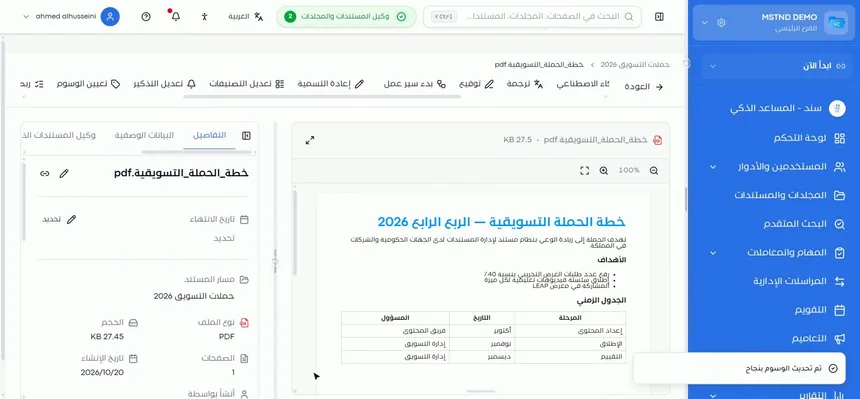
Click «Set tags», then choose suitable tags from the existing ones, or add a new tag if you do not find a fitting one. After saving, the notification «Tags updated successfully» appears.
Tags are flexible: a single document can carry several tags that describe it from different angles, such as the topic, the department and the importance. For example: «Marketing» and «Important».
Step 6: Categorize the document from «Edit categories»
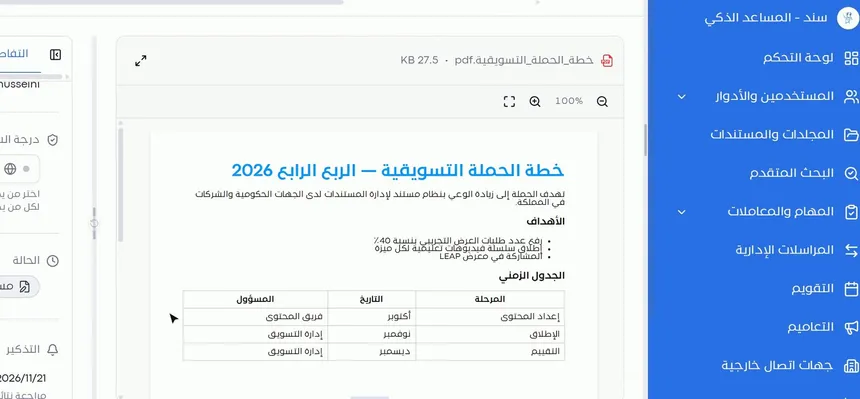
Click «Edit categories» and choose the suitable category for the document. A category places the document in a clear group, while tags add free descriptions. Use both together: the category for general organization and the tags for the details.
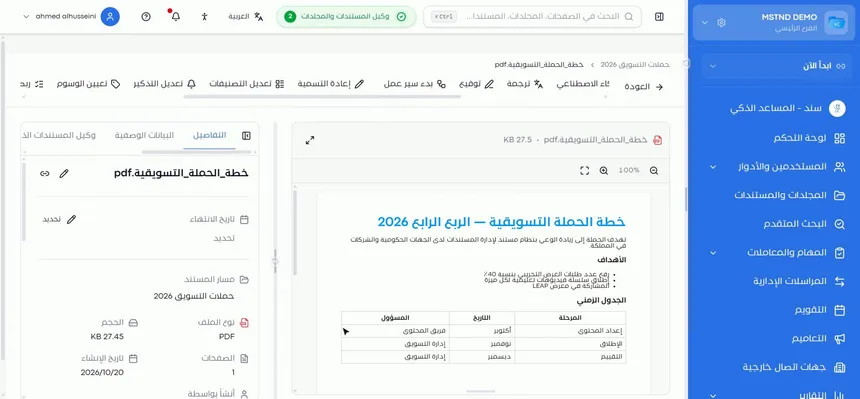
The screenshot shows the side panel, which now has a «Reminder» section with its date and note, next to the confidentiality level and the status.
Step 7: Review the result in the «Details» tab
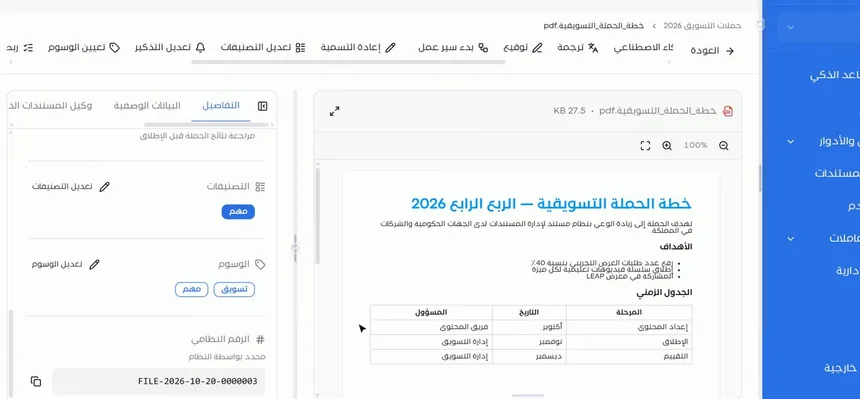
Open the «Details» tab in the side panel. You will find:
- «Reminder» with its date and note.
- «Categories» with an «Edit categories» button.
- «Tags» with an «Edit tags» button.
- «System number», which the system assigns.
All of this information stays with the document and makes searching and filtering easier for you later. You can edit the categories and tags directly from here without going back to the action bar.
Options and their effect
| Option or setting | What it does | When to use it |
|---|---|---|
| «Set reminder» | Opens the window for creating a reminder for the document | When the document is tied to a follow-up date |
| «Reminder date» | Sets the day of the reminder | Always, when creating the reminder |
| «Time» | Sets the hour of the reminder | For dates set to a specific hour |
| «Remind me»: 1 hour before | An alert one hour before the date | Same-day appointments |
| «Remind me»: 1 day before | An alert one day before the date | Routine follow-ups |
| «Remind me»: 1 week before | An alert one week before the date | Renewals and major reviews |
| «Notes» | Text that explains what is needed | To remind yourself of the required action |
| «Edit reminder» | Edits an existing reminder | When the date changes |
| «Set tags» / «Edit tags» | Adds or edits tags | To describe the document with words you can filter by |
| Adding a new tag | Creates a tag that does not exist yet | When no suitable tag exists |
| «Edit categories» | Sets the document's category | To organize the document within a category |
Practical scenarios
Scenario: A contracting company follows the renewal of an equipment rental contract
Situation: An equipment rental contract ends in two months, and the renewal needs negotiation with the lessor in advance.
What you do in Mstnd:
- Open the contract and click «Set reminder».
- Set the date two weeks before the contract ends, and choose «Remind me» 1 week before.
- Write in the notes: "Start negotiating the renewal with the lessor".
- Add the tags «Contracts» and «Equipment», and categorize the document.
Result: The alert reaches you early enough to negotiate, and all equipment contracts can be reached with a single filter.
Scenario: A school organizes students' personal files
Situation: The student affairs department keeps various reports and needs to tell apart the ones that require follow-up with a parent.
What you do in Mstnd:
- Add to each report a tag for the grade and a tag for the report type.
- For reports that require a meeting, set a reminder for the meeting date with «1 day before».
- Categorize behavioral and academic reports, each in its own category.
Result: Clear organization that lets you pull out the reports of a certain grade or a certain type quickly, without forgetting appointments with parents.
Scenario: A hospital follows the periodic review of its policies
Situation: Quality policies must be reviewed periodically, and each policy has a different review date.
What you do in Mstnd:
- Open each policy and set a reminder for its next review date.
- Choose «Remind me» 1 week before, and write the name of the responsible committee in the notes.
- Add the tag «Quality policies» to all the policies.
Result: No policy review is missed, and all quality policies can be shown together during an audit.
Scenario: A marketing department in a trading company
Situation: Several campaign plans, some more important than others, and all of them need a review of results before launch.
What you do in Mstnd:
- Add the tag «Marketing» to each plan, and the tag «Important» to the high-priority ones.
- Set a reminder before the launch date with the note "Review the campaign results before launch".
- Review the tags and the reminder from the «Details» tab during the weekly meeting.
Result: A clear view of the important campaigns and their dates in one place.
How it relates to other features
- Document details: the reminder, categories and tags appear in the «Details» tab, and you can edit the categories and tags from there.
- Smart document agent: suggests categories, tags and reminders based on the document's content, with a confidence score, so you apply them instead of entering them manually.
- Calendar: gathers your dates, including reminders, so you see document reminders alongside the rest of your due items.
- Text search: searching inside the content complements organizing with tags and categories when you look for a document.
- Metadata: adds structured fields that go deeper than tags, such as a contract's values and parties.
- Dashboard: a daily follow-up point for what needs your attention, including documents close to expiry.
Tips and best practices
- Agree with your team on one shared list of tags, and avoid synonyms and different forms of the same word.
- Use the category for general organization and tags for extra details.
- Choose «Remind me» according to how much preparation is needed: a week for renewals, a day for follow-ups and an hour for same-day appointments.
- In the reminder note, write the required action clearly, not just the document name.
- Edit the reminder as soon as the date changes, from «Edit reminder», so that the alert does not reach you at an unsuitable time.
- Add tags as soon as you upload the document; organizing many documents later is harder.
- Make use of the smart document agent's suggestions for tags and categories, then review them before applying them.
Warnings and common mistakes
FAQ
How do I set a reminder for a document in Mstnd?
Open the document and click «Set reminder» in the action bar, then set the date, the time and when to be alerted from «Remind me», add a note and click «Set reminder».
When does the reminder alert reach me?
You choose that from the «Remind me» list: 1 hour, 1 day or 1 week before the set date.
How do I edit an existing reminder?
After the reminder is set, the button's name becomes «Edit reminder». Click it and edit the date, the time or the note.
Can I add a tag that does not exist yet?
Yes. From «Set tags» you can choose existing tags or add a new tag.
What is the difference between tags and categories?
A category places the document in an organizational group, while tags are free descriptive words, and a document can carry several tags. Using both together gives more precise organization.
Where do I see the reminder, tags and categories after adding them?
In the «Details» tab in the side panel of the document page, where you can also edit the categories and tags.
Why add tags and categories to documents?
Because they make searching and filtering easier later, so you reach all the documents of a given topic or category without browsing folders.
Summary
- The action bar holds «Set reminder», «Set tags» and «Edit categories».
- The reminder is linked to the document with a date, a time, an advance alert and a note, and its button becomes «Edit reminder» once it is set.
- Tags are flexible and you can add new ones; categories organize the document within a group.
- All of this appears in the «Details» tab and makes searching and filtering easier.
Try it free: Create your organization's account in Mstnd
Was this article helpful?
Related articles
 0:44
Document details: everything about your document in one place
Learn the «Details» tab in Mstnd: expiry date, path, type, size, creator, confidentiality and status changes with a reason, reminder, tags and system number.
 0:59
The Mstnd smart document agent: understand your document before you read it
Mstnd's smart document agent analyzes each file: text, summary and entities, plus suggested status, categories, tags, tasks and access with a confidence score.
 0:44
The Mstnd Calendar: your full schedule and your team's in one place
Learn the Mstnd Calendar: tasks, circulars, reminders, document expiry, correspondence and invitations in Hijri and Gregorian, with five views and a day panel.
 1:16
Text search in Mstnd: search inside the content of your files
Learn Mstnd text search: find a word, number or date inside file names, content and extracted values, with highlighted matches, filters and saved searches.
 1:57
The Mstnd Dashboard: everything waiting for you on one screen
Learn the Mstnd Dashboard: the «Waiting for you today» cards, the Action agenda, workflows, Sanad recommendations, team activity and how to plan your day.
 1:02
Metadata: structured fields for every document, powered by AI
Learn the «Metadata» tab in Mstnd: create a field template with AI or link an existing one, auto-extract the values with a confidence level, then confirm them.