

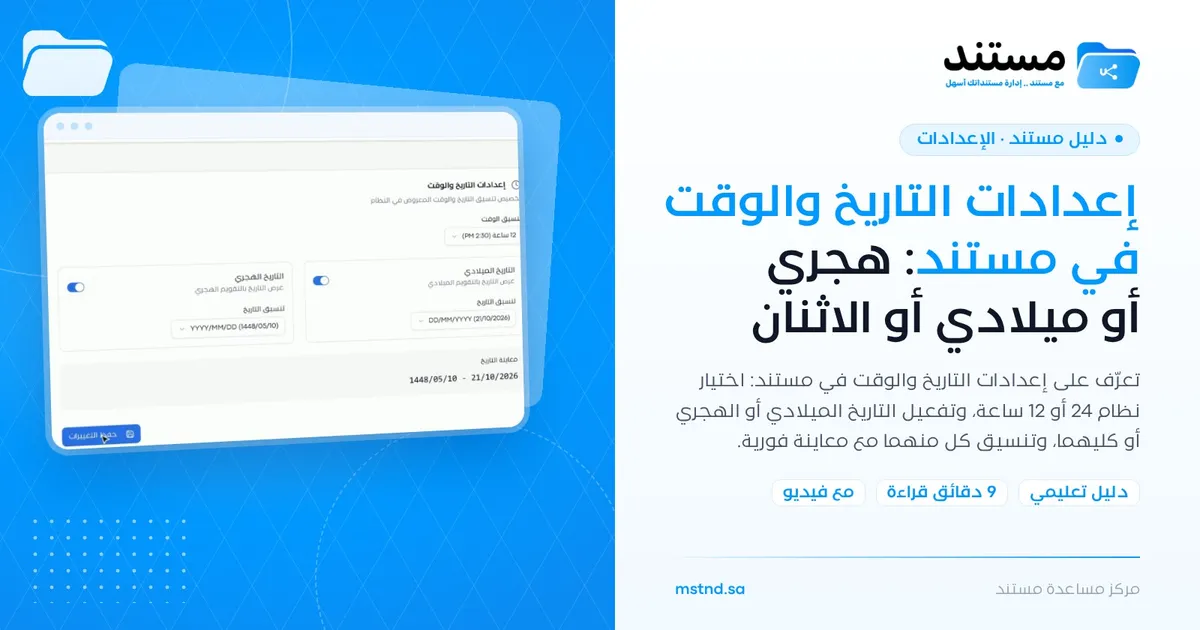
Date and time settings in Mstnd: Hijri, Gregorian or both
In this article
The «Date and time» settings in Mstnd define how dates and times appear throughout the system. From them you choose the time format (24-hour or 12-hour), enable the Gregorian date, the Hijri date or both together, and set the format of each one, then see the final result in an instant preview before saving. They suit Saudi organizations that deal with both calendars every day in their correspondence and transactions.
Quick overview
| Item | Details |
|---|---|
| Module | Settings |
| Where it is in the interface | «Settings» → «Date and time» → the «Date and time settings» card |
| Direct link | https://app.mstnd.sa/settings/date-time |
| Goal | Standardize how dates and times are displayed in the system in a way that suits the organization |
| Who it is for | The system administrator, government and semi-government entities, and every organization that relies on the Hijri calendar or on both calendars together |
| Video length | About 25 seconds |
| What you will learn | Choosing the time format, enabling and formatting both calendars, reading the «Date preview» and saving the settings |
Watch the video
In about 25 seconds, the video shows how to choose the time format, enable the Gregorian and Hijri dates and format each of them, then preview and save.
Why this feature?
In the Saudi workplace, both calendars are present together. Government entities date their letters in Hijri, international partners work in Gregorian, and many official documents carry both dates. When the system shows a single format that does not suit the organization, employees are forced to convert dates in their heads or by hand, and mistakes creep into appointments and due dates.
The differing order of day and month is another source of confusion. The date 04/05 may be read as the fourth of May or the fifth of April. This page settles the matter: one approved format, and one calendar or two, applied to the whole system.
| Before setting the date and time | After setting the date and time |
|---|---|
| Manual conversion between Hijri and Gregorian | Both calendars shown together whenever you need them |
| Confusion over the order of day and month | A single format approved for the organization |
| Times such as 14:30 are unfamiliar to some teams | A choice between the 12-hour and the 24-hour clock |
| You do not know what the date will look like before applying it | The «Date preview» shows the final form instantly |
Its value for the organization: consistent dates on every screen and fewer scheduling mistakes. Its value for the individual: reading dates in the familiar format without converting them.
Where to find it
- Open «Settings».
- Choose «Date and time».
- The «Date and time settings» card appears, with the description «Customize the date and time format displayed in the system».
Direct link: https://app.mstnd.sa/settings/date-time
Concepts and terms
| Term | Meaning in Mstnd |
|---|---|
| Time format | How the time is displayed: 24-hour, such as 14:30, or 12-hour, such as 2:30 PM |
| Gregorian date | Displaying dates in the Gregorian calendar; it is turned on or off with a switch |
| Hijri date | Displaying dates in the Hijri calendar; it is turned on or off with a switch |
| Date format | The order of the day, month and year and the separator between them, such as DD/MM/YYYY |
| DD / MM / YYYY | The format codes: the day in two digits, the month in two digits and the year in four digits |
| Date preview | A line that shows the final form of the date according to your choices, before saving |
Step by step
Step 1: Choose the time format
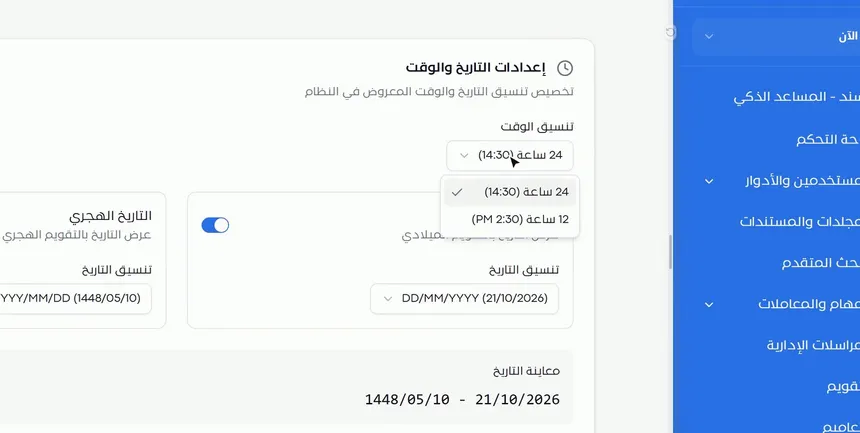
The first field on the card is «Time format». Open the list and choose:
- 24-hour (14:30): the format common in official and technical settings, with no need for AM or PM.
- 12-hour (2:30 PM): the format familiar from everyday use.
A live example appears next to each option, so you know what the time will look like before you choose it. Choose the format in which most of your employees read times without having to think.
Step 2: Enable the right calendar and choose its format
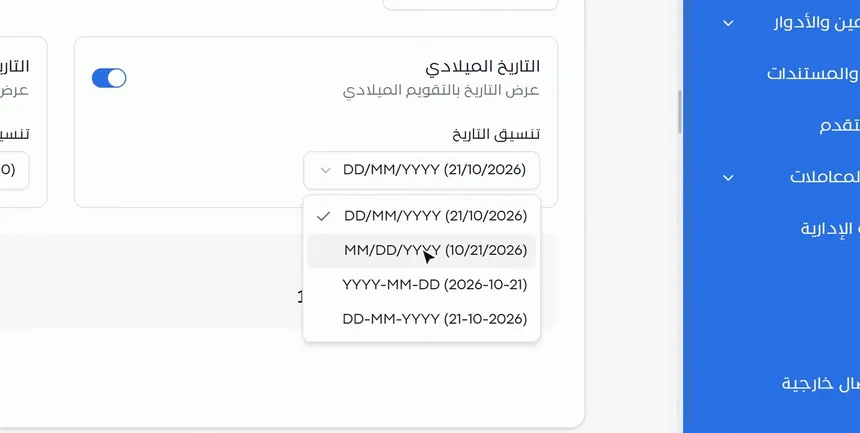
Below the time format are two cards side by side:
- Gregorian date: «Display dates in the Gregorian calendar».
- Hijri date: «Display dates in the Hijri calendar».
Each card has an activation switch, and you can enable one of them or both together. Each card also has a «Date format» list from which you choose the order of the elements. The available Gregorian date formats:
| Format | Example |
|---|---|
| DD/MM/YYYY | 21/10/2026 |
| MM/DD/YYYY | 10/21/2026 |
| YYYY-MM-DD | 2026-10-21 |
| DD-MM-YYYY | 21-10-2026 |
The Hijri date has a similar format list, such as YYYY/MM/DD, which displays the date as 1448/05/10.
Step 3: Review the «Date preview» and save
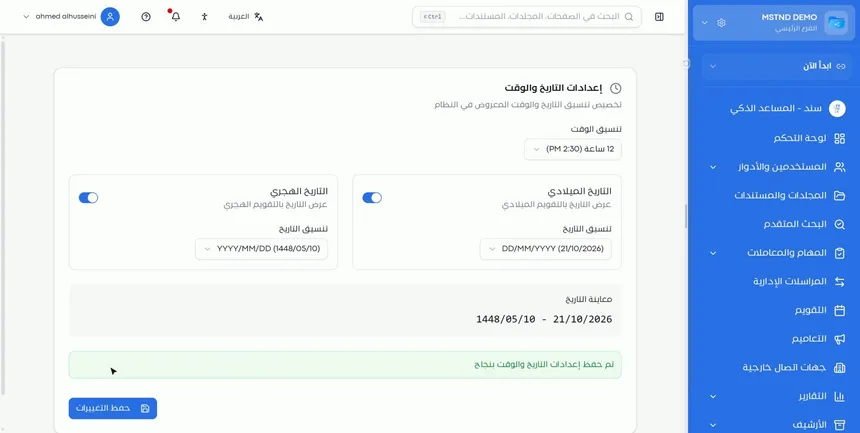
Below the two cards is the «Date preview» section. It shows the final form of the date as it will appear in the system. If you enabled both calendars, both dates appear together, such as «1448/05/10 - 21/10/2026».
Review the preview carefully before saving, and make sure the order is clear and cannot be read two ways. Then click «Save changes», and the message «Date and time settings saved successfully» appears.
Step 4: The new format applies to the whole system
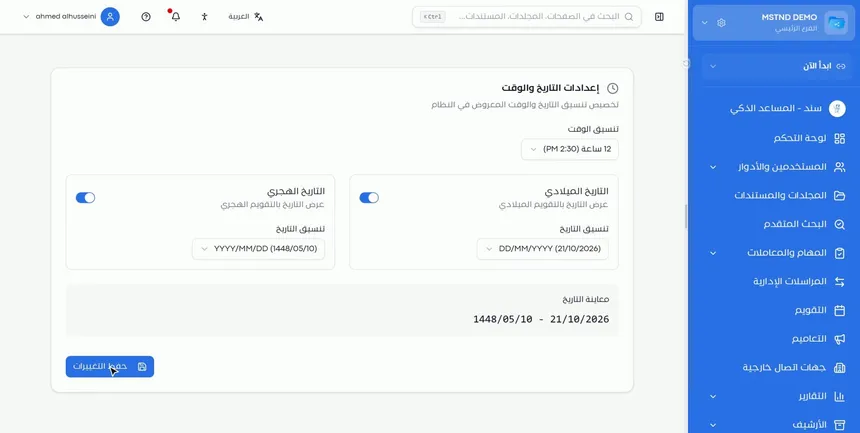
After saving, the new format is applied to the whole system. Dates and times will appear in the new format on the different screens, for example the dates and times of tasks and correspondence, and the dates of documents.
Options and their effect
| Option or setting | What it does | When to use it |
|---|---|---|
| Time format: 24-hour | Displays the time as 14:30 | In official and operational settings that use the international format |
| Time format: 12-hour | Displays the time as 2:30 PM | When users prefer the familiar everyday format |
| Gregorian date switch | Shows or hides dates in the Gregorian calendar | When dealing with partners and systems that use Gregorian |
| Hijri date switch | Shows or hides dates in the Hijri calendar | For government entities and official correspondence |
| Enabling both calendars | Shows the two dates side by side | When the organization needs both references at the same time |
| Date format | Sets the order of the day, month and year and the separator | To standardize the format and prevent confusion |
| «Date preview» | Shows the final form before saving | Before every save |
| «Save changes» | Applies the settings to the whole system | After reviewing the preview |
Practical scenarios
Scenario: A government entity that relies mainly on the Hijri date
Situation: A government entity dates its transactions and correspondence in Hijri, but needs Gregorian to deal with suppliers and partners.
What you do in Mstnd:
- Enable the Hijri date and choose the YYYY/MM/DD format.
- Enable the Gregorian date and choose DD/MM/YYYY.
- Choose the 24-hour clock for the time.
- Review the «Date preview», then save.
Result: Employees see both dates together on every screen, without converting by hand when reviewing appointments.
Scenario: A trading company that works with international partners
Situation: An import company exchanges contracts and invoices with suppliers from outside the Kingdom, and most of its dates are in Gregorian.
What you do in Mstnd:
- Enable the Gregorian date only.
- Choose the DD/MM/YYYY or YYYY-MM-DD format to avoid confusion with the American format.
- Choose the 12-hour clock if the team prefers it.
Result: Clear dates that cannot be read two ways, consistent with the partners' documents.
Scenario: A hospital sets the times of shifts and tasks
Situation: Nursing and administration teams follow tasks with precise times around the clock.
What you do in Mstnd:
- Choose the 24-hour time format.
- Enable the calendar the hospital uses and choose its format.
- Save, and tell the teams about the new format.
Result: Eight in the morning is never confused with eight in the evening in time-sensitive tasks.
Scenario: A school follows the academic calendar
Situation: A school follows the official dates of the academic year and communicates with parents, some of whom prefer Hijri and some Gregorian.
What you do in Mstnd:
- Enable both calendars.
- Choose similar formats for the two calendars so that they are easy to compare.
- Check the preview, then save.
Result: Exam and circular dates appear in both calendars, so there are fewer questions about dates.
How it relates to other features
- Calendar: shows tasks, circulars, reminders, document expiries and correspondence, and there too you can display Hijri, Gregorian or both.
- Important documents: where you enter the issue and expiry dates of documents in Hijri and Gregorian; their display benefits from the unified format.
- Tasks: task dates and due dates appear in the format you choose here.
- Administrative correspondence: the dates of outgoing and incoming correspondence and the reply deadlines are read in the approved format.
- Dashboard: the Action agenda and the daily due items rely on how the date and time are displayed.
- Organization: another general setting that is configured once at the organization level.
Tips and best practices
- Set the date and time as part of the initial setup of the system, before the team starts creating tasks and correspondence.
- Enable both calendars if your organization deals with government entities and private-sector partners.
- Avoid the MM/DD/YYYY format unless your team is used to it: it is a common source of confusion.
- Use the 24-hour clock in operational settings that follow work around the clock.
- Review the «Date preview» before every save, and do not rely on guesswork.
- Document the approved format in the organization's procedures manual so that everyone follows it in external documents too.
Warnings and common mistakes
FAQ
How do I display the Hijri date in Mstnd?
Open «Settings» → «Date and time», turn on the «Hijri date» switch, choose its format, then click «Save changes».
Can the Hijri and Gregorian dates be displayed together?
Yes. Turn on both the Gregorian and the Hijri date switches, and the two dates appear side by side, as the «Date preview» shows.
How do I change the time to the 12-hour clock?
In the «Time format» list, choose «12-hour (2:30 PM)», then save the changes.
Which Gregorian date formats are available?
DD/MM/YYYY, MM/DD/YYYY, YYYY-MM-DD and DD-MM-YYYY, with an example shown next to each format.
Is the date format applied to the whole system?
Yes. After saving, the new format is applied to the whole system.
How do I know what the date will look like before saving it?
From the «Date preview» section below the two cards, which shows the final form according to your choices before saving.
Can I turn off the Gregorian date and use only the Hijri date?
You can control each calendar with its own switch. Enable Hijri, set the Gregorian switch as you need, and review the preview before saving.
Summary
- The «Date and time» page defines how dates and times look throughout the system.
- You choose between the 24-hour and the 12-hour clock, with an example for each option.
- You enable Gregorian, Hijri or both, each with its own format.
- The «Date preview» shows the final form before you click «Save changes».
- The change covers every user, so set it early and tell your team about any change.
Try it free: Create your organization's account in Mstnd
Was this article helpful?
Related articles
 0:44
The Mstnd Calendar: your full schedule and your team's in one place
Learn the Mstnd Calendar: tasks, circulars, reminders, document expiry, correspondence and invitations in Hijri and Gregorian, with five views and a day panel.
 0:21
Organization settings in Mstnd: your organization's official data in one place
Learn Mstnd organization settings: name, type, commercial registration and tax number, how to edit and save them, and why the unique identifier is display-only.
 0:57
Important documents in Mstnd: track your commercial registration and licenses
Learn «Important documents» in Mstnd: upload a commercial registration or license, let AI suggest its data and set a Hijri or Gregorian expiry date for alerts.
 0:56
The Tasks page in Mstnd: your tasks and your team's in one place
Mstnd's Tasks page lists your and your team's tasks with system number, operation, status, priority, assignees and due date, plus scopes, filters and a report.
 0:50
Administrative correspondence in Mstnd: outgoing and incoming in one organized register
Administrative correspondence in Mstnd: outgoing and incoming in one register, indicators, filters by direction, status and confidentiality, and reply threads.
 1:57
The Mstnd Dashboard: everything waiting for you on one screen
Learn the Mstnd Dashboard: the «Waiting for you today» cards, the Action agenda, workflows, Sanad recommendations, team activity and how to plan your day.