


API integration in Mstnd: connect your systems programmatically with secure keys
In this article
The «API integration» page in Mstnd is where you get the keys for connecting your external systems to Mstnd programmatically: the public key and the secret key, the base URL and the API documentation. From it you also control the security of the connection by revoking the key and restricting access with an IP allowlist, and you track the volume of use with daily and monthly statistics. It serves technical teams that want the organization's systems to send their files to Mstnd automatically.
Quick overview
| Item | Details |
|---|---|
| Module | Settings |
| Where it is in the interface | «Settings» → «API integration» |
| Direct link | https://app.mstnd.sa/settings-api-integration |
| Goal | Enable external systems to work with Mstnd programmatically, with secure keys and access that is restricted and can be monitored |
| Who it is for | IT managers, developers and information security officers in the organization |
| Video length | About 42 seconds |
| What you will learn | Viewing and copying the keys, reaching the documentation, knowing where uploaded content goes, restricting IP addresses and reading the usage statistics |
Watch the video
In about 42 seconds, the video walks through the sections of the API integration page in order: key information, content location, the rate limit and revoking the key, the IP allowlist, then usage statistics.
Why this feature?
In many organizations, documents are created outside the document management system. The accounting system issues invoices, the HR system issues contracts and letters, and the sales system issues price quotations. Without a programmatic connection, an employee downloads these files and then uploads them by hand, so filing is delayed, files get lost and some of them are duplicated.
Connecting through the API makes this transfer automatic. The external system sends its files to Mstnd directly, so they arrive in a specific folder and benefit from search, analysis and permissions. At the same time, the page gives you the governance tools: who can connect, from where, and at what volume.
| Before API integration | With API integration |
|---|---|
| Downloading files from other systems and uploading them by hand | Systems send their files to Mstnd automatically |
| Files from systems are scattered in random folders | Content gathers in the «Integrations» folder and organized subfolders |
| No control over who connects to the system | The IP allowlist limits access to specific servers |
| You do not know how much the connection is used | Daily and monthly statistics and a chart of the last 7 days |
| A leaked key is an ongoing risk | «Revoke key» stops it immediately |
Where to find it
- Open «Settings».
- Choose «API integration».
Direct link: https://app.mstnd.sa/settings-api-integration
Concepts and terms
| Term | Meaning in Mstnd |
|---|---|
| API | A programming interface that lets another system send requests to Mstnd and receive responses from it |
| Public key | An identifier of the party connecting to Mstnd, used together with the secret key in requests |
| Secret key | A secret value that proves the identity of the connecting system; it must be protected the way a password is |
| API base URL | The address from which all API requests start |
| API documentation | The developer reference that explains the available requests and how to use them |
| Rate limit | The maximum number of requests allowed per minute for this key |
| IP allowlist | The only addresses from which Mstnd accepts requests made with this key |
| «Integrations» folder | The folder where the folders and documents created through the API are gathered |
Step by step
Step 1: Get to know «Key information»
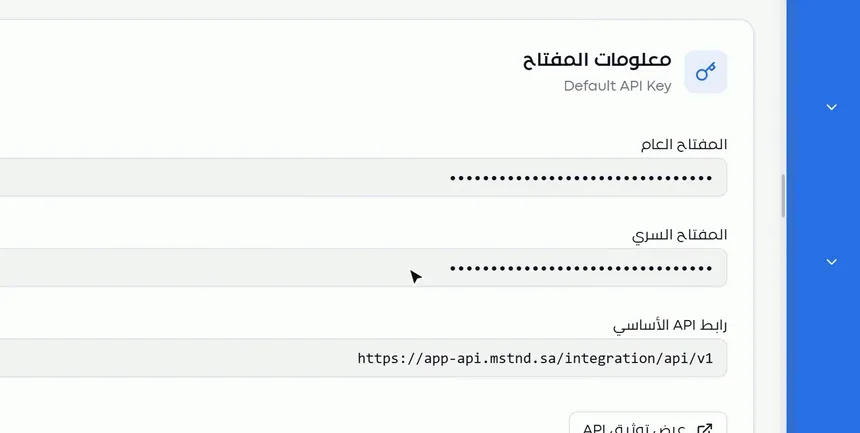
The first section starts with the «Key information» card, with the key's name below it. It contains two main fields:
- Public key: identifies your system when it connects.
- Secret key: proves that the request really comes from your system.
The developer needs both keys together to set up the connection in the external system. Think of them as a username and password meant for systems, not for people.
Step 2: View or copy the keys, and open the documentation
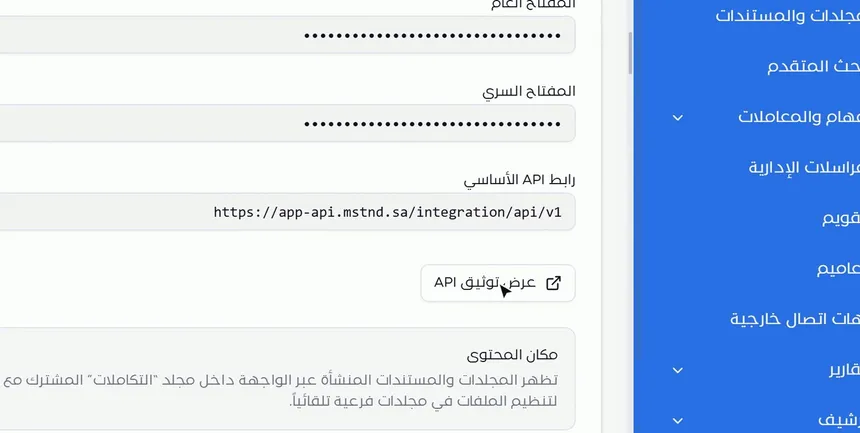
The keys are hidden by default to protect them from prying eyes nearby. With one click you can:
- View the key to check its value.
- Copy the key to paste it directly into the settings of the external system.
Below the two keys is the API base URL, the address from which requests start, and the «View API documentation» button, which opens the developer reference.
Step 3: Know where content will go in «Content location»
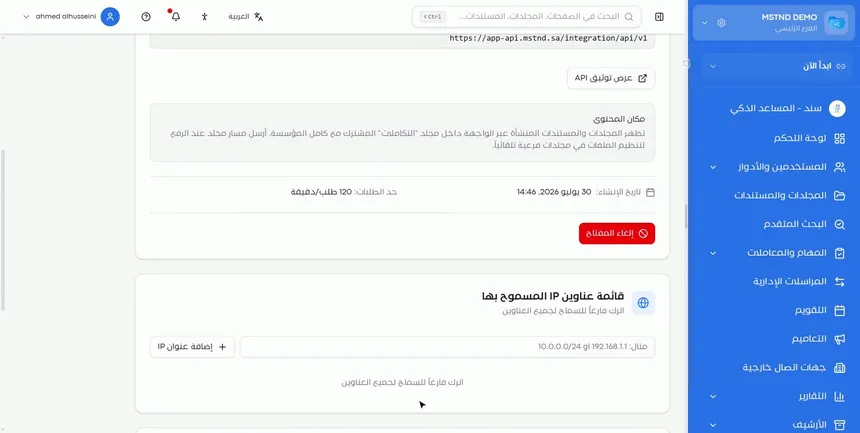
The «Content location» section answers an important question before you start the connection: where will the files go? Folders and documents created through the API appear inside the «Integrations» folder shared with the organization, and the files in it are organized into subfolders automatically.
This gives you a single collection point for everything that arrives from other systems. From there you can review the files, move them to their final folders, or start a workflow on them.
Step 4: Review the rate limit, and restrict access by IP address

At the bottom of the key card you find:
- Creation date: when the key was created.
- Rate limit: the number of requests allowed per minute for this key. It protects the system from excessive load and helps the developer tune the sending pace.
- «Revoke key»: ends the key's validity. Use it immediately if you suspect it has leaked, or when you stop the integration.
Below it is the «IP allowlist» card. Add to it the addresses of the servers that will connect to Mstnd, as a single address or a range of addresses, then click «Add IP address». If you leave the list empty, requests will be allowed from all addresses.
Step 5: Track «Usage statistics»
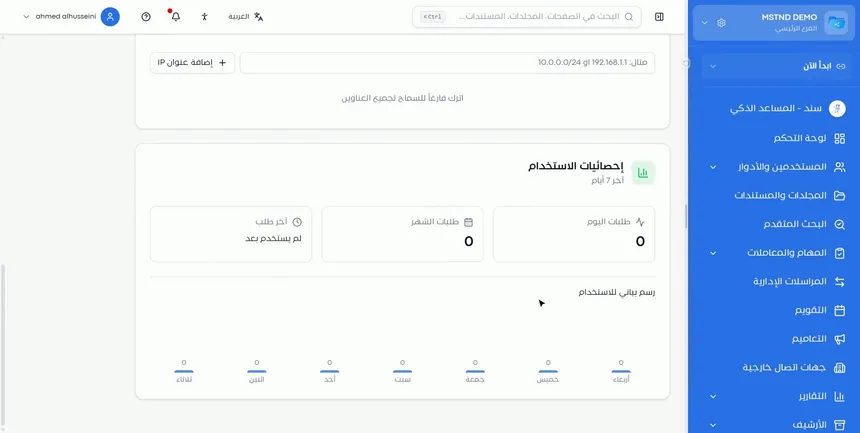
The last section shows how the key was used over the last 7 days:
- Today's requests: the number of requests since the start of the day.
- This month's requests: the total number of requests during the month.
- Last request: when the key was last used, or «Not used yet» if it has not been used.
- Usage chart: the number of requests for each day of the week.
Read these numbers as a health indicator for the connection. A sudden drop to zero may mean that the external system has stopped sending. An unexplained rise may mean an error in how the connection was programmed, or unauthorized use.
Options and their effect
| Option or setting | What it does | When to use it |
|---|---|---|
| View the key | Shows the hidden key value | To check the key used in the connection |
| Copy the key | Copies the value with one click | When setting up the connection in the external system |
| «View API documentation» | Opens the developer reference | Before and while building the connection |
| «Revoke key» | Ends the key's validity | When you suspect a leak or stop the integration |
| «Add IP address» | Adds an allowed address or range | To limit access to the organization's servers |
| Leaving the list empty | Allows requests from all addresses | During testing only |
| «Usage statistics» | Shows the volume of requests and the last use | For regular monitoring and spotting failures |
Practical scenarios
Scenario: A trading company archives the accounting system's invoices automatically
Situation: The accounting system issues hundreds of invoices every month, and the finance department wants them archived in Mstnd without manual intervention.
What you do in Mstnd:
- Open «API integration» and copy the public and secret keys.
- Give the developer the API base URL and point them to «View API documentation».
- Add the address of the accounting system's server to the IP allowlist.
- Track «Today's requests» after go-live to make sure the invoices are arriving.
Result: The invoices arrive in the «Integrations» folder automatically, and the finance team takes care of organizing and reviewing them.
Scenario: A hospital connects its health information system
Situation: The hospital wants to save the administrative reports issued by its internal system in Mstnd, with strict security controls.
What you do in Mstnd:
- Add the address range of the hospital's internal network to the IP allowlist.
- Hand the keys over to the technical team through a secure channel.
- Review «Last request» daily during the first week.
Result: An effective connection that accepts requests only from the hospital's network.
Scenario: A government entity deals with a key suspected of leaking
Situation: The information security officer noticed an unusual rise in the chart that does not match the activity of the known systems.
What you do in Mstnd:
- Compare «Today's requests» with the usual rate in the chart.
- Click «Revoke key» immediately to stop it.
- Review the IP allowlist and add only the approved addresses before restarting the connection.
Result: The suspicious access stops immediately, and the connection resumes later with tighter controls.
Scenario: A contracting company tests the connection before launch
Situation: An external development team is building a connection between the project management system and Mstnd.
What you do in Mstnd:
- Share the documentation with the team, and start with an allowlist that contains only the test server.
- Watch for the files to appear in the «Integrations» folder.
- When moving to live operation, replace the address of the test server with the addresses of the production servers.
Result: Controlled testing without opening access to all addresses.
How it relates to other features
- Integrations: shows the ready-made integrations through REST API and Webhooks, and puts you in touch with the Mstnd team if you prefer managed activation.
- Folders: this is where the «Integrations» folder appears, collecting the content that comes through the API.
- Folder content: from inside the «Integrations» folder you review incoming files and move them to their places.
- Smart document agent: analyzes incoming files and extracts their text and data like any other file.
- Permissions: limit access to the API integration page to the relevant technical roles only.
- Activity: the record of actions in the system complements the usage statistics for monitoring.
Tips and best practices
- Treat the secret key like a password: do not share it by email, in chats or in documents.
- Always add the IP addresses of your servers in the production environment, and do not leave the list empty.
- Read the «API documentation» in full before you start, and respect the rate limit when designing the connection.
- Review «Usage statistics» at least weekly, and watch for sudden changes.
- Plan how the «Integrations» folder will be organized: decide who reviews it and when files are moved out of it.
- Revoke the key immediately when a developer who knew its value leaves, or when you suspect it has leaked.
- Limit the permission to access this page to a small number of administrators.
Warnings and common mistakes
FAQ
How do I get an API key in Mstnd?
Open «Settings» → «API integration». In «Key information» you find the public key and the secret key, and you can view or copy them with one click.
What is the difference between the public key and the secret key?
The public key identifies the connecting system, and the secret key proves its identity. They are used together, and the secret key must be protected the way a password is.
Where are files uploaded through the API saved?
Folders and documents created through the API appear inside the «Integrations» folder shared with the organization, and they are organized into subfolders automatically.
How do I restrict API access to specific addresses?
Add the addresses of your servers, or their ranges, to the «IP allowlist» with the «Add IP address» button. An empty list allows all addresses.
What do I do if the secret key leaks?
Click «Revoke key» immediately to stop it, then review the IP allowlist and the usage statistics before resuming the connection.
Is there a limit on the number of requests?
Yes. The «Rate limit» on the key card shows the number of requests allowed per minute.
How do I know the connection is working?
From «Usage statistics»: today's and this month's requests, the time of the last request and the chart of the last 7 days.
Where do I find the Mstnd API documentation?
From the «View API documentation» button in the key information section of the API integration page.
Summary
- The «API integration» page provides the public and secret keys, the base URL and the documentation for connecting your systems to Mstnd.
- The keys are hidden by default and can be viewed or copied with one click.
- Content that arrives through the API gathers in the «Integrations» folder, in organized subfolders.
- «Revoke key» and the IP allowlist are the two main security tools for the connection.
- «Usage statistics» reveal a stopped connection or unusual use early.
Try it free: Create your organization's account in Mstnd
Was this article helpful?
Related articles
 0:34
Integrations in Mstnd: connect your files, appointments and systems
Learn the Mstnd Integrations page: import from Google Drive and OneDrive, sync Google and Outlook calendars, and explore ERP, CRM and e-signature integrations.
 1:26
Folders in Mstnd: organize your organization's documents from day one
Learn the Mstnd Folders page: Personal space, structure folders, Shared with me, new folders with a confidentiality level, color and icon, views and actions.
 1:05
Folder content in Mstnd: find your file and manage it in seconds
The Mstnd folder content screen explained: file cards and status changes, multi-select and bulk actions, the folder side panel, and AI chat about the files.
 0:23
The activity log in Mstnd: who did what, and when
The Mstnd activity log shows every operation in the system with who did it and when; search by keyword or user name and pick a date range to review events.
 0:27
Permissions in Mstnd: a complete reference for who sees and who edits
Learn the Permissions tab in Mstnd: every permission by category, with its name, code, description and the roles that include it, and how to search and filter.
 0:59
The Mstnd smart document agent: understand your document before you read it
Mstnd's smart document agent analyzes each file: text, summary and entities, plus suggested status, categories, tags, tasks and access with a confidence score.