

Organization settings in Mstnd: your organization's official data in one place
In this article
The «Organization» settings in Mstnd are the page where you keep your organization's basic data: the organization's name, its type, its commercial registration and its tax number. You edit any of these fields and save it with one click, while the organization's unique identifier stays fixed and is shown for display only. The page helps the system administrator and the department responsible for the organization's data keep an accurate, up-to-date official reference inside the system.
Quick overview
| Item | Details |
|---|---|
| Module | Settings |
| Where it is in the interface | «Settings» → «Organization» → the «Organization information» card |
| Direct link | https://app.mstnd.sa/settings/organization |
| Goal | Keep the organization's basic official data and update it from one place |
| Who it is for | The system administrator, and the legal or administrative department responsible for the organization's data |
| Video length | About 21 seconds |
| What you will learn | Knowing the organization data fields, editing and saving them, and the difference between the editable fields and the unique identifier |
Watch the video
In about 21 seconds, the video shows the fields of the «Organization information» card, how the organization type is edited and saved, then the message confirming a successful save.
Why this feature?
The organization's official data is requested in many situations: when writing to an external party, preparing a contract, filling in a form for a government entity or reviewing billing data. When this data is spread between files, email and messages, time is lost looking for it, and an old or mistyped number may end up being used.
The «Organization» page gives this data a single reference inside Mstnd. The official name, the type of activity, the commercial registration number and the tax number sit on one card that the person responsible for them keeps up to date. The unique identifier stays fixed because the system relies on it to tell the organization apart.
| Before organization settings | With organization settings |
|---|---|
| The organization's data is spread across files and messages | A single reference for the official data inside the system |
| Nobody knows which copy of the data is the latest | The card shows the current approved data |
| A change to the organization's name or type is announced by hand | Editing and saving from a single page |
| Risk of changing the organization's identifier by mistake | The unique identifier is display-only and does not change |
Its value for the organization: accurate and consistent official data. Its value for the person in charge: one place to update the data from, instead of chasing it in more than one place.
Where to find it
- Open «Settings».
- Choose «Organization».
- The «Organization information» card appears, with the description «Basic organization information» below it.
Direct link: https://app.mstnd.sa/settings/organization
Concepts and terms
| Term | Meaning in Mstnd |
|---|---|
| Organization name | The organization's official name in the system; a required field marked with an asterisk |
| Unique identifier (Slug) | A fixed text code that distinguishes the organization inside the system; it is shown for display only |
| Organization type | A description of the organization's field of activity, such as «Information technology» |
| Commercial registration | The organization's official commercial registration number |
| Tax number | The number under which the organization is registered with the tax authority |
| Save changes | The button that confirms the edits and saves them |
Step by step
Step 1: Review the «Organization information» fields
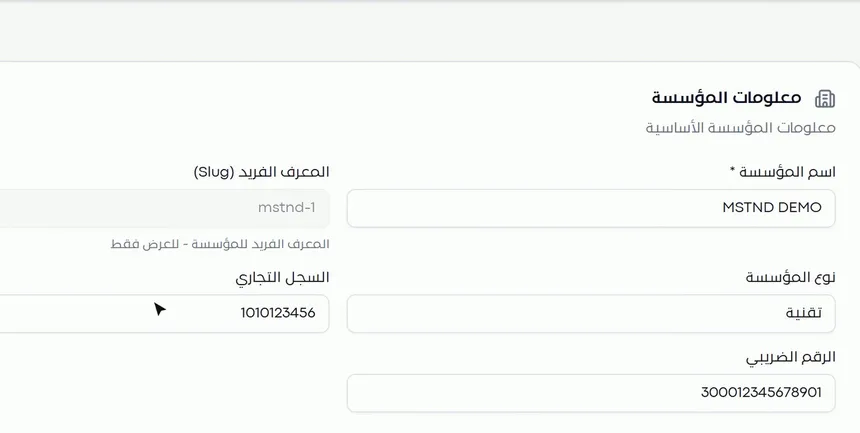
The card shows five fields:
- Organization name: a required field, as the asterisk next to it indicates.
- Unique identifier (Slug): shown on a gray background, with the line «The organization's unique identifier - display only» below it.
- Organization type: describes the field of activity.
- Commercial registration: the official registration number.
- Tax number: the organization's tax number.
Before making any edit, review the fields and compare them with the organization's official documents. This review matters especially right after the account is created, or after any change to the organization's data with the official authorities.
Step 2: Edit the field you need and click «Save changes»
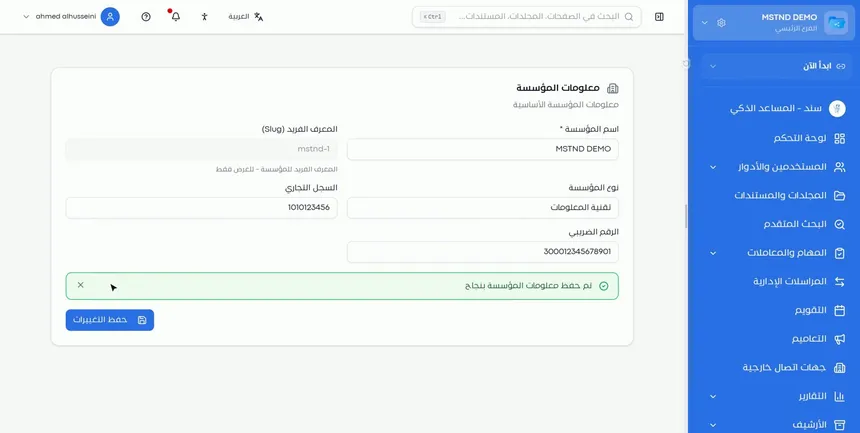
Click inside the field you want to edit and type the new value. In the video, «Organization type» was changed from a short description to a more precise one, «Information technology». Then click «Save changes» at the bottom of the card.
You can edit more than one field before saving, then save once. But check every value before clicking, especially long numbers such as the commercial registration and the tax number.
Step 3: Make sure the save succeeded
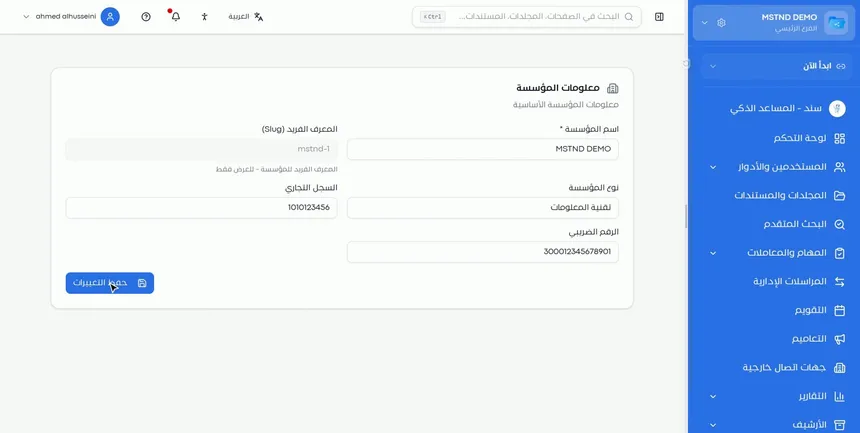
After saving, the message «Organization information saved successfully» appears. Notice that the unique identifier stayed as it was: it is display-only and cannot be changed from this page.
Keeping the identifier fixed is intentional. The system tells your organization apart by it, while the name or type may change over time. That way the visible data changes without affecting the link between the organization and its accounts and data.
Options and their effect
| Field or action | What it does | When to use it |
|---|---|---|
| «Organization name» | Sets the official name shown in the system | During the initial setup or when the official name changes |
| «Organization type» | Describes the organization's field of activity | When clarifying the activity or when it changes |
| «Commercial registration» | Stores the official registration number | During the initial setup or when the registration is renewed under a different number |
| «Tax number» | Stores the tax number | During the initial setup or when the tax registration is updated |
| «Unique identifier (Slug)» | Shows the organization's fixed identifier | For reference only, for example to give it to technical support |
| «Save changes» | Confirms all the edits on the card | After you finish editing and reviewing |
Practical scenarios
Scenario: A startup completes its data after signing up
Situation: A company recently signed up for Mstnd and wants to complete its official data before inviting employees.
What you do in Mstnd:
- Open «Settings» → «Organization».
- Check that the «Organization name» matches the commercial registration.
- Enter the «Organization type», «Commercial registration» and «Tax number».
- Click «Save changes».
Result: The organization's data is complete and accurate before the team starts working in the system.
Scenario: A contracting company updates its name after restructuring
Situation: The company changed its trade name as part of a restructuring, and wants employees to see the new name in the system.
What you do in Mstnd:
- Change the «Organization name» to the new name.
- Update the «Commercial registration» if its number changed.
- Save, then update the logo from Appearance and branding and the sender name from Email identity.
Result: The new name appears in the system, and the visual identity and email messages are consistent with it.
Scenario: The legal affairs department of a trading company reviews the data every year
Situation: As part of the annual compliance review, the legal department checks that the organization's data in the internal systems matches the official documents.
What you do in Mstnd:
- Open the «Organization» page and compare the fields with the commercial registration and the tax registration certificate.
- Correct any difference and save.
- Make sure the documents themselves and their expiry dates are up to date in Important documents.
Result: Data that matches between the system and the official documents, with alerts before the documents expire.
Scenario: The system administrator of a private school contacts technical support
Situation: The system administrator needs to give the support team the organization's identification details accurately.
What you do in Mstnd:
- Open the «Organization» page.
- Copy the value of «Unique identifier (Slug)» exactly as it appears.
- Send it to the support team together with the organization name.
Result: Support identifies the organization immediately, with no confusion between organizations that have similar names.
How it relates to other features
- Organizational structure: after the organization's data, you build its administrative structure of departments, sections and teams, to which permissions and folders are linked.
- Important documents: where you upload the commercial registration and licenses with their issue and expiry dates; this complements the numbers saved on the Organization page.
- Appearance and branding: after the name, you set the system's colors and your organization's logo.
- Email identity: makes system notifications go out under your organization's name and from its email address.
- Date and time: another general, organization-level setting that defines the format of dates and times.
- Users: once the organization's data is complete, you start inviting employees and managing their accounts.
Tips and best practices
- Complete the organization data on the first day after creating the account, before inviting users.
- Write the organization name exactly as it appears in the commercial registration, without unofficial abbreviations.
- In «Organization type», use a clear description of the field of activity rather than a generic word.
- Check the official numbers twice before saving, and copy them from their authoritative source.
- Assign one person to be responsible for updating this page, to avoid conflicting edits.
- Make reviewing the organization data part of the annual review or of the commercial registration renewal procedures.
- When the name changes, update the logo and the email identity with it so that the organization's identity stays consistent.
Warnings and common mistakes
FAQ
How do I change the organization name in Mstnd?
Open «Settings» → «Organization», edit the «Organization name» field, then click «Save changes».
Can the organization's unique identifier be changed?
No. The unique identifier (Slug) is display-only and does not change, because the system uses it to tell the organization apart.
Where do I add the organization's commercial registration and tax number?
On the «Organization information» card of the «Organization» page in Settings, in the «Commercial registration» and «Tax number» fields.
Which fields are required in the organization settings?
«Organization name» is the field marked with an asterisk on the card, so it must be filled in.
How do I know the organization edits were saved?
The message «Organization information saved successfully» appears below the fields after you click «Save changes».
What is the difference between organization settings and important documents?
Organization settings store the basic data, such as the name and the official numbers, while Important documents store the document files themselves with their issue and expiry dates, with alerts before they expire.
Can I edit more than one field at once?
Yes. Edit the fields you want, then click «Save changes» once to confirm them all.
Summary
- The «Organization» page is a single reference for the organization's name, type, commercial registration and tax number.
- Any editable field is saved with the «Save changes» button, followed by a confirmation message.
- «Organization name» is a required field, and the «Unique identifier» is display-only and does not change.
- Accuracy in this data is the foundation for a consistent organization identity across the rest of the settings.
- Complete the page early, and review it regularly against the organization's official documents.
Try it free: Create your organization's account in Mstnd
Was this article helpful?
Related articles
 0:29
The organizational structure in Mstnd: your organization as it really is
Learn the organizational structure in Mstnd: an interactive chart to zoom and drag, show or hide member names, with color-coded sections, teams and leads.
 0:57
Important documents in Mstnd: track your commercial registration and licenses
Learn «Important documents» in Mstnd: upload a commercial registration or license, let AI suggest its data and set a Hijri or Gregorian expiry date for alerts.
 0:29
Appearance and branding in Mstnd: the system in your organization's colors and logo
Learn the Mstnd appearance and branding settings: primary and secondary colors via code or suggestions, live preview, automatic text contrast and logo upload.
 0:43
Email identity in Mstnd: send system notifications in your organization's name
Set up Mstnd email identity so notifications use your organization's name and email: sender identity, SMTP, secure connection, test email, notification types.
 0:25
Date and time settings in Mstnd: Hijri, Gregorian or both
Learn Mstnd date and time settings: choose the 24-hour or 12-hour clock, enable Gregorian, Hijri or both dates, and format each one with an instant preview.
 1:03
Managing users in Mstnd: roles, status, positions and invitations
Learn the Mstnd Users page: search and filters, the user profile with effective permissions and positions, changing roles, deactivating, and inviting new staff.