

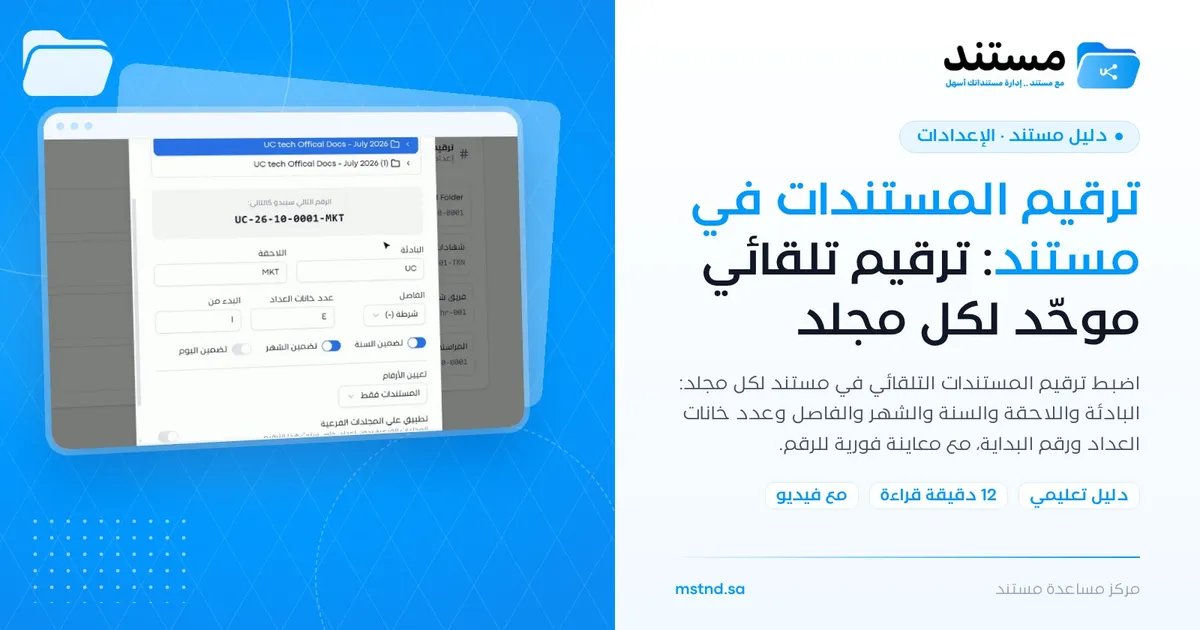
Document numbering in Mstnd: consistent automatic numbering for every folder
In this article
«Document numbering» in Mstnd lets you set up consistent automatic numbering for each folder instead of typing numbers by hand. You set the number format for the folder: the prefix and suffix, whether to include the year and month, the separator, the number of counter digits and the starting number, and you see a preview of the number instantly. After saving, every new document uploaded to the folder gets its number automatically, such as UC-26-10-0001-MKT.
Quick overview
| Item | Details |
|---|---|
| Module | Settings |
| Where it is in the interface | Side menu → «Settings» → «Document numbering» |
| Direct link | https://app.mstnd.sa/settings/numbering |
| Goal | Give every document a consistent number automatically, based on the folder it is saved in |
| Who it is for | Organization settings administrators, and the administrative communications, finance and HR departments that rely on reference numbers |
| Video length | Less than a minute |
| What you will learn | Reading the numbering rules, adding numbering to a folder, building the number format, choosing what numbers are assigned to, and applying the rule to subfolders |
Watch the video
In less than a minute, the video shows how to add a numbering rule to a folder, build the number UC-26-10-0001-MKT part by part with the live preview, then save.
Why this feature?
A document's reference number is a basic organizing tool. It is what gets written on letters, cited in correspondence and searched for when needed. When it is written by hand, the same problems keep appearing: two identical numbers for two different documents, numbers missing from the sequence, different formats from one department to another, or an employee who forgets to number the document at all.
Automatic numbering solves these problems. You define the number format once for each folder, and the system gives every new document the next number in the sequence. And because the format includes elements such as the department code, the year and the month, the number itself tells you where the document came from and when.
| Before automatic numbering | After automatic numbering |
|---|---|
| Numbers are typed by hand and may be duplicated | A unique automatic number in the folder's sequence |
| Each department uses a different format | A defined format for each folder, with a clear rule |
| Documents without numbers because the employee forgot | Every new uploaded document gets its number automatically |
| The number does not mean anything | The prefix, suffix, year and month make the number meaningful |
| It is hard to know what the number format looks like before adopting it | An instant preview of what the next number looks like |
Value for the organization: consistent reference numbers, and a sequence that can be audited. Value for the individual: no need to remember the last number or to type the number by hand.
Where to find it
- From the side menu, open «Settings».
- Choose «Document numbering».
- The page appears with the description «Set up automatic numbering for documents and folders in the document management system», and below it the current numbering rules and the «Add numbering» button.
Direct link: https://app.mstnd.sa/settings/numbering
Concepts and terms
| Term | Meaning in Mstnd |
|---|---|
| Numbering rule | A setting linked to a folder that defines the pattern of the numbers its documents get |
| Prefix | The text the number starts with, such as UC, DOC or HR |
| Suffix | The text the number ends with, such as MKT or FIN |
| Separator | The symbol that separates the parts of the number, such as «Dash (-)» |
| Counter digits | The number of digits in the sequence; the value 4 gives 0001 |
| Start from | The number the counter starts from |
| Assign numbers to | What gets the number: «Documents only», or documents and folders together |
| Preview | The «The next number will look like this» line, which shows what the number looks like while you set it up |
Step by step
Step 1: Open «Document numbering»
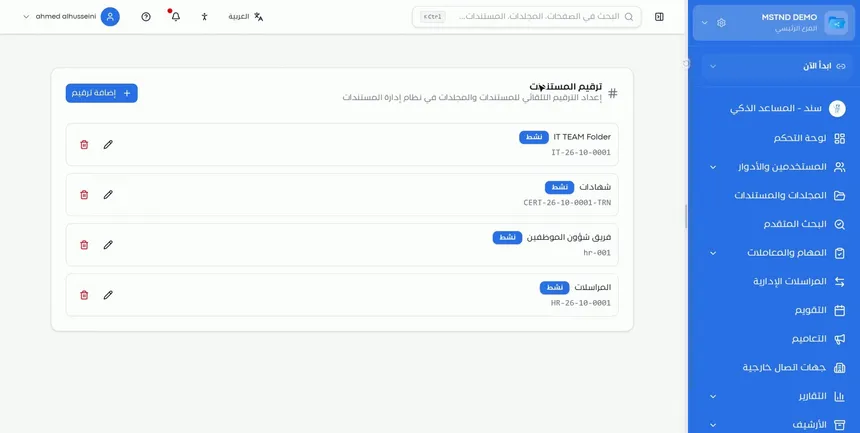
Open the page to set up consistent automatic numbering for each folder, instead of typing numbers by hand. The idea is that numbering is tied to the folder: each folder has its own rule, and every document that enters it gets a number according to that rule.
Step 2: Review the current rules
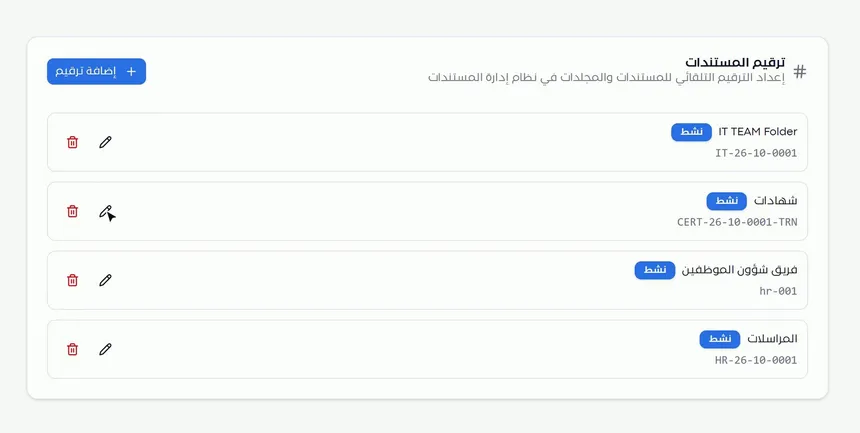
Each rule shows:
- The folder name, such as «Certificates» or «Correspondence».
- An «Active» badge.
- The number pattern, such as
CERT-26-10-0001-TRNorHR-26-10-0001. - A pencil icon to edit the rule, and a trash can icon to delete it.
Reviewing the list before adding a rule shows you the formats already used in the organization, so you can build the new rule on the same pattern and keep the numbers consistent.
Step 3: Click «Add numbering»
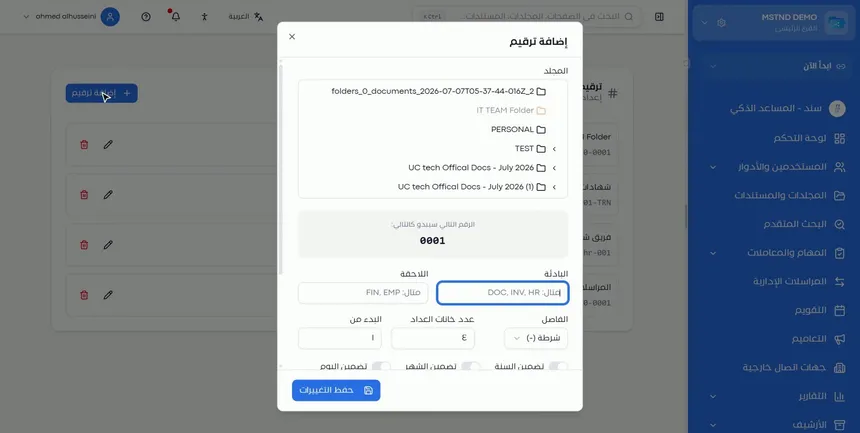
Click «Add numbering» to open the «Add numbering» window. The window contains the folder selection, then the number preview, then the format fields, then the application options, and finally the «Save changes» button.
Step 4: Choose the folder from the tree
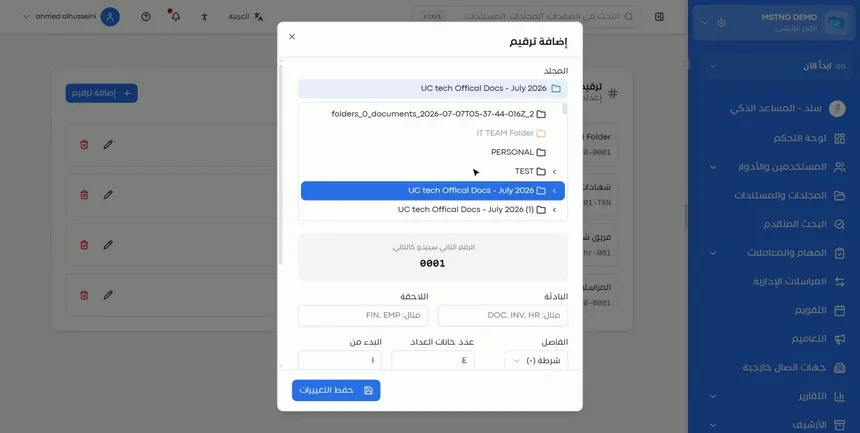
In the «Folder» section, choose the folder from the tree. You can expand folders that contain subfolders to reach the folder you want. After you choose it, the preview shows the next number in its initial format, such as 0001.
Step 5: Enter the «Prefix» and «Suffix» and watch the preview
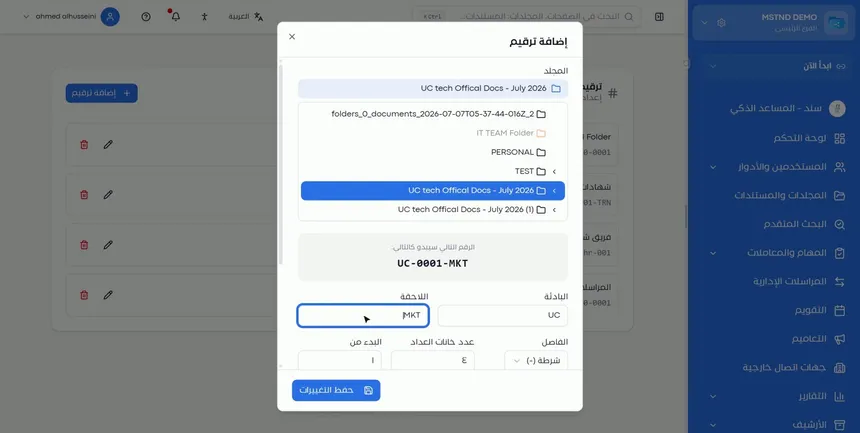
Enter the «Prefix» and the «Suffix». The fields suggest examples such as DOC, INV and HR for the prefix, and FIN and EMP for the suffix. In the example, the prefix UC and the suffix MKT were entered.
Notice that the preview above the fields, «The next number will look like this», updates instantly with every character you type, so the number became UC-0001-MKT. This preview keeps you from adopting a format whose result you did not expect.
Step 6: Include the year and month, and set the separator and counter
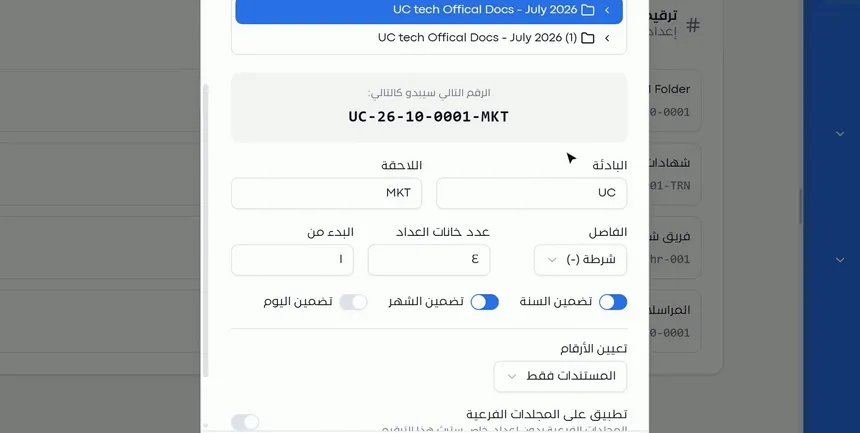
Complete the number format:
- «Include year» and «Include month»: turn them on to put the date in the number. There is also «Include day» if you need more precision.
- «Separator»: such as «Dash (-)».
- «Counter digits»: such as 4, so that the sequence appears as
0001. - «Start from»: the number the counter starts from, such as 1.
The preview became UC-26-10-0001-MKT, that is: the prefix, then the year, then the month, then the counter, then the suffix.
When should you choose more digits? When you expect a large number of documents in the folder, so that the numbers keep a fixed length. And when should you change «Start from»? When you move to Mstnd from a previous system and want the sequence to continue from the last number you used.
Step 7: Choose «Assign numbers to»
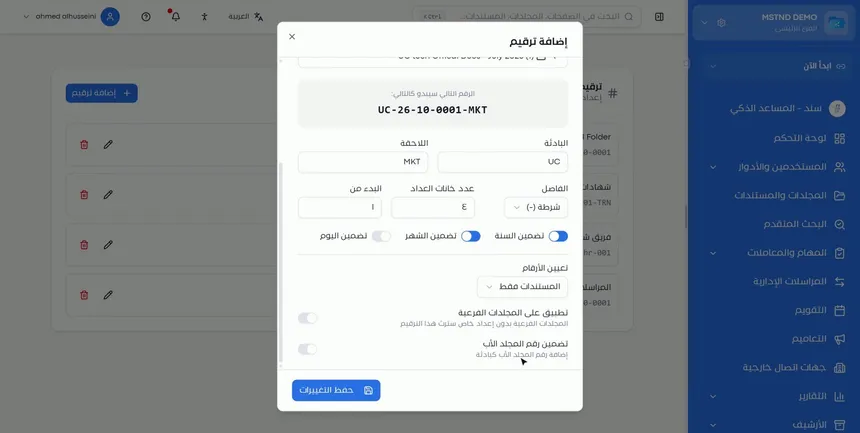
From «Assign numbers to», choose what gets the number:
- «Documents only»: documents get numbers, and folders do not.
- Documents and folders together: each of them gets a number according to the rule.
Choose «Documents only» in most cases. Choose the second option when you want the subfolders themselves to carry reference numbers, such as a folder for each project or for each case file.
Step 8: Turn on applying to subfolders and the parent folder number
There are two additional options:
- «Apply to subfolders»: subfolders that have no setting of their own will inherit this numbering.
- «Include parent folder number»: adds the parent folder's number as a prefix to the document number.
The first option saves you from creating a rule for each subfolder. The second makes the number reflect the hierarchy, so you can tell from a document's number which parent folder it belongs to.
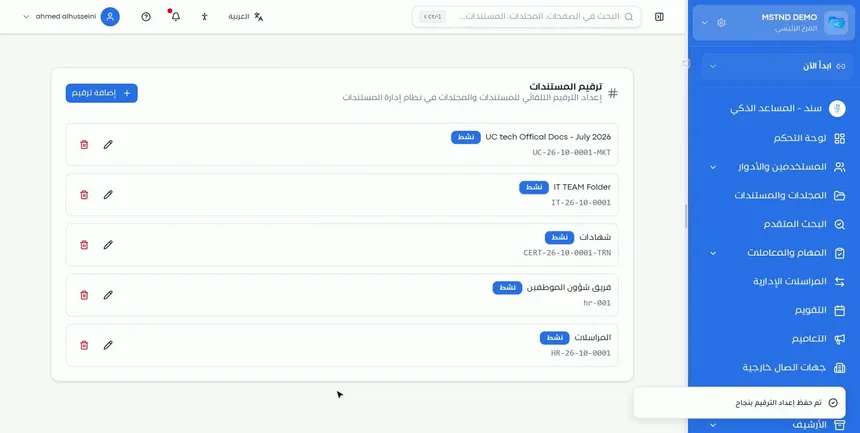
Then click «Save changes». The message «Numbering setting saved successfully» appears.
Step 9: Check the new rule
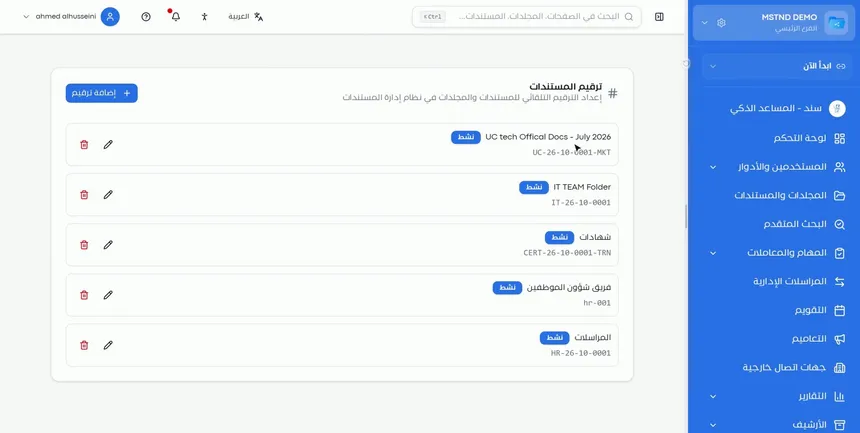
The new rule appears in the list with an «Active» badge and the number pattern UC-26-10-0001-MKT. From now on, any new document uploaded to this folder gets its number automatically in this form.
Options and their effect
| Option or setting | What it does | When to use it |
|---|---|---|
| «Add numbering» | Opens the window for a new rule | For every folder that needs its own numbering |
| «Folder» | Sets the folder the rule applies to | Choose the top-level folder for the document type |
| «Prefix» | Text at the start of the number | For the code of the department, the organization or the document type |
| «Suffix» | Text at the end of the number | For an extra code, such as the branch or the section |
| «Include year» / «Include month» / «Include day» | Puts the date in the number | When you want to know a document's timing from its number |
| «Separator» | Separates the parts of the number | To make the number easier to read |
| «Counter digits» | Sets the length of the sequence | According to the expected volume of documents |
| «Start from» | Sets the first number of the counter | When continuing a sequence from a previous system |
| «Assign numbers to» | Sets whether numbering is for documents only or for documents and folders | According to whether you need folders to be numbered |
| «Apply to subfolders» | Passes the rule on to subfolders that have no setting of their own | When there are subfolders for the same type of document |
| «Include parent folder number» | Adds the parent folder's number as a prefix | When you need a number that reflects the hierarchy |
| Pencil / trash can | Edits / deletes the rule | When the format changes or the rule is no longer needed |
Practical scenarios
Scenario: A government entity organizes outgoing and incoming letters
Situation: The administrative communications department of a government entity needs a number for every letter saved in the outgoing and incoming folders, one that indicates the year and month.
What you do in Mstnd:
- Add numbering to the «Outgoing» folder with the prefix
OUT, including the year and month. - Add numbering to the «Incoming» folder with the prefix
IN, in the same format. - Set «Counter digits» to 5 if the volume of letters is large.
Result: Every saved letter gets a number such as OUT-26-10-00001, without manual intervention.
Scenario: A contracting company numbers the documents of each project
Situation: A contracting company has a main folder for projects, with a folder for each project under it.
What you do in Mstnd:
- Add numbering to the main projects folder.
- In «Assign numbers to», choose documents and folders together.
- Turn on «Apply to subfolders» and «Include parent folder number».
Result: Every project has a number, and every document in it carries the project number as a prefix.
Scenario: An HR department continues an old sequence
Situation: The HR department of a trading company numbered its files by hand up to number 350, and it is now moving to Mstnd.
What you do in Mstnd:
- Add numbering to the HR folder with the prefix
HR. - Set «Start from» to 351.
- Review the preview to confirm what the number looks like.
Result: The sequence continues from where it stopped, with no duplicates or gaps.
Scenario: A school numbers certificates by year
Situation: Student affairs at a school issues certificates and wants a number that indicates the year.
What you do in Mstnd:
- Add numbering to the «Certificates» folder with the prefix
CERT. - Turn on «Include year».
- Add a suffix that indicates the school stage.
Result: A certificate number that indicates the certificate's type, year and stage.
How it relates to other features
- Folders: numbering is tied to the folder, so designing the folder tree around document types makes numbering rules simpler and clearer.
- Uploading files: uploading is the moment when a document gets its number automatically in a numbered folder.
- Document details: the «Details» tab shows the document's system number among its information, and it is the right place to check the number of any document.
- Folder content: inside a numbered folder, documents are displayed and managed with the usual actions, and their numbering follows the rule.
- Text search: you can search by number in file names and content, and consistent numbers make search more accurate.
- Organizational structure: use the codes of departments and sections from your organizational structure as prefixes, so that the numbers stay consistent with how the organization is structured.
Tips and best practices
- Agree on one format for the organization before creating rules: the same order and the same separator in all folders.
- Use short, clear prefixes that indicate the department or the document type.
- Include the year in the number if documents are reviewed by year.
- Choose enough digits for the expected volume, because changing the length later breaks consistency.
- Use «Apply to subfolders» instead of repeating the rule for each subfolder.
- Always rely on the preview before saving.
- Document the approved numbering formats for your team, so that everyone understands what each part of the number means.
Warnings and common mistakes
FAQ
How do I turn on automatic document numbering in Mstnd?
Open «Settings», then «Document numbering», and click «Add numbering». Choose the folder, set the number format, then click «Save changes».
Can numbering differ from one folder to another?
Yes. Each folder has its own numbering rule with its own format, and all the rules appear in a single list.
How do I add the year and month to the document number?
Turn on «Include year» and «Include month» in the numbering window, and they appear in the preview instantly. There is also «Include day».
Do old documents get numbers after the rule is created?
The video shows that any new document uploaded to the folder after saving gets its number automatically. So create the rule before work starts in the folder.
How do I start numbering from a specific number?
Enter the number you want in the «Start from» field, and the preview shows what the first number looks like.
What does «Include parent folder number» mean?
It adds the parent folder's number as a prefix to the document number, so that the number reflects the document's place in the folder hierarchy.
Does the rule apply to subfolders?
It applies when «Apply to subfolders» is turned on, to the subfolders that have no setting of their own.
Can the folders themselves be numbered?
Yes, by choosing documents and folders together in «Assign numbers to».
Summary
- «Document numbering» gives every document a consistent automatic number based on its folder.
- The number format is built from the prefix, the suffix, the date, the separator, the counter and the starting number.
- The instant preview shows what the next number looks like before you save.
- «Assign numbers to», the subfolders option and the parent folder number control the rule's scope and shape.
- After saving, every new document uploaded to the folder gets its number without manual intervention.
Try it free: Create your organization's account in Mstnd
Was this article helpful?
Related articles
 1:26
Folders in Mstnd: organize your organization's documents from day one
Learn the Mstnd Folders page: Personal space, structure folders, Shared with me, new folders with a confidentiality level, color and icon, views and actions.
 0:49
Uploading files to Mstnd: drag and drop, and the system does the rest
Mstnd file upload: drag and drop several files at once, change the destination folder, set status, category and tags, automatic analysis and import from a link.
 0:44
Document details: everything about your document in one place
Learn the «Details» tab in Mstnd: expiry date, path, type, size, creator, confidentiality and status changes with a reason, reminder, tags and system number.
 1:05
Folder content in Mstnd: find your file and manage it in seconds
The Mstnd folder content screen explained: file cards and status changes, multi-select and bulk actions, the folder side panel, and AI chat about the files.
 1:16
Text search in Mstnd: search inside the content of your files
Learn Mstnd text search: find a word, number or date inside file names, content and extracted values, with highlighted matches, filters and saved searches.
 0:29
The organizational structure in Mstnd: your organization as it really is
Learn the organizational structure in Mstnd: an interactive chart to zoom and drag, show or hide member names, with color-coded sections, teams and leads.