

Learn Mstnd step by step
Every feature has an illustrated guide with a video, organized by module. Search for your question or browse a whole module.
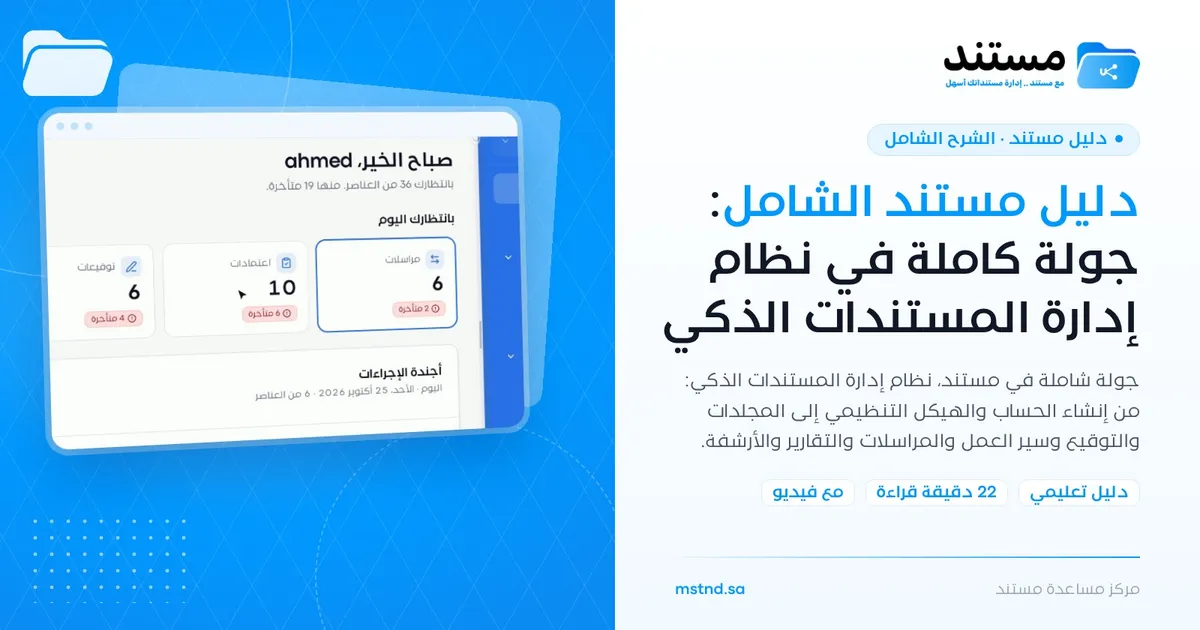
The complete Mstnd guide: a full tour of the smart document management system
Tour Mstnd, the smart document management system: sign-up, organizational structure, folders, signing, workflows, correspondence, reports and archiving.
Browse by module
Each Mstnd module has its articles in the order you use them.
All articles
Every article of the learning center on one page, grouped by module in the order you use them.
Getting started
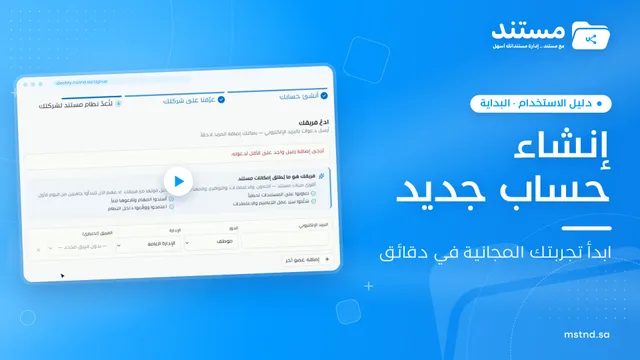
Your journey begins with creating your organization's account. You verify your email address and mobile number, tell the system about yourself and your company, its sector and its size, then choose your goals, the organizational structure template that suits your sector and the initial folder structure. After the request is reviewed and accepted, you sign in, choose your organization, and go through an introductory tour and the «Get started» steps to prepare the organization.
Sanad, the AI assistant
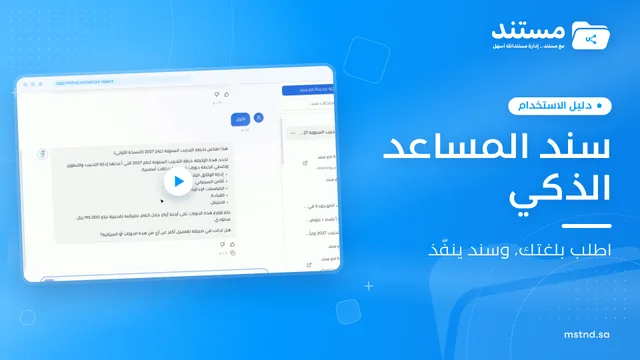
«Sanad» is your AI assistant inside Mstnd. You write your request to it in your own dialect, for example asking it to find a specific document and summarize it. It searches, asks you for clarification if it needs to, then gives you the summary with the key points. It also carries out commands, such as creating a folder, with the option to undo. Your previous conversations are saved, and you can start a new conversation for each topic.
Dashboard
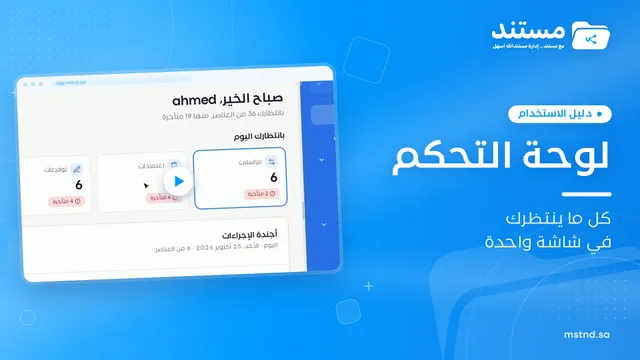
The first thing that greets you after signing in is the Dashboard. It shows «Waiting for you today» cards for each type of work: correspondence, approvals, signatures, tasks and circulars, with the number of overdue items of each type. Below them are the Action agenda for your week (day by day), document activity, «My workflows», «Sanad recommendations», «Needs your attention» and «My team's activity».
Users and roles
Before you upload any document, you build your administrative structure as it really is on the ground. You create the sections and teams, define the managers, leads and members, and see all of it in an interactive organizational chart. Then you manage the users: you invite them one at a time or in one batch, and give each of them a role and a position in the structure.
Folders and documents
Folders in Mstnd are organized into three spaces: «Personal space», the «Organizational structure» folders of each department, and «Shared with me». When you create a folder, you set its name, description, confidentiality level, color and icon, and you display its content as cards, a list, a table or a tree. Inside a folder you run bulk actions on several files, and you chat with AI about all the files in the folder.
Document page
The document page is the heart of the system. The viewer is in its middle, and the action bar is at its top: download, print, share, analyze, translate, sign, workflow and more. On its side is a panel with tabs: details, metadata, smart agent, versions, comments and chat.
Advanced search
Search in Mstnd is not limited to file names. «Text search» looks inside the content, even in scanned files, highlights the matches on the pages, and lets you narrow the results with filters and save the search to come back to it. «Descriptive search» lets you describe the document you have in mind in your natural language, and AI ranks the results by match percentage and explains why each result matches. There is also a search by the values extracted through metadata templates.
Tasks and workflows
For recurring procedures, you build workflow templates with clear steps. Each step has an operation type, such as review, approval, signing, stamping or creation, and each step has an owner, a deadline and instructions, with one path on acceptance and another on rejection. Then you start transactions from any template, follow their progress step by step in the path diagram, and see the overdue ones, their files and their log.
Administrative correspondence
The Administrative correspondence module manages outgoing and incoming correspondence formally. At its top are indicators for the total, incoming, outgoing, drafts, sent and items that require a reply, and below them is a table with advanced filters and the option to group by conversation.
Calendar
The calendar gathers everything that has a date: tasks, circulars, reminders, document expiries, correspondence and invitations. You display it in Gregorian, Hijri or both together, switch between the month, week, day, list and timeline views, and hide or show any type of event. From the day panel you carry out quick actions, such as marking a reminder as complete.
Circulars
Circulars are the way to deliver decisions and policies to the whole organization or to specific units and positions. When you create one, you set the required action type: for information, for acknowledgment or for signature. You attach the documents and adjust settings such as allowing comments, email notification and automatic resending, then publish. After publishing, you see who has read it, who has acknowledged it and who has not, and you send a reminder to a specific recipient or to all late recipients.
External contacts
In Mstnd you keep a directory of the clients, suppliers and parties you deal with: their basic data, contact and business information, key people and addresses, organized by sector. Each contact has a profile that gathers the documents and folders linked to it. From this directory you choose the contact when sharing externally or when creating correspondence.
Reports
The report center gathers the system's reports by section: documents and folders, correspondence, tasks, transactions, circulars and users. The analytics dashboard shows the main charts on one screen. On each report's page, you filter the data and the indicators and charts update immediately. You export the report to Excel, CSV or PDF, or schedule it to be generated periodically and saved in a folder you choose, with a notification.
Archive
The digital archive keeps archived documents and folders with the archiving date, who archived them and the reason, and from it you restore any item to its folder after writing a reason for the restore. The trash keeps deleted items with their deletion date and original folder, so you can restore them or delete them permanently, one by one or in one batch. This module is completed by the «Auto-archiving» policy in the settings.
Integrations
Mstnd integrates with Google Drive and OneDrive to import files, and with Google Calendar and Outlook to sync dates. The Integrations page also shows integrations available through REST API and Webhooks with systems such as resource planning and customer management, and the «Explore connection options» button puts you in touch with the Mstnd team to activate them. For direct programmatic connections, there is an «API integration» page in the settings.
Settings
From the settings you control everything about your organization. You set its data, the date and time format in Hijri and Gregorian, the appearance and branding with your colors and logo, and the email identity that notifications are sent from. You also set how AI behaves in analysis and confidentiality classification, the translation terminology glossary, the library of metadata templates and the official stamps.
Suggested first articles
The pages most users start with.
 2:15
Creating a new Mstnd account: from your email to setting up your organization
Create your Mstnd organization account: verify email and mobile, add company and sector details, pick a structure template, invite your team, then await review.
 1:57
The Mstnd Dashboard: everything waiting for you on one screen
Learn the Mstnd Dashboard: the «Waiting for you today» cards, the Action agenda, workflows, Sanad recommendations, team activity and how to plan your day.
 0:47
Sanad, the AI assistant in Mstnd: ask in your own words and let it do the work
Sanad is the Mstnd AI assistant: ask in your dialect; it searches and summarizes documents, asks to clarify and runs commands like creating a folder, with undo.
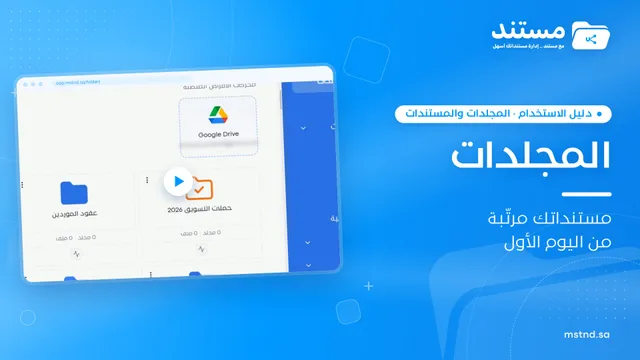 1:26
Folders in Mstnd: organize your organization's documents from day one
Learn the Mstnd Folders page: Personal space, structure folders, Shared with me, new folders with a confidentiality level, color and icon, views and actions.
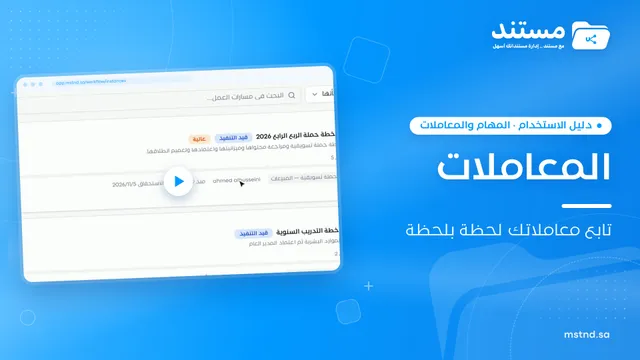 0:41
Transactions in Mstnd: follow every workflow from one screen
Learn the Mstnd Transactions page: see every workflow with its number, status, priority and progress, use scope and filters, export it and start a new workflow.
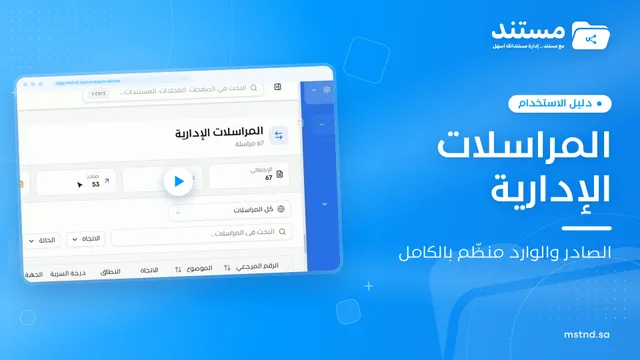 0:50
Administrative correspondence in Mstnd: outgoing and incoming in one organized register
Administrative correspondence in Mstnd: outgoing and incoming in one register, indicators, filters by direction, status and confidentiality, and reply threads.