

The complete Mstnd guide: a full tour of the smart document management system
In this article
Mstnd is an Arabic cloud-based document management system. It brings an organization's documents, transactions and correspondence together in one place, and uses artificial intelligence to analyze them and search through them. The system covers the whole work cycle: building the organizational structure and permissions, organizing folders, uploading and scanning, signing and stamping verified through Nafath, workflows and tasks, administrative correspondence and circulars, reports, and archiving and retention policies. This guide is a map of all of that, and it leads you to 72 detailed guides arranged in the order of the complete tour.
Quick overview
| Item | Details |
|---|---|
| Module | The complete guide to all Mstnd modules |
| Where it is in the interface | It starts from the account creation page, then the Dashboard and every item in the side menu down to «Settings» |
| Direct link | https://app.mstnd.sa/ |
| Goal | Understand Mstnd as an integrated system, and know where to find the detailed guide for every feature |
| Who it is for | Anyone evaluating Mstnd or starting to use it: the account owner, the system administrator, managers and employees |
| Video length | 10 minutes and 16 seconds |
| What you will learn | What each module does, how the modules connect in the journey of a single document, and where to start based on your role |
Watch the video
In about ten minutes, the video takes you on a full tour inside Mstnd: from creating the account and the first sign-in, through the Dashboard, the organizational structure, folders, the document page, search and Sanad, then correspondence, workflows, tasks, the calendar, circulars, external contacts, Nafath, integrations, reports and the archive, and finally the settings.
What is Mstnd?
Mstnd is a document management system (DMS) designed for organizations in the Saudi market, and its interface is fully in Arabic. The core idea is simple: every paper that enters or leaves the organization, and every decision taken on it, should have a known place, a clear owner and a record that documents what happened to it.
The system rests on four pillars:
- Organization: an organizational structure that matches reality, folders linked to it and precise permissions for every role.
- Procedures: workflows with clear steps, tasks with owners and due dates, outgoing and incoming correspondence, and circulars with acknowledgment.
- Trust: electronic signatures and stamps, identity verification through Nafath (the Saudi national single sign-on), a watermark and an activity log for every action.
- Intelligence: an agent that analyzes documents and extracts their data, search inside the content and by description, and an AI assistant called «Sanad» that you talk to in your own dialect.
| Without a document management system | With Mstnd |
|---|---|
| Files scattered across email, devices and shared folders | Folders organized by the organizational structure, with clear permissions |
| Approvals that circulate on paper or in chats | Workflows with steps, owners, deadlines and a rejection path |
| Trouble finding a document whose name you do not remember | Search inside the text, and descriptive search powered by AI |
| Signatures and stamps whose owners are hard to prove | Signatures and stamps verified with Nafath and recorded |
| Expiry and renewal dates that pass without an alert | Reminders, a calendar and alerts before expiry |
| Old files piling up with no policy | Auto-archiving in stages, with legal holds |
The work journey in Mstnd
The sections below follow the order of the complete tour. Each section explains one module and its value, then shows a table of its detailed articles. You can read the guide from start to finish, or jump straight to the module that interests you.
| Stage | Module | Number of articles |
|---|---|---|
| 1 | Getting started | 2 |
| 2 | Dashboard | 1 |
| 3 | Users and roles | 7 |
| 4 | Folders and documents | 7 |
| 5 | Document page | 15 |
| 6 | Advanced search | 2 |
| 7 | Sanad, the AI assistant | 1 |
| 8 | Administrative correspondence | 3 |
| 9 | Tasks and workflows | 8 |
| 10 | Calendar | 1 |
| 11 | Circulars | 3 |
| 12 | External contacts | 2 |
| 13 | Integrations | 1 |
| 14 | Reports | 3 |
| 15 | Archive | 2 |
| 16 | Settings | 14 |
Getting started: creating the account and the first sign-in
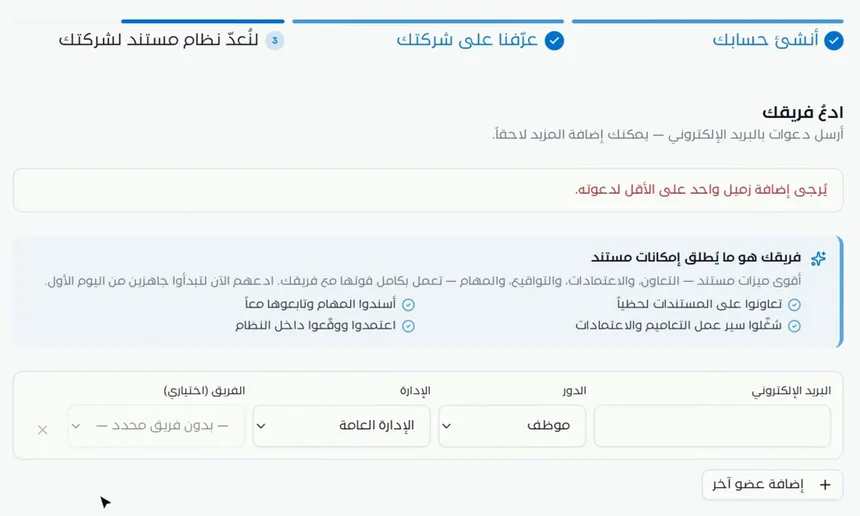
Your journey begins with creating your organization's account. You verify your email address and mobile number, tell the system about yourself and your company, its sector and its size, then choose your goals, the organizational structure template that suits your sector and the initial folder structure. After the request is reviewed and accepted, you sign in, choose your organization, and go through an introductory tour and the «Get started» steps to prepare the organization.
The value of this stage is that you do not start from a blank page. The templates you choose during sign-up give you a structure and folders that suit your sector from day one.
| Article | What you will learn | Link |
|---|---|---|
| Creating a new account | The sign-up steps, from verifying your email and mobile number to choosing the structure template and the folders | Creating a new account |
| First sign-in after the request is accepted | Signing in, choosing the organization, the introductory tour and the «Get started» steps | First sign-in after the request is accepted |
Dashboard: everything waiting for you on one screen
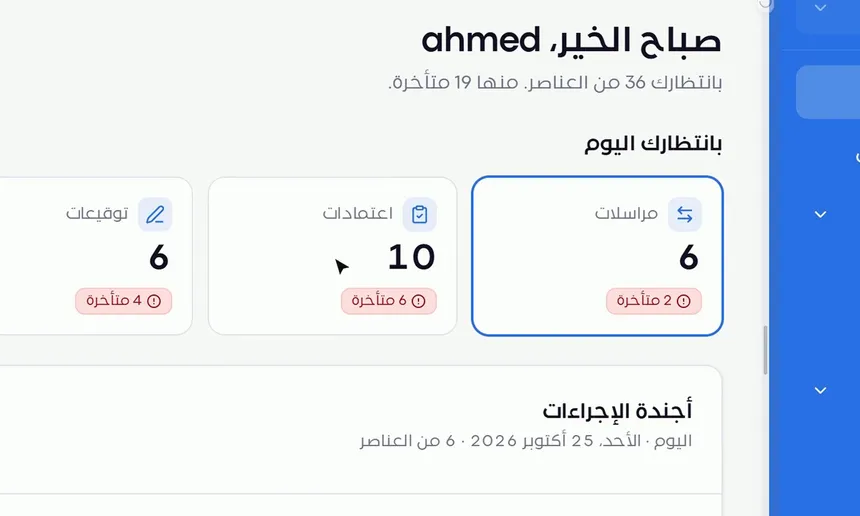
The first thing that greets you after signing in is the Dashboard. It shows «Waiting for you today» cards for each type of work: correspondence, approvals, signatures, tasks and circulars, with the number of overdue items of each type. Below them are the Action agenda for your week (day by day), document activity, «My workflows», «Sanad recommendations», «Needs your attention» and «My team's activity».
The Dashboard is every user's daily starting point, and from it you reach the other modules through the direct action button on each item.
| Article | What you will learn | Link |
|---|---|---|
| Dashboard | Reading the cards, filtering the agenda, following workflows, Sanad recommendations and team activity | Dashboard |
Users and roles: structure and permissions
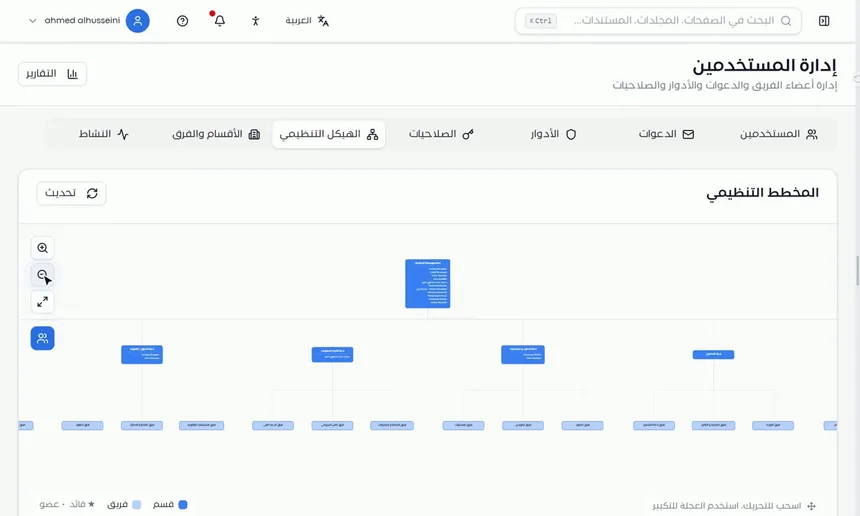
Before you upload any document, you build your administrative structure as it really is on the ground. You create the sections and teams, define the managers, leads and members, and see all of it in an interactive organizational chart. Then you manage the users: you invite them one at a time or in one batch, and give each of them a role and a position in the structure.
Security here is role-based. There are basic roles, and you can create custom roles whose permissions you choose from a categorized list. Every action in the system is recorded in the activity log: who did what, and when. This module is the foundation on which folders, sharing and routing in workflows are built.
| Article | What you will learn | Link |
|---|---|---|
| Users | Searching and filtering, opening a user's profile, changing their role, reviewing their effective permissions and inviting a user | Users |
| Invitations | Following up invitations and their status, resending or canceling, and inviting several people in one batch | Invitations |
| Roles | Basic and custom roles, and creating a new role and choosing its permissions | Roles |
| Permissions | Browsing the system's categorized permissions, their codes and descriptions, and the roles that hold them | Permissions |
| Organizational structure | Moving around the interactive organizational chart, understanding its colors and showing the members | Organizational structure |
| Sections and teams | Creating a section and adding its managers, then adding a team with its lead and members | Sections and teams |
| Activity | Searching the activity log by keyword, user or time period | Activity |
Folders and documents: organizing and adding
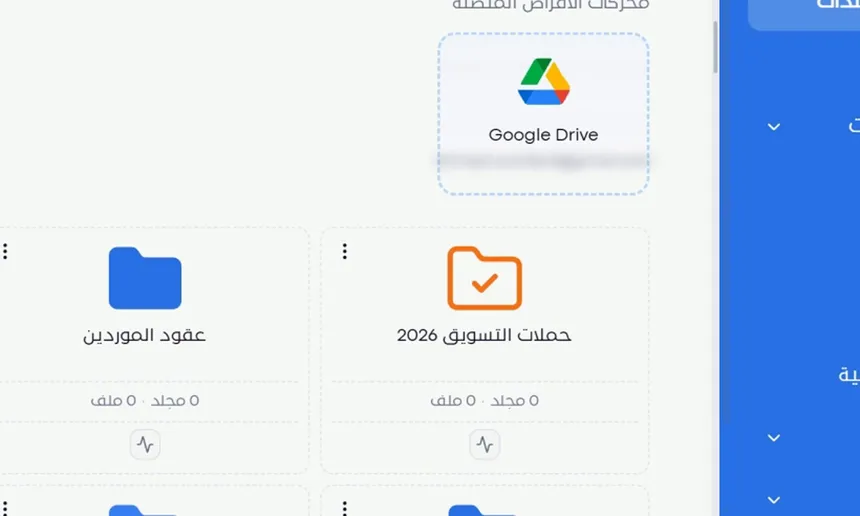
Folders in Mstnd are organized into three spaces: «Personal space», the «Organizational structure» folders of each department, and «Shared with me». When you create a folder, you set its name, description, confidentiality level, color and icon, and you display its content as cards, a list, a table or a tree. Inside a folder you run bulk actions on several files, and you chat with AI about all the files in the folder.
Adding documents is flexible: you upload from your device by drag and drop, import from a link, create a document with the Mstnd editors, start from a ready-made template, scan paper with the camera so that it becomes a PDF, or import a whole compressed file and export a folder's content.
| Article | What you will learn | Link |
|---|---|---|
| Folders | The folder spaces, creating a folder with a confidentiality level, color and icon, the display modes and the ⋮ menu | Folders |
| Folder content | File cards, changing the status, bulk actions, and the folder panel and its chat | Folder content |
| Uploading files | Uploading several files, setting their status and category after upload, and importing from a link | Uploading files |
| Creating a document with the Mstnd editor | The editors for documents, spreadsheets, presentations and drawings, and saving to the system | Creating a document with the Mstnd editor |
| Creating from a template | The categorized template library, previewing, filling in the fields and saving a new version | Creating from a template |
| Scanning | Capturing pages with the camera, ordering them and turning them into a PDF file inside the folder | Scanning |
| Import and export | Importing a ZIP file with its structure, and exporting a folder's content with options for the included data | Import and export |
Document page: everything you do with a document in one place
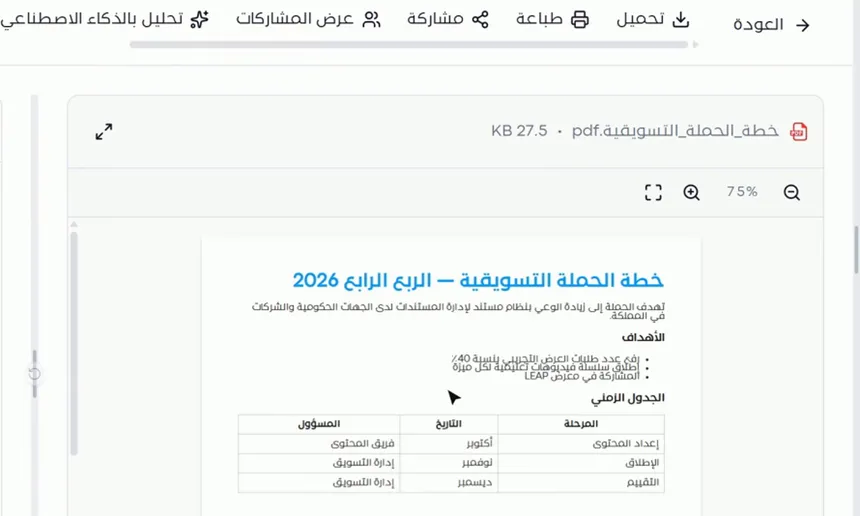
The document page is the heart of the system. The viewer is in its middle, and the action bar is at its top: download, print, share, analyze, translate, sign, workflow and more. On its side is a panel with tabs: details, metadata, smart agent, versions, comments and chat.
From this page you share the document internally, through a public link or with an external party, set a reminder, tags and categories for it, move it and archive it, and change its confidentiality level and status. The smart document agent analyzes it, extracting its text, summary and entities, and suggests actions you apply with one click. You translate it while keeping its formatting, follow its versions and operations log, discuss it with your team in comments and ask Sanad about its content. Finally, you sign and stamp it with verification through Nafath, or launch a workflow on it for approval.
| Article | What you will learn | Link |
|---|---|---|
| Document viewer | Zooming, full screen, the action bar and the side panel tabs | Document viewer |
| Internal sharing and public link | Sharing with users, units or positions with permissions, and protecting the public link | Internal sharing and public link |
| External sharing | Sharing a document with an external party with a notification, a password, an expiry date, permissions and Nafath verification | External sharing |
| Reminders, tags and categories | Setting a reminder with an alert time, and adding tags and categories to the document | Reminders, tags and categories |
| Moving, archiving and renaming | Renaming the document, moving it and archiving it with a stated reason | Moving, archiving and renaming |
| Document details | The document's information, expiry date, confidentiality level, status and system number | Document details |
| Metadata | Creating a data template with AI, extracting the values and confirming them | Metadata |
| Smart document agent | The extracted text, the summary, the entities, actionable insights and suggested tasks | Smart document agent |
| Translation | Translating the document while keeping its formatting, following the progress and opening the translated copy | Translation |
| Versions and operations log | Saving a new version, previewing and downloading versions, and the log of every action | Versions and operations log |
| Comments | Commenting on the document and mentioning colleagues with the @ sign | Comments |
| Sanad chat about the document | Summarizing the document, asking Sanad about its content and rating the answer | Sanad chat about the document |
| Signing | Adding your digital signature, placing it on the page and saving it as a new copy, with Nafath verification | Signing |
| Stamping | Choosing an approved stamp, placing it on the page and applying it, with Nafath verification | Stamping |
| Starting a workflow on the document | Choosing a template, setting the assignees for each step and launching the transaction from the document | Starting a workflow on the document |
Advanced search: find any document
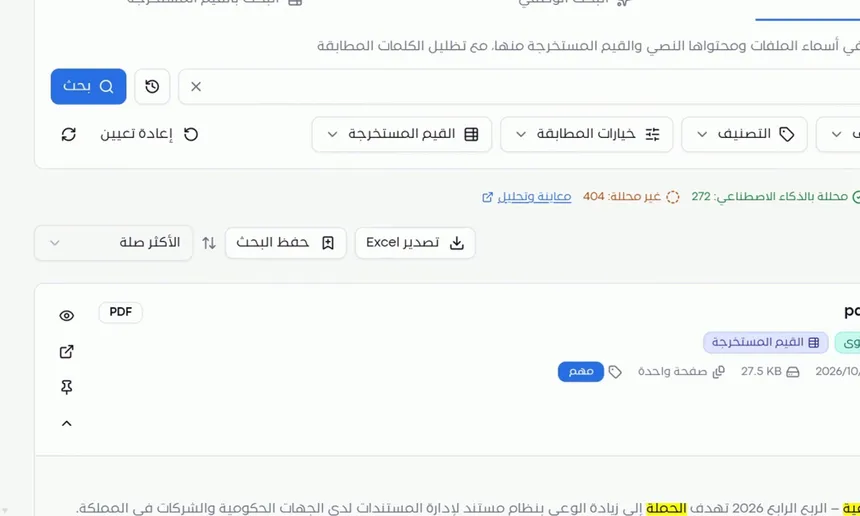
Search in Mstnd is not limited to file names. «Text search» looks inside the content, even in scanned files, highlights the matches on the pages, and lets you narrow the results with filters and save the search to come back to it. «Descriptive search» lets you describe the document you have in mind in your natural language, and AI ranks the results by match percentage and explains why each result matches. There is also a search by the values extracted through metadata templates.
| Article | What you will learn | Link |
|---|---|---|
| Searching the text | Searching names and content, highlighting matches, match options and saving the search | Searching the text |
| Smart search agent | Descriptive search by meaning with a match percentage, and search by extracted values | Smart search agent |
Sanad, the AI assistant: ask in your own language
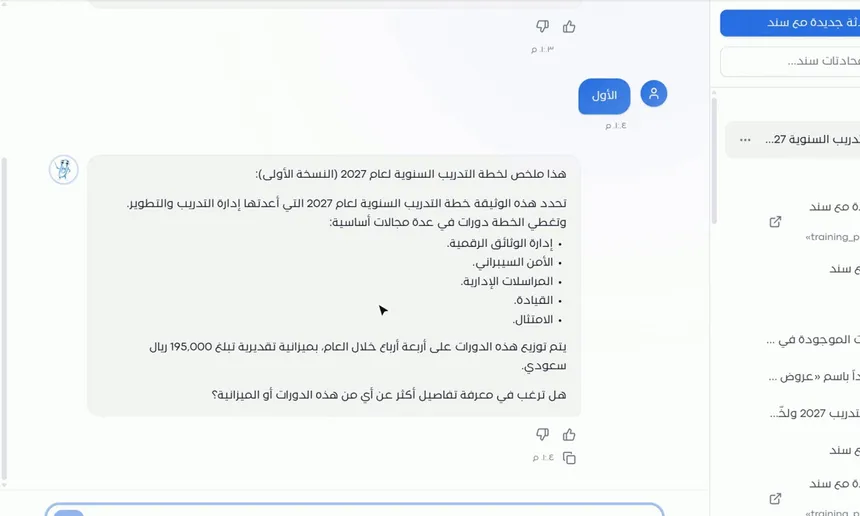
«Sanad» is your AI assistant inside Mstnd. You write your request to it in your own dialect, for example asking it to find a specific document and summarize it. It searches, asks you for clarification if it needs to, then gives you the summary with the key points. It also carries out commands, such as creating a folder, with the option to undo. Your previous conversations are saved, and you can start a new conversation for each topic.
| Article | What you will learn | Link |
|---|---|---|
| Sanad, the AI assistant | Quick suggestions, writing your request in your own dialect, summarizing, and carrying out commands and undoing them | Sanad, the AI assistant |
Administrative correspondence: outgoing and incoming
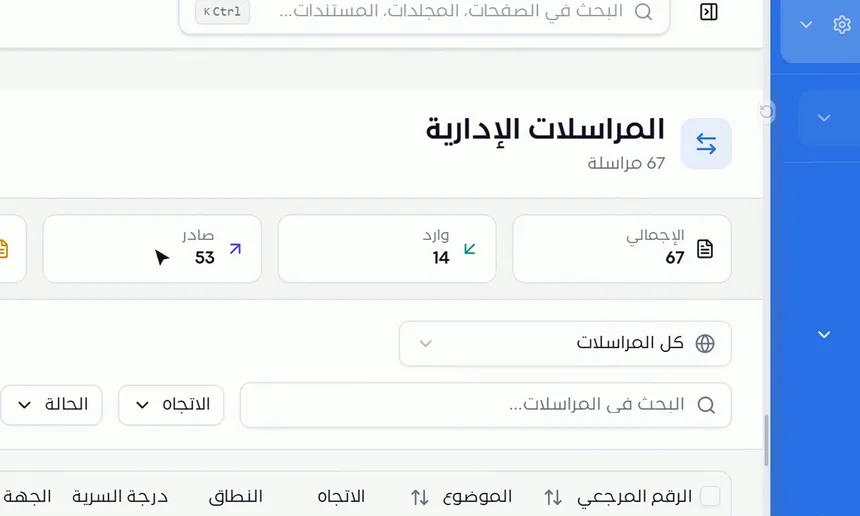
The Administrative correspondence module manages outgoing and incoming correspondence formally. At its top are indicators for the total, incoming, outgoing, drafts, sent and items that require a reply, and below them is a table with advanced filters and the option to group by conversation.
You create outgoing or incoming correspondence, internal or external, and set the receiving party, the people responsible for follow-up, the confidentiality level, the subject and the text, plus the reply deadline if it requires a reply. A digital label with a barcode, a QR code, the outgoing number and its date is stamped on the attachment. Then you follow the correspondence until it is closed, and when you reply to it, the reply joins its thread.
| Article | What you will learn | Link |
|---|---|---|
| Administrative correspondence | The indicators, the table, the filters and grouping by conversation | Administrative correspondence |
| New correspondence | Creating correspondence with its type, party, follow-up owners and attachments, the digital label, and sending it | New correspondence |
| Correspondence details | The activity log, marking your follow-up as done, attachments, and the reply and the correspondence thread | Correspondence details |
Tasks and workflows: workflows and execution
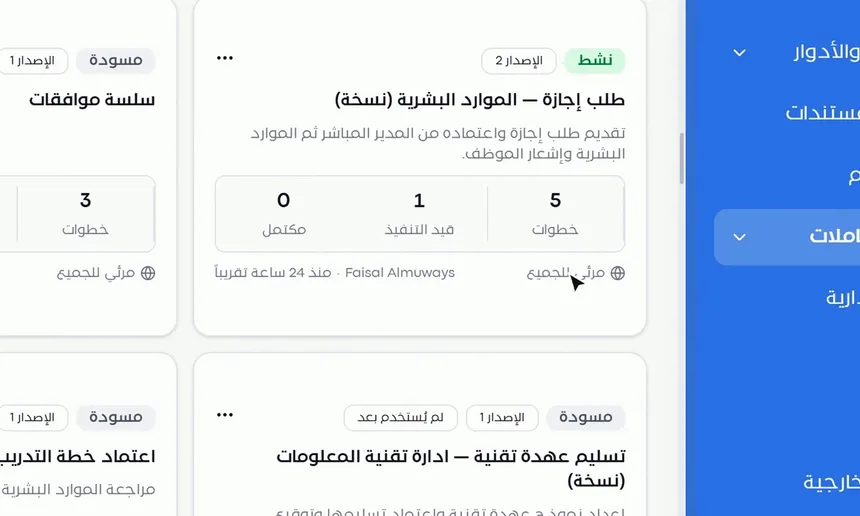
For recurring procedures, you build workflow templates with clear steps. Each step has an operation type, such as review, approval, signing, stamping or creation, and each step has an owner, a deadline and instructions, with one path on acceptance and another on rejection. Then you start transactions from any template, follow their progress step by step in the path diagram, and see the overdue ones, their files and their log.
Tasks are the unit of execution. You display them as a table, cards or statistics, and you create a task with a priority, a due date and an operation type, link it to documents, route it to a department and assign it to an employee. Then the assignee carries it out: they start execution, preview the file, approve or reject, and complete the task, while the log documents everything.
| Article | What you will learn | Link |
|---|---|---|
| Tasks | View scopes, filters, display modes and task statistics | Tasks |
| New task | The title, dates, priority, operation type, routing, assignment and linked items | New task |
| Carrying out a task | Starting execution, previewing the file, approving or rejecting, and completing the task | Carrying out a task |
| Transactions | Following all transactions with their scopes, filters and progress percentage | Transactions |
| Transaction details | The workflow steps, the path diagram, comments, files, the log and pausing | Transaction details |
| Workflow templates | The template cards, their status and version, the template actions and creating a new template | Workflow templates |
| Workflow template details | The template's steps, who handles them, their deadlines, and the acceptance and rejection paths | Workflow template details |
| Building a workflow template | Creating a template and its steps, routing, assignment, the rejection path and publishing | Building a workflow template |
Calendar: your schedule in one place
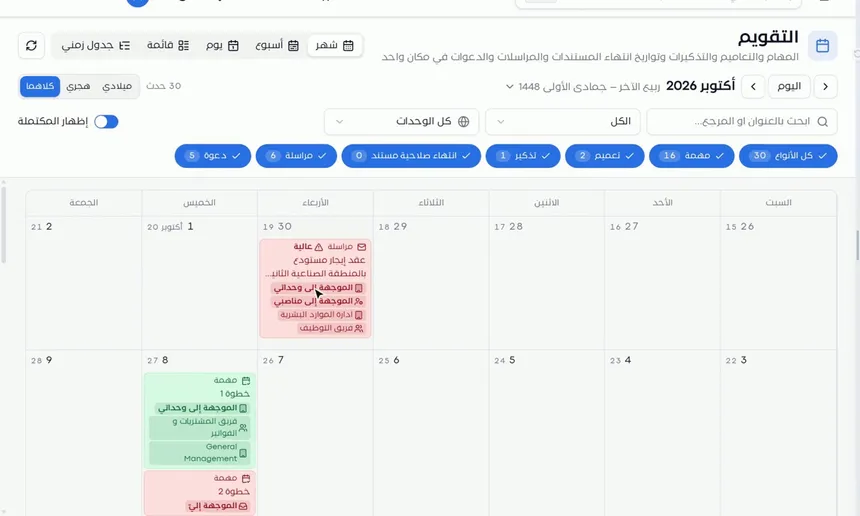
The calendar gathers everything that has a date: tasks, circulars, reminders, document expiries, correspondence and invitations. You display it in Gregorian, Hijri or both together, switch between the month, week, day, list and timeline views, and hide or show any type of event. From the day panel you carry out quick actions, such as marking a reminder as complete.
| Article | What you will learn | Link |
|---|---|---|
| Calendar | Filtering events, Hijri and Gregorian dates, the views, and the day panel and its actions | Calendar |
Circulars: decisions that reach everyone
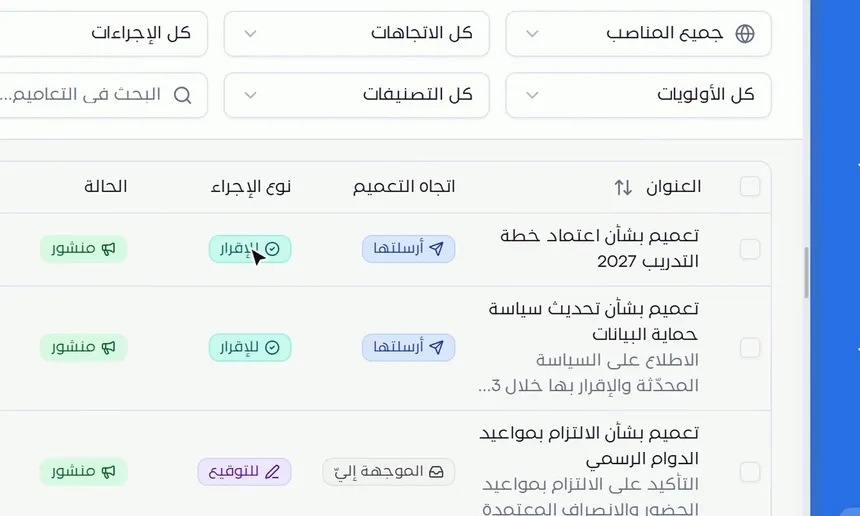
Circulars are the way to deliver decisions and policies to the whole organization or to specific units and positions. When you create one, you set the required action type: for information, for acknowledgment or for signature. You attach the documents and adjust settings such as allowing comments, email notification and automatic resending, then publish. After publishing, you see who has read it, who has acknowledged it and who has not, and you send a reminder to a specific recipient or to all late recipients.
| Article | What you will learn | Link |
|---|---|---|
| Circulars | The list of circulars and its filters by direction, action and status | Circulars |
| Creating a circular | The required action type, attachments, recipients, settings and publishing | Creating a circular |
| Circular details | The read and acknowledgment indicator, following up recipients and sending a reminder | Circular details |
External contacts: your contact directory
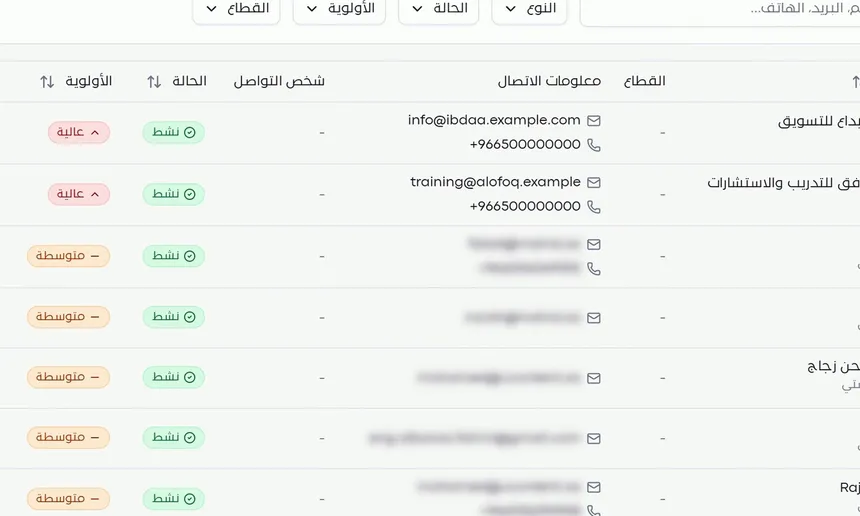
In Mstnd you keep a directory of the clients, suppliers and parties you deal with: their basic data, contact and business information, key people and addresses, organized by sector. Each contact has a profile that gathers the documents and folders linked to it. From this directory you choose the contact when sharing externally or when creating correspondence.
| Article | What you will learn | Link |
|---|---|---|
| External contacts | Searching and filtering, adding a new contact with its data, and managing sectors | External contacts |
| Contact profile | The overview, key people, addresses and linked documents | Contact profile |
Integrations: connect Mstnd to your tools
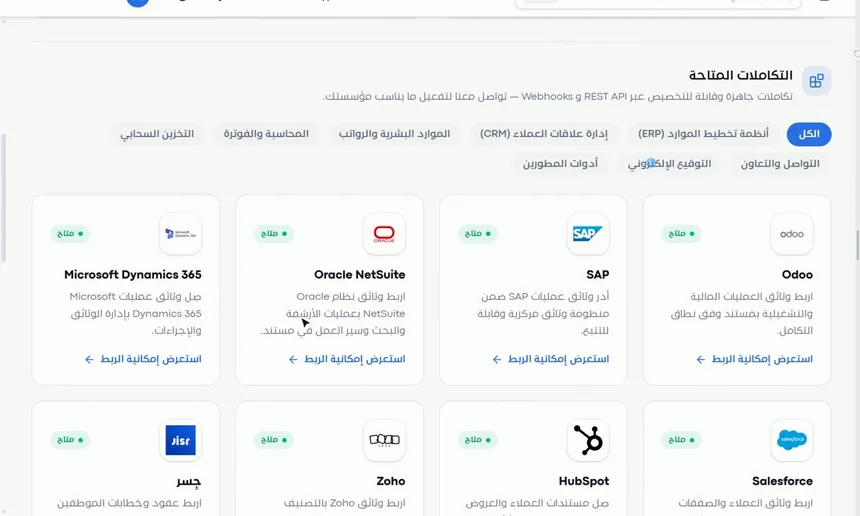
Mstnd integrates with Google Drive and OneDrive to import files, and with Google Calendar and Outlook to sync dates. The Integrations page also shows integrations available through REST API and Webhooks with systems such as resource planning and customer management, and the «Explore connection options» button puts you in touch with the Mstnd team to activate them. For direct programmatic connections, there is an «API integration» page in the settings.
| Article | What you will learn | Link |
|---|---|---|
| Integrations | Connecting storage and calendar accounts, and browsing the available integrations by category | Integrations |
Reports: decisions built on numbers
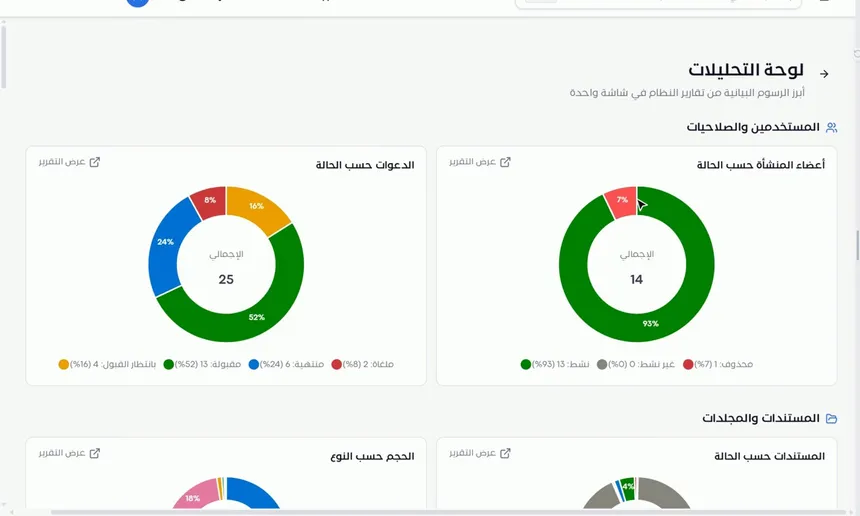
The report center gathers the system's reports by section: documents and folders, correspondence, tasks, transactions, circulars and users. The analytics dashboard shows the main charts on one screen. On each report's page, you filter the data and the indicators and charts update immediately. You export the report to Excel, CSV or PDF, or schedule it to be generated periodically and saved in a folder you choose, with a notification.
| Article | What you will learn | Link |
|---|---|---|
| Report center | The report sections, searching for reports and opening them | Report center |
| Analytics dashboard | The main charts from all sections and moving to the full report | Analytics dashboard |
| Report page | Filters, indicators, the data table, exporting, scheduling and saving to the system | Report page |
Archive: the digital archive and the trash
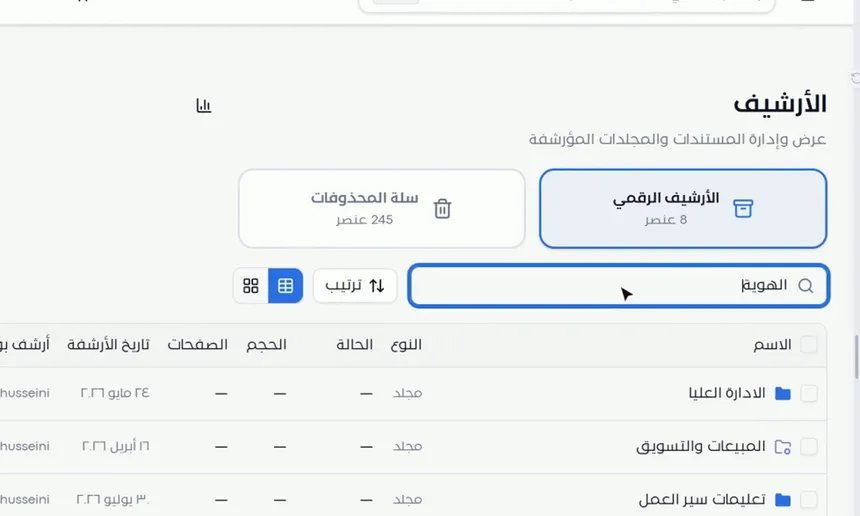
The digital archive keeps archived documents and folders with the archiving date, who archived them and the reason, and from it you restore any item to its folder after writing a reason for the restore. The trash keeps deleted items with their deletion date and original folder, so you can restore them or delete them permanently, one by one or in one batch. This module is completed by the «Auto-archiving» policy in the settings.
| Article | What you will learn | Link |
|---|---|---|
| Digital archive | Searching the archive, restoring with a stated reason, and moving items to the trash | Digital archive |
| Trash | Restoring to the original location or deleting permanently, individually or in bulk | Trash |
Settings: full control of your organization
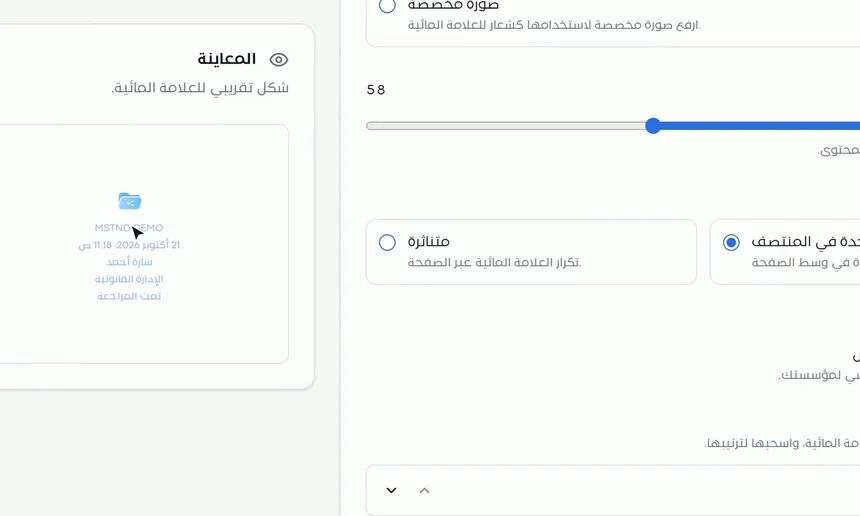
From the settings you control everything about your organization. You set its data, the date and time format in Hijri and Gregorian, the appearance and branding with your colors and logo, and the email identity that notifications are sent from. You also set how AI behaves in analysis and confidentiality classification, the translation terminology glossary, the library of metadata templates and the official stamps.
The settings also hold the governance tools: important documents that the system alerts you about before they expire, unified automatic numbering for each folder, the smart watermark, auto-archiving with retention policies and legal holds, the link to Nafath national single sign-on to verify sign-in and signing, and the API integration keys.
| Article | What you will learn | Link |
|---|---|---|
| API integration | The public and secret keys, the integrations folder, the IP address list and usage statistics | API integration |
| Organization | Editing the organization's data, its type, commercial registration and tax number | Organization |
| Date and time | The time format, and turning on the Hijri date, the Gregorian date or both, with a preview | Date and time |
| Appearance and branding | The primary and secondary colors with a live preview, and uploading the system logo | Appearance and branding |
| Email identity | The sender's name and email address, SMTP settings, the test message and email notifications | Email identity |
| AI and document processing | The automatic analysis mode and AI classification of the confidentiality level | AI and document processing |
| Translation | The default language, the terminology glossary and automatic translation of incoming items | Translation |
| Data templates | Creating a metadata template with its fields and filling it automatically with AI | Data templates |
| Stamps | Adding an approved stamp with its image, and activating or deactivating it | Stamps |
| Important documents | Adding the organization's official documents with their issue and expiry dates, and the alert before expiry | Important documents |
| Document numbering | A numbering rule for each folder with the prefix, year, month and number of digits, with a preview | Document numbering |
| Smart watermark | Designing the watermark and its components, when and where it is applied, and the confidentiality level mark | Smart watermark |
| Auto-archiving and retention | The default policy and its stages, folder rules, legal holds and approval before deletion | Auto-archiving and retention |
| Nafath national single sign-on | Verifying sign-in, the balance of Nafath requests, members' ID numbers and the actions that require Nafath | Nafath national single sign-on |
How the modules connect
The modules in Mstnd are not separate screens but links in a single journey. To illustrate this, follow a supply contract at a trading company with us, from the moment it arrives until it is archived.
1. Arrival and registration. The contract arrives from the supplier as part of incoming correspondence. The administrative communications officer registers it from New correspondence, attaches the contract and sets the people responsible for follow-up. The digital label is stamped on the attachment, and the smart watermark is added according to the organization's settings.
2. Filing and numbering. The contract is saved in the department's contracts folder, and it gets its number automatically according to the folder's document numbering rule.
3. Analysis and classification. Depending on the AI and document processing settings, the smart document agent analyzes the contract: it extracts its text, the parties, the amounts and the dates, and suggests the confidentiality level, the expiry date and the categories. Then the field values, such as the supplier's name and the contract value, are extracted through metadata.
4. Approval. From the document page, a workflow on the document is launched from the «Contract approval» template. The first step reaches the legal reviewer as a task in Tasks, and the reviewer approves or rejects it from Carrying out a task. The manager follows the transaction's progress from Transaction details and from «My workflows» on the Dashboard.
5. Signing and stamping. In the signature step, the authorized manager signs through Signing, then the official stamp is applied through Stamping, both verified through Nafath national single sign-on.
6. Sending to the other party. The signed contract is shared with the supplier through External sharing with a password, an expiry date and signing permission, along with a request for verification through Nafath. The supplier is already registered in External contacts.
7. Follow-up. A reminder is set before the contract expires, so the date appears in the calendar, and the «Needs your attention» section on the Dashboard flags it as it approaches. Any later question about the contract's terms is put to Sanad from Sanad chat about the document, and any search for it is done through text search or the smart search agent.
8. Measurement. The contract and its transaction appear in the report center, so the department follows the numbers of documents and transactions and their status, and exports the reports or schedules them.
9. End of the cycle. After the contract expires and the set retention period ends, auto-archiving moves it to the digital archive. If a dispute arises with the supplier, a legal hold is placed on its folder, which exempts it from all retention stages until the hold is lifted.
Throughout this journey the contract never left the system for a moment, and every step in it had an owner and a record in the versions and operations log and in Activity.
Where to start based on your role
FAQ
What is the Mstnd system?
Mstnd is an Arabic cloud-based document management system that brings an organization's documents, transactions and correspondence together in one place and uses AI to analyze them and search through them, with signing and stamping verified through Nafath.
How do I start using Mstnd?
Create your organization's account from the sign-up page. After the request is accepted, sign in, choose your organization and complete the «Get started» steps, then build your organizational structure and invite your team.
Does Mstnd support the Hijri date?
Yes. You can turn on the Gregorian date, the Hijri date or both together from the «Date and time» settings, and the calendar shows events in both calendars.
Can I search inside the content of scanned documents?
Yes. «Text search» searches file names and their text content and highlights the matches on the pages, while «Descriptive search» finds the document from your description of it in your natural language.
Is the electronic signature in Mstnd verified?
Signing, stamping, approval and rejection can be tied to verification through Nafath national single sign-on, so every action is verified by the confirmed identity of the person who took it.
Can I share a document securely with a party outside the organization?
Yes. From «External sharing» you share the document with a party from the contacts directory, with a notification by email or WhatsApp, a password, an expiry date and specific permissions, plus verification through Nafath when needed.
What is «Sanad»?
Sanad is the AI assistant inside Mstnd. You write your request to it in your own dialect, and it searches for documents and summarizes them, and carries out commands such as creating a folder, with the option to undo.
How are approvals managed in Mstnd?
You build workflow templates with steps, each with an operation type, an owner, a deadline and a path on rejection. Then the transaction starts from the template or from the document page, and each step reaches its assignee as a task.
Can Mstnd be connected to other systems?
Yes. It integrates with Google Drive, OneDrive, Google Calendar and Outlook, and provides an API with keys and a list of allowed IP addresses, in addition to available integrations that the Mstnd team activates.
What happens to old documents?
They move under the «Auto-archiving» policy in stages: archiving, then trash, then permanent destruction, with advance alerts, rules for each folder, legal holds and an approval request before deletion. Archived items can be restored from the digital archive.
Summary
- Mstnd covers a document's whole journey: from arrival and filing to approval, signing, sending, follow-up and archiving.
- The foundation is the organizational structure, roles and permissions; folders, sharing and routing are built on it.
- The document page is the center of every action, and AI is present in it through analysis, metadata, translation and chat.
- Workflows, tasks, correspondence and circulars turn paper procedures into documented paths with owners and deadlines.
- The settings give you governance: identity, numbering, the watermark, Nafath and auto-archiving.
- Start from the «Where to start based on your role» table, then go deeper into the articles of each module.
Try it free: Create your organization's account in Mstnd
Was this article helpful?
Related articles
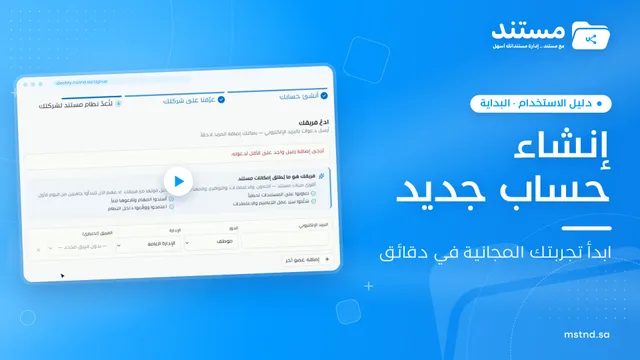 2:15
Creating a new Mstnd account: from your email to setting up your organization
Create your Mstnd organization account: verify email and mobile, add company and sector details, pick a structure template, invite your team, then await review.
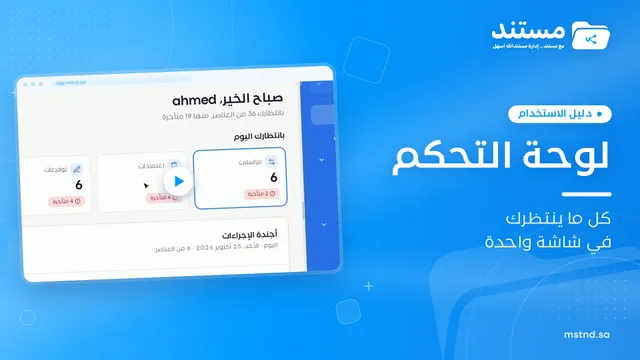 1:57
The Mstnd Dashboard: everything waiting for you on one screen
Learn the Mstnd Dashboard: the «Waiting for you today» cards, the Action agenda, workflows, Sanad recommendations, team activity and how to plan your day.
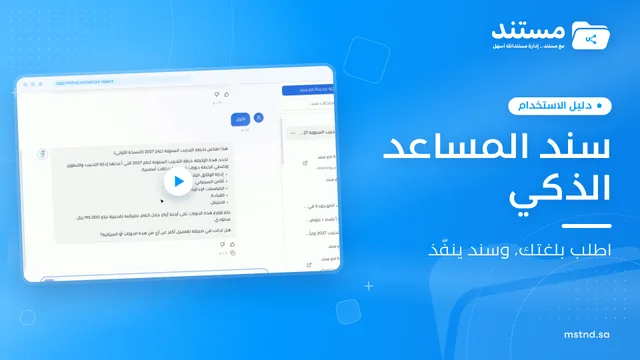 0:47
Sanad, the AI assistant in Mstnd: ask in your own words and let it do the work
Sanad is the Mstnd AI assistant: ask in your dialect; it searches and summarizes documents, asks to clarify and runs commands like creating a folder, with undo.
 1:26
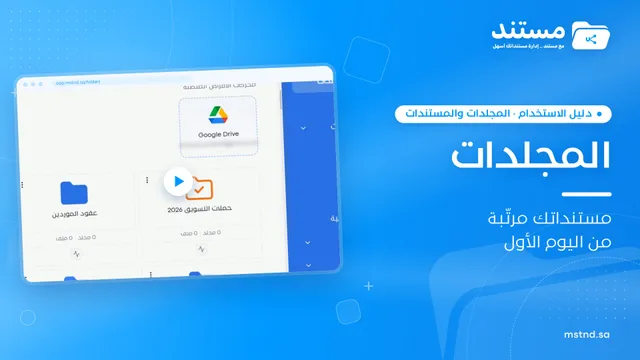
Folders in Mstnd: organize your organization's documents from day one
Learn the Mstnd Folders page: Personal space, structure folders, Shared with me, new folders with a confidentiality level, color and icon, views and actions.
 0:41
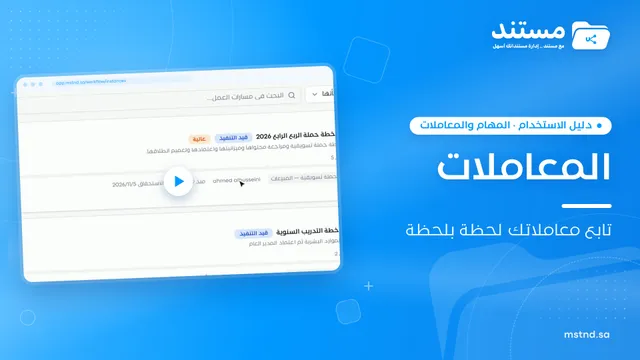
Transactions in Mstnd: follow every workflow from one screen
Learn the Mstnd Transactions page: see every workflow with its number, status, priority and progress, use scope and filters, export it and start a new workflow.
 0:50
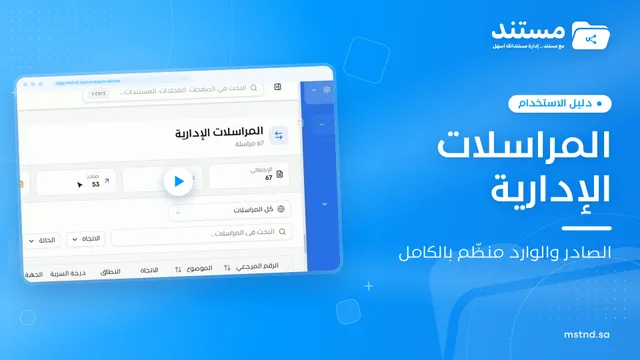
Administrative correspondence in Mstnd: outgoing and incoming in one organized register
Administrative correspondence in Mstnd: outgoing and incoming in one register, indicators, filters by direction, status and confidentiality, and reply threads.